
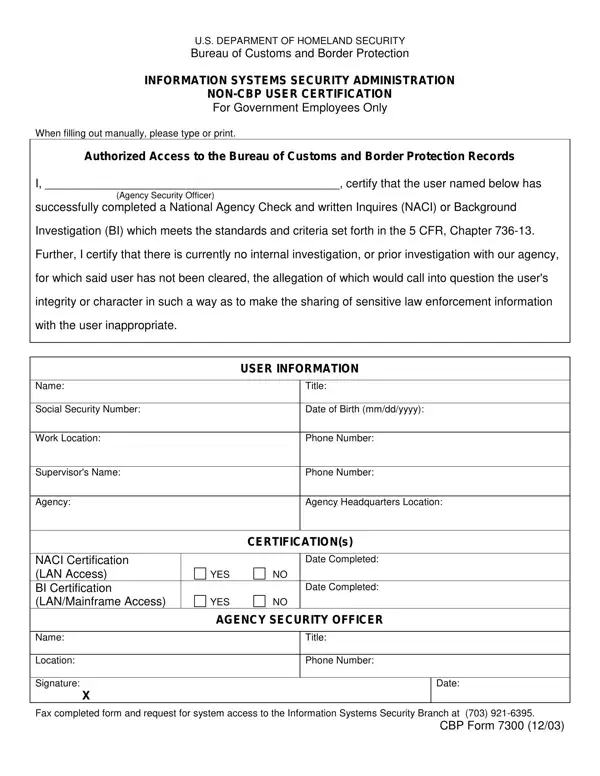

Form 7300 at a glance
What it is: CBP Form 7300 is the NON-CBP USER CERTIFICATION for individuals requesting access to CBP information technology systems.
Where and when to file: Once the form is complete, email the PDF to 7300systemaccessrequests@cbp.dhs.gov .
CBP uses the information collected on this form to verify with the Office of Personnel Management (OPM) that individuals requesting access to CBP information technology systems have undergone the appropriate required background investigation.
There are FOUR (4) sections to this form: User Information, Your Agency Supervisor, CBP Supervisor and Agency Personnel Security. Every section is MANDATORY, except CBP Supervisor Information which is only required for CBP staff, if you work for CBP.
What to bring and attach to Form 7300
You must use your CAC/PIV-certified signature. Self-signed certificates will not be accepted.
A filled-in Form 7300 example: a non-CBP user fills out the User Information section
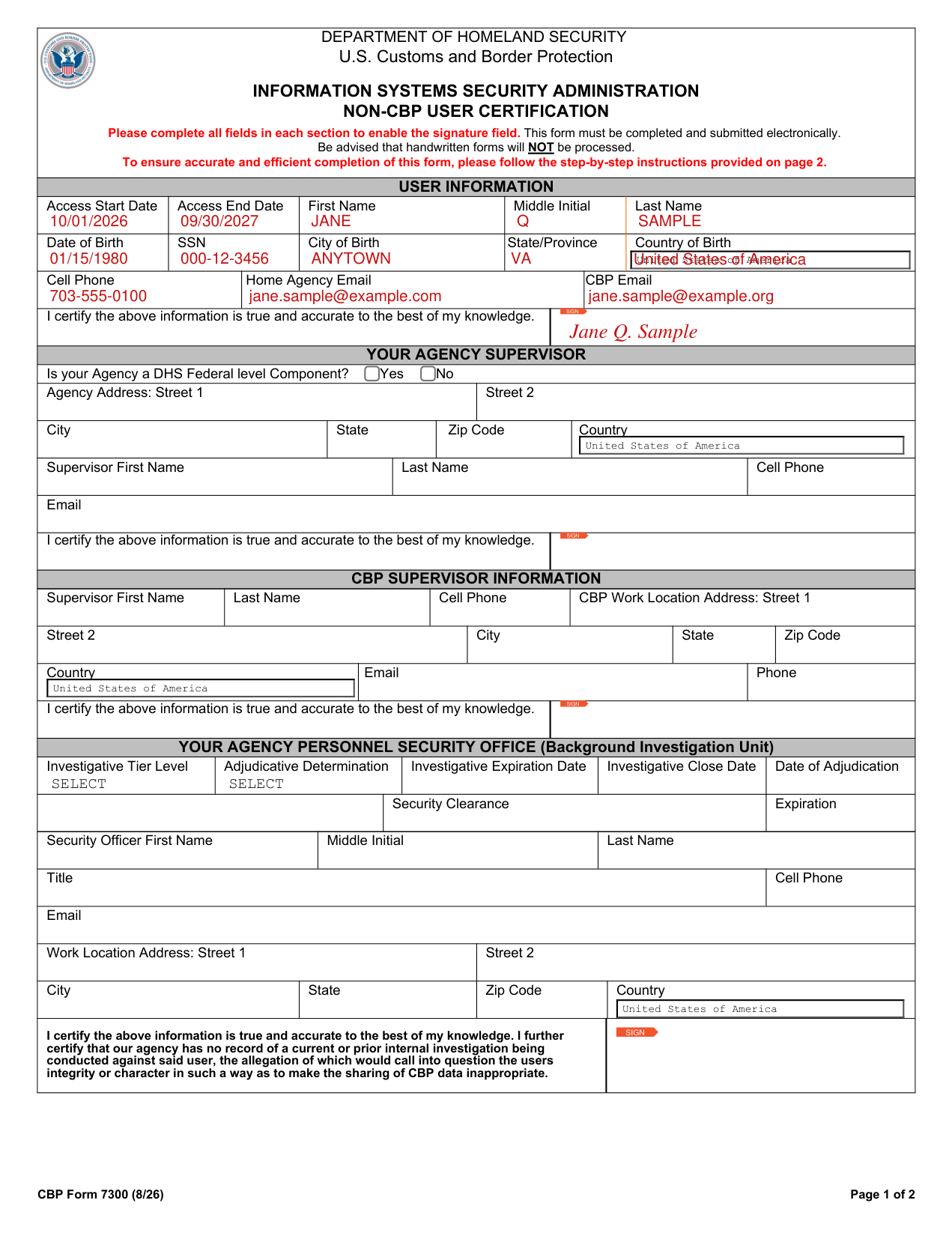
How to fill out Form 7300, box by box
User Information
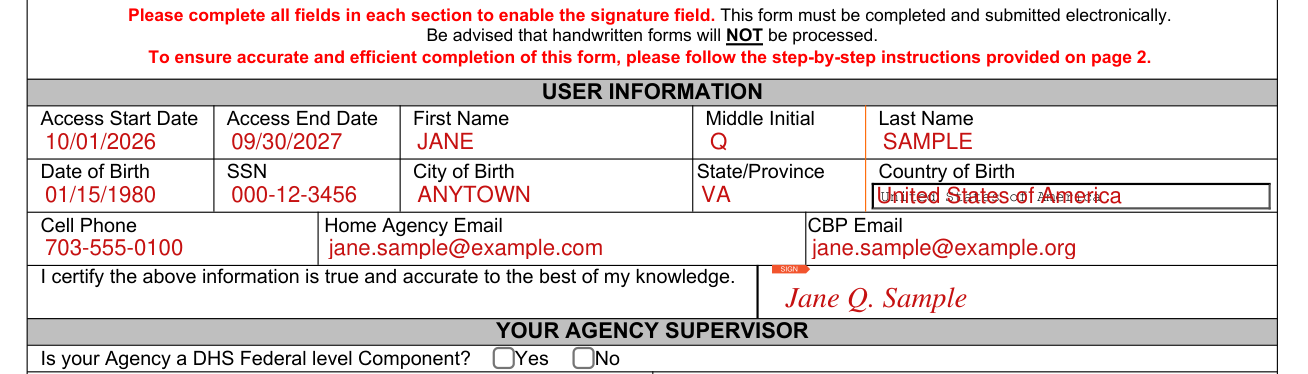
Fill out ONLY the section you are signing. If you pre-fill sections and send to your boss, it causes errors with the form that cannot be fixed and may require you to start over.
Under USER INFORMATION, fill in the Access Start Date, Access End Date, First Name, Middle Initial and Last Name.
Enter the Date of Birth, SSN, City of Birth, State/Province and Country of Birth.
Your disclosure of your personally identifiable information in this form (including your Social Security number) is voluntary. However, failure to furnish the requested information may result in the inability to process your request for access to CBP information systems.
Enter the Cell Phone, Home Agency Email and CBP Email.
SIGN: "I certify the information is true and accurate to the best of my knowledge."
Your Agency Supervisor
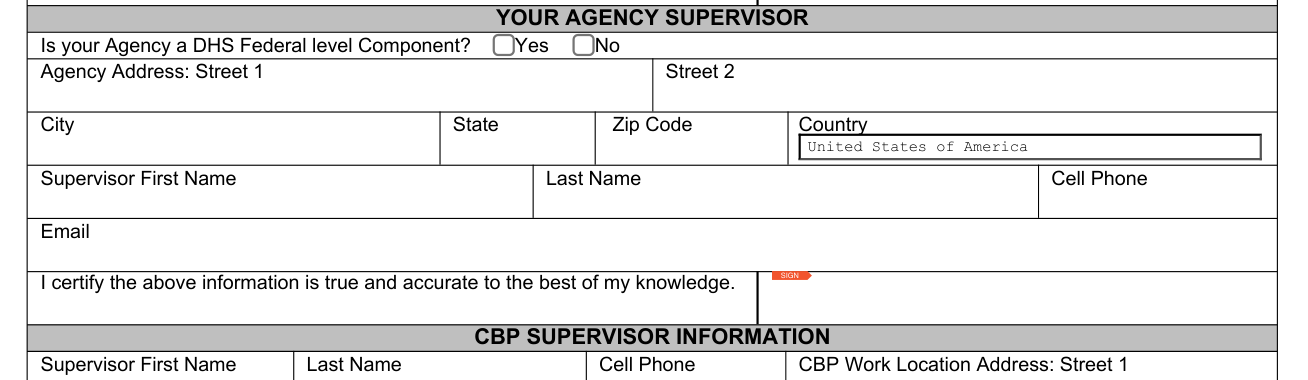
Under YOUR AGENCY SUPERVISOR, fill in Yes or No for "Is your Agency a DHS Federal level Component?"
Enter the Agency Address: Street 1, Street 2, State, Zip Code, City and Country.
Enter the Supervisor First Name, Last Name, Cell Phone and Email.
CBP Supervisor Information

Under CBP SUPERVISOR INFORMATION, enter the Supervisor First Name, Last Name and Cell Phone.
Enter the CBP Work Location Address: Street 1, Street 2, State, Zip Code, City and Country.
Enter the Email and Phone.
Your Agency Personnel Security Office
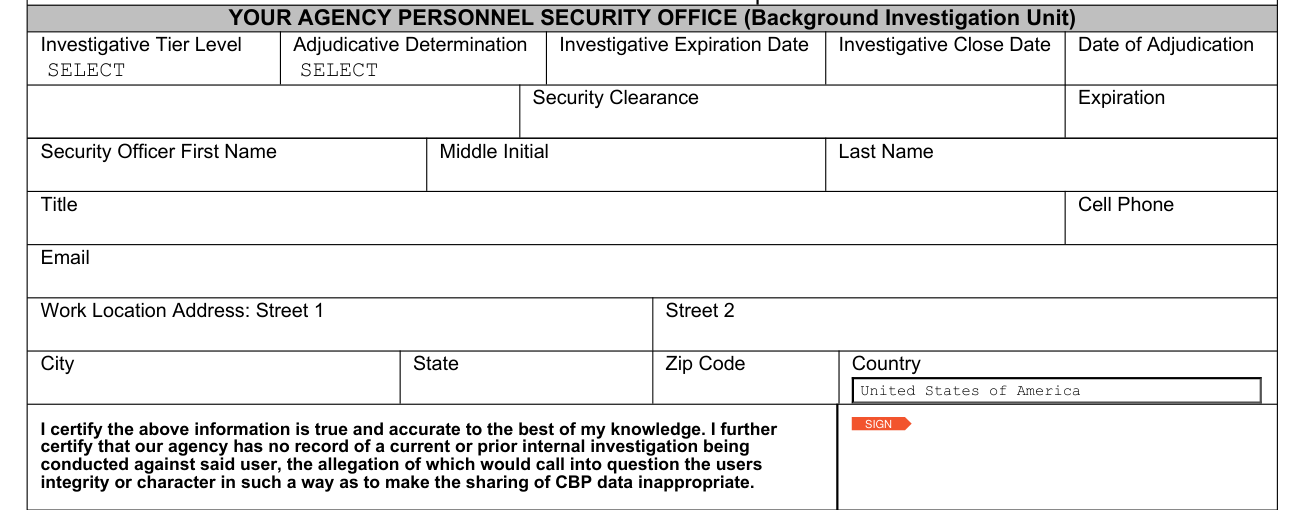
Under YOUR AGENCY PERSONNEL SECURITY OFFICE (Background Investigation Unit), SELECT the Investigative Tier Level and the Adjudicative Determination, then enter the Investigative Expiration Date, Investigative Close Date and Date of Adjudication.
Enter the Security Clearance and its Expiration.
Enter the Security Officer First Name, Middle Initial, Last Name, Cell Phone, Title and Email.
The Security Officer also enters the Work Location Address in Street 1, Street 2, State, Zip Code, City and Country.
At SIGN, Your Agency Personnel Security Office certifies that its agency has no record of a current or prior internal investigation being conducted against said user, the allegation of which would call into question the users integrity or character in such a way as to make the sharing of CBP data inappropriate.
More rules for Form 7300
Complete Your Section Only. Fill out all required fields in your designated section. Pay attention to the pop ups and the field color (red) that let you know which fields are required. Please ensure all these fields are completed before moving to the next step.
The SIGNATURE fields are disabled until every required field in your section is completed, and once the fields are filled, the signature field will automatically unlock.
Once you fill out and sign, every other person will need to do the same and once the required fields are filled in, the signature field will be enabled allowing them to sign.
If you receive a pre-filled form and cannot sign, click in one of two fields without changing anything and the signature block should enable allowing you to sign.
After applying your signature, click on the signature box. A dialog box should appear with a green check mark and the statement: "Signature is VALID." If you do not see the green check mark, please re-apply your official credentials.
Do NOT use Print to PDF to save the form. If this is done, the fields and signatures become unreadable causing the form submission to fail.
To save, click the Save icon at the top of the window, or go to File > Save (or Save As). Ensure the file remains in PDF format.
Attach the saved PDF to an email and send it to the next recipient. Do not pre-fill any sections other than your own.
If you are password protecting your file you must use the .ZIP extension. To password protect the file, you must zip the file and password protect it using a password for your specific AGENCY. Your agency password can be obtained from your 7300 Point of Contact, or contacting the 7300 Support Team.
Before you go
This form must be completed and submitted electronically. Handwritten forms will NOT be processed.
We DO NOT accept WET signatures. All forms MUST be filled out and signed digitally.
Common questions about Form 7300
Where do I file it?
Once the form is complete, email the PDF to 7300systemaccessrequests@cbp.dhs.gov .
Where to get help with Form 7300
For ALL Support questions send email to: 7300supportteam@cbp.dhs.gov.
Sources
[1] CBP Form 7300 (8/26), Non-CBP User Certification, U.S. Customs and Border Protection (the Official source link on this page).