
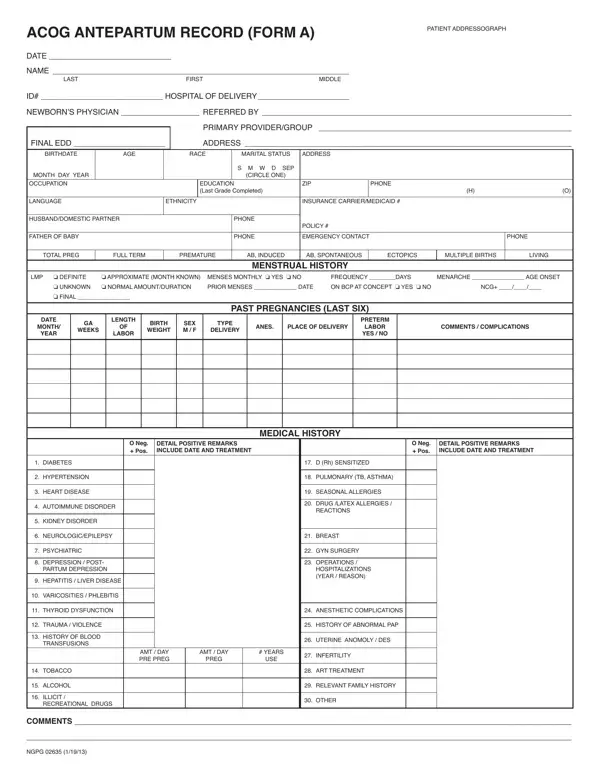
The ACOG Antepartum Record (Form A) is developed by the American College of Obstetricians and Gynecologists to standardize prenatal documentation across obstetric practices. Healthcare providers complete this form at the first prenatal visit and update it throughout the pregnancy.
The form is organized into several key sections. The patient identification section captures name, date of birth, address, insurance carrier, and emergency contacts. The obstetric history section records prior pregnancies, deliveries, complications, and outcomes. The medical history section documents chronic conditions such as diabetes, hypertension, heart disease, autoimmune disorders, and kidney disease. The family history section covers hereditary conditions relevant to pregnancy outcomes.
Additional sections record current medications, allergies, planned delivery location, and initial physical examination findings. Lab result fields track blood type, Rh factor, rubella immunity, hemoglobin levels, and screening test results. Risk factor checkboxes allow providers to flag items requiring closer monitoring throughout gestation.
This form is widely used by OB-GYN offices, hospital labor and delivery units, and midwifery practices. Accurate completion helps providers identify high-risk pregnancies early and coordinate care effectively. For a broader overview, see the Prenatal Record Sample. A printable Medical History Form is also available for patients who prefer to complete their health history separately before the appointment.
| Question | Answer |
|---|---|
| Form Name | ACOG Prenatal Form (Antepartum Record) |
| Also Known As | ACOG Antepartum Record Form A, fillable ACOG form, ACOG form template, prenatal intake form |
| Form Length | 1 page |
| Developed By | American College of Obstetricians and Gynecologists (ACOG) |
| Used By | OB-GYN offices, hospitals, midwifery practices |
| Avg. time to fill out | 10–15 minutes |
| Fillable Online | Yes – use FormsPal's free PDF editor |
ACOG Prenatal Form isn’t the one you’re looking for?