
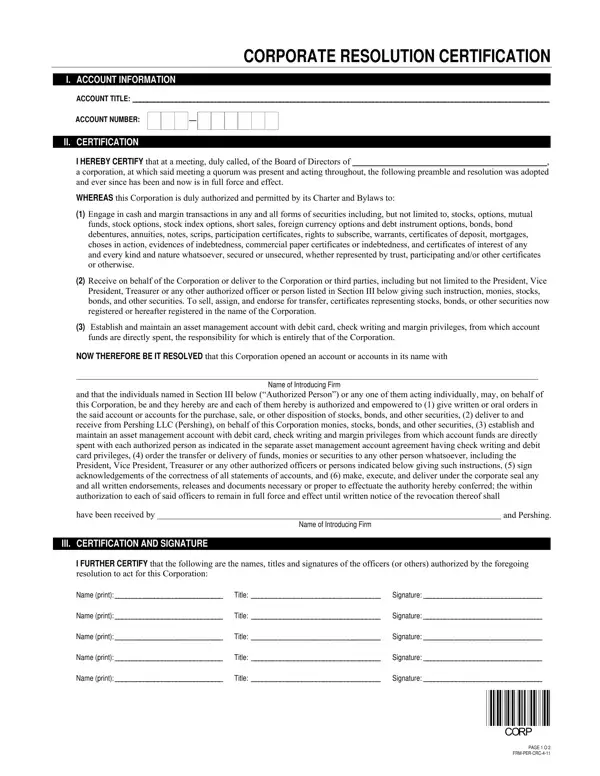
The Corporate Resolution Certification form is a formal corporate document that records a decision made by the board of directors, authorizing specific officers to act on the corporation's behalf in financial and investment matters. It is commonly required by broker-dealers, investment firms, and asset management companies before they permit corporate representatives to conduct transactions such as opening brokerage accounts, executing cash or margin trades, and managing investment portfolios.
The form identifies the financial account by title and account number. It provides space for the names, titles, and signature specimens of each authorized officer. A certification section states that the board resolution was adopted at a duly convened meeting with a quorum of directors present and that the resolution conforms to the corporation's charter and bylaws. The corporate secretary signs and dates the certification, and the corporate seal may be affixed where required by the receiving institution.
Officers listed on the form may have authority to buy and sell securities, place orders in margin accounts, transfer funds, and take other actions permitted by the board resolution. Each authorized officer's signature on this form serves as a reference specimen that the financial institution can use to verify future authorizations.
This form is typically required whenever a corporation opens a new brokerage account, applies for margin trading privileges, or grants designated officers the authority to manage a corporate investment account. Financial institutions and broker-dealers accept this certification as evidence that the individuals conducting transactions have been properly authorized by the board. Without a valid resolution on file, many institutions will not process orders or account requests on behalf of the corporation.
Related documents your corporation may also need: the Corporate Authorization Resolution form for general corporate actions, the Corporate Resolution Form Template for recording other board decisions, and the Corporation Bank Account Opening Form if you are establishing a new corporate bank account.
| Question | Answer |
|---|---|
| Form Name | Corporate Resolution Certification Form |
| Form Length | 2 pages |
| Fillable? | No |
| Fillable fields | 0 |
| Avg. time to fill out | 30 sec |
| Other names | corporate resolution certified copy, resolution certificate, generic corporate resolution to open a certificate of deposit, sba certificate and or resolution |
Corporate Resolution Certification Form isn’t the one you’re looking for?