
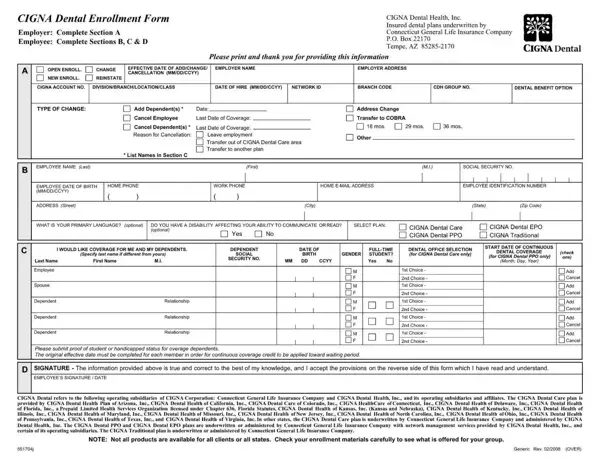
The dental insurance enrollment process starts when you complete this form and send it to your employer or benefits administrator. Reading each section carefully helps you avoid mistakes that delay the start of your coverage.
Employees who are offered dental benefits through a Cigna group plan use this form to sign up for coverage. New hires typically receive the form during onboarding. Current employees can use it during the annual open enrollment period. You may also submit it outside open enrollment if you experience a qualifying life event, such as marriage, the birth of a child, or a change in employment status.
Before you start, gather the following details:
Having all of this information ready before you sit down reduces errors. Missing or incorrect details can slow down the processing of your enrollment request.
Cigna offers multiple dental plan types. The most common options available through employer-sponsored programs are dental health maintenance organization plans and dental preferred provider organization plans.
With a DHMO plan, you select a primary dentist from the Cigna network. All care starts with that dentist. Specialist visits require a referral. Monthly premiums for DHMO plans are usually lower.
With a DPPO plan, you can visit any licensed dentist. Choosing an in-network dentist reduces your out-of-pocket costs. DPPO plans do not require referrals for specialist care. Review the benefits summary for each available plan before selecting one on the form.
Most Cigna dental plans divide covered services into three groups. Preventive care, such as cleanings, routine exams, and X-rays, is usually covered at 100 percent when you visit a network dentist. These services are available once or twice a year depending on your plan.
Basic dental services include fillings, simple tooth extractions, and periodontal care. Plans typically cover these at 70 to 80 percent after you meet your annual deductible. Major dental services include crowns, bridges, dentures, and oral surgery. Most plans cover major services at 50 percent.
Your plan also has an annual maximum benefit. This is the highest amount Cigna will pay toward your dental care in a single plan year. Once you reach this limit, you are responsible for 100 percent of additional dental costs for the rest of the year. Knowing your annual maximum helps you plan and budget for dental care throughout the year.
The enrollment form includes a section for adding dependents. For each person you want to cover, provide their full legal name, date of birth, and relationship to you. Most Cigna dental plans allow coverage for a spouse or domestic partner and children up to a specific age. Age limits for dependent children vary by plan. Confirm your plan's dependent rules with your employer before listing dependents on the form.
Submit your completed form before your employer's enrollment deadline. Late submissions may not be accepted. If you miss the window, you generally must wait until the next open enrollment period to sign up for coverage.
After Cigna receives your enrollment request, they will process it and confirm your coverage start date. You can check your coverage status and view your plan information by creating or logging in to your MyCigna online account. You can also call Cigna Healthcare customer service if you have questions about your coverage or plan details.
Once your coverage is active, you can start using your dental benefits. Show your Cigna insurance card at your dentist's office. Your dentist will submit claims directly to Cigna for services that are covered under your plan.
You may need additional forms as you use your Cigna dental insurance. If a dental claim is denied or partially paid, you can request a review by completing the Cigna appeal form. For certain dental procedures that require advance approval, such as oral surgery or periodontal treatment, your dentist may need to submit a Cigna prior authorization form before the procedure takes place.
If your employer plan includes vision coverage alongside dental, the Cigna vision claim form allows you to submit out-of-network vision expenses for reimbursement. For dental claims you submit directly as a patient rather than through your dentist's office, the ADA dental claim form is the standard document accepted by most dental insurance providers.
| Question | Answer |
|---|---|
| Form Name | Cigna Dental Enrollment Form |
| Form Length | 2 pages |
| Fillable? | No |
| Fillable fields | 0 |
| Avg. time to fill out | 30 sec |
| Other names | cigna dental enrollment get, form dental enrollment cigna, dental enrollment form cigna, form enrollment cigna dental |
Cigna Dental Enrollment Form isn’t the one you’re looking for?