
Billing
The Billing section lets you view and manage your FormsPal subscription and payment details. Here, you can check your current plan, subscription price, billing period, and payment history. You can also update your payment information through the secure Stripe Portal or cancel your subscription directly from your dashboard.
How to view and manage your billing information?
To access your billing details, follow these steps:
- Click Billing in the left sidebar of your FormsPal dashboard.
- The Billing Information page will open, showing your current subscription plan, price, and billing details. If you're on a free trial, you'll also see when your trial ends.
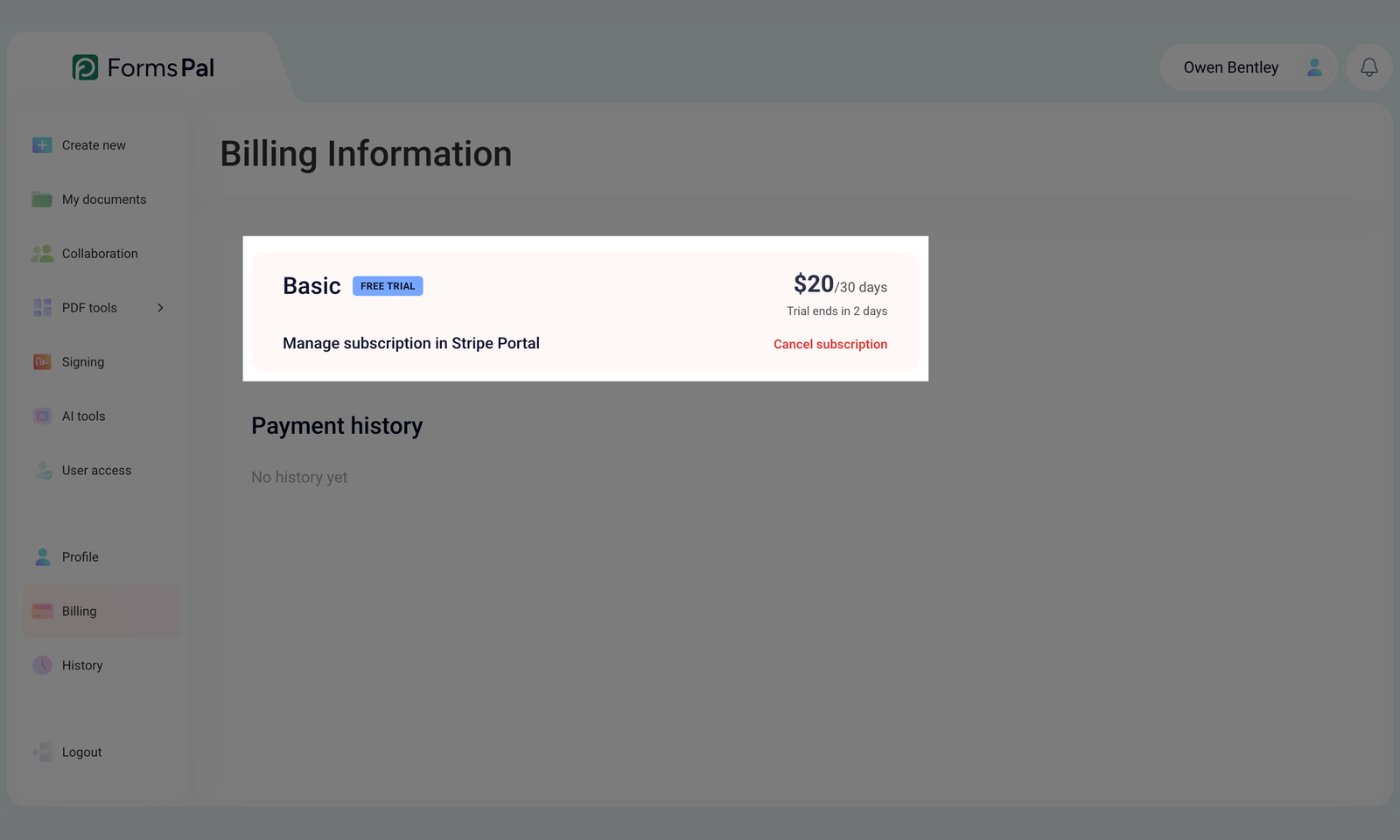
- Click Manage subscription in Stripe Portal to access your subscription and payment settings.
In the Stripe Portal, you can manage your payment methods and review the available subscription options. Follow the on-screen instructions to make any changes.
How to cancel your subscription?
To cancel your subscription, follow these steps:
- Go to Billing in the left sidebar.
- Find your current plan under Billing Information and click Cancel subscription.
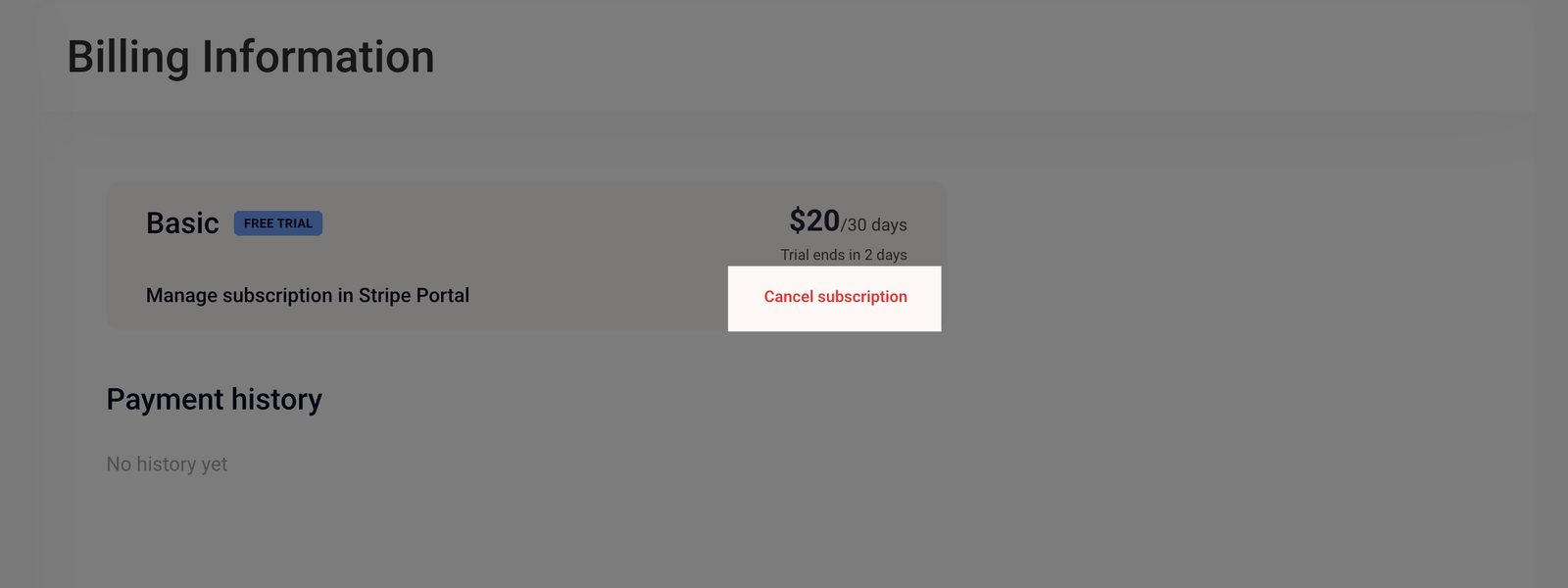
- A confirmation window will appear, showing the date your subscription will end. Review the details and click Cancel subscription to confirm.
- Once your cancellation is processed, a Subscription cancelled message will appear. You can optionally select a reason for canceling.
- Click Done to close the confirmation window.
Your subscription will remain active until the end date displayed on your Billing page. You won't be charged again for the canceled subscription.
How to keep your subscription after cancellation?
If you change your mind before your subscription expires, you can reverse the cancellation.
To keep your subscription active, follow these steps:
- Open Billing from the left sidebar.
- Find your canceled subscription under Billing Information. You'll see the date your subscription is scheduled to end.
- Click Keep my subscription to reverse the cancellation.
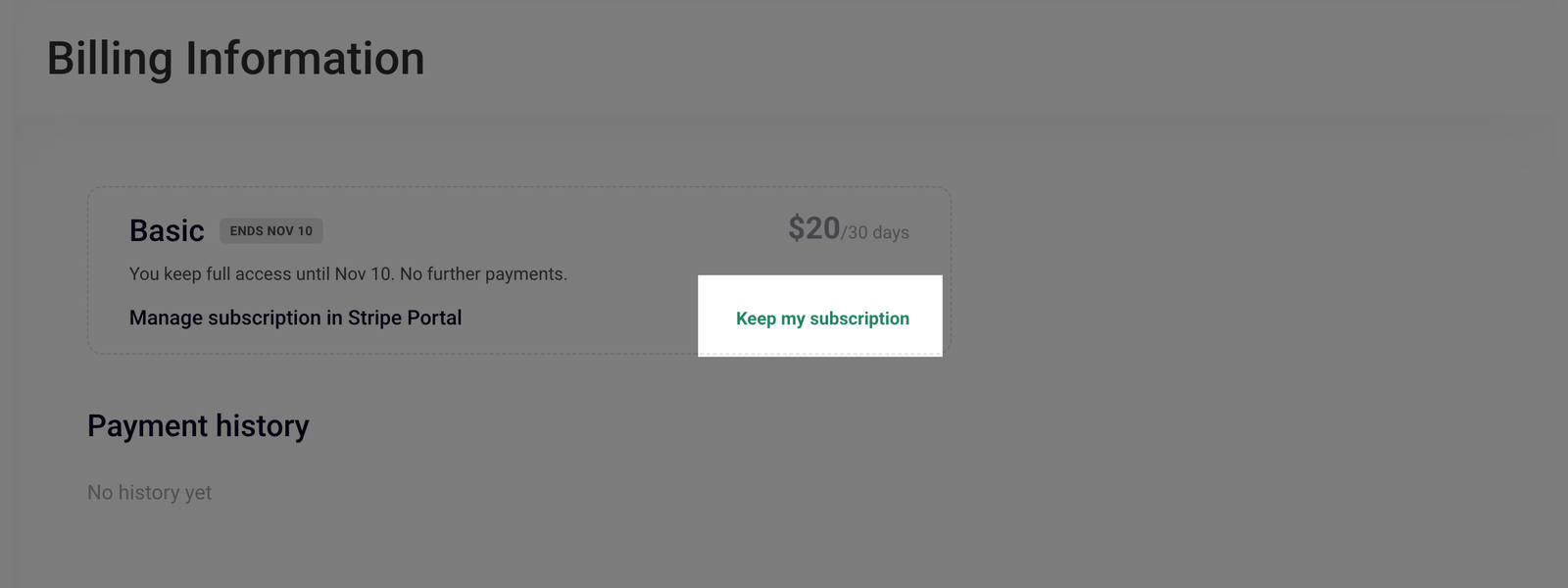
Your subscription will remain active, and your regular billing schedule will continue.
How to view your payment history?
You can review your previous payments directly from the Billing Information page.
To view your payment history, follow these steps:
- Click Billing in the left sidebar.
- Scroll down to the Payment history section below your subscription details.
- Review the available payment records.
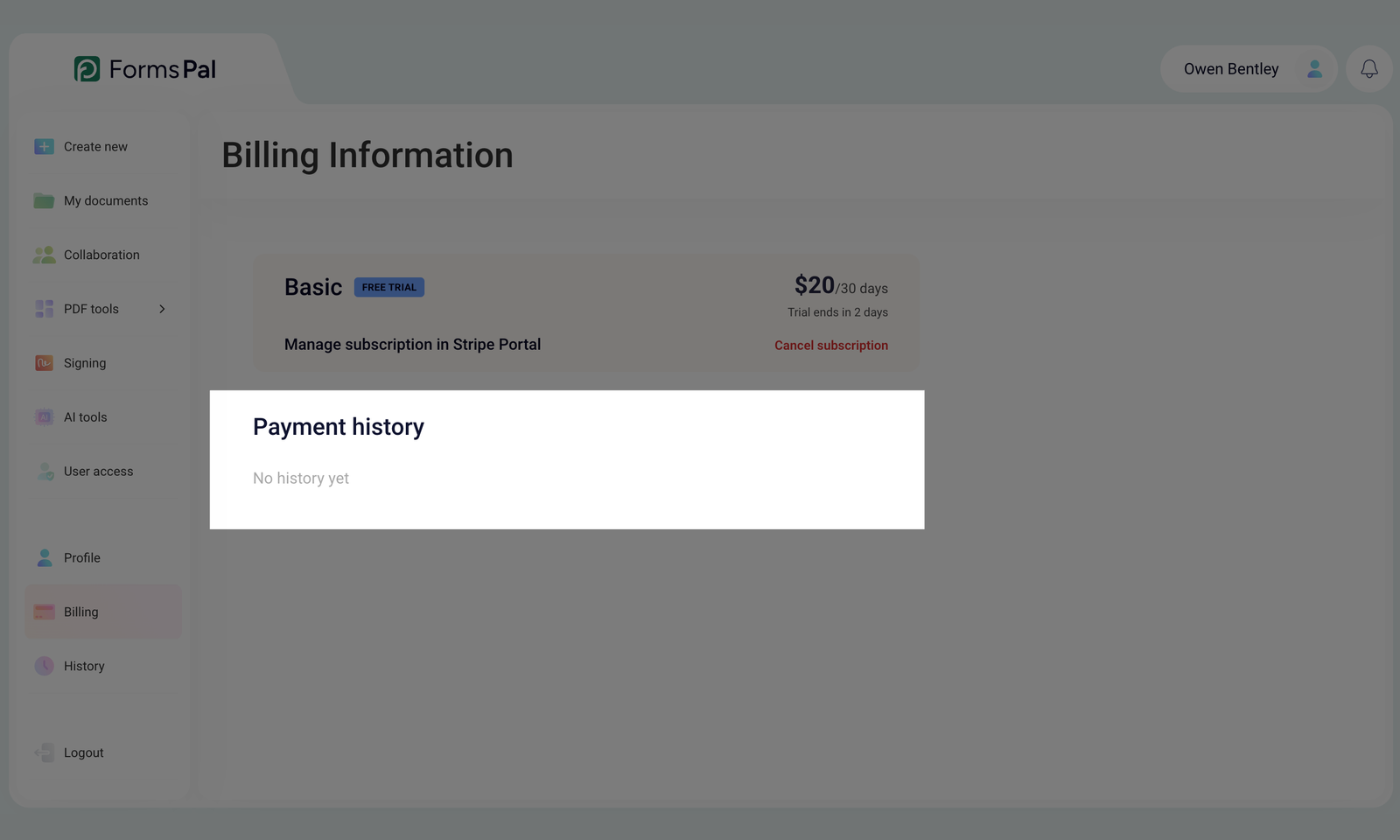
If no payments have been recorded, you'll see the No history yet message.