
User Access
The User Access section lets you manage and monitor users' access to your documents. You can find specific users, check which documents they have access to, review their assigned roles, and remove access when needed.
This section includes users you've invited to collaborate on documents or participate in the signing process.
How to view user access?
To view user access information, follow these steps:
- Click User access in the left sidebar of your FormsPal dashboard.
- Use the Search field to find specific users by entering their email addresses or partial text.
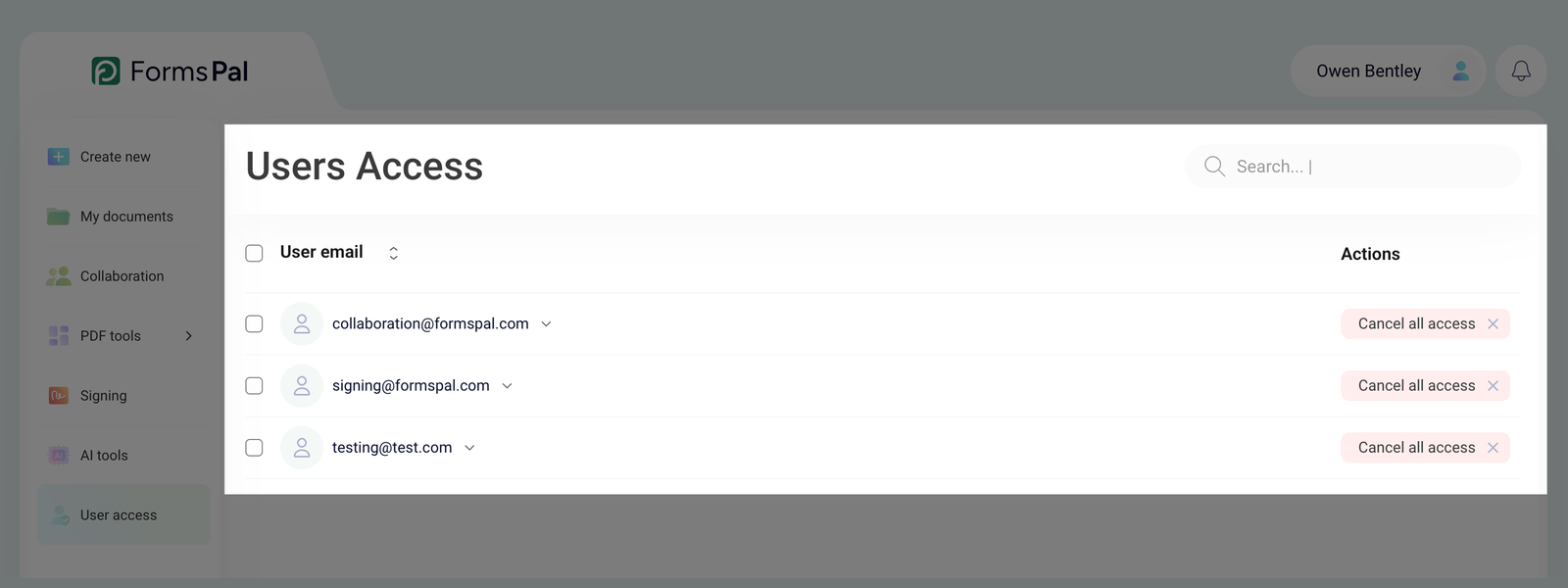
The list displays the following information:
- User email - shows the user's email address.
- Actions - provides an option to cancel all access for a particular user.
- Click the up and down arrows next to User email to sort the list alphabetically or in reverse order.
- Click the downward arrow next to a user's email address to expand their information.
The expanded list shows the documents available to that user, including:
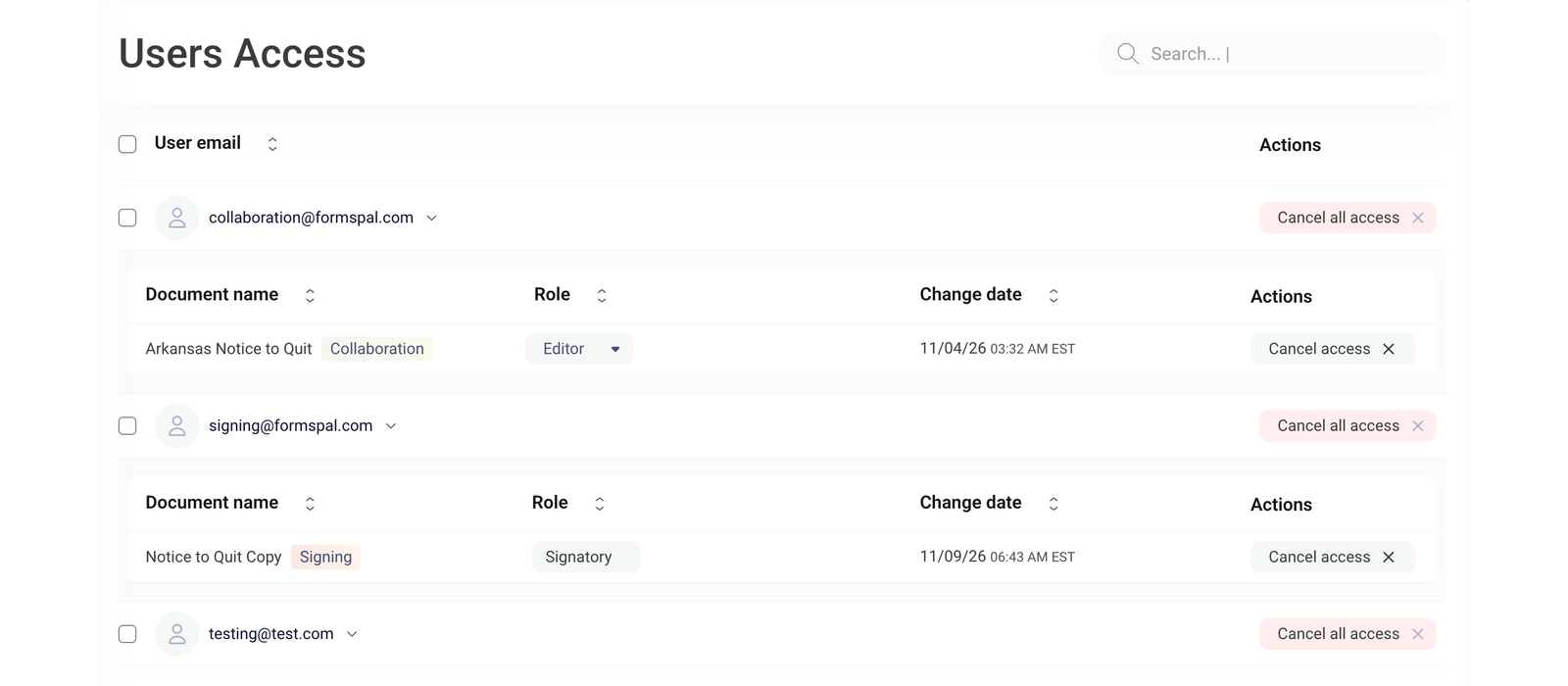
- Document name - the document's name and its associated activity, such as Signing or Collaboration.
- Role - the user's assigned role for the document.
- Change date - shows when the user's access was last updated.
- Actions - provides an option to remove access to a specific document.
- Use the up and down arrows next to the column headings to change the sorting order.
If no documents are available, the list will display a No data message.
If your user list spans multiple pages, use the pagination controls at the bottom to move between pages.