
User Access
Cancel access
The User Access section allows you to revoke users' access to documents shared through FormsPal. You can remove access to a specific document, cancel all access for one user, or revoke permissions for multiple users at once.
Once access is removed, the affected users can no longer view or edit the documents through their accounts.
How to cancel access to a document?
To remove a user's access to a specific document, follow these steps:
- Click User access in the left sidebar of your FormsPal dashboard.
You'll see a list of users you've added for signing or collaboration, along with their email addresses and available actions.
- Find the user whose access you want to remove and click the downward arrow next to their email address.
A list of documents available to that user will appear. Find the document you want to remove from their access.
- Click Cancel access in the Actions column next to the document.
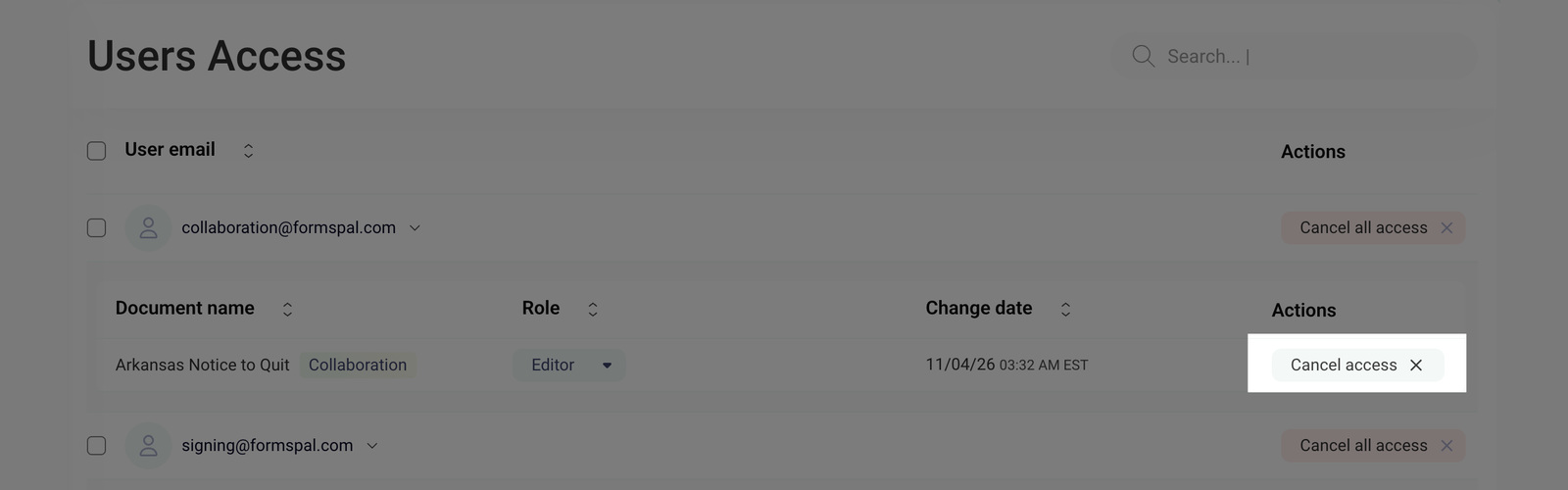
Once access is removed, a confirmation message, Access was canceled, will appear, and the document will disappear from the user's access list.
Once access is revoked, the user can no longer view or edit the document.
How to revoke all access for a user?
If you want to remove a user's access to all shared documents, follow these steps:
- Open User access from the left sidebar.
- Find the user whose access you want to revoke. You can use the Search field to locate them by email address.
- Click Cancel all access next to the user's email address.
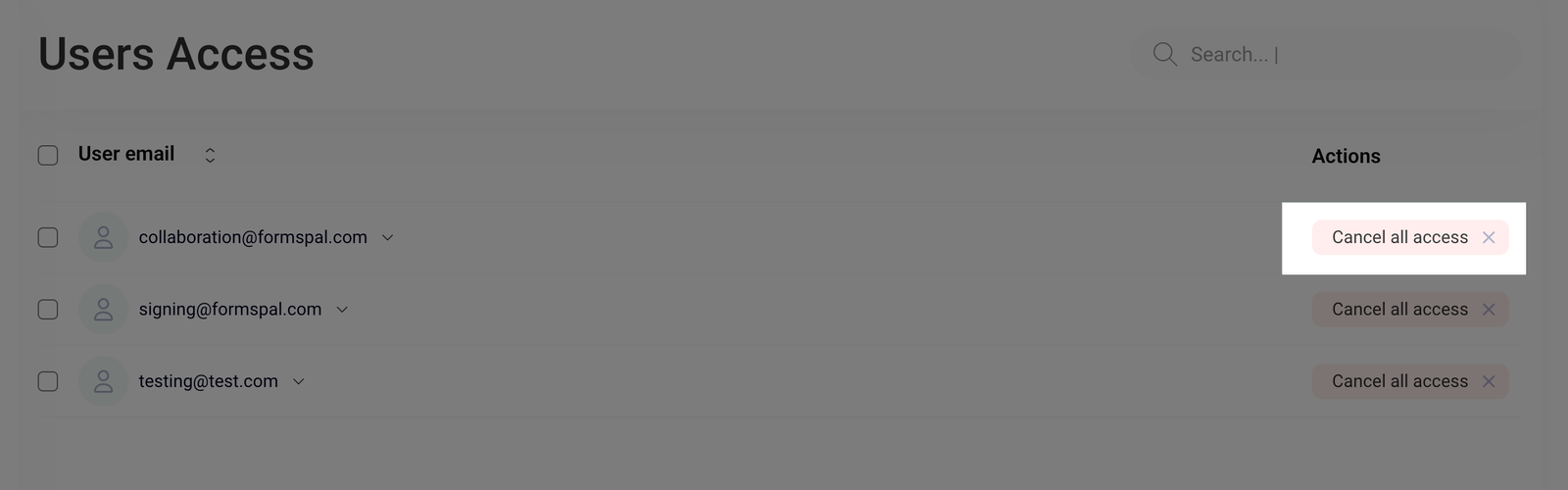
- A confirmation window will appear, asking if you want to cancel full access for that user.
Click Confirm to proceed or Cancel to keep their existing permissions.
After confirmation, the user's access to all associated documents will be removed.
How to remove access for multiple or all users?
You can also revoke document access for several users at once. To do this, follow these steps:
- Go to the User access section in your FormsPal dashboard.
- Select the checkboxes next to the email addresses of the users whose access you want to remove.
To select all users on the current page, click the checkbox next to User email at the top of the list.
- Once you've selected the users, an Actions menu will appear on the right. The number next to Actions shows how many users are selected.
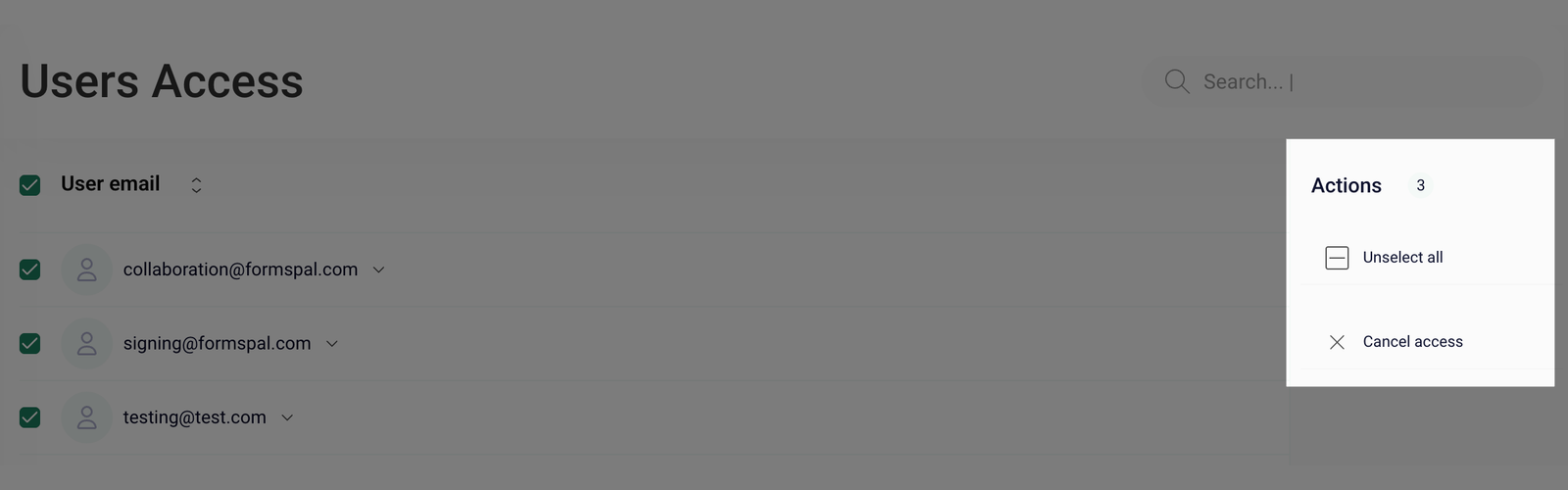
- Click Cancel access in the Actions menu.
- A confirmation prompt will appear below the option.
Click Confirm to remove access for the selected users, or Cancel to stop the action.
You can also click Unselect all to remove the current selection.
The selected users will lose access to the documents associated with their accounts.
Revoking user access doesn't delete your original documents. They will remain in your My documents section.