
PDF Editor
Our PDF Editor lets you edit, fill out, and sign PDF documents directly from your browser. You can add text, insert images, highlight information, make changes to existing content, and save your completed documents without installing additional software.
How to open the PDF Editor?
You can open the PDF Editor in several ways, depending on where your document is stored.
- From the FormsPal website: Go to the FormsPal PDF Editor and upload the PDF file you want to edit.
- From your dashboard: Click Create new in the left sidebar. In the Upload document section, click Select files to upload a PDF from your device. You can also import a file from Google Drive, OneDrive, or Dropbox.
Once your document opens in the PDF Editor, you can use the available editing tools to make changes.
What editing tools can you use?
The editing toolbar provides all the tools you need to complete and customize your document.
 |
Move | Allows you to reposition objects within the document, such as text boxes, images, or form fields. |
 |
Text | Lets you add custom text anywhere on the document. You can type directly into the document and adjust font settings. |
 |
Eraser | Covers unwanted text or other content with a white rectangle. |
 |
Redact | Covers sensitive information with a black rectangle to permanently remove it from the document. |
 |
Highlight | Allows you to emphasize important text by applying a highlight effect. |
 |
Image | Lets you insert images into the document, such as logos, stamps, or scanned signatures. |
 |
Sign | Provides options for adding electronic signatures, either by drawing, typing, or uploading a signature image. |
 |
Cross | Adds an "X" mark anywhere in the document, often used for indicating selections or marking errors. |
 |
Checkmark | Inserts a checkmark symbol to indicate approval or selection in forms and checklists. |
 |
Circle | Draws a circular shape to highlight specific areas or elements in the document. |
 |
Edit content | Change existing text in your document and adjust its formatting. |
To undo your last action, click the left arrow (Undo) in the editing toolbar. To restore an undone action, click the right arrow (Redo).
How to edit a PDF document?
Once your document is open in the PDF Editor, you can start making changes.
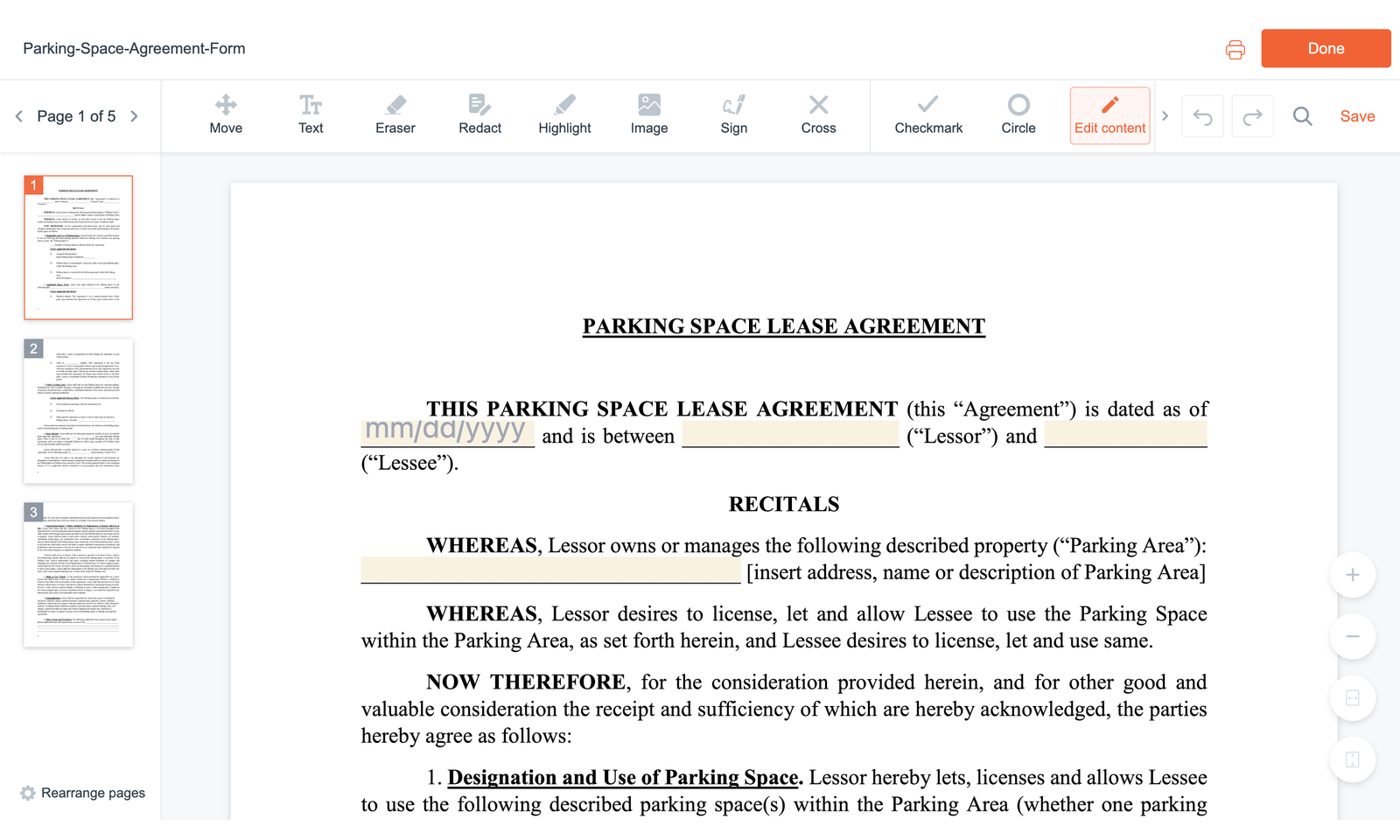
To edit your PDF, follow these steps:
- Choose the tool you need from the toolbar, such as Text, Image, or Highlight.
- Click the area of the PDF where you want to add or modify content.
- Use Move to reposition added objects. You can also resize text boxes, images, and other elements to fit your document.
- Check the document to make sure everything is placed correctly, and all required fields are completed.
For detailed instructions on each tool, see the corresponding PDF Editor guides.
How to save and export your PDF?
After editing your document, you can save your changes, download the completed PDF, print it, or return to your dashboard.
To save and export your document, follow these steps:
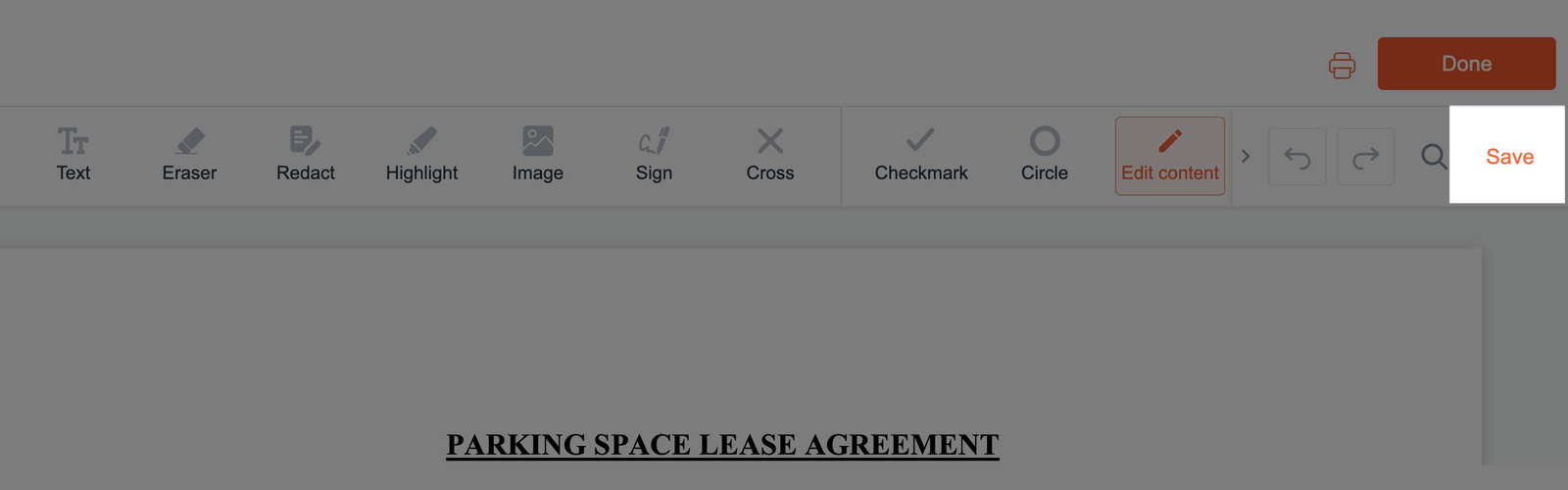
- Click Save in the top-right corner of the editing toolbar to save your changes.
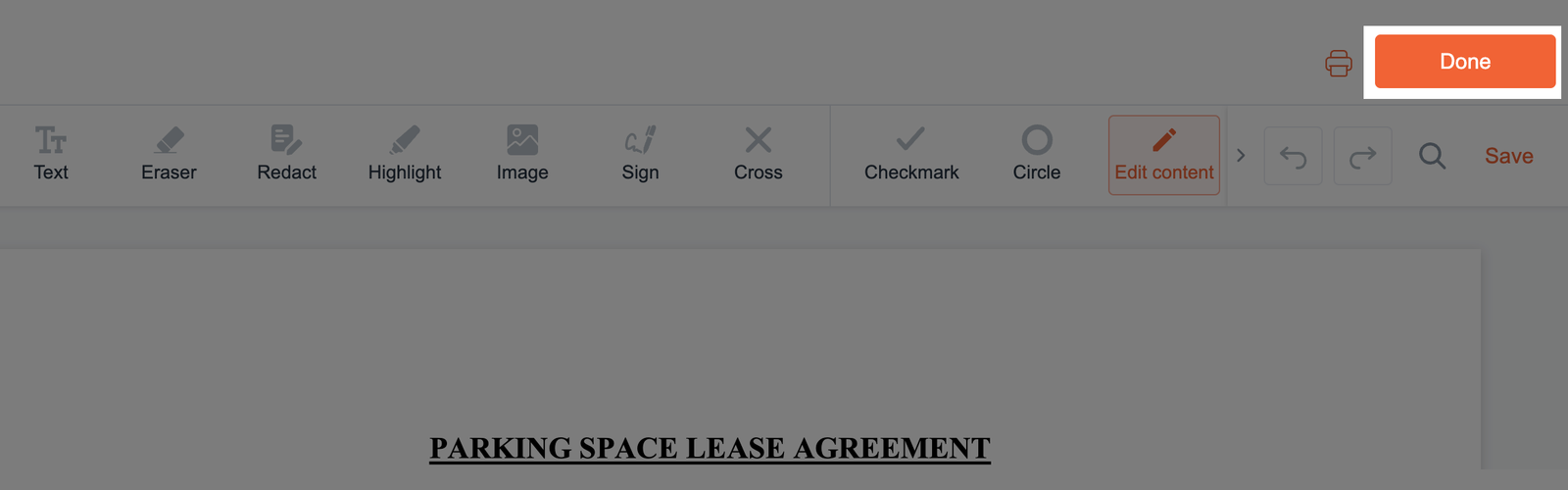
- When you're finished editing, click Done in the upper-right corner of the screen.
- A window titled What would you like to do? will appear, offering the following options:
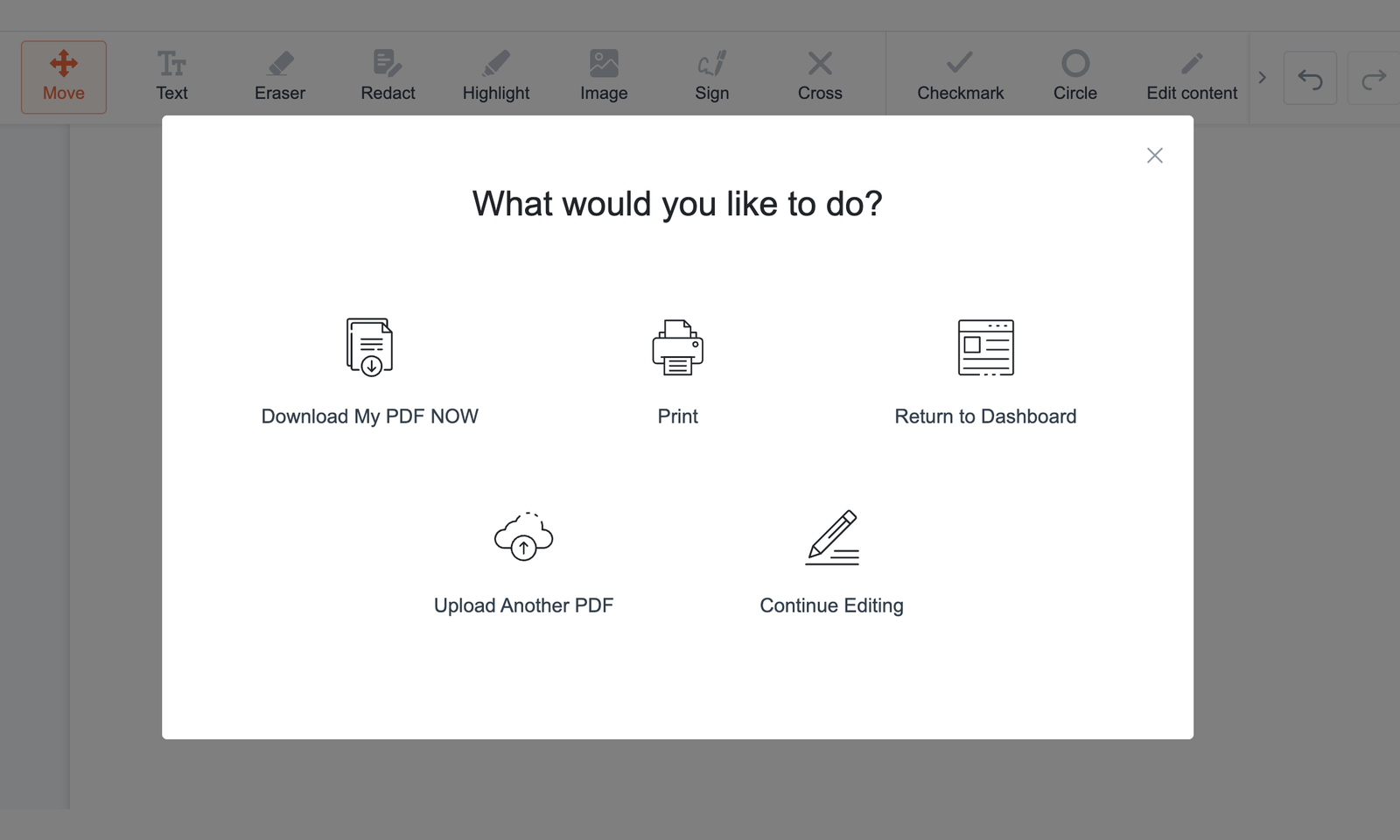
- Download My PDF NOW - download the completed PDF to your device.
- Print - print your document.
- Return to Dashboard - go back to your FormsPal dashboard.
- Upload Another PDF - upload a different PDF document to edit.
- Continue Editing - close the window and return to the PDF Editor.
Select the option that fits what you want to do next.
Guides in this section
- Move objects in a documentThe Move tool in the PDF Editor allows you to reposition objects you've added to your document.
- Add text to a documentThe Text tool in the PDF Editor allows you to add new text to your document and edit text boxes you've added.
- Erase content from a documentThe Eraser tool in the PDF editor allows you to cover unwanted content with a white rectangle.
- Redact sensitive information in a documentThe Redact tool in the PDF Editor allows you to cover unwanted or sensitive information with a black rectangle.
- Highlight text in a documentThe Highlight tool in the PDF Editor allows you to emphasize important text or other parts of your document with a translucent yellow rectangle.
- Add an image to a documentThe Image tool in the PDF Editor allows you to insert images into your document, such as logos, stamps, or illustrations.
- Sign a documentThe Sign tool in the PDF Editor allows you to add a signature to your document.
- Add marks and shapes to a documentThe Cross, Checkmark, and Circle tools in the PDF Editor allow you to add marks and shapes to your document.
- Edit existing content in a documentThe Edit content tool in the PDF Editor allows you to change existing text in your document.
- Search for text in a documentThe Search feature helps you quickly locate text within your document.
- Adjusting the document viewThe FormsPal PDF Editor lets you adjust how your document appears on the screen.
- Rearrange pages in documentsThe Rearrange pages feature in the PDF Editor allows you to manage your document's pages in one window.