
PDF Editor
Add marks and shapes to a document
The Cross, Checkmark, and Circle tools in the PDF Editor allow you to add marks and shapes to your document. You can use them to mark selections, fill out forms, or draw attention to specific areas.
You can place these marks anywhere on the page and adjust their position and size as needed.
How to add marks and shapes to a document?
To add a mark or shape to your document, follow these steps:
- In the PDF Editor, select one of the following tools from the top toolbar:
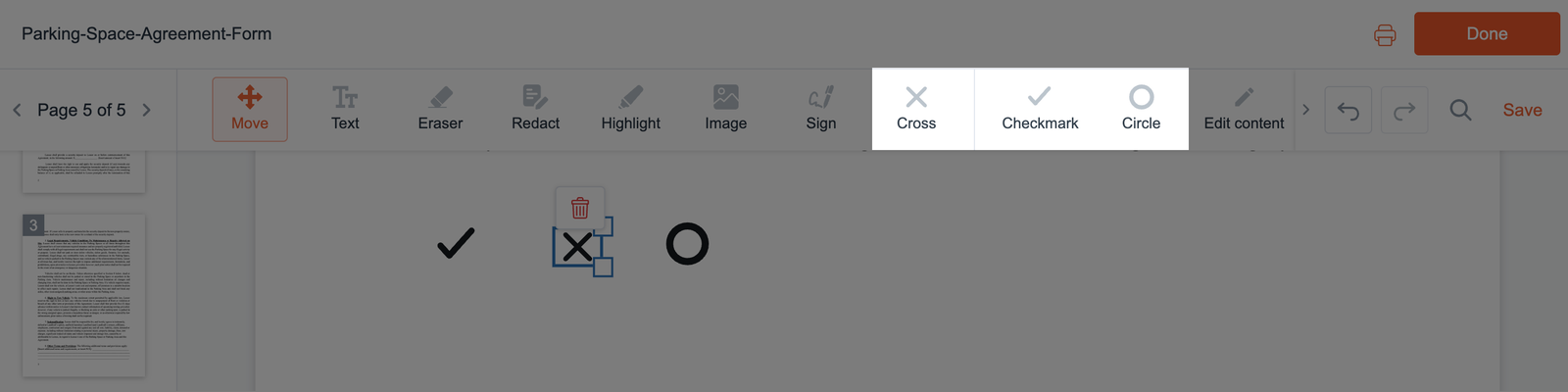
- Cross - add a crossmark to mark an item or field.
- Checkmark - add a checkmark to indicate a selection.
- Circle - add a circle to highlight a specific area.
- Click the area of the document where you want to place the selected mark or shape. You can click other locations to add more.
- To move a mark or shape, click and hold it, then drag it to the desired location.
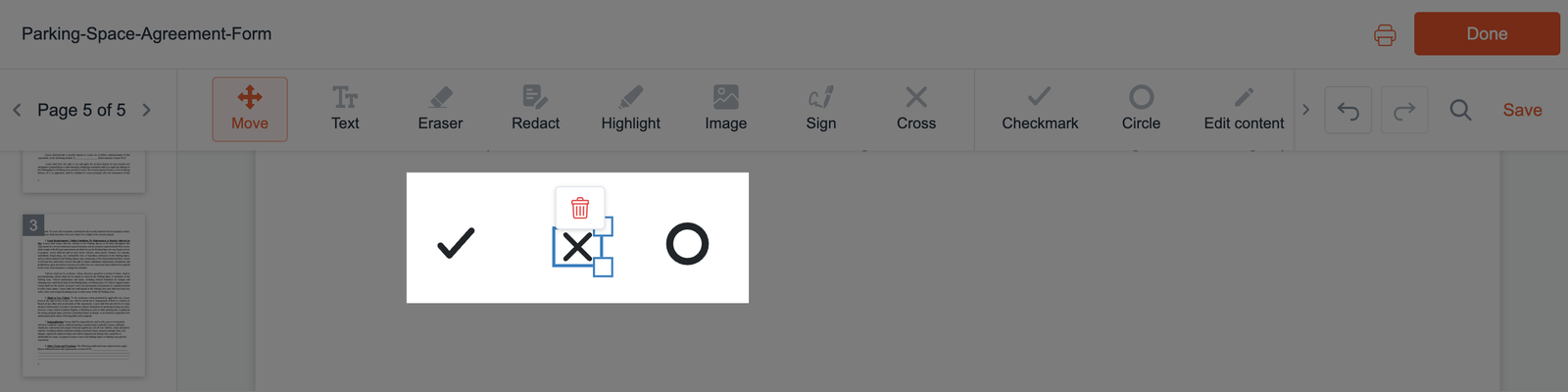
- To resize it, select the object and drag the handle at the bottom-right corner to adjust its size.
- To delete a mark or shape, select it, then click the trash icon above it.
- Check that the marks and shapes are positioned correctly on the document.