
PDF Tools
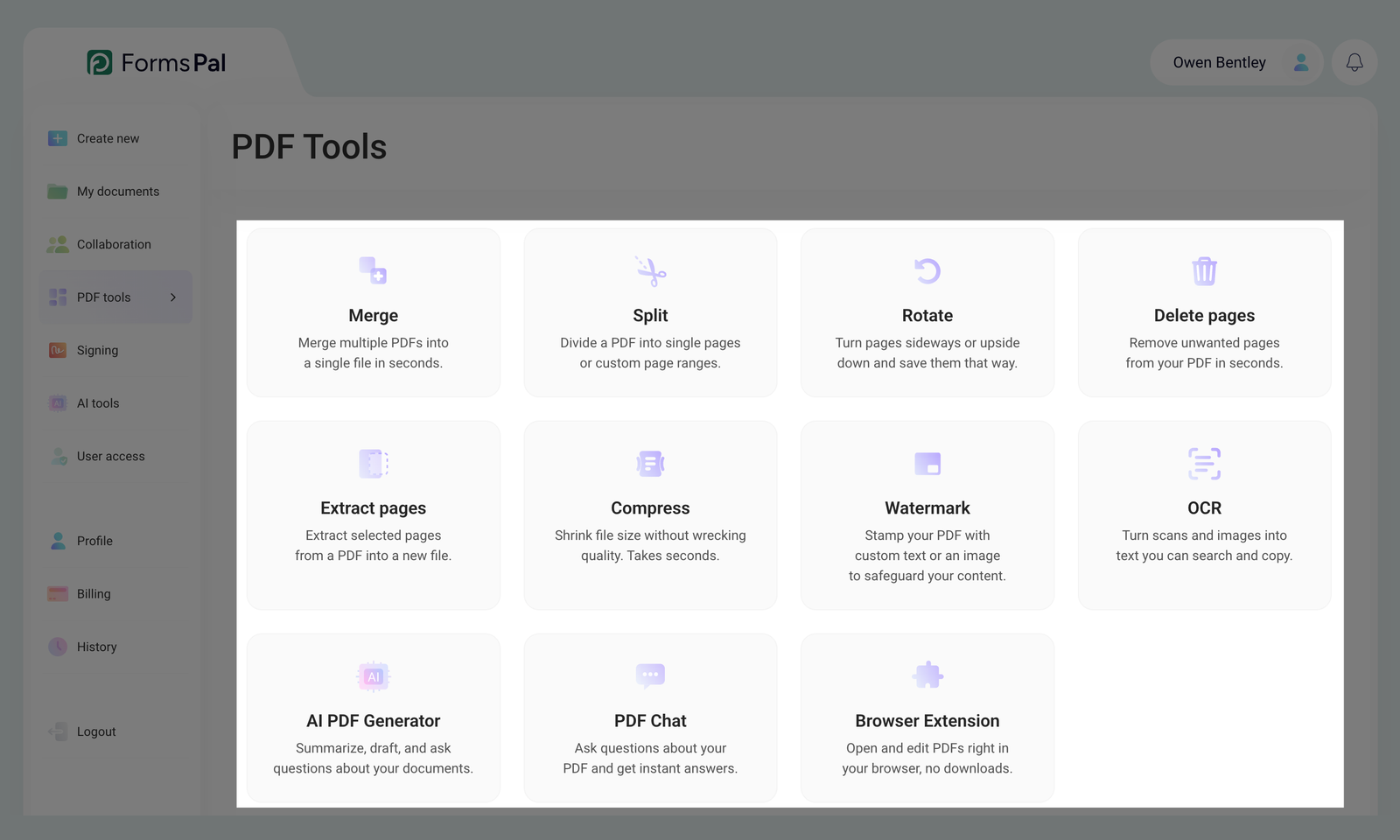
PDF tools help you edit, organize, and manage PDF documents. Use these features to edit your files, work with scanned documents, and create new content directly in your browser.
Available PDF Tools:
- Merge - combine multiple PDFs into a single document.
- Split - separate a PDF into multiple files or extract specific pages.
- Rotate - adjust the orientation of pages in a PDF.
- Delete pages - remove unwanted pages from a document.
- Extract pages - select and save specific pages as a new PDF file.
- Compress - reduce the file size while maintaining document quality.
- Watermark - add text or images to protect or brand your document.
- OCR - convert scanned documents and images into text you can search, select, and copy.
- AI PDF Generator - create and draft documents using AI based on your instructions.
- PDF Chat - ask questions about your PDF documents, get answers, and summarize content using AI.
- Browser Extension - open and edit PDF documents directly in your browser without downloading them first.
How to open PDF tools?
Follow the steps below to open the available PDF editing tools:
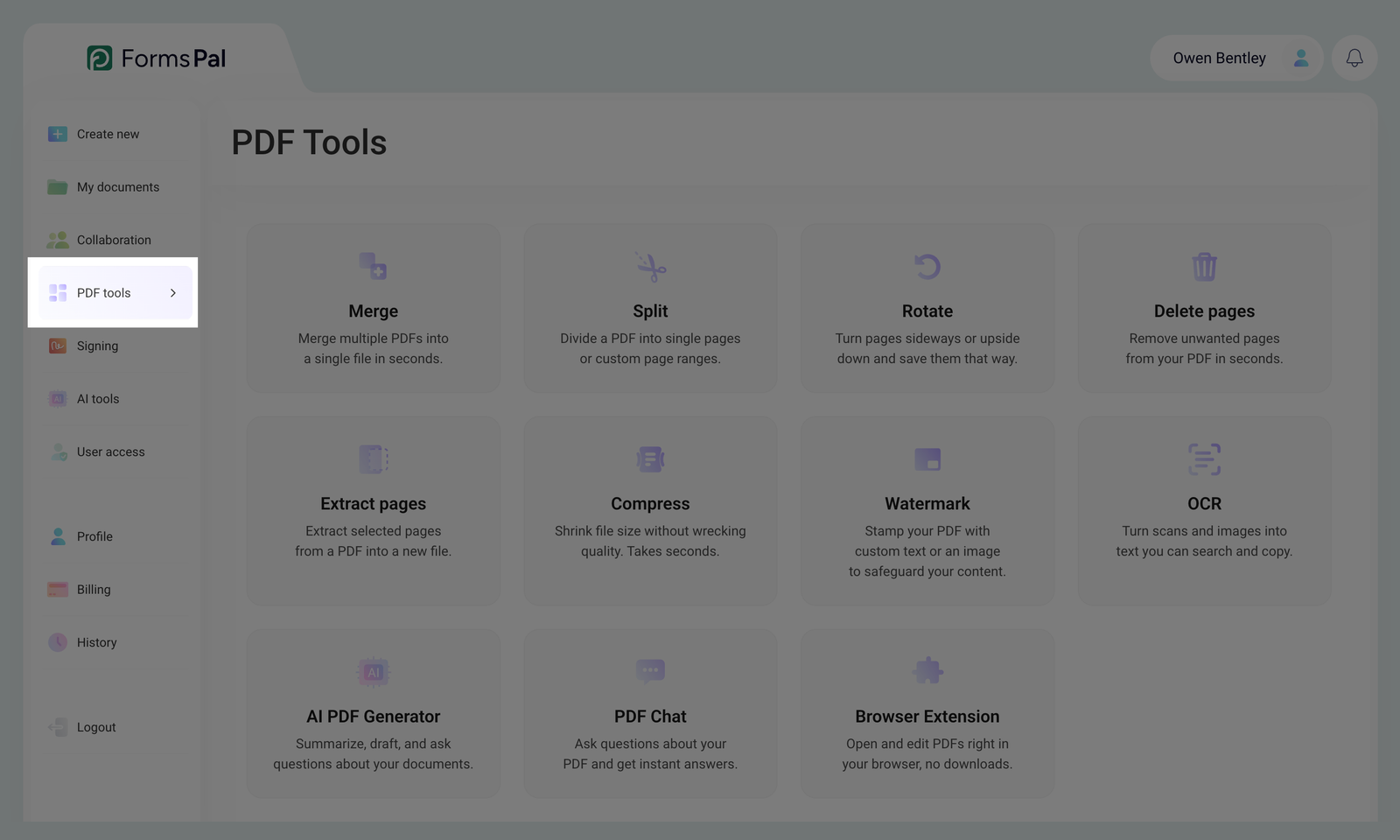
- On the main dashboard, locate the left-side menu and click on PDF Tools to open the tools panel.
- Select the PDF tool you want to use (Merge, Split, Rotate, etc.).
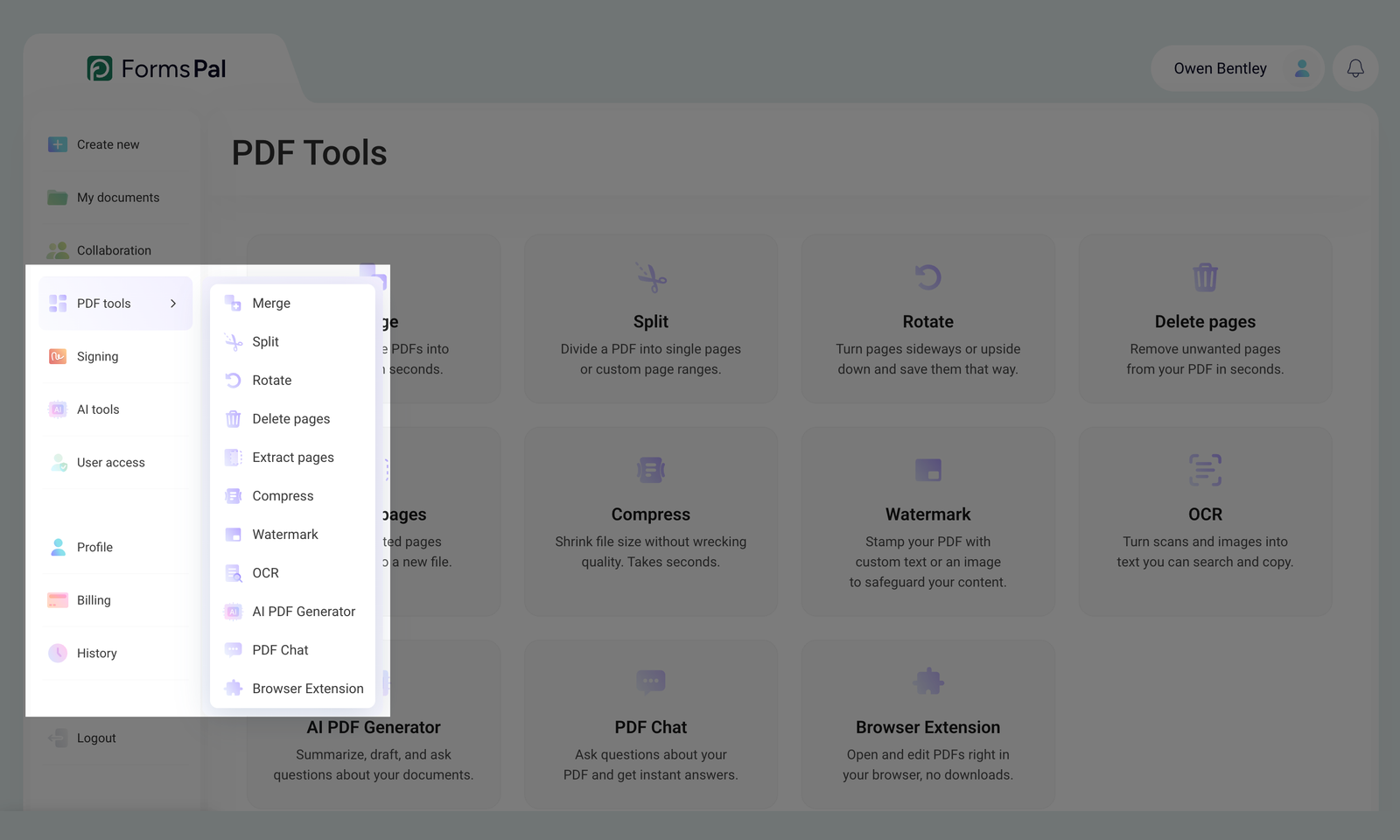
You can also click the arrow next to PDF Tools in the left sidebar to expand the menu and select the tool you want to use.
- Upload a PDF file from your device or cloud storage, or choose from My documents.
- Apply the necessary changes and save or download the updated PDF.
Guides in this section
- Merge documentsUse the Merge tool to combine two or more files into a single PDF document.
- Split documentsSplit PDFs into individual pages or groups of pages to create new documents from selected parts.
- Rotate documentsUse the Rotate tool to adjust the orientation of individual PDF pages or entire documents by 90°, 180°, or 270°.
- Delete pagesUse the Delete Pages tool to remove selected pages from your document.
- Extract pagesThe Extract Pages tool lets you select specific pages from a document and save them as a new PDF.
- Compress filesUse the Compress tool to reduce file size while keeping your documents readable.
- WatermarkThe Watermark tool lets you add text or image watermarks to your documents for identification or a professional appearance.