
Collaboration
On the Collaboration page, you can manage shared documents, adjust access levels, and track all the collaboration activity. Whether inviting new users, updating permissions, or revoking access, this page provides all the tools for document collaboration.
Adding documents to collaboration
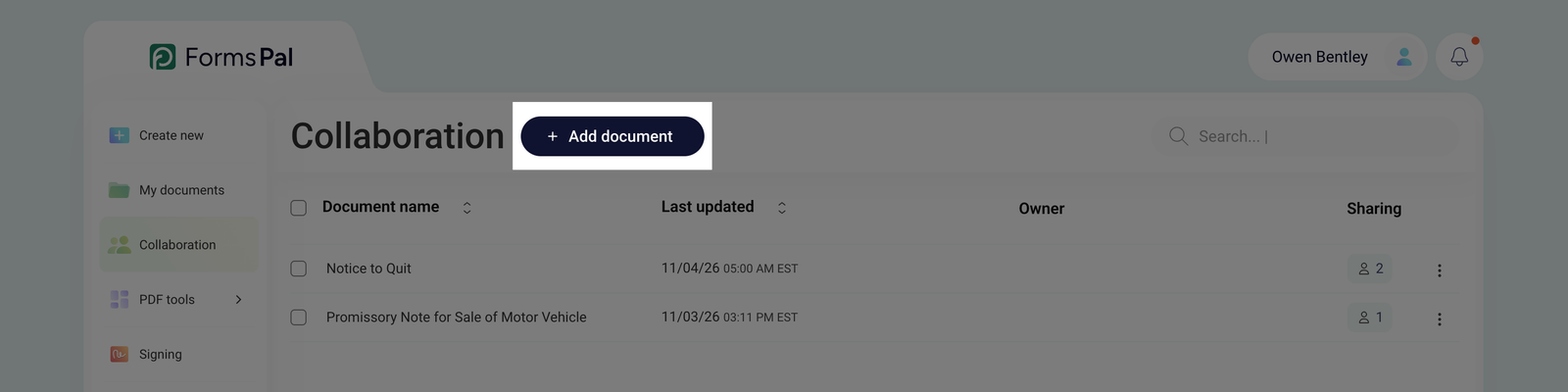
- On the collaboration page, click on the + Add document button.
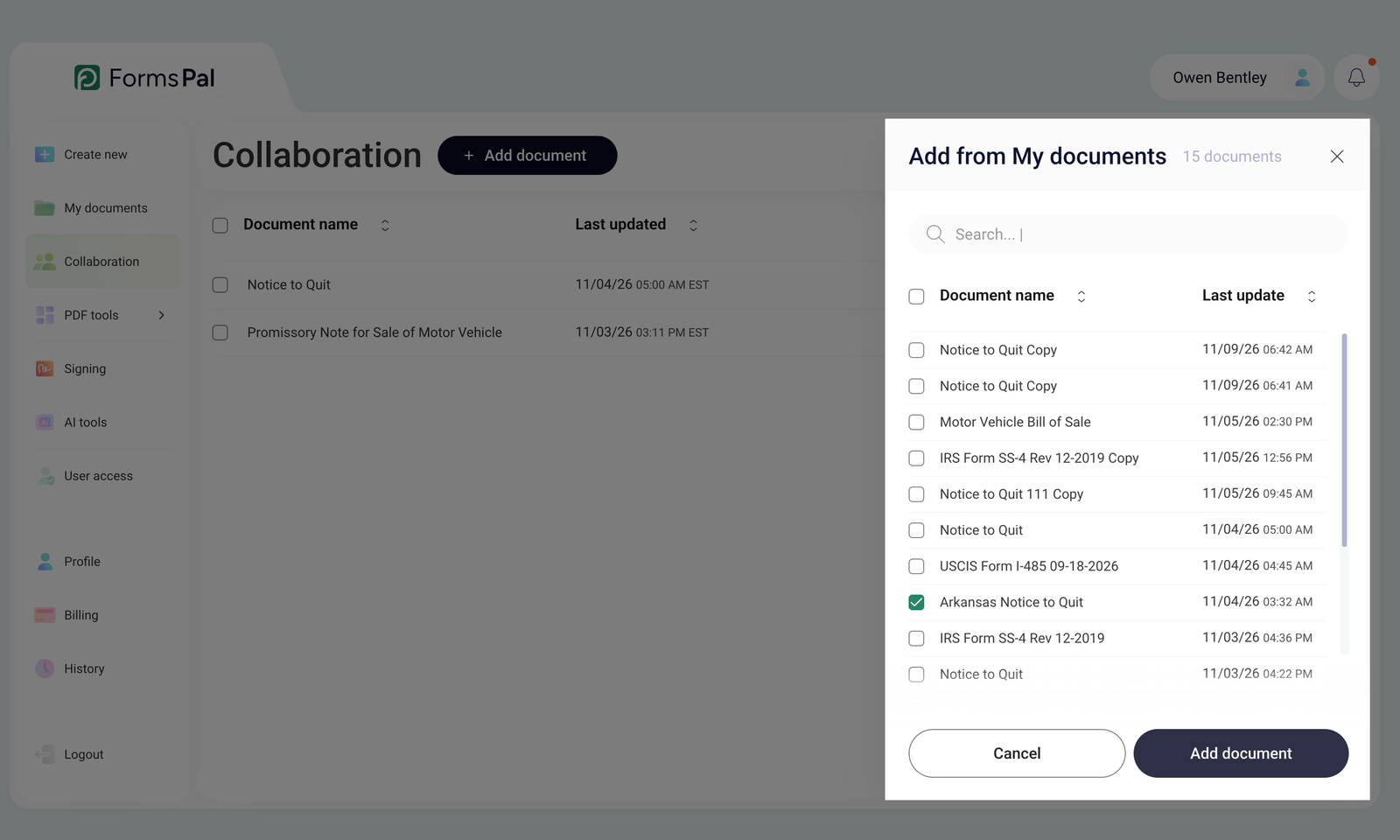
- You'll see the Add from My documents pop-up with all the files you previously uploaded to My Documents. Click the checkboxes to select one or more documents at once.
- After selecting the documents, click Add Document in the pop-up to confirm the addition.
Inviting users to collaborate
- Once a document is added, you'll see a Share pop-up where you can enter an email address in the Add email field to invite users to collaborate.
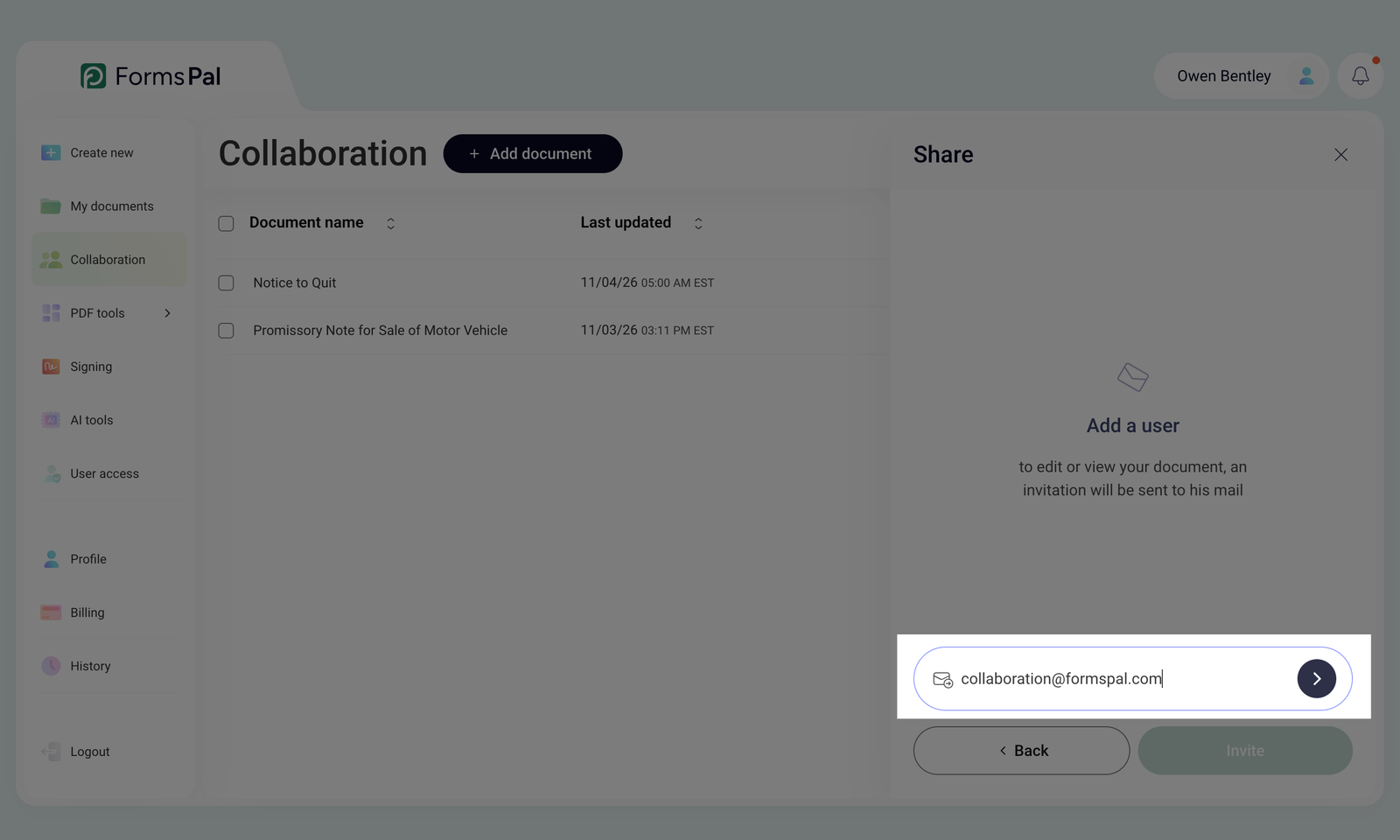
- The Back button allows you to go back one step within the invitation pop-up.
- The X button at the top-right corner exits the pop-up.
If you don't invite users and close the window, any entered email addresses will not be saved.
Document selection and management
- The Search field at the top right allows you to find shared documents. You can search by document name or recipient's email.
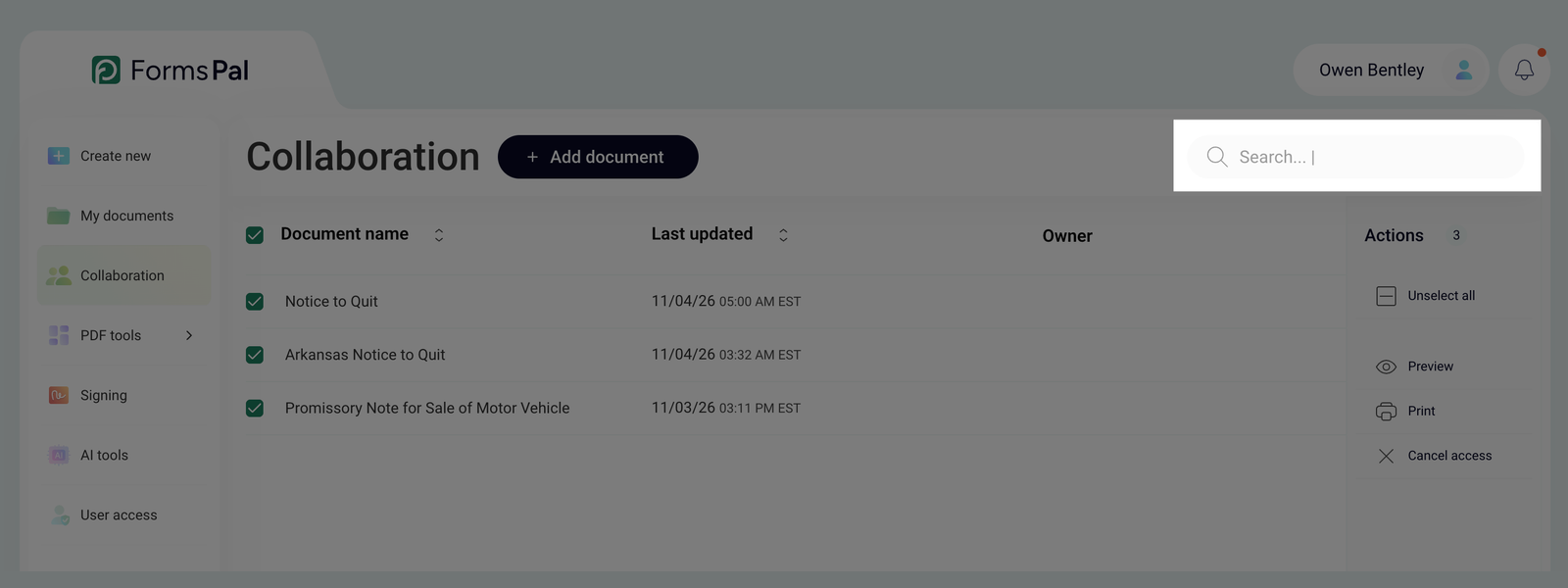
- You can select multiple documents for bulk management by clicking the checkboxes next to each document. To select all documents on the collaboration page, click the checkbox next to the Document name column.
- Once documents are selected, the management actions panel appears, allowing you to take Actions on the selected files.
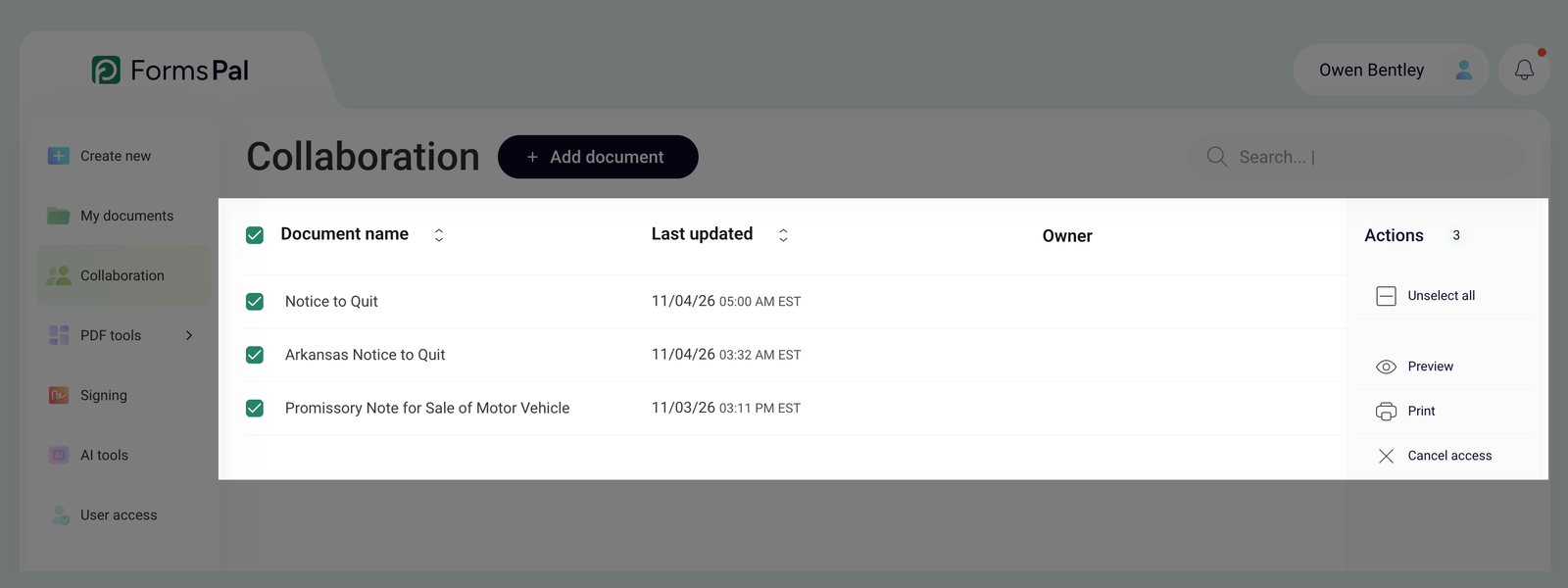
- Unselect all - unselect all selected documents on the collaboration page.
- Preview - view the documents before taking any actions.
- Print - print the documents directly from the collaboration page.
- Cancel access - revoke access for all users on the selected documents.
Viewing Document Details
- The Collaboration page has four columns, each with important document information.
- Document name - displays the title of the document.
- Last updated - shows the most recent modification date and time.
- Owner - indicates who owns the document.
- Sharing - displays the number of users granted access to the document.
You can sort the documents by clicking the up and down arrows next to the Document name and Last updated columns to arrange them in ascending or descending order.
- Clicking on any document on the Collaboration page opens its detailed sharing information, allowing users to manage individual access settings.
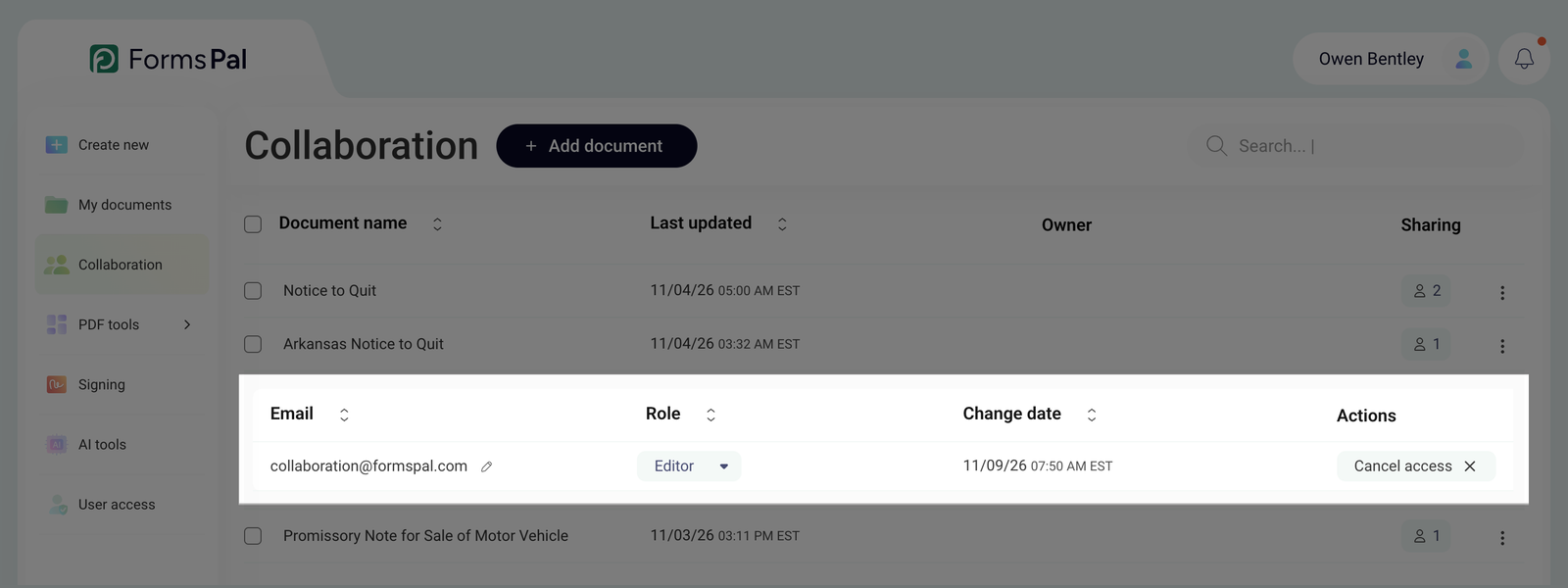
- Email - lists the email addresses of users who have been granted access.
- Role - displays whether the user has Editor or Viewer permissions.
- Change date - shows the last time access was modified for that user.
- Actions - provides an option to revoke access for individual users.
You can sort the documents by clicking the up and down arrows next to the Email, Role, and Change date column headings to arrange them in ascending or descending order.
Guides in this section
- Sharing documents for collaborationThe Collaboration allows you to share documents with other users, granting them Editor or Viewer rights.
- Cancelling collaborationFormsPal allows you to cancel collaboration on shared documents at any time, whether you're the document owner or have been invited as an Editor or Viewer.
- Collaboration notificationsNotifications keep you informed about all collaboration activities in real time.
- Working with shared documentsIf you've been invited to collaborate on a document in FormsPal, you can view or edit it depending on your assigned role.