Collaboration
Working with shared documents
If you've been invited to collaborate on a document in FormsPal, you can view or edit it depending on your assigned role. You may receive an invitation even if you don't have a FormsPal account.
Editors can make changes to shared documents, while Viewers have read-only access.
How to open a shared document from an invitation email?
If you receive an email invitation to collaborate, follow these steps to open the shared document:
- Check your inbox for an email from FormsPal. Open the email and review the invitation details.
Click the Confirm Invitation button to proceed to the collaboration page.
- If you have no account or are not logged in, the Sign in page appears:
- If you don’t have an account, create one using the email address where the invitation was sent.
- If you already have an account with this email address, simply sign in.
If you are already logged into your account, the Collaboration will open immediately after clicking the invitation button.
- After accepting the invitation, the shared document will be added to Shared with me tab in My documents on your dashboard.
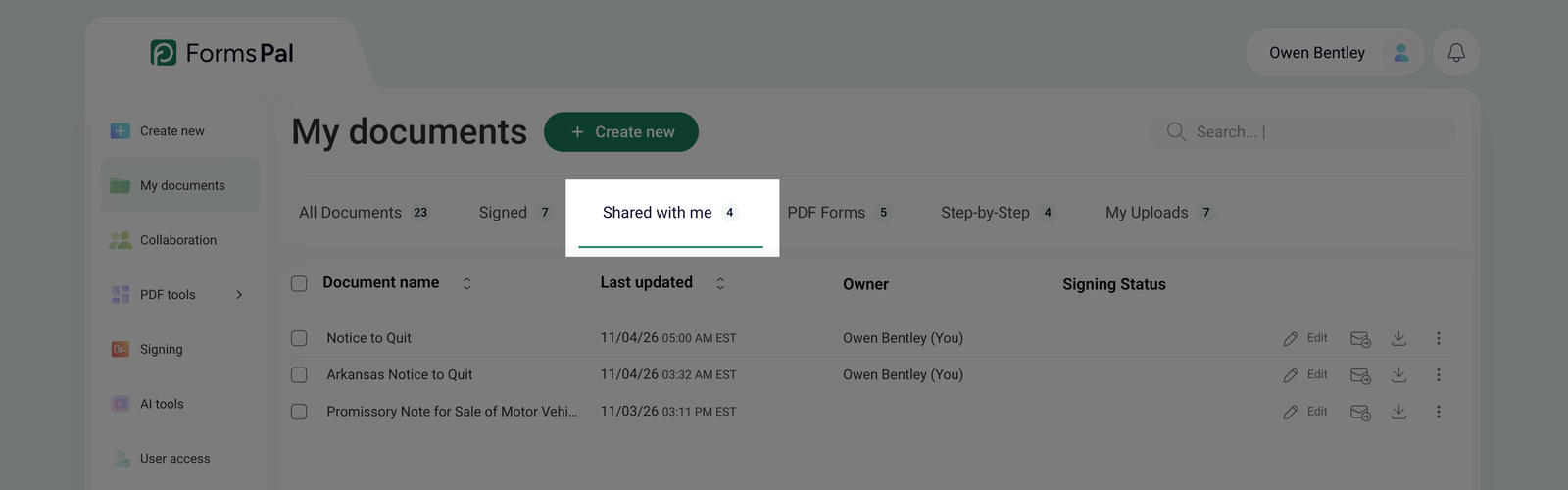
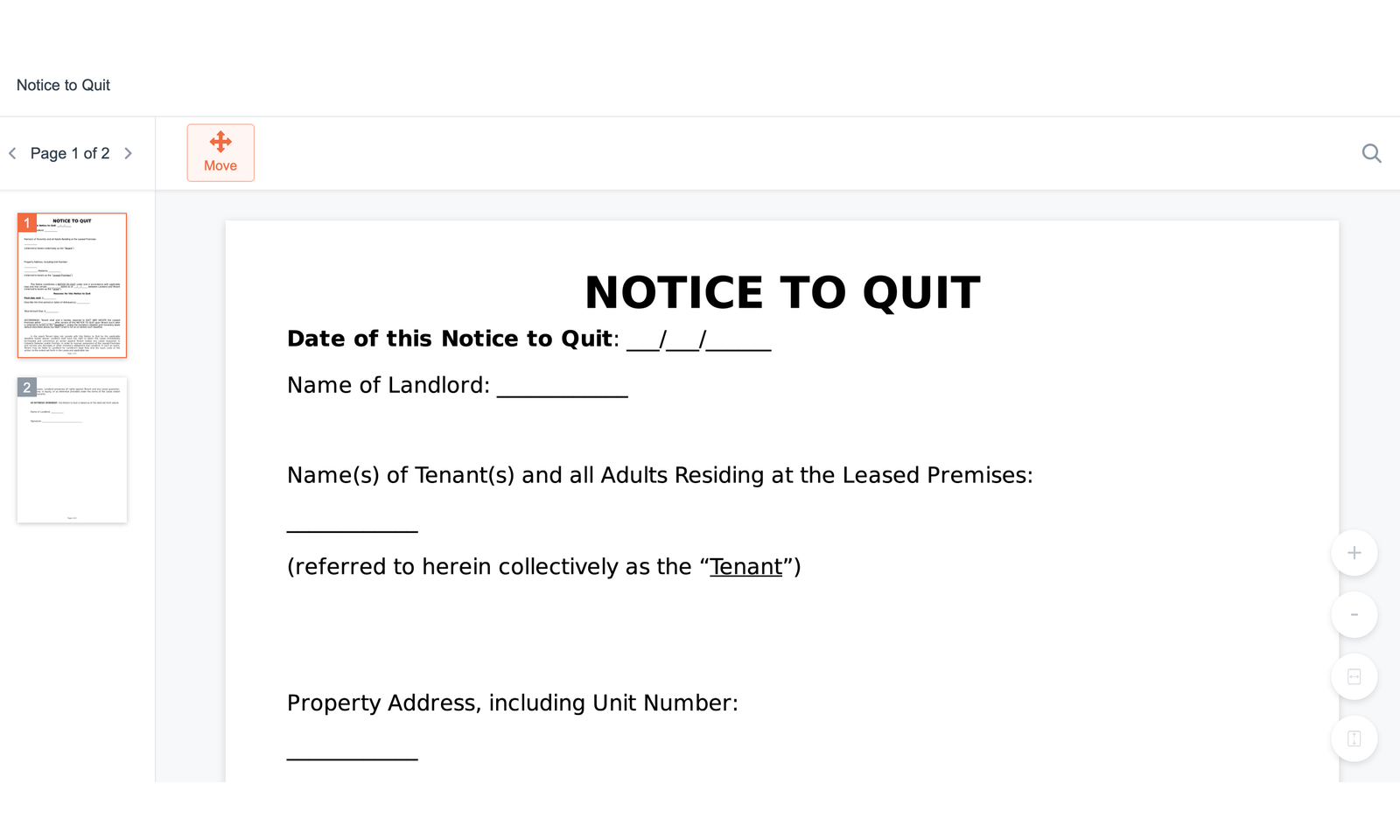
- Click on the document’s name to open it and proceed with collaborating.
How to open a shared document from your dashboard?
If you've already accepted a collaboration invitation, you can access the shared document directly from your FormsPal dashboard.
To find it, follow these steps:
- Check your notifications by clicking the bell icon in the top-right corner of your dashboard. You'll see a notification when someone invites you to collaborate on a document.
- Open My documents from the left sidebar.
- Select the Shared with me tab to view documents that others have shared with you. You can also find shared documents under All Documents.
- Find the document you want to work on and click its name to open it.
The Collaboration section displays document sharing information and assigned users, but you cannot open documents directly from this section.
How to collaborate on documents?
Once you open a shared document, the available features depend on your assigned role.
- Your permissions determine which actions you can perform:
- Editor - you can edit, fill, and rename the shared document using the available editing tools.
- Viewer - you can open and review the document, but you cannot make changes.
- If you have the Editor role and make changes to the document, save them before leaving the editor.
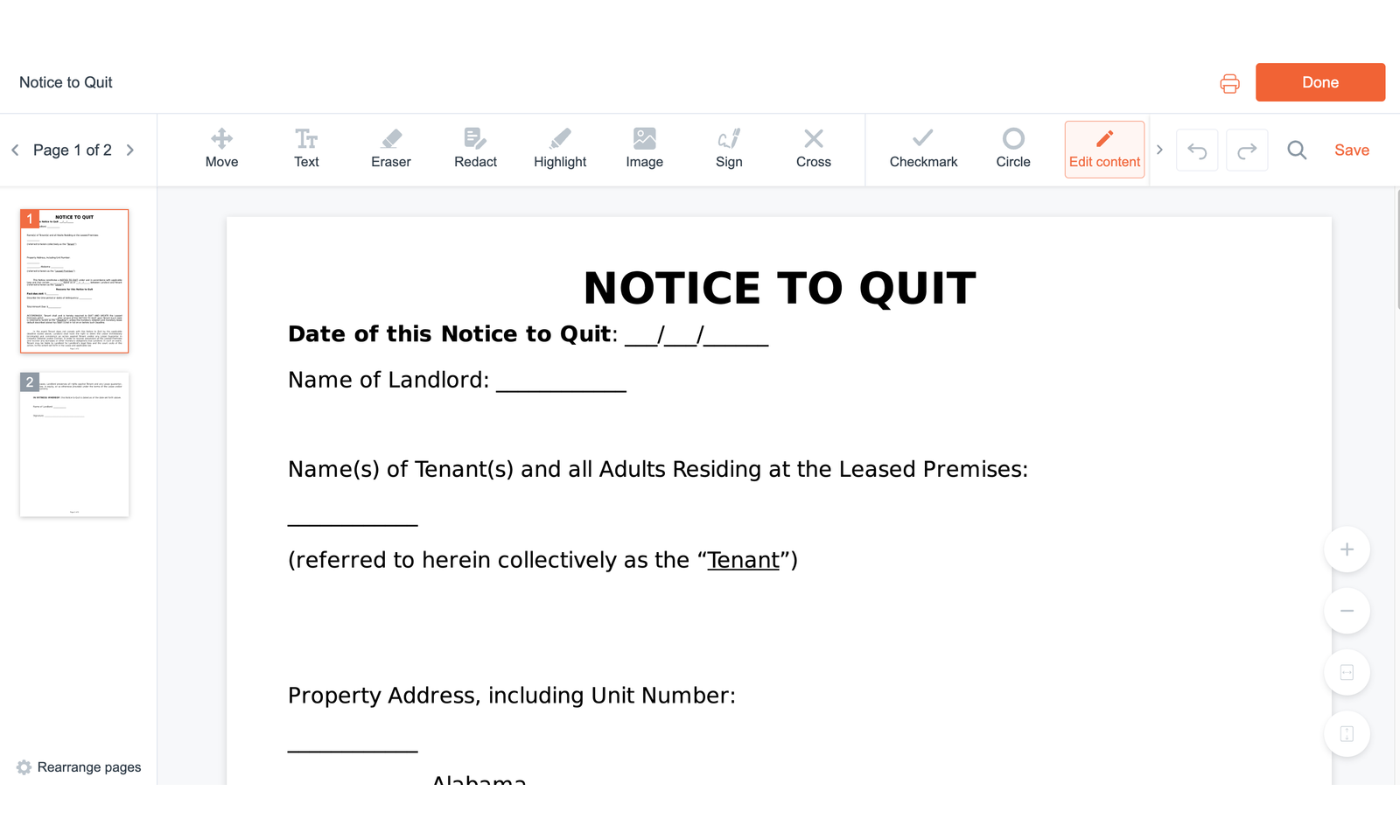
- Click Save changes in the editing tools panel to save your edits.
- Click Done to finish editing.
Saved changes will be available to the document owner and other users with access to the shared document.
- If you have the Viewer role, you can review the document without making or saving changes.