
Step-by-Step Builder
Our step-by-step builder guides you through completing legal documents. It provides structured sections, automatically saves your progress, and allows you to seamlessly download, print, sign, and share documents.
Getting Started
- When you open a document in the Step-by-Step editor, you'll see an information pop-up.
- The pop-up closes automatically after 15 seconds or can be dismissed by clicking Great, Let's Begin!, or the X button.
Document Actions
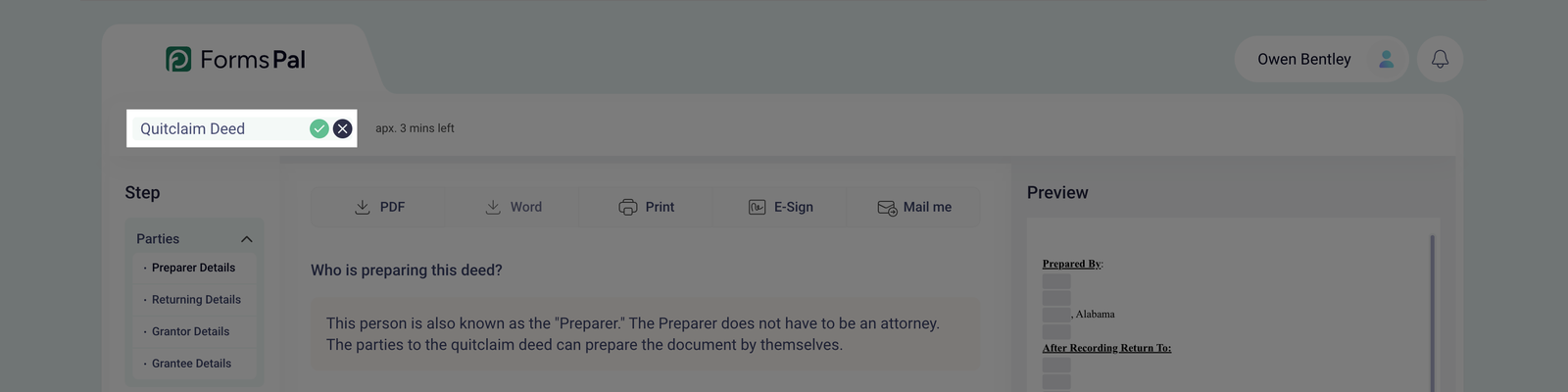
The available document actions are at the top of the Step-by-step builder page. These options allow you to manage your document, including downloading, printing, renaming, or sending it for signing.
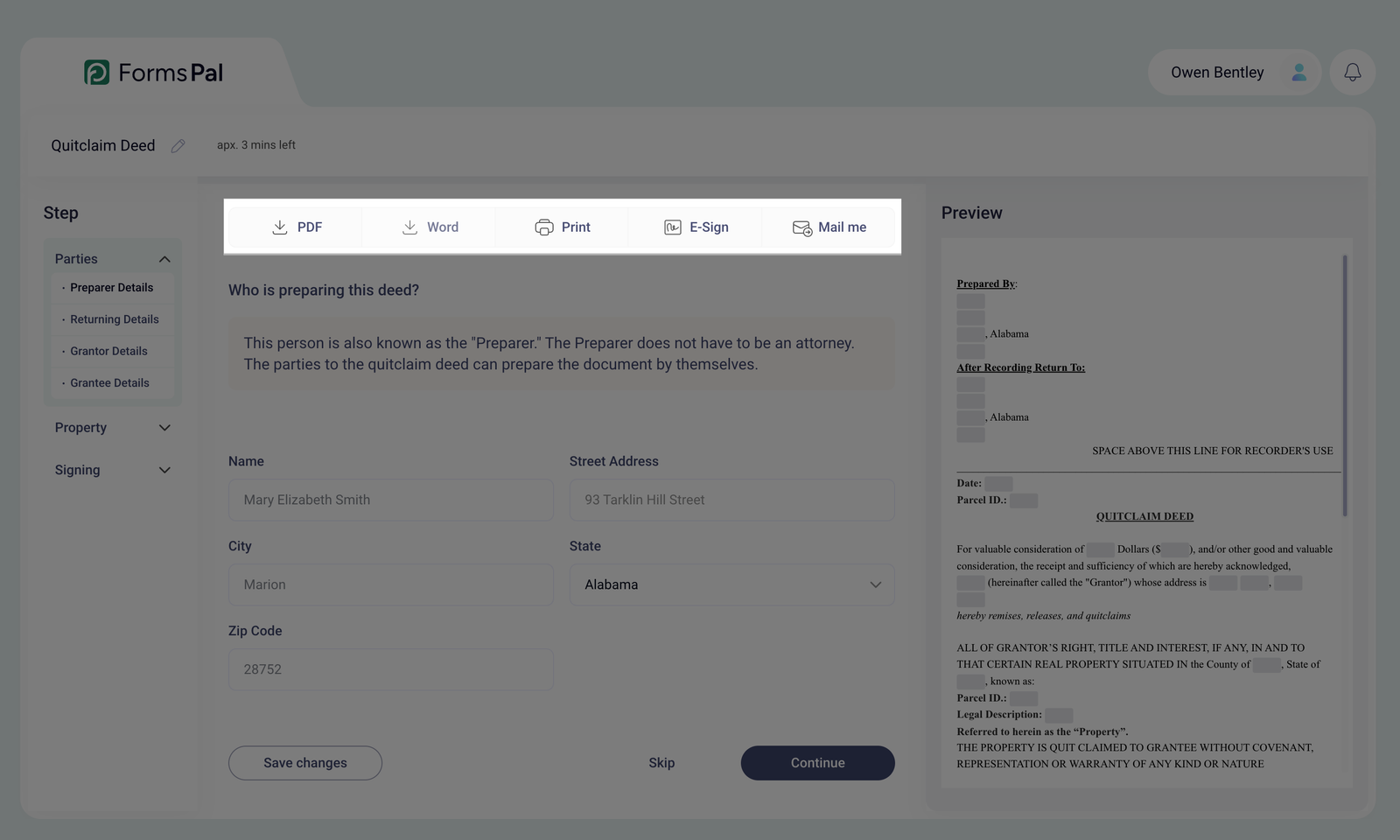
- PDF - Save the document with all changes applied in PDF format.
- Word - Download a Word version of the document.
- Print - Print the document directly from any page with all edits included.
- E-Sign - The document is reformatted into PDF and redirected to the signing page. If you don’t have an account on FormsPal, you must create one before proceeding.
- Mail me - The document is converted to PDF and sent to the email associated with your account. If you don’t have an account on FormsPal, you’ll need to create one first.
Previewing the document
The Preview panel on the right side of the screen shows how your document looks as you fill out the form.
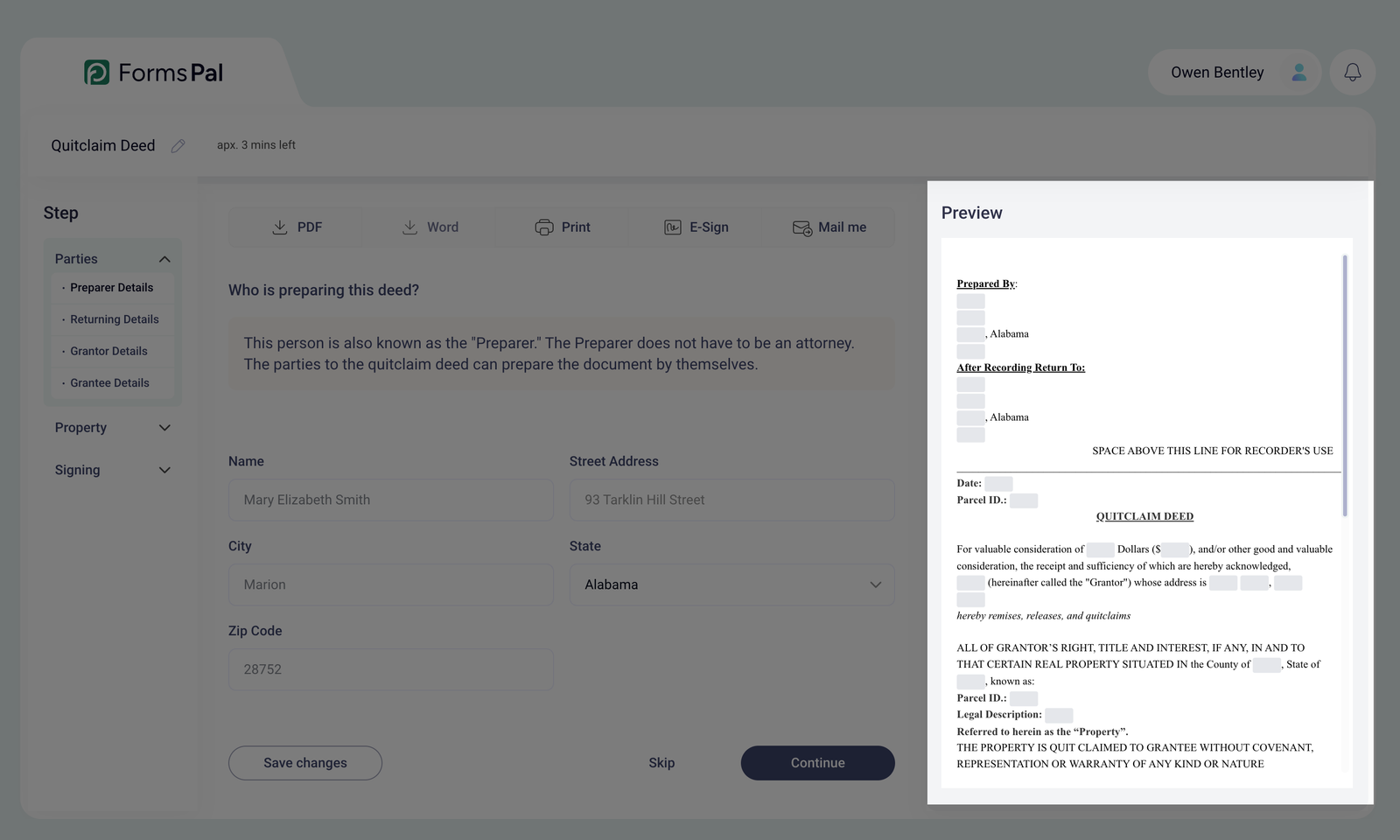
You can see your entered information appear in the corresponding fields without opening a separate window.
To review your document, you can:
- Scroll through the preview to view different parts of the document.
- Check how the information you've entered appears in the document.
- Review the document as you complete each section of the form.
The preview updates as you fill out the form, allowing you to review your document before downloading or printing it.
Saving and Skipping Steps
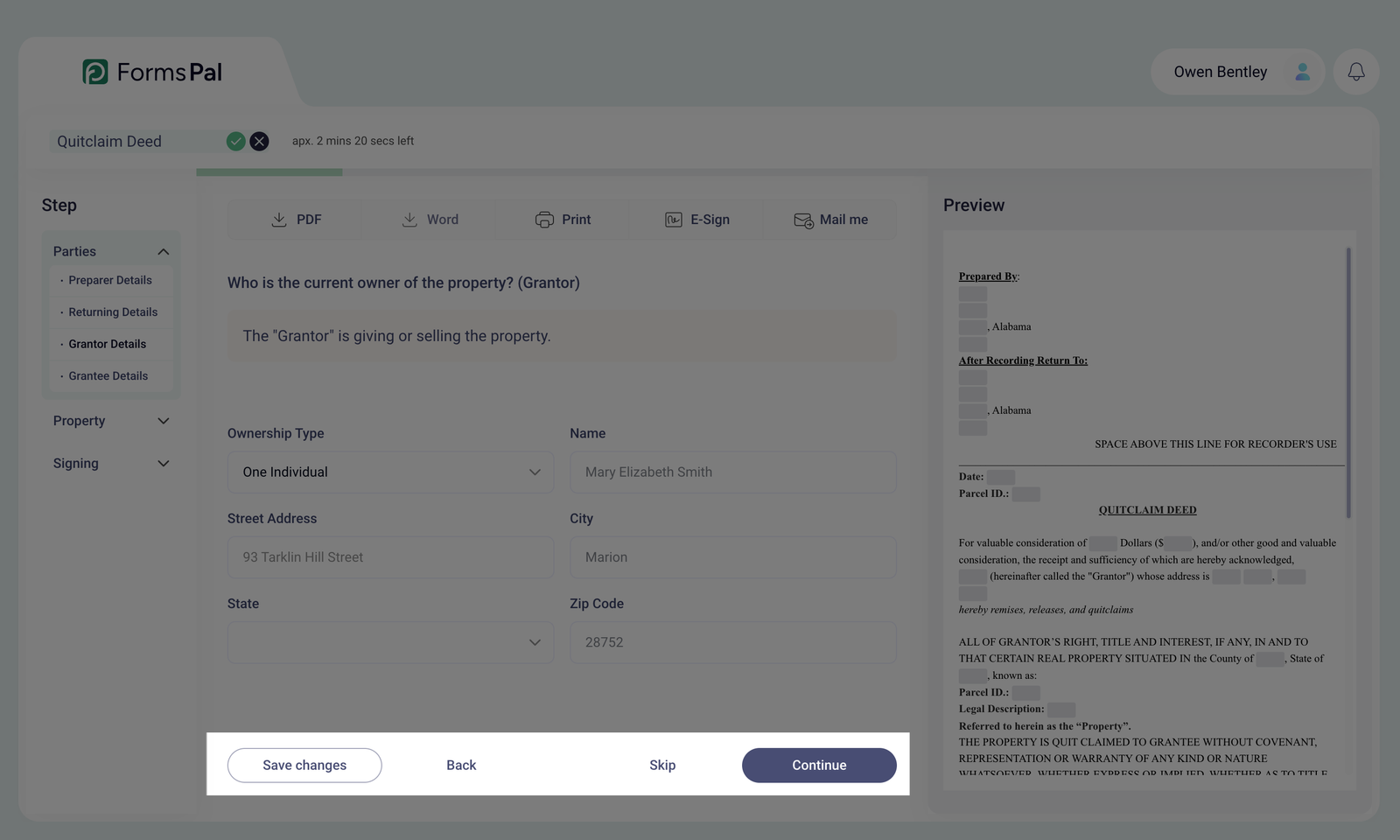
The navigation buttons at the bottom of the editor let you save your progress and move between steps:
- Save changes - saves your current progress so you can return to the document later.
- Back - returns to the previous step in the document builder.
- Skip - moves to the next step without completing the current one.
- Continue - moves to the next step after you've entered the required information.
Renaming the Document
- You can rename a document at any point during the editing process. To do this, click the pencil icon next to the document name.
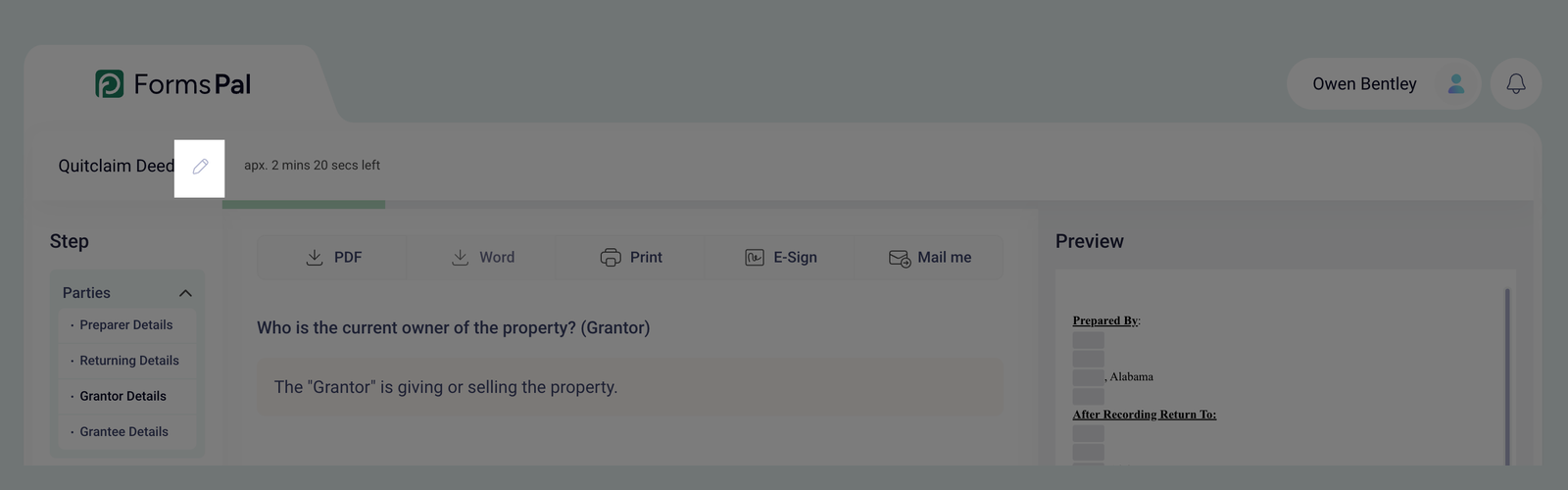
- When the name field turns green, enter a new document name and click the checkmark icon to save it. To cancel renaming, click the X icon.
Finalizing the Document
- Once all required fields are completed, the Save & Export button appears.
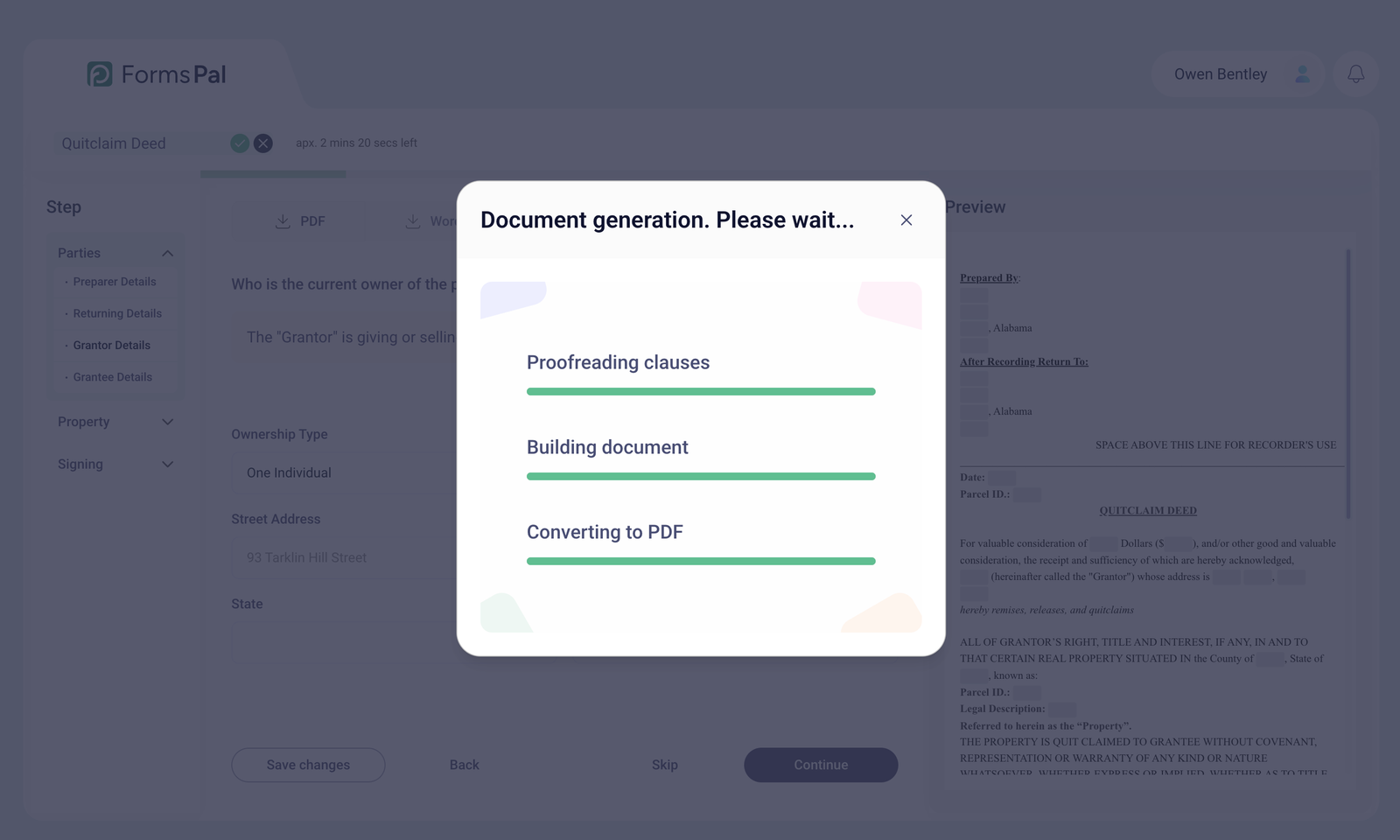
- Clicking Save & Export displays a progress pop-up that shows proofreading, document building, and conversion to PDF.
If you don’t click the Save Changes button after making edits, your changes won’t be included when you export the document.