
Step-by-Step Builder
Editing step-by-step documents
Edit Step-by-Step documents by following the guided prompts in the document builder. Your progress is saved automatically, so you can return to your document anytime to make changes, add information, or finish filling it out.
How to edit step-by-step documents?
To edit and save a Step-by-Step document, follow the steps below:
- Open a step-by-step document from the Library or the My documents tab.
- After opening the document, the editor page will appear. Follow the guided prompts to enter information in each field. The fillable fields will be tailored to the document type.
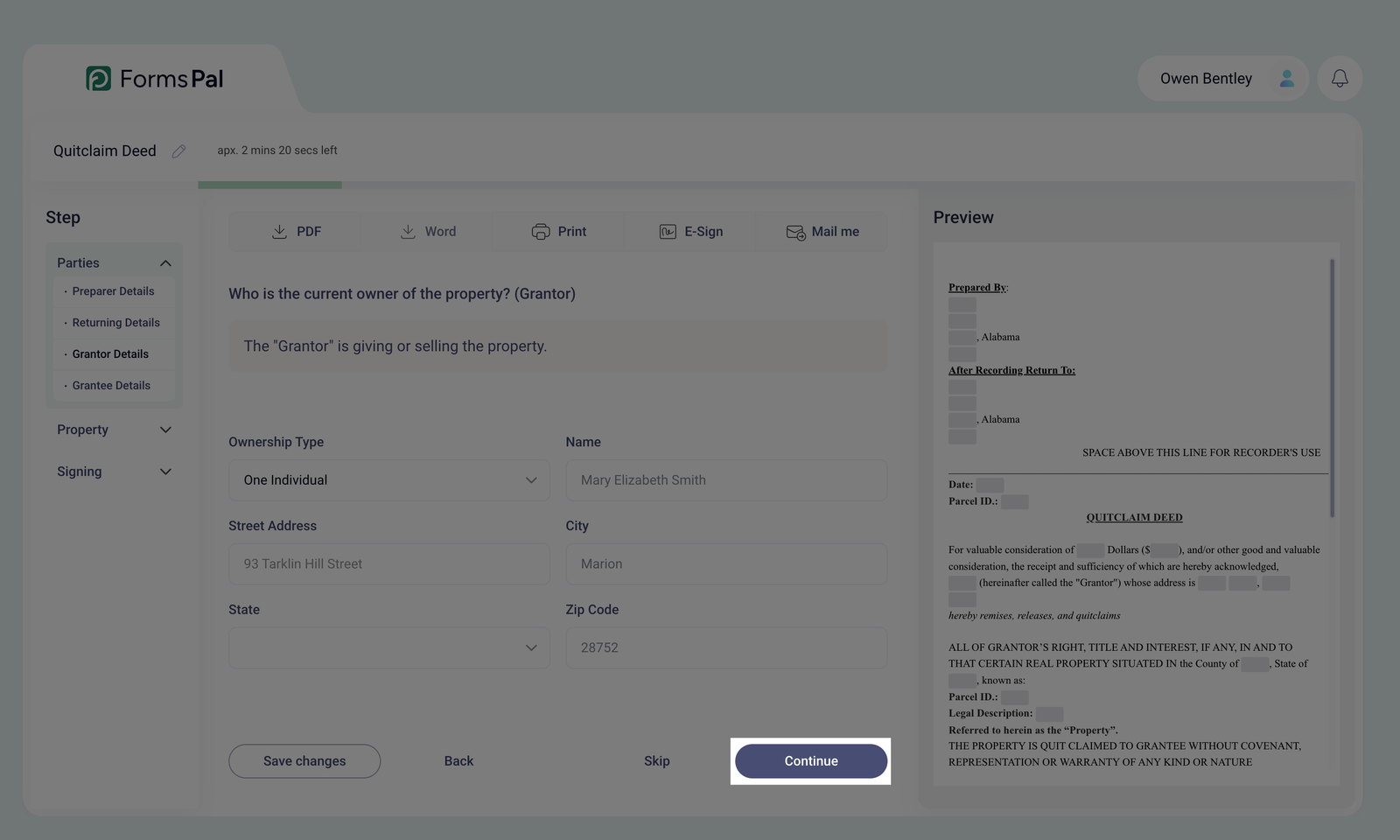
- Once you have completed all the required fields in the first section, click the Continue button to proceed to the next section.
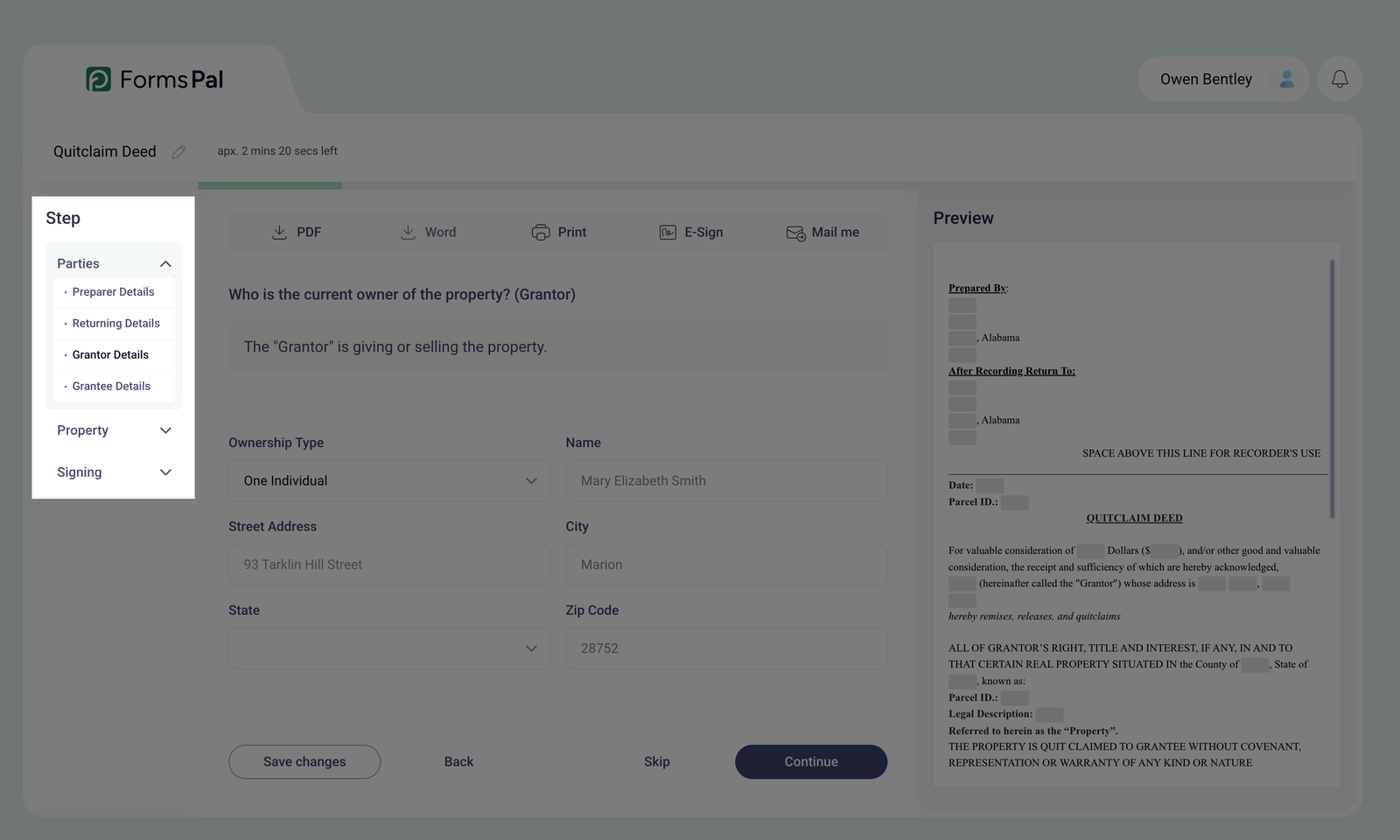
Alternatively, you can select a section from the left panel and click on it to jump to a specific document part. If you need to return to a previous section, click on its name in the left-side panel.
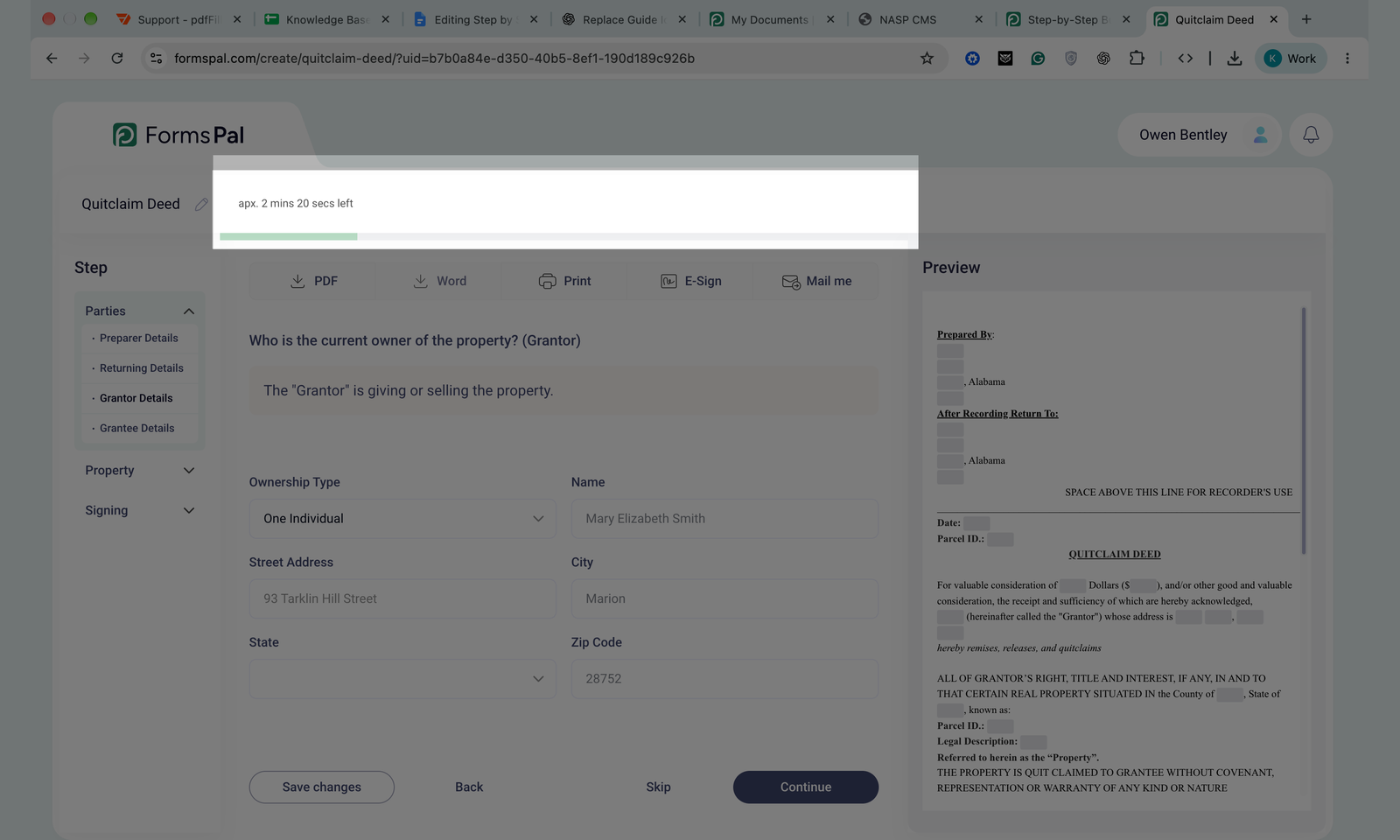
The progress bar at the top of the editor shows how far you've progressed through the document. Above it, you'll see the estimated time remaining to complete the document.
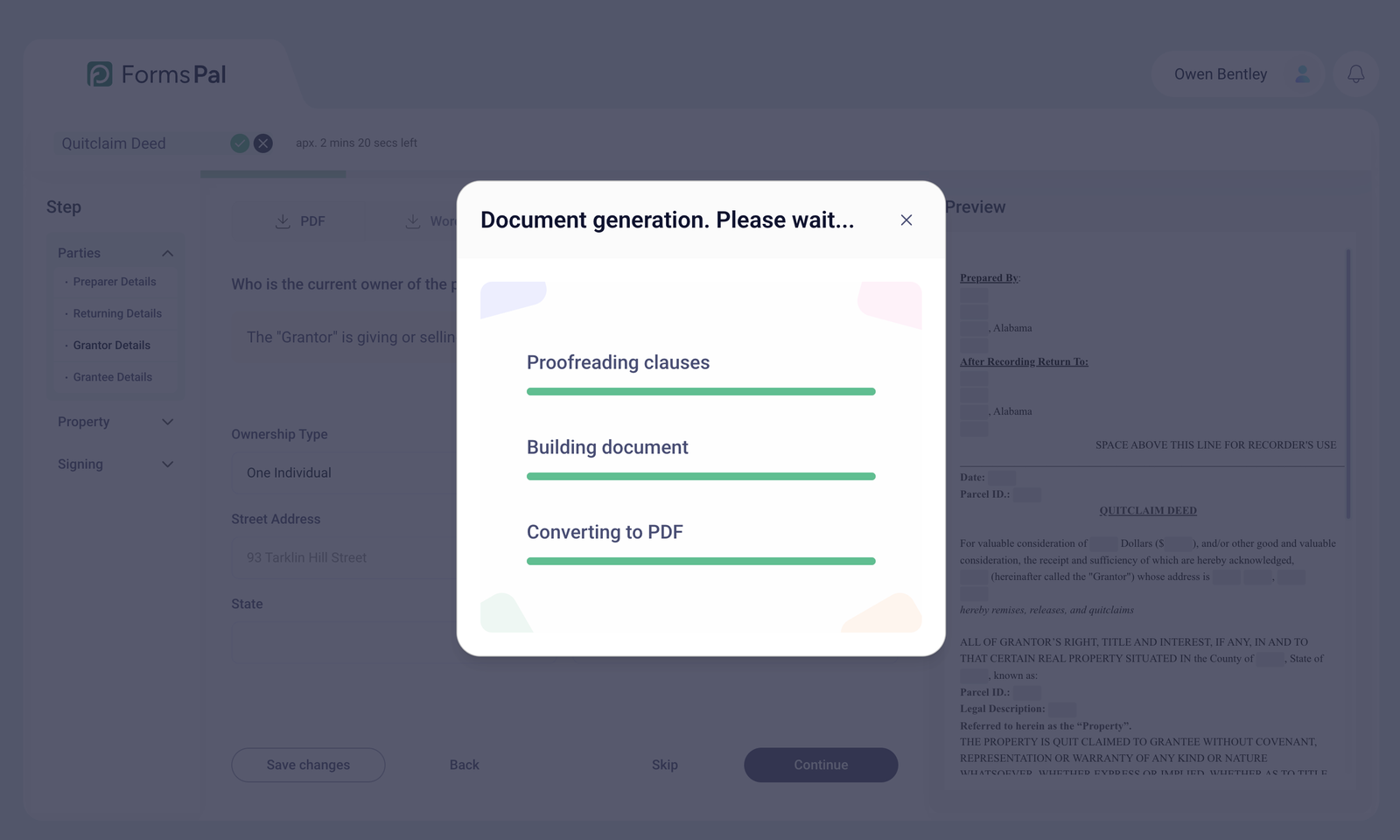
- Once all fields are completed, the Continue button will change to Save & Export. Click on it to finalize your document.
- A progress indicator will appear, confirming that your document is being saved.
- Once your document is ready, you'll be redirected to the Done page, where you can preview the completed file and choose what to do next.
- On the Done page, you can:
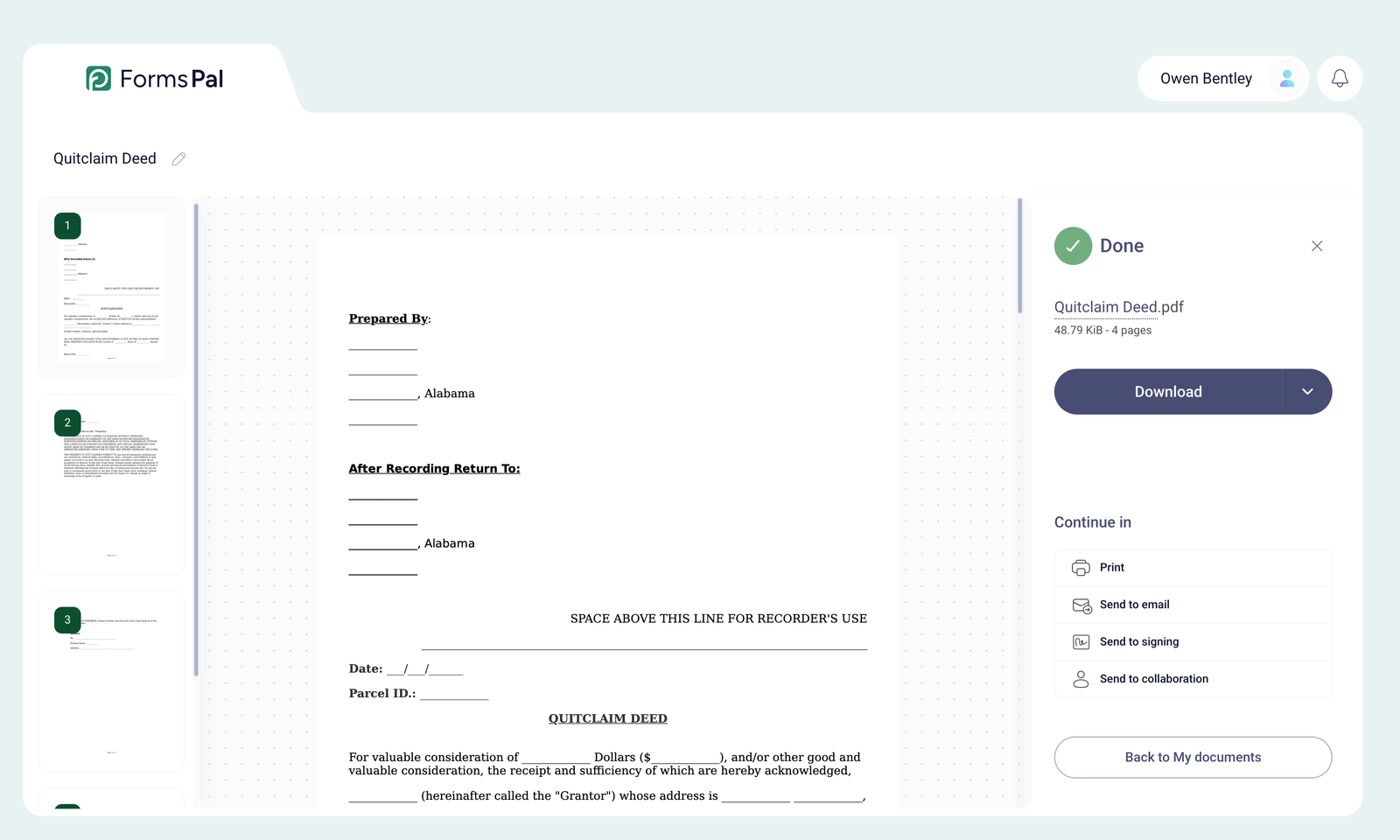
- Rename the document - Click the pencil icon next to the document name or click the file name above the .pdf extension. Enter a new name and click the checkmark icon to save it.
- Download - save the document to your device or use the dropdown menu to select Google Drive, OneDrive, or Dropbox.
- Print - print a copy of your completed document.
- Send to email - email the document.
- Send to signing - open the document in the e-signature tool.
- Send to collaboration - share the document with others.
- Back to My documents - return to your document Library.
Your completed document will also be available in My documents for future access.
After clicking Save & Export, the document is automatically added to the Step-by-Step tab in My documents for future access and edits.