Step-by-Step Builder
Adding step-by-step documents
Add Step-by-step templates from the Library to My documents for easy access and editing. Your progress is saved automatically, allowing you to return to the Step-by-step Document Builder anytime. Whether you're working on a financial agreement, real estate contract, or personal form, your document will always be ready when needed.
How to add step-by-step documents from your dashboard?
To add a Step-by-step document from your dashboard, follow these steps:
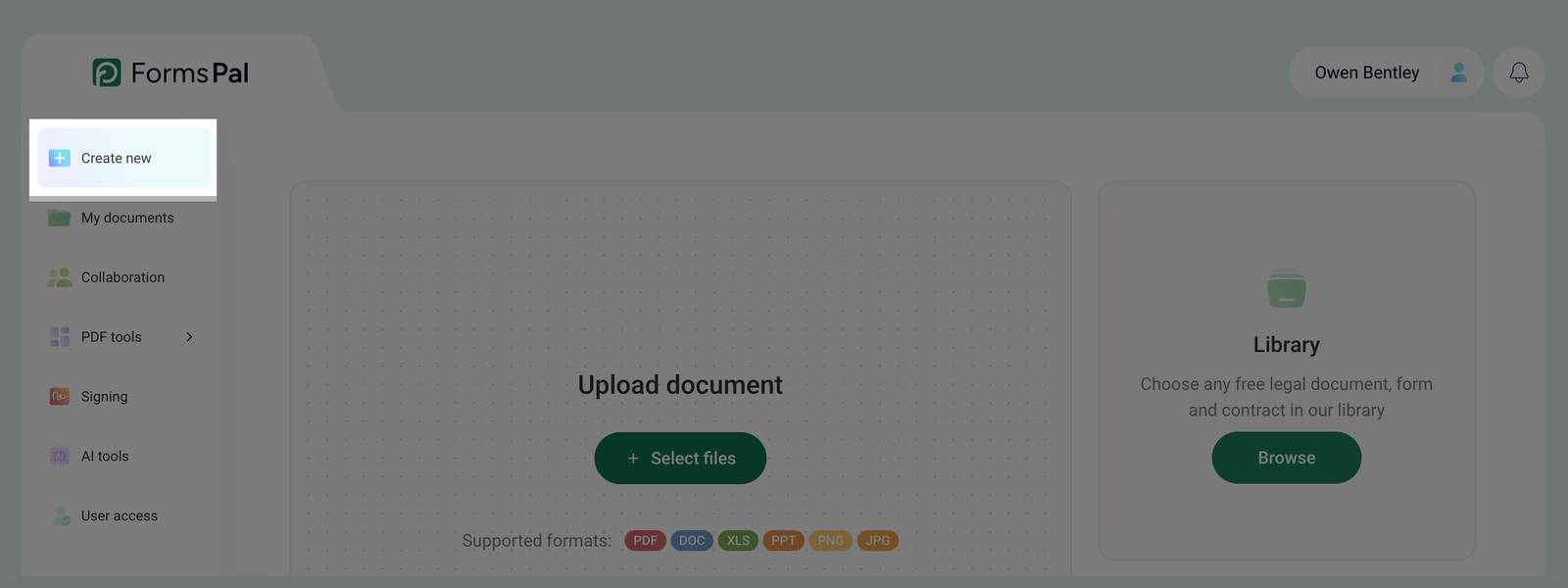
- Open the Create new tab from the left-side menu.
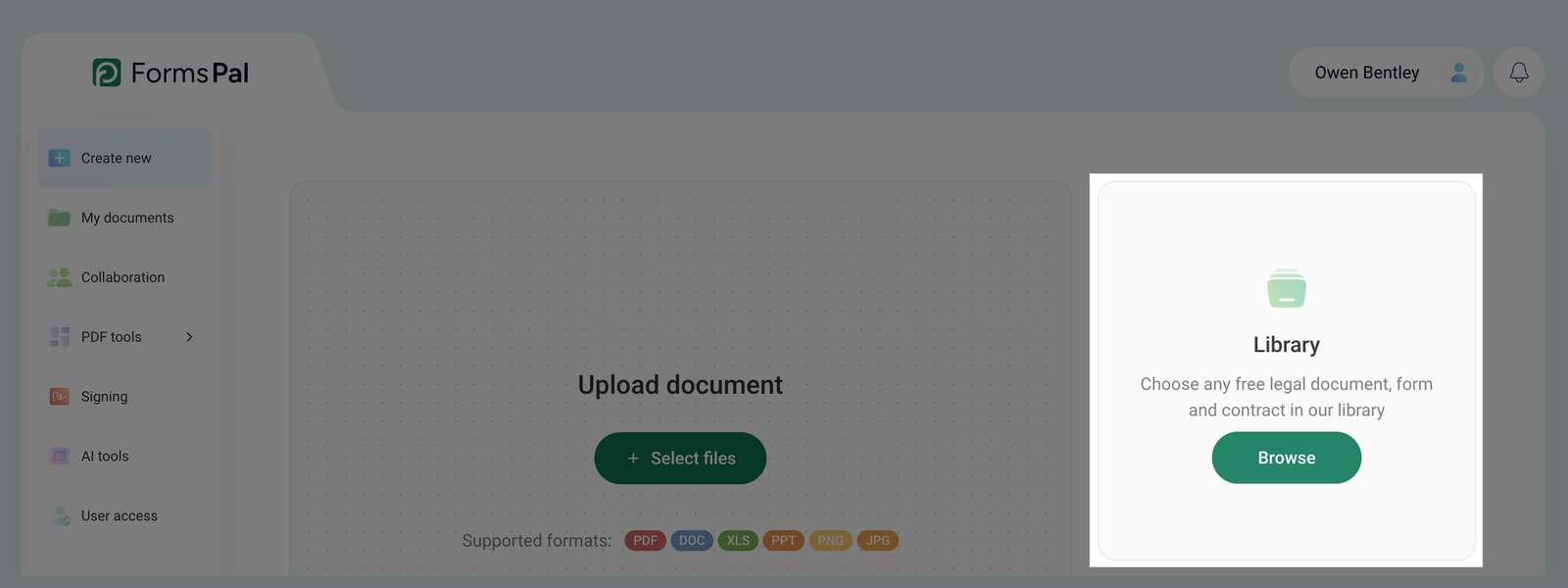
- Locate the Library section on the screen and click the Browse button.
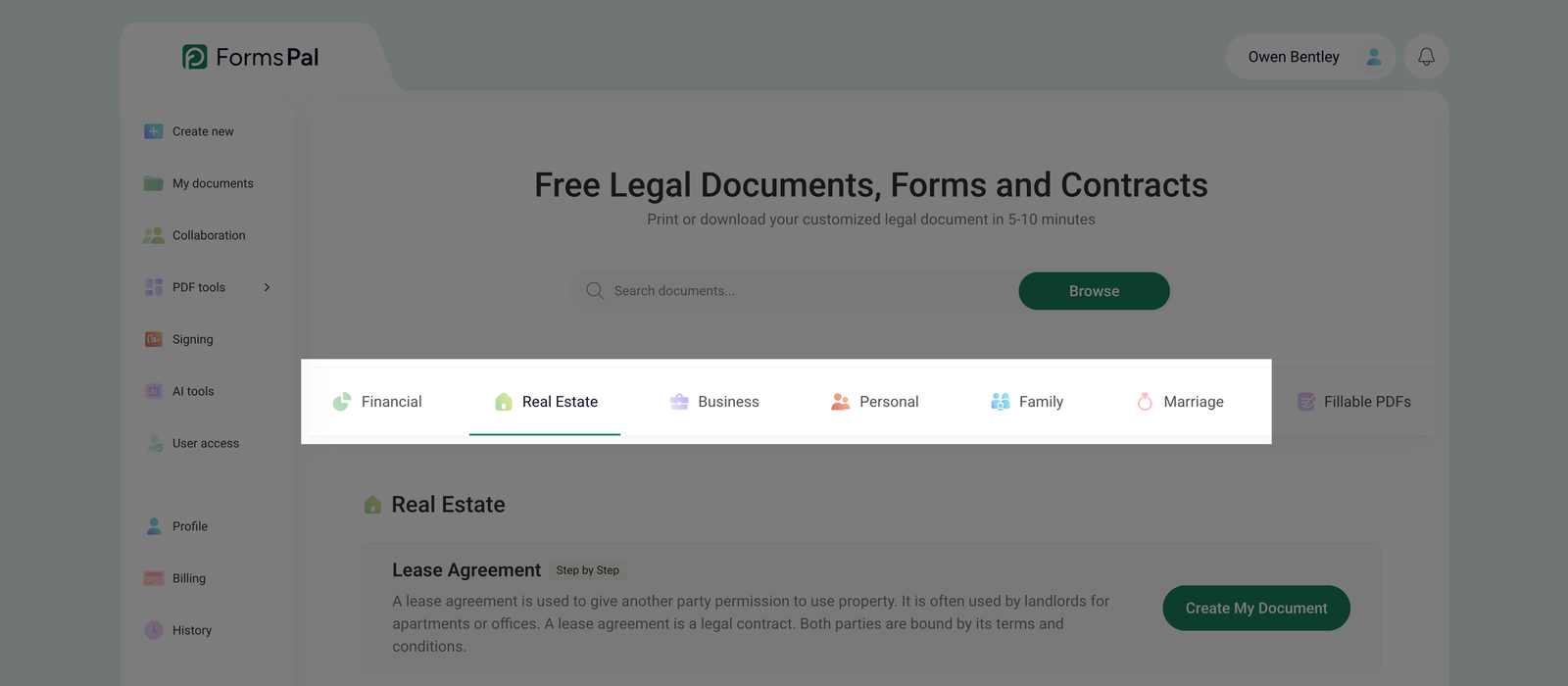
- Once the Library opens, choose the appropriate section from the available categories, such as Financial, Real Estate, Business, Personal, Family, or Marriage. These sections include PDFs and Step-by-step templates.
If you can't find the document by browsing through categories, use the search bar.
- Browse through the available documents and look for those labeled Step-by-Step.
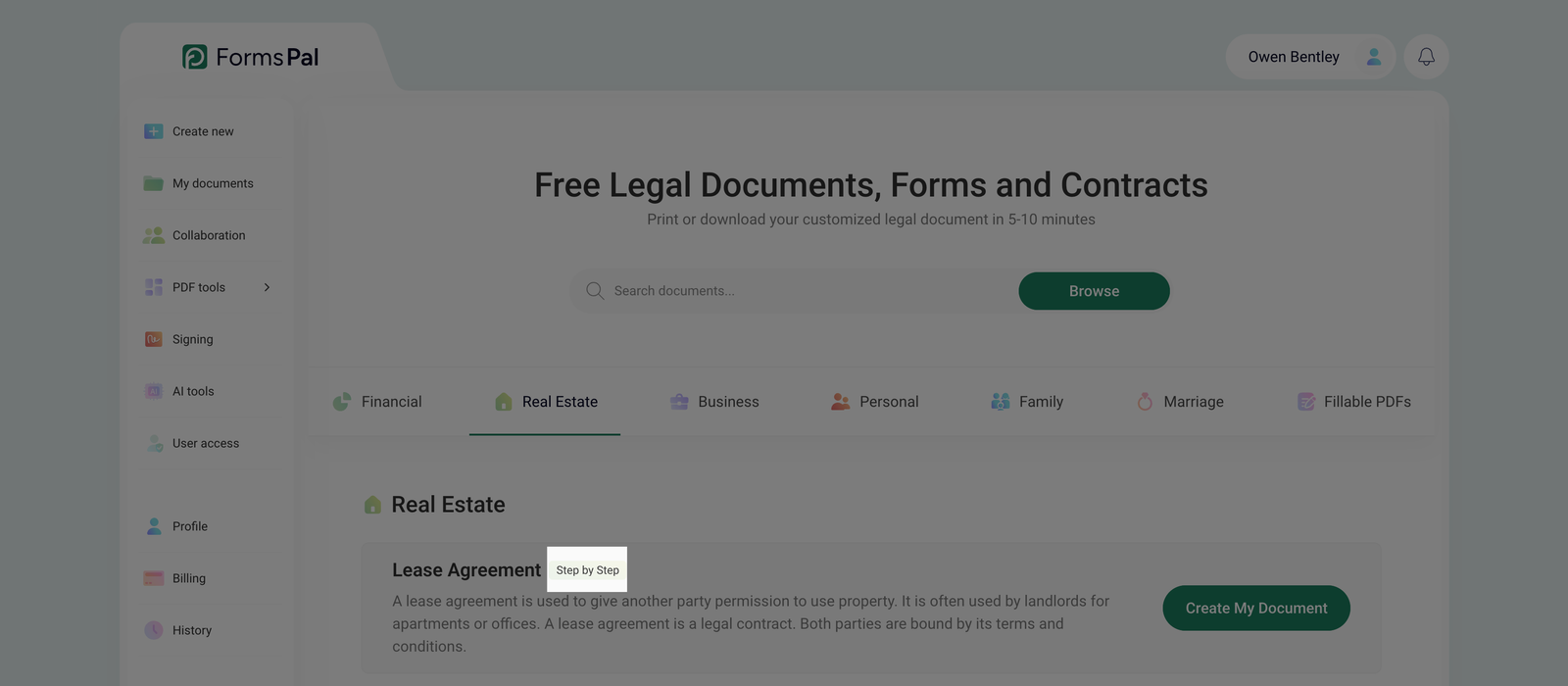
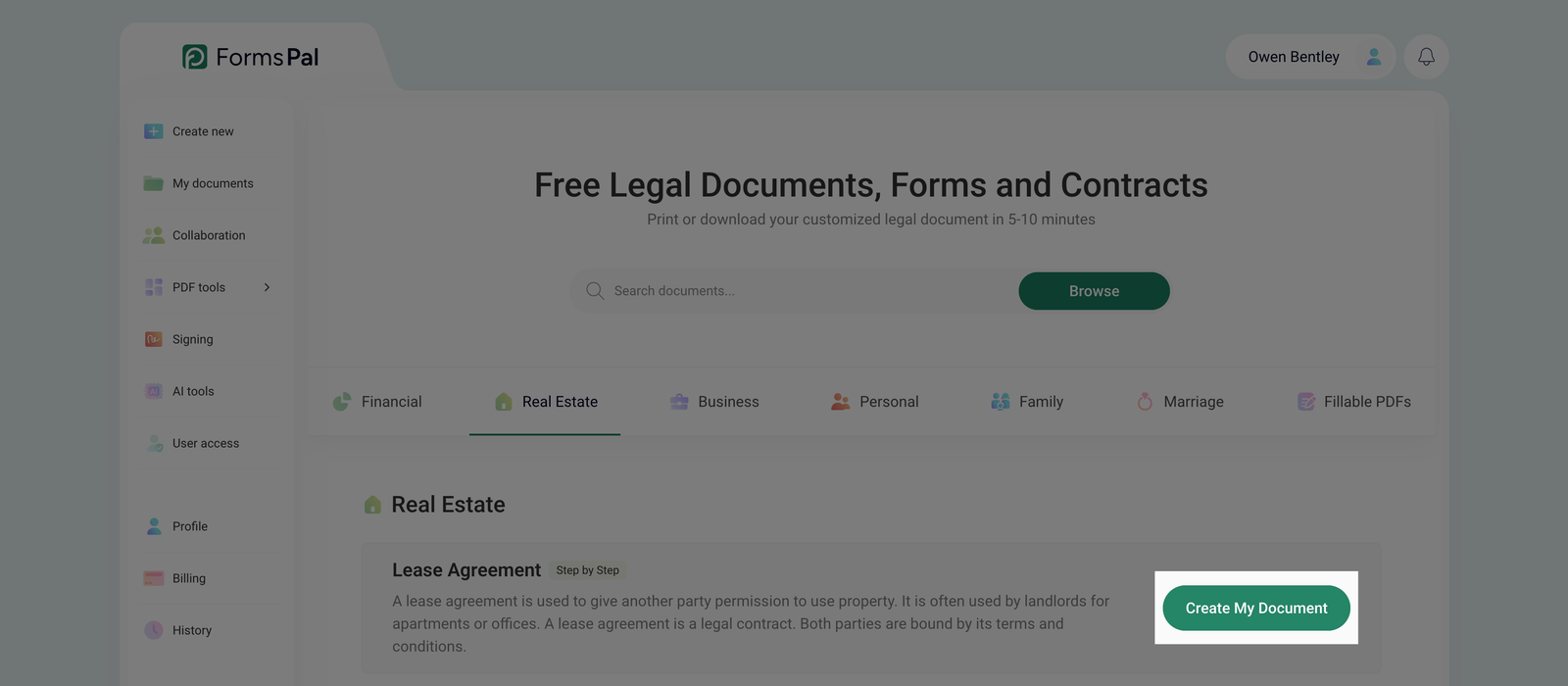
- Find the document you need and click Create My Document to open it in the Step-by-step Document Builder.
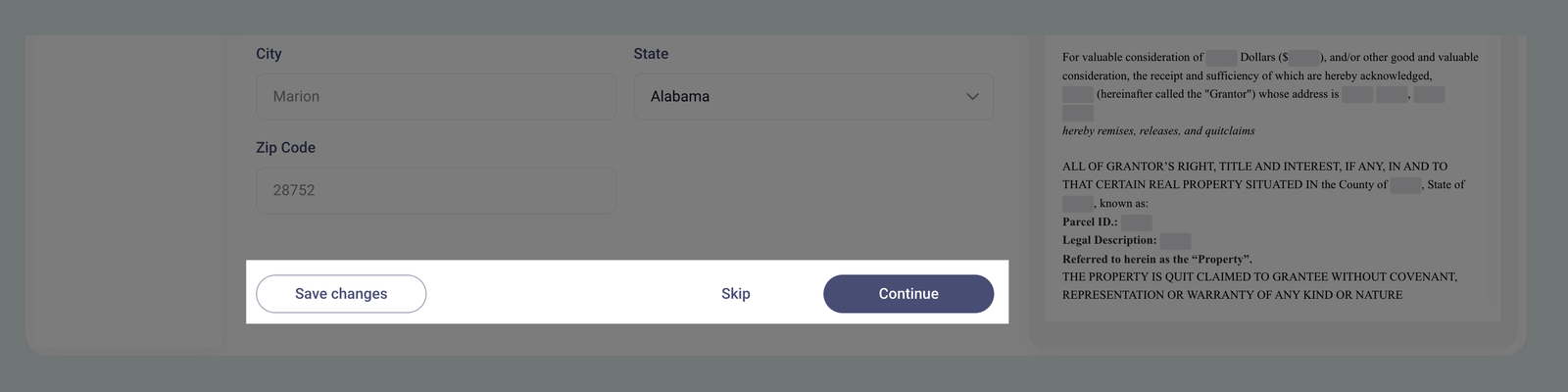
- In the Step-by-step Document Builder, you can either fill out the document immediately by following the guided instructions or click Save Changes to store your progress and continue editing later.
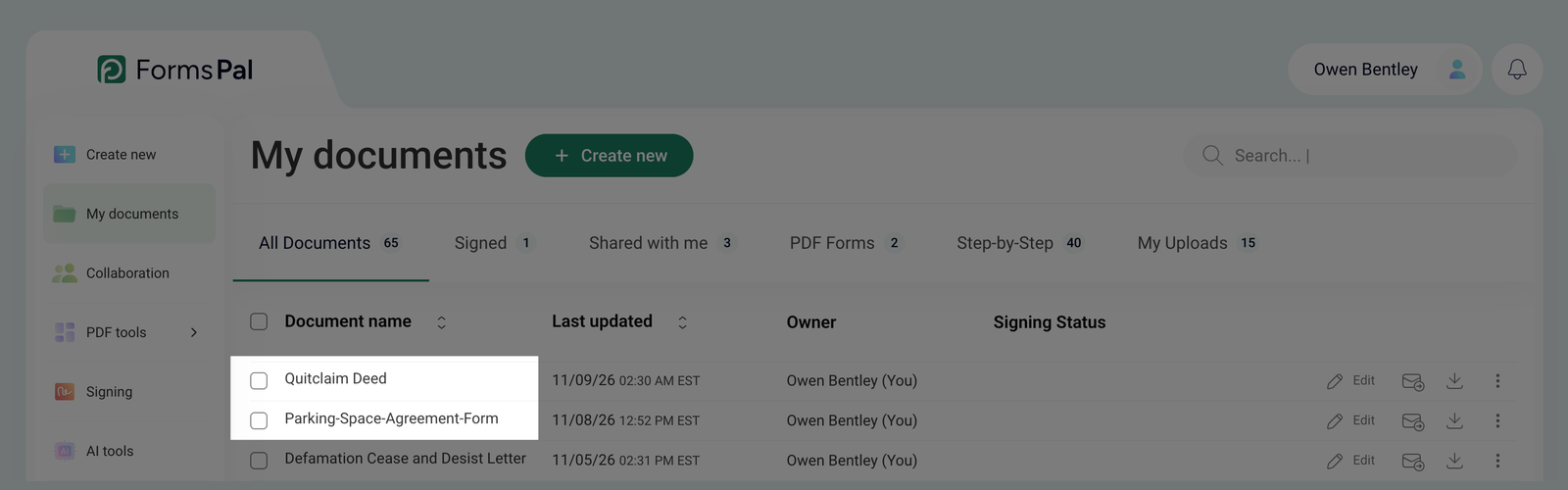
- The document remains available in the My documents tab, where you can view or use it anytime. Simply click on the document name and make further edits or updates as needed.