
Collaboration
Cancelling collaboration
FormsPal allows you to cancel collaboration on shared documents at any time, whether you're the document owner or have been invited as an Editor or Viewer. You can leave a shared document, remove access for all collaborators, or revoke permission for a specific user.
How to leave a shared document?
If you've been granted access to a document and want to leave the collaboration, follow these steps:
- Go to Collaboration in the left sidebar of your FormsPal dashboard.
- Find the document you want to leave and click the three-dot menu next to it.
- Select Cancel access from the dropdown menu.
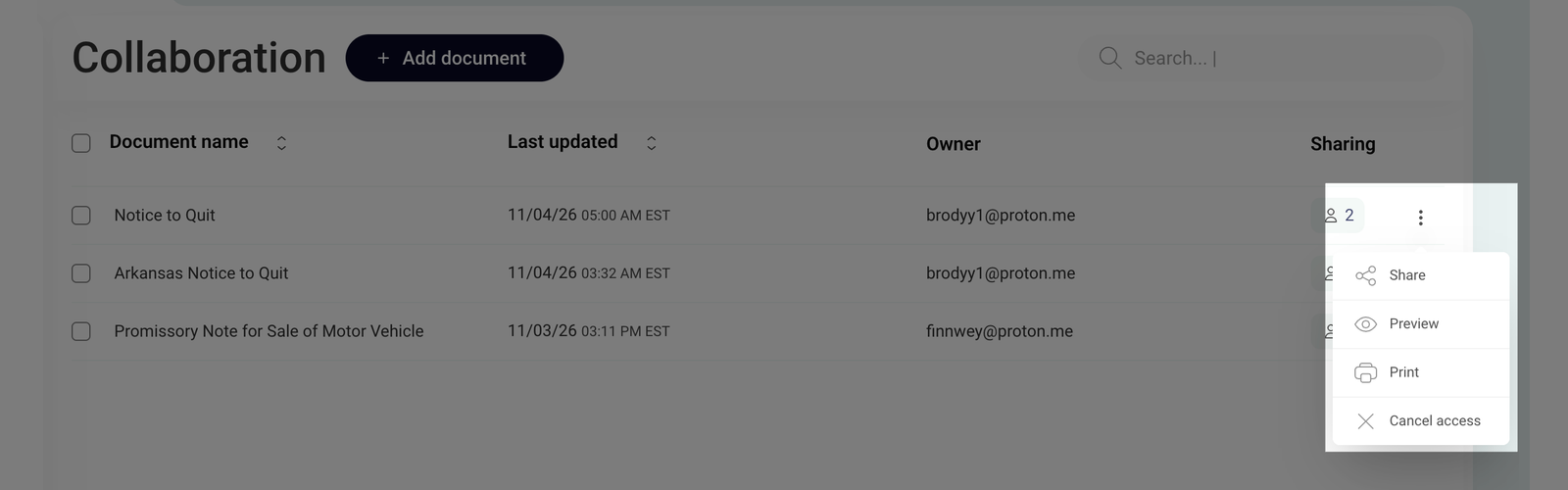
- A notification confirming Access was canceled will appear. The document will disappear from your account, and you'll no longer be able to view or edit it.
The document owner will also receive a notification stating User left the collaboration.
Once you leave a shared document, you'll need a new invitation from its owner to access it again.
How to cancel collaboration as a document owner?
As the document owner, you can cancel collaboration for everyone who has access to your file. This removes both Editor and Viewer permissions without deleting the document from your account.
To cancel collaboration for all users, follow these steps:
- Go to Collaboration in your FormsPal dashboard.
- Find the shared document and click the three-dot menu next to it.
- Select Cancel access from the dropdown menu.
- A notification confirming Access was canceled will appear. All collaborators will immediately lose access to the document, and it will disappear from their accounts.
Users will also receive a notification informing them that their collaboration access has been revoked.
Cancelling collaboration as the document owner removes access for all collaborators, not just selected users. You'll need to invite them again if you want to restore their access.
How to cancel collaboration for one user?
If you're the document owner, you can remove a specific user's access without affecting anyone else working on the document.
To revoke access for one user, follow these steps:
- Go to Collaboration in your FormsPal dashboard.
- Click the document you want to manage. A list of users who currently have access will appear.
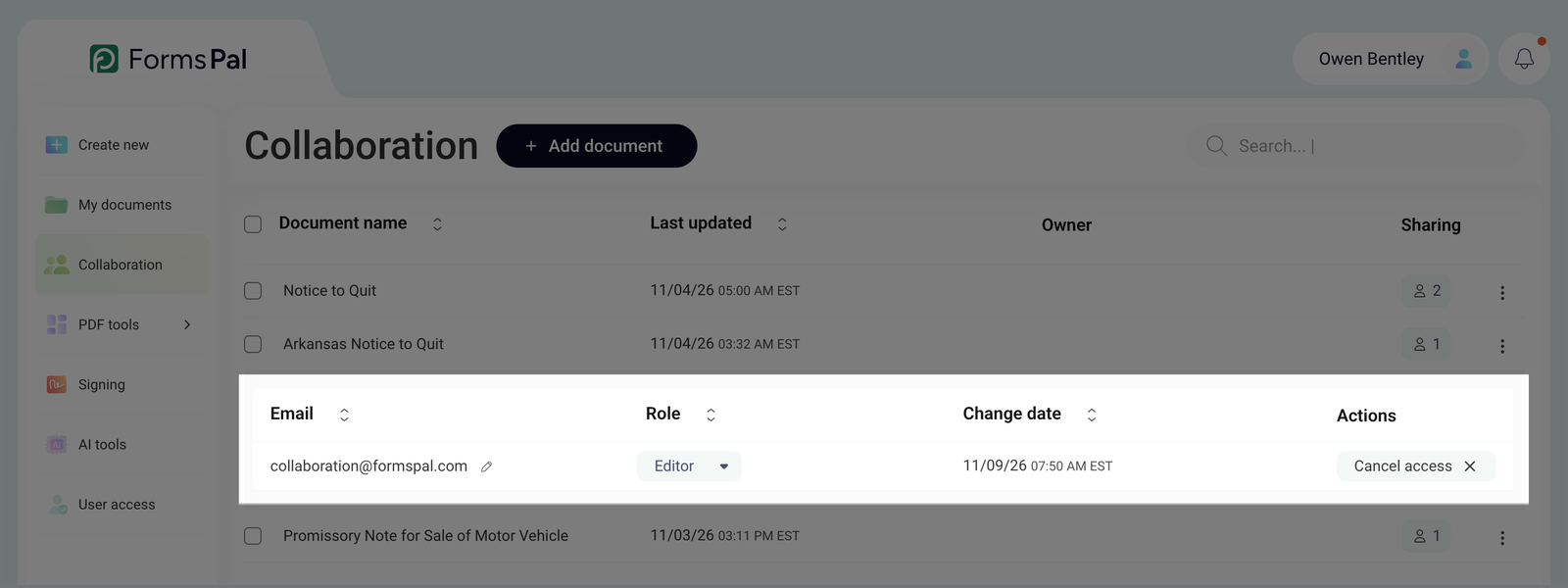
- Find the user you want to remove and click Cancel access in the Actions column next to their name.
- A notification confirming Access was canceled will appear. The user will immediately lose access to the document, and it will disappear from their account.
The removed user will also receive a notification informing them that their collaboration access has been revoked.