
Collaboration
Collaboration notifications
Notifications keep you informed about all collaboration activities in real time. You'll receive updates at every stage, from sharing a document to changes in access permissions, ensuring you're always aware of the document's status and user interactions.
Where to find notifications?
- You can access notifications by clicking the bell icon in the top-right corner of the screen:
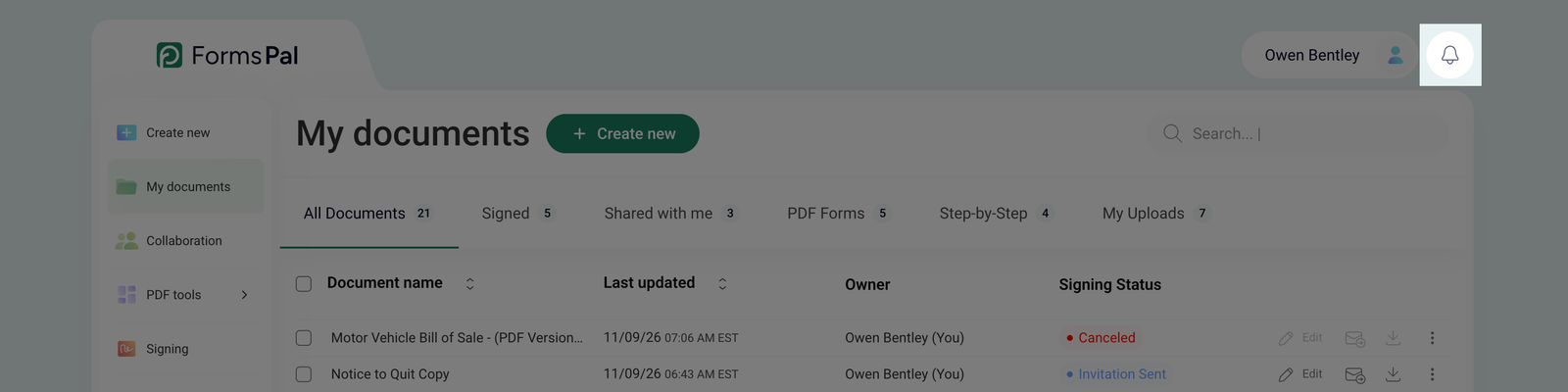
A red dot at the top of the bell icon indicates that you have unread notifications.
- After clicking the bell icon, a drop-down notification panel will open, displaying recent updates. Each notification includes a date and time stamp, helping you track when each event occurred:
- All new notifications will be displayed with a blue dot, indicating unread updates.
- You can mark all notifications as read by clicking the Mark all as read option at the bottom of the notification panel.
- If you want to remove all notifications, click Clear all in the top-right corner to empty the list.
- New notifications about the collaboration process will also appear as pop-up messages in the bottom-right corner of the screen.
Notifications received by the document owner
As the document owner, you will receive notifications whenever a user interacts with the shared document:
- User edited the document - notifies you when a collaborator makes changes to the shared document.
- User viewed the document - informs you when a user opens and reviews the document.
- User left the collaboration - alerts you when a user leaves a shared document.
Notifications received by the collaborating user
Users who have been granted access to a document will receive notifications about their collaboration status and any changes made by the document owner:
- You have been invited to collaborate - confirms that the document owner has shared access with you.
- Your collaboration rights have been changed - notifies you if the document owner modifies your access level (Editor or Viewer).
- You have edited the document - confirms that the changes you made to the document have been saved.
- You have left the collaboration - confirms that you have successfully removed yourself from the shared document.
If you're uncertain about a document's collaboration status, check your notifications for key updates. Reviewing notifications and contacting the document owner or collaborators can help address any delays or issues.