
Collaboration
Sharing documents for collaboration
The Collaboration allows you to share documents with other users, granting them Editor or Viewer rights. With this feature, you can work on documents together, whether you need someone to review, edit, or view the document.
How to collaborate on documents?
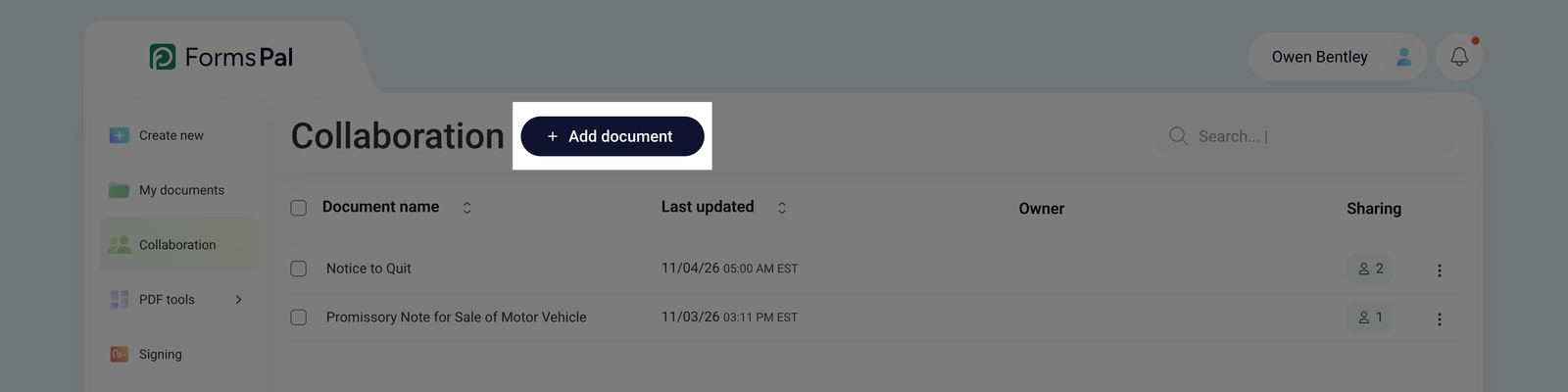
- Click Add document at the top of the Collaboration section.
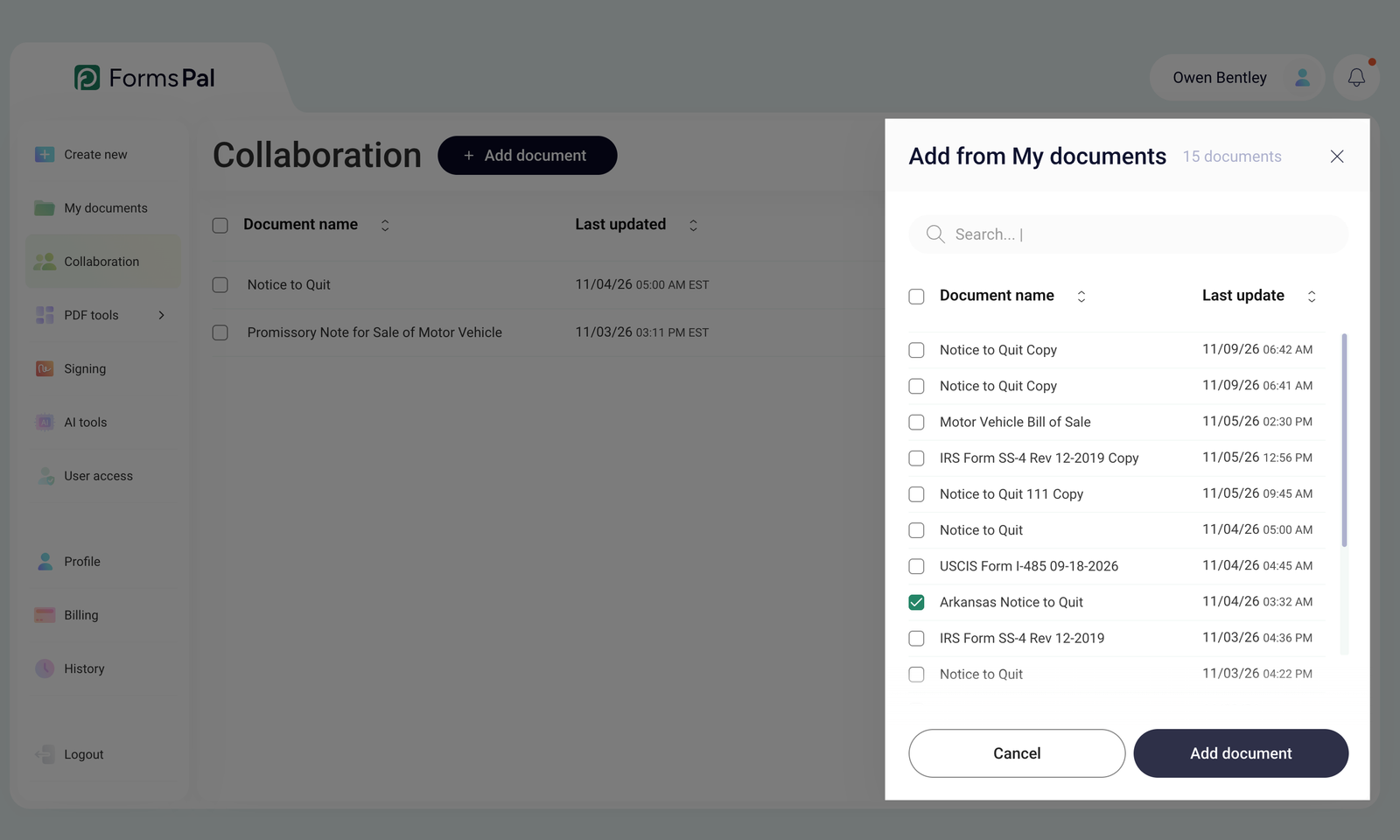
- In the Add from My documents panel, select the checkbox next to the document you want to share for collaboration. You can use the Search field to find a specific document.
- Click Add document at the bottom of the panel to continue.
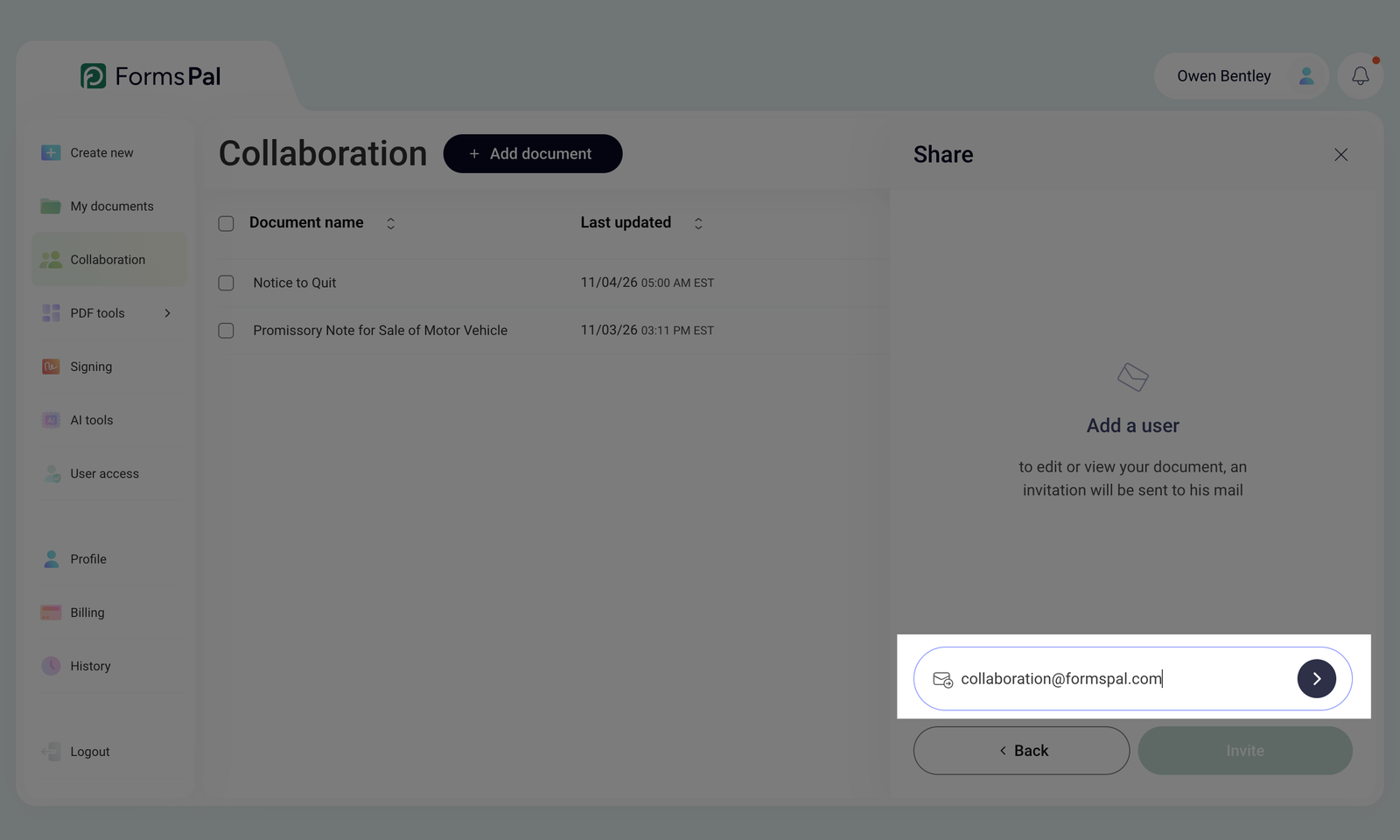
- In the Add email field, enter the email address of the user you want to share the document with for collaboration. Click the arrow button next to the field to add the user.
- The Share section displays each added user. You can also change the user’s role to Editor or Viewer based on the level of access you want to grant. By default, the role is set to Editor.
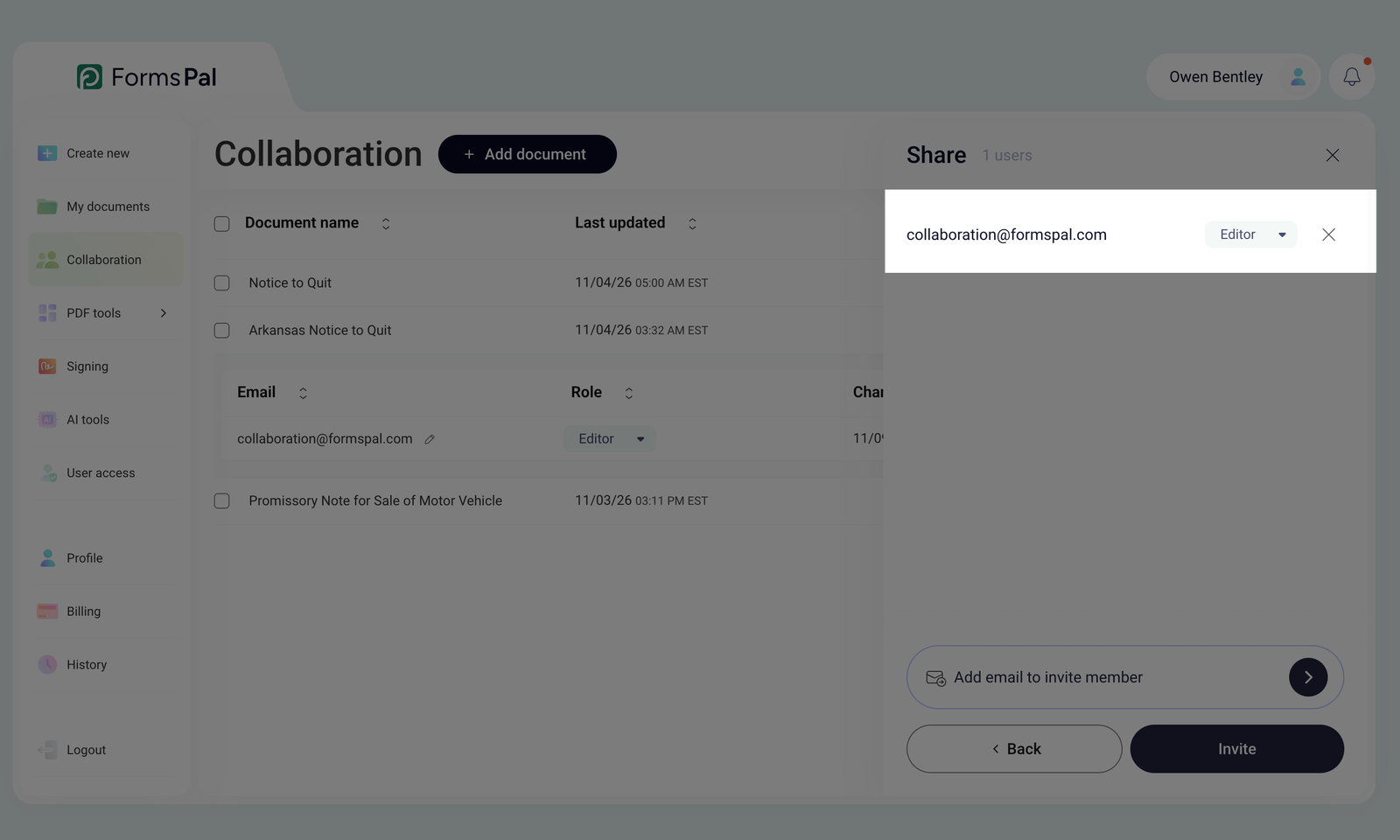
- Editor - users with this role can view, edit, and make changes to the document. They have full access to modify its content.
- Viewer - users with this role can only view the document but cannot make any edits or modifications.
- After selecting all the required users and assigning their access levels, click the Invite button to send collaboration invitations.
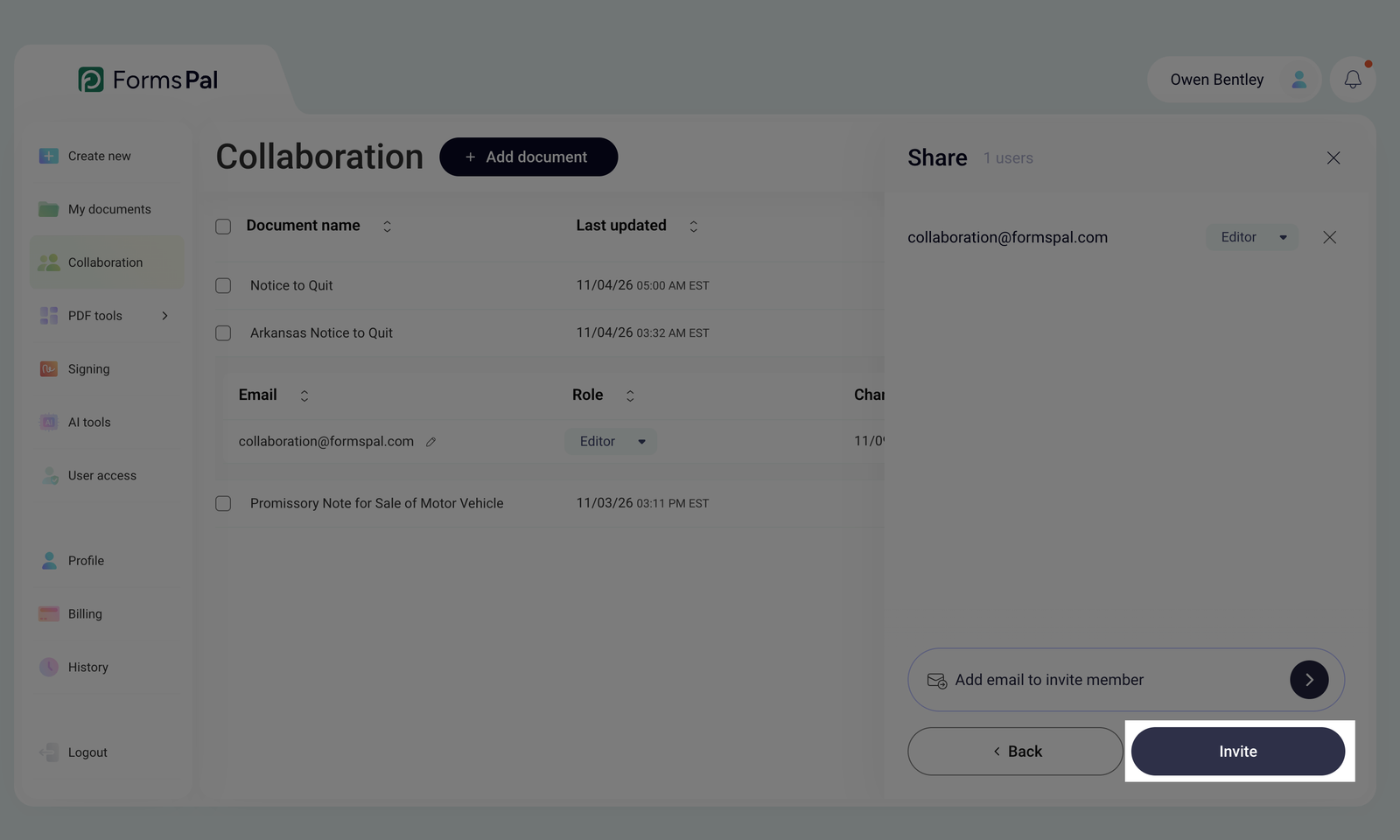
- After clicking Invite, a notification will appear confirming that The invitation has been sent. The invited users will receive an email with access to the shared document.
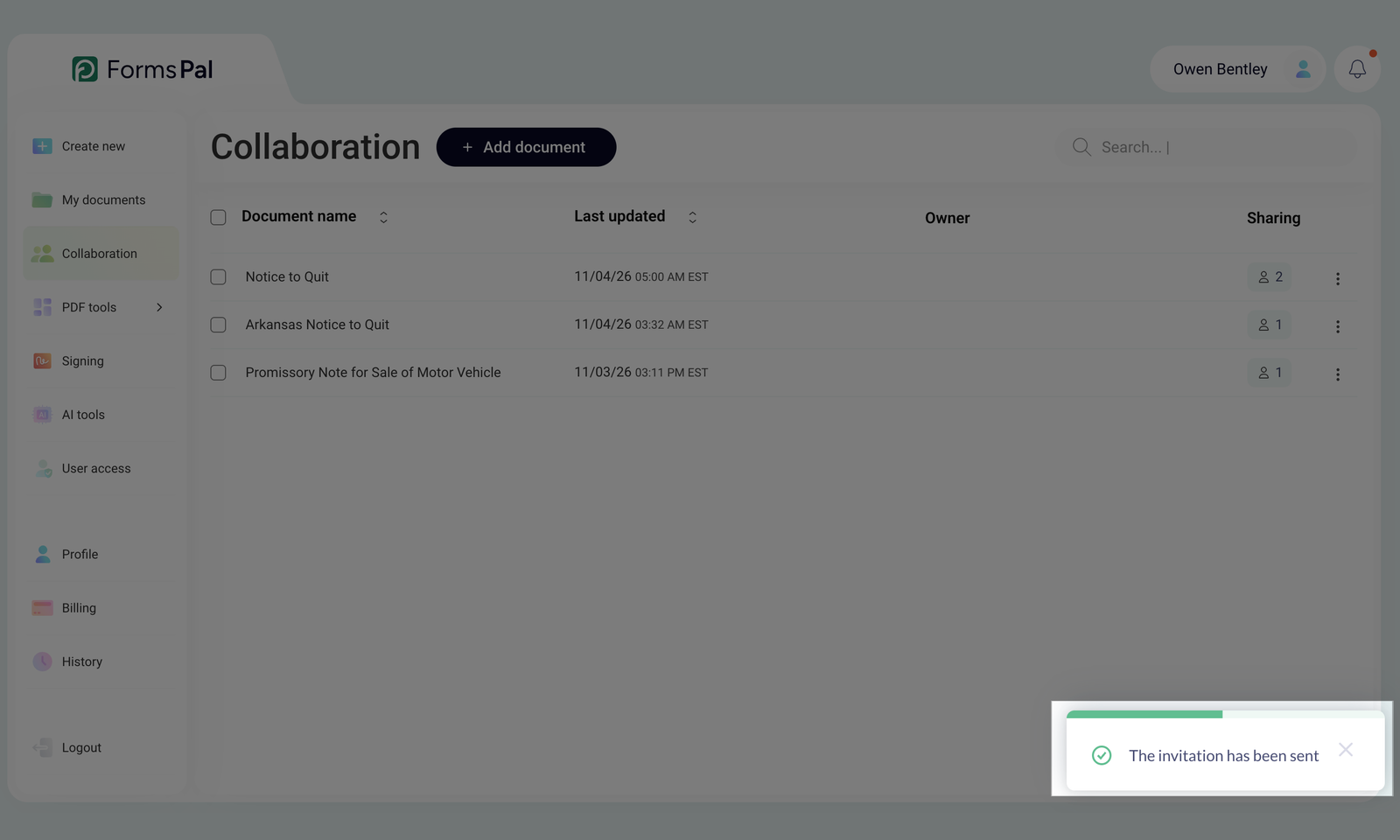
- The Collaboration page will open, displaying all shared documents. The most recently shared document will appear at the top of the list, making it easy to access and manage.
If the document has a Signing status, it cannot be shared in the collaboration.
How to change a user's role in collaboration?
Follow these steps to change the role of a user who already has collaboration access to a document:
- Open the Collaboration section to view your shared documents.
- Locate the document for which you want to change a user’s role.
- Click on the document's name to display the list of users granted access.
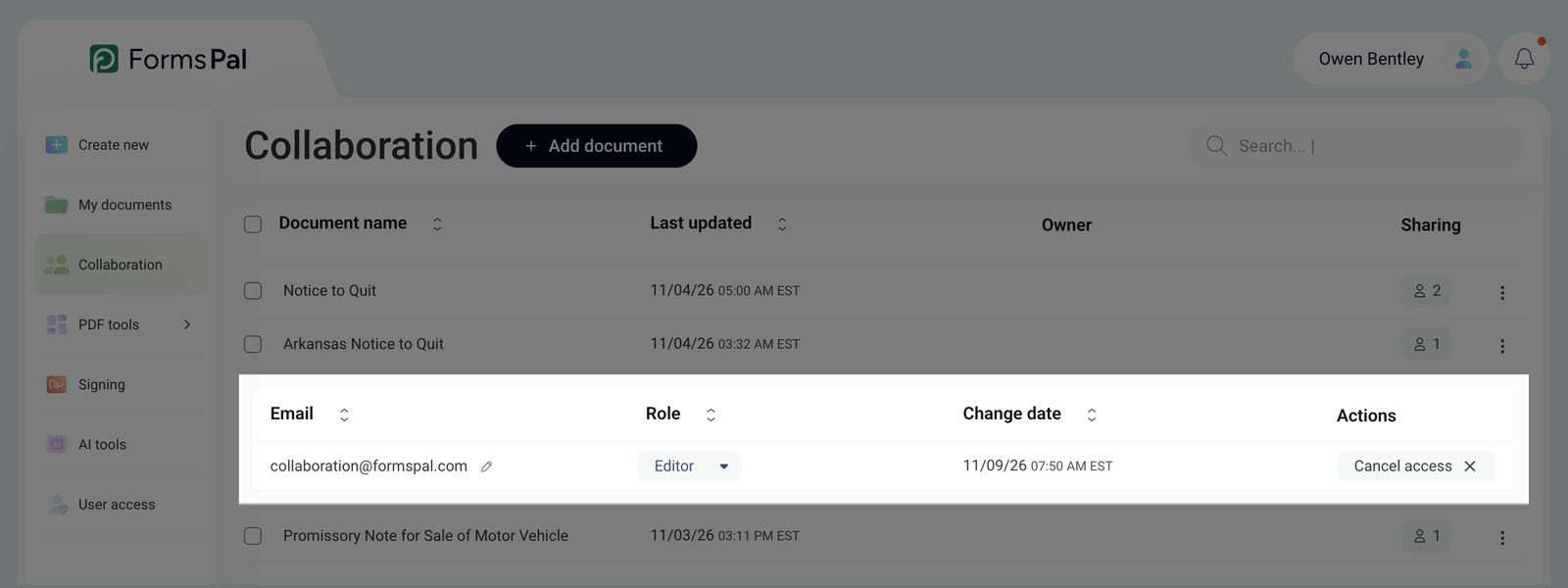
- Find the user whose role you want to change in the opened list.
- In the Role column, click on the dropdown menu next to the user’s current role and select the new role: Editor or Viewer.
- Once you select a new role, the change applies instantly.
How to change a user's email in a collaboration?
To change a user's email address in a shared document, follow these steps:
- Open the Collaboration section from the left sidebar of your FormsPal dashboard.
- Find the document and click the Sharing icon with the number of users to expand the list of collaborators.
- Click the pencil icon next to the email address you want to change.
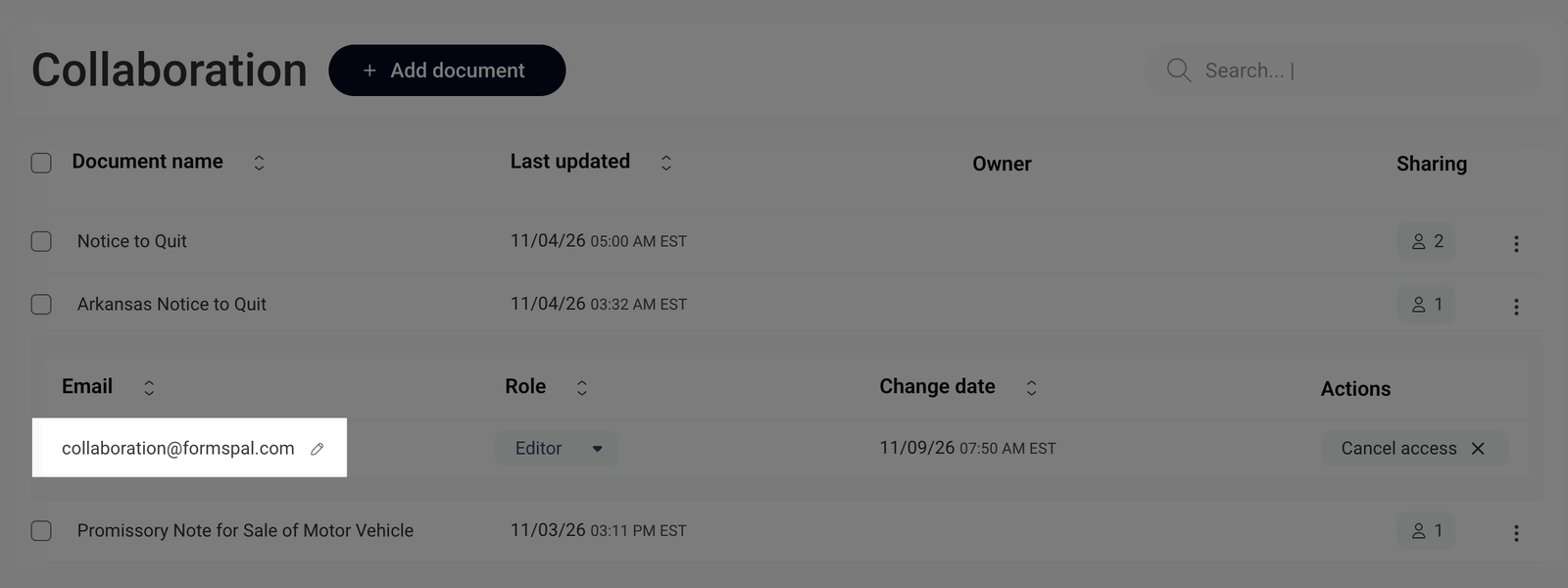
- Enter the new email address in the editable field.
- Click the green checkmark to save the changes, or click the X icon to cancel and keep the existing email address.