
PDF Tools
Compress files
Use the Compress tool to reduce file size while keeping your documents readable. You can choose from three compression levels to find the right balance between file size and quality. The tool supports PDFs, images, Word, Excel, and PowerPoint files.
How to compress files?
To compress your documents, follow these steps:
- Choose the files you want to compress using one of the following methods:
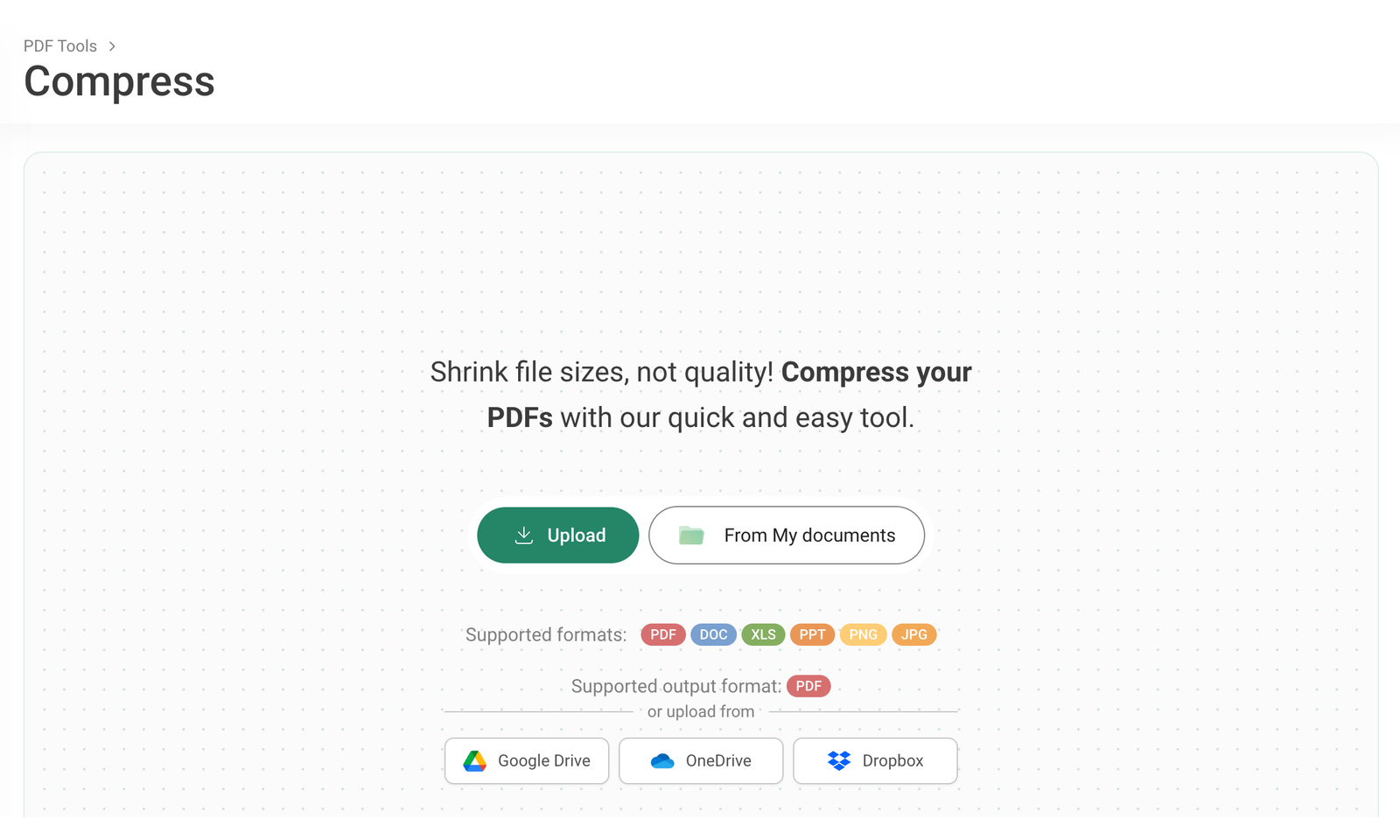
- Click Upload to upload files or drag and drop them from your device.
- Click From My documents and select files in the pop-up window.
- Import files from Google Drive, OneDrive, or Dropbox.
Supported formats include PDF, DOC, XLS, PPT, PNG, and JPG. The output format is PDF.
- After selecting your files, they will appear in the editor. Choose the compression level in the right sidebar:
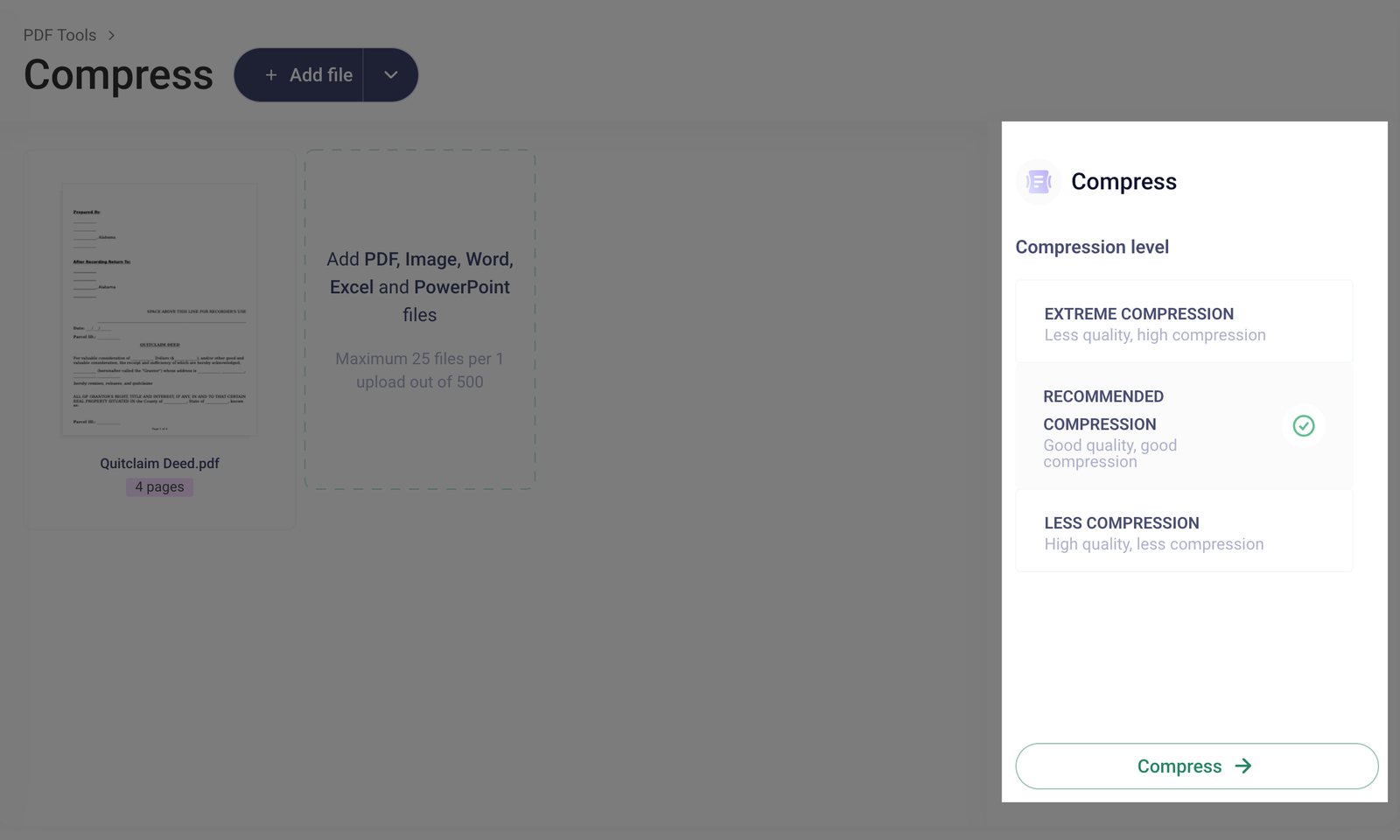
- Extreme Compression - reduces file size significantly but lowers quality.
- Recommended Compression - provides a balance between file size and quality.
- Less Compression - preserves higher quality with a smaller reduction in file size.
The same compression settings will apply to all added files.
- Before compressing, you can make additional changes to your files:
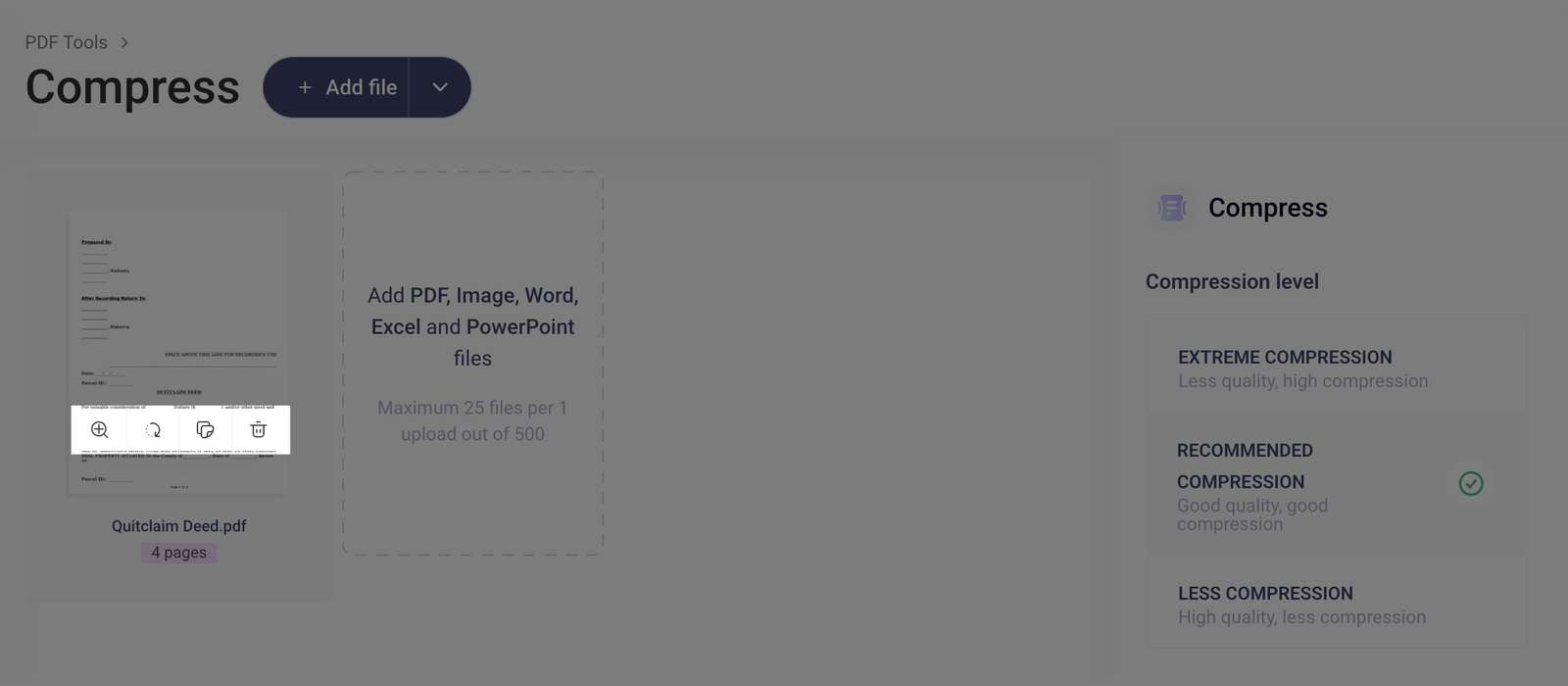
- Hover over a file to display a toolbar with options to zoom, rotate, copy, or delete it.
- Click the Add file button to add more documents.
- Once you've selected your compression settings, click Compress.
The compressed file will appear on the Done page, where you can see its new file size.
- Choose where to save your compressed PDF:
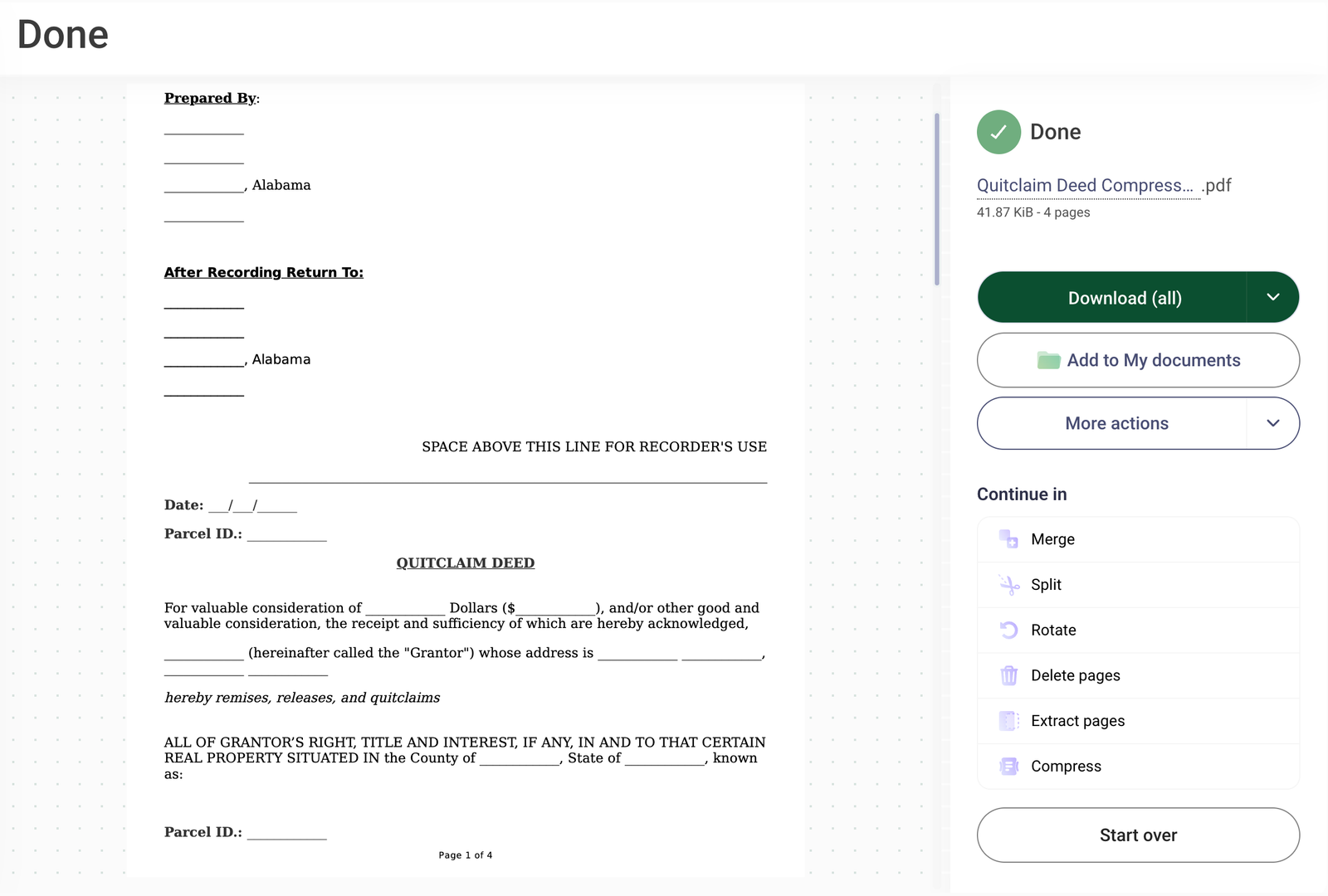
- Click Download to save the file to your device.
- Click the arrow next to Download to see options for saving your file directly to Google Drive, OneDrive, or Dropbox.
- Click Add to My documents to save the file to your FormsPal dashboard.
- If you're not satisfied with the result, click Start over to reset the process and upload your files again.
Other features in the compress tool
Hover over a document/page thumbnail to display a toolbar with the following options:
 |
Zoom | Click the magnifying glass icon to view the page in detail without leaving the editor. |
 |
Rotate | Click the rotate icon to turn the page 90 degrees clockwise, allowing for better alignment or viewing. |
 |
Copy | Click the copy icon to duplicate the document/page, creating an identical copy in the same position. |
 |
Delete | Click the trash bin icon to remove the document/page from the editor. |
Use the left and right arrows at the top to undo or redo any of your actions:
 |
Undo | Click the left arrow to reverse your last action. |
 |
Redo | Click the right arrow to restore an action you just undid. |
Click the + Add file button to upload additional files for compressing documents:

 |
From device | Select files directly from your computer or mobile device. |
 |
My documents | Choose files that are already saved in your account's document library. |
 |
Cloud storages | Import files from Google Drive, OneDrive, or Dropbox. |
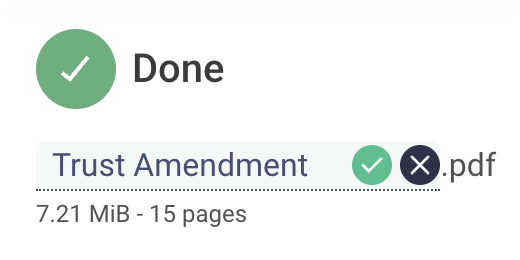
Click on the file name on the Done page. The text field will become editable, allowing you to type the new name for your file:
 |
Save | Confirm the changes and save the new file name. |
 |
Cancel | Discard the changes and revert to the original file name. |
Click the More actions button on the Done page to access additional options for managing your document:

 |
Send to print | Print your document directly. |
 |
Send the file as an email attachment. | |
 |
Sign | Add a digital signature to your document. |
 |
Collaborate | Share the document with others for collaboration in FormsPal. |