PDF Editor
Add an image to a document
The Image tool in the PDF Editor allows you to insert images into your document, such as logos, stamps, or illustrations. You can upload images from your device, select previously uploaded images, and adjust their position and size on the page.
How to add an image to a document?
To insert an image into your document, follow these steps:
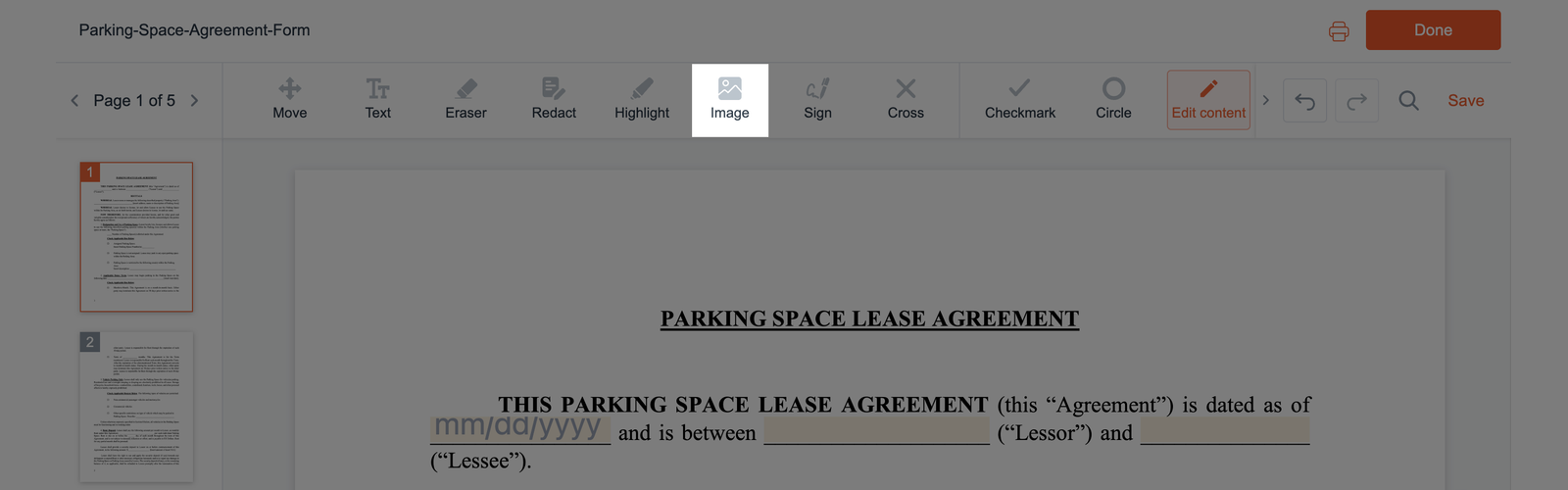
- In the PDF Editor, click Image in the top toolbar. The Insert Image window will appear.
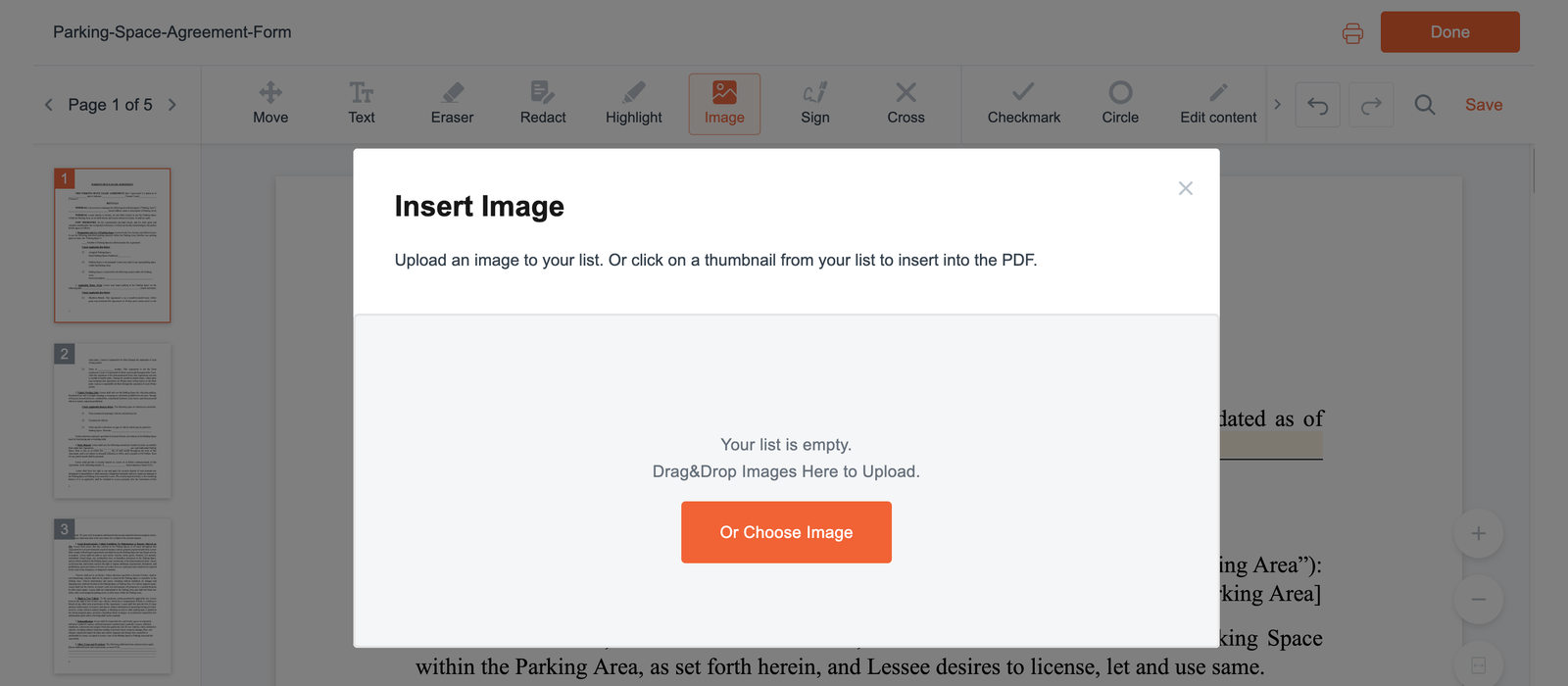
- Click Or Choose Image to upload an image from your device. You can also drag and drop files into the Drag&Drop Images Here to Upload area.
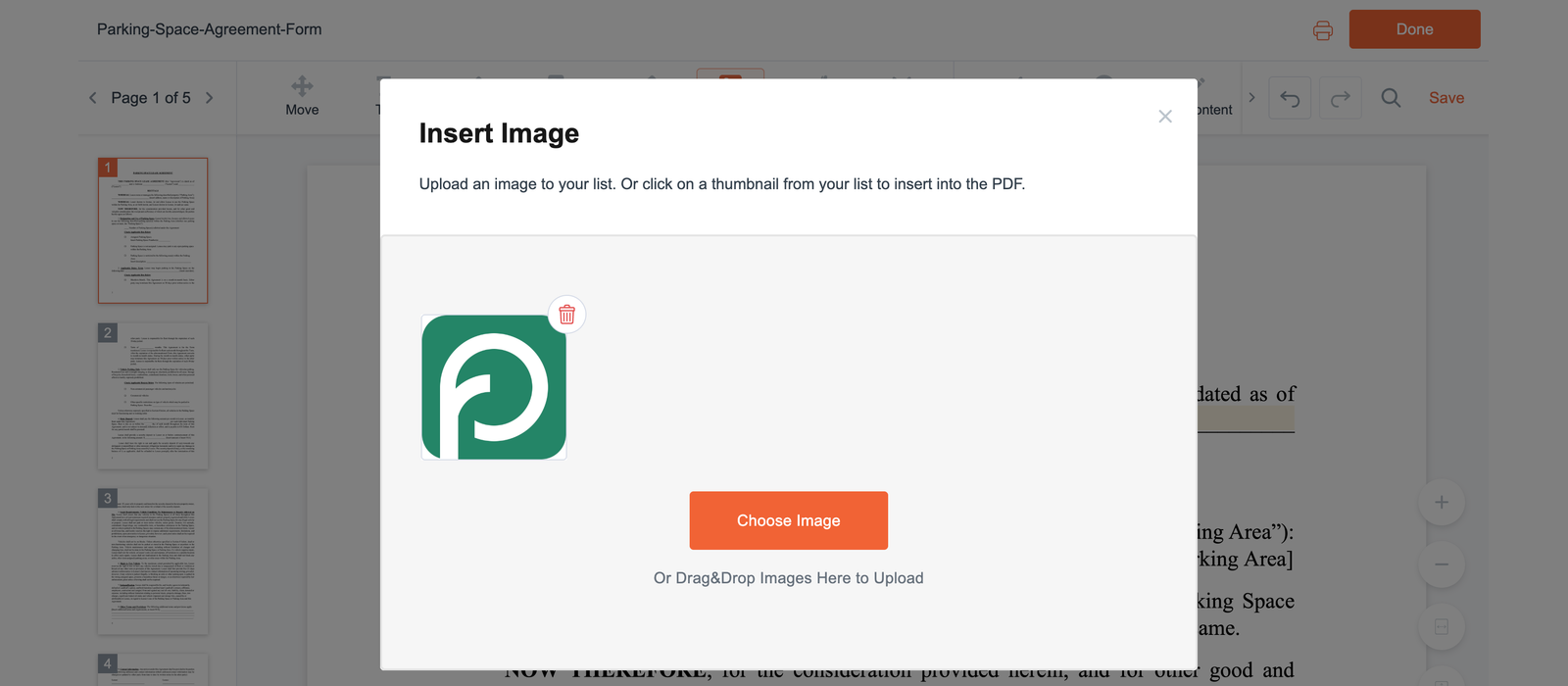
- Once uploaded, the image will appear as a thumbnail in the Insert Image window. You can click Choose Image to upload another image or click the trash icon on a thumbnail to remove it from your image list.
- Click the thumbnail of the image you want to insert. The window will close, allowing you to click the desired location on the document to place the image.
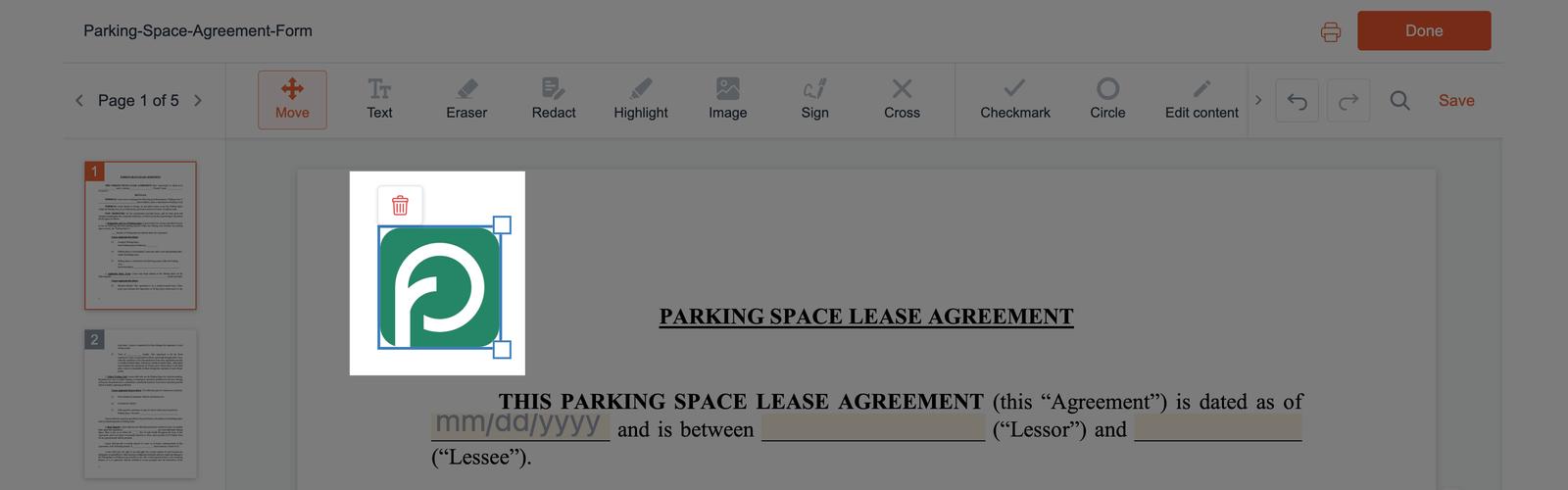
- To move the image, click and hold it, then drag it to the desired location.
- To resize it, select the image and drag the handle at the bottom-right corner to adjust its size.
- To delete an image from the document, select it, then click the trash icon above it.