PDF Editor
Rearrange pages in documents
The Rearrange pages feature in the PDF Editor allows you to manage your document's pages in one window. You can change their order, add blank pages, duplicate existing ones, or delete pages you no longer need.
How to rearrange pages in a document?
To rearrange or manage pages in your document, follow these steps:
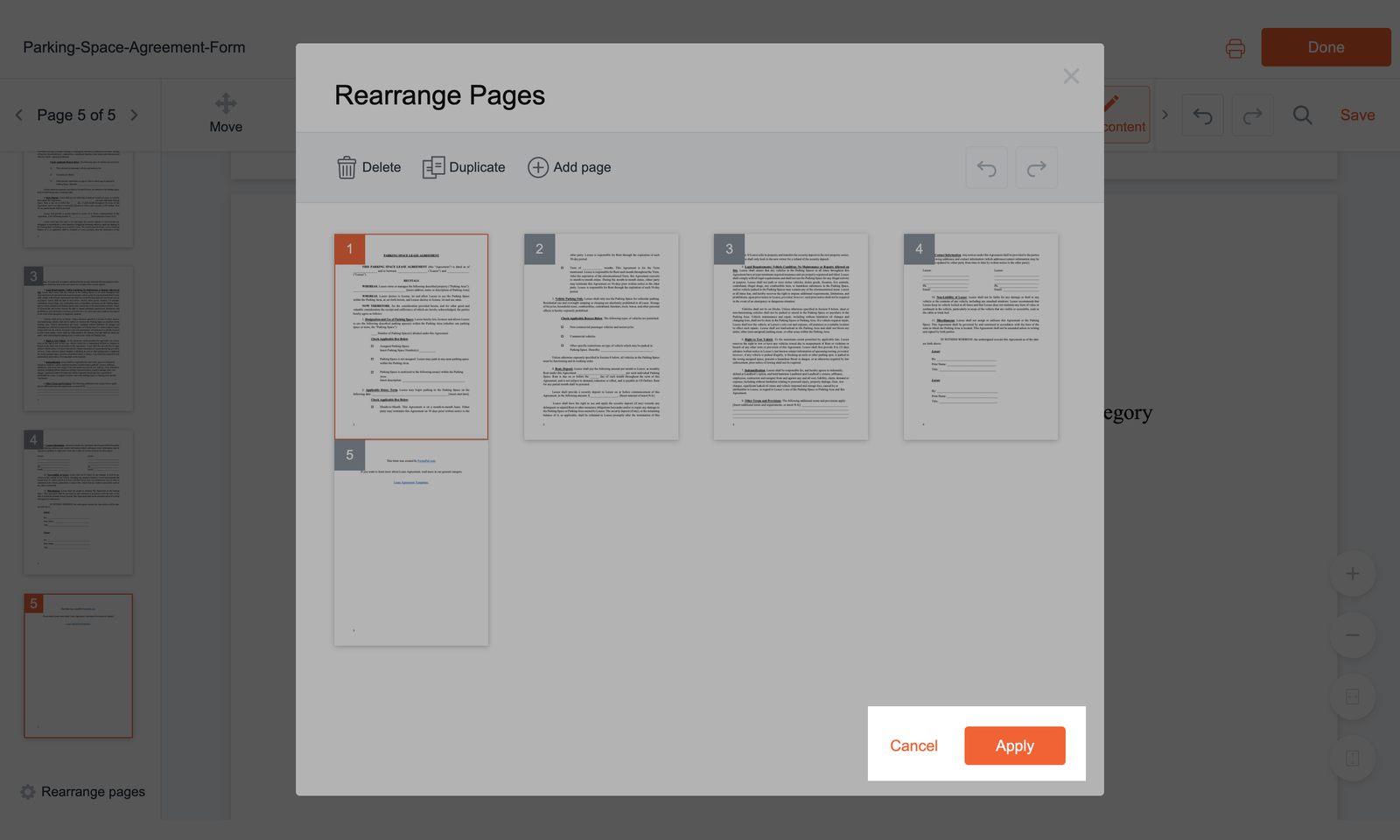
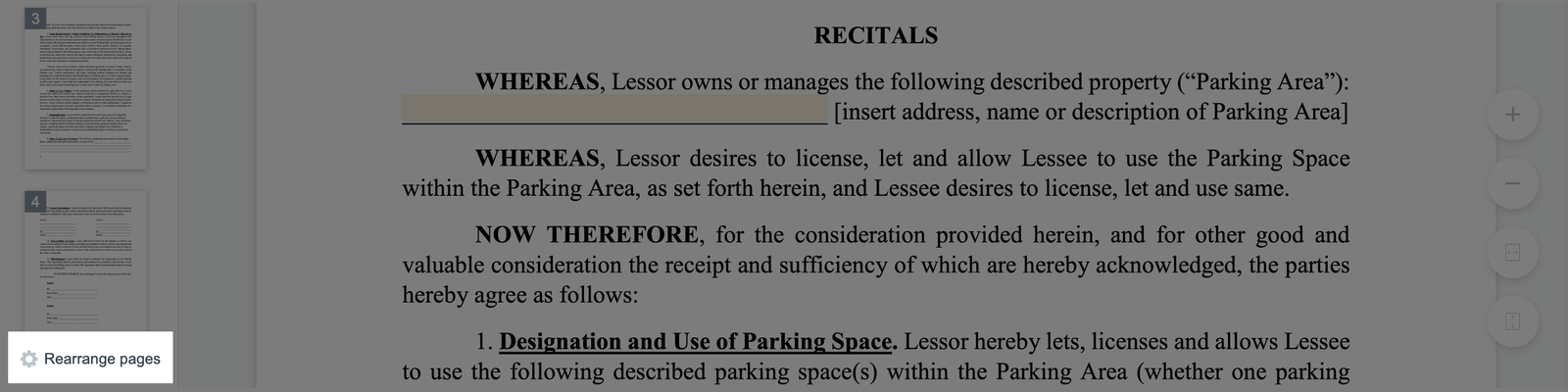
- In the PDF Editor, click Rearrange pages below the page thumbnails on the left. A window displaying all the pages in your document will appear.
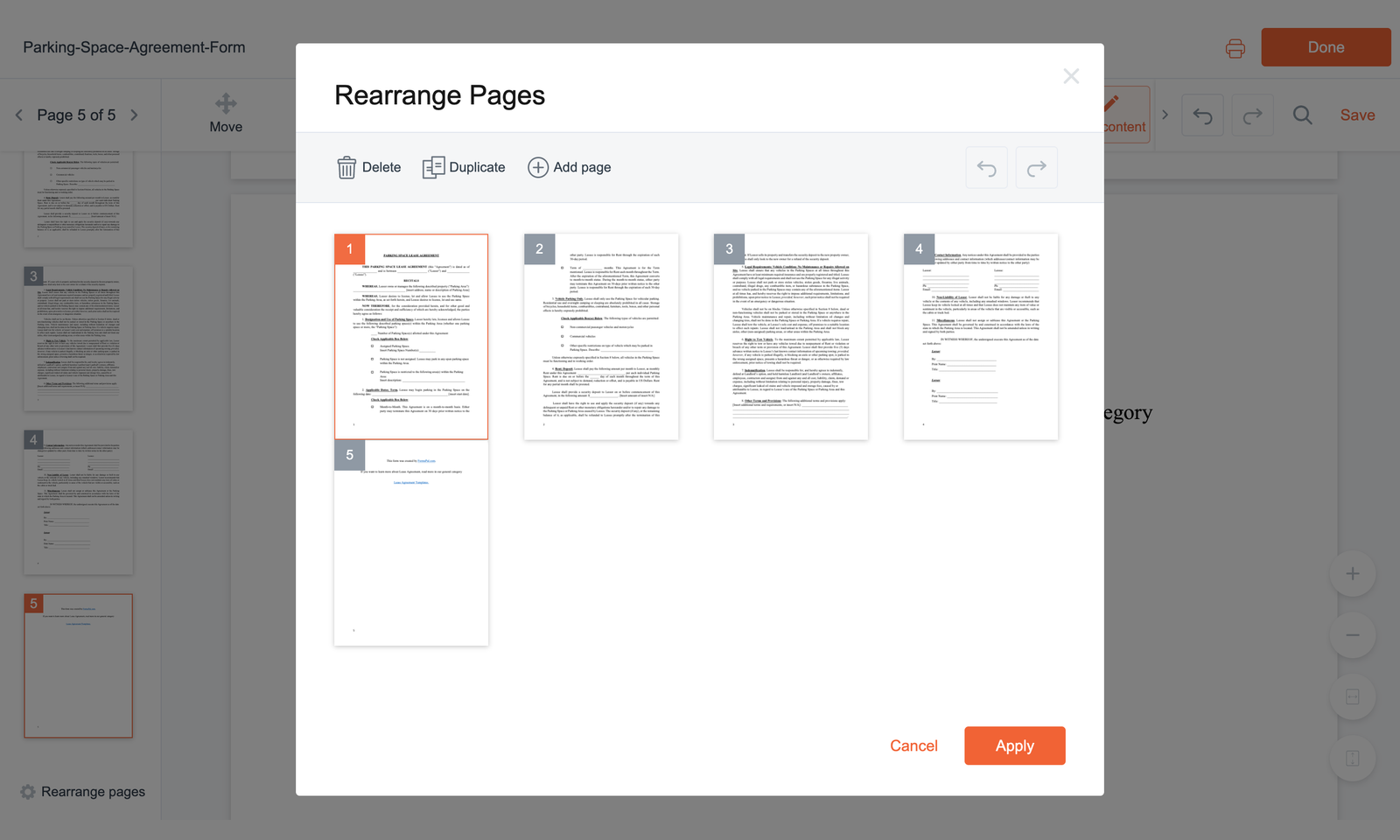
- Click a page thumbnail to select it. The selected page will be highlighted, allowing you to make changes.
- Use the available options to manage your pages:
- Rearrange pages - click and hold a page thumbnail, then drag it to the desired position.
- Add page - click Add page at the top of the window to insert a blank page at the end of the document. You can drag it to a different position if needed.
- Duplicate - select the page you want to copy, then click Duplicate. You can move the copied page to another position.
- Delete - select the page you want to remove, check its page number, then click Delete.
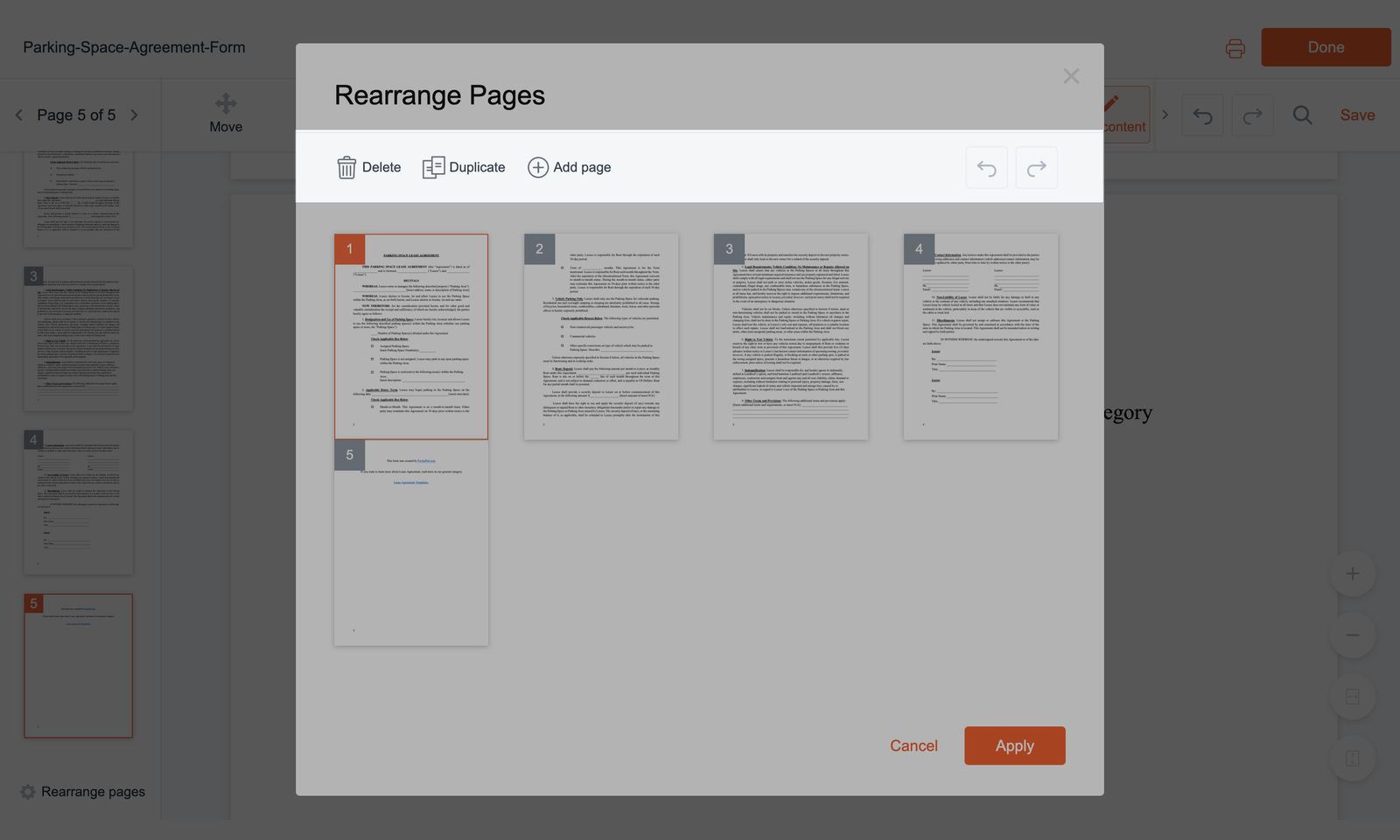
You can also use the arrows in the top-right corner of the window to undo or redo your changes.
- Once you've finished making changes, click Apply to confirm them and return to the PDF Editor. To discard your changes, click Cancel instead.