
PDF Editor
Adjusting the document view
The FormsPal PDF Editor lets you adjust how your document appears on the screen. You can zoom in to see smaller details, zoom out to view more of the page, or fit the document to your screen for easier reading and editing.
How to adjust the document view?
To change how your PDF appears in the editor, follow these steps:
- Find the view controls in the bottom-right corner of the PDF Editor.
- Click the plus (+) button to zoom in and make the document appear larger.
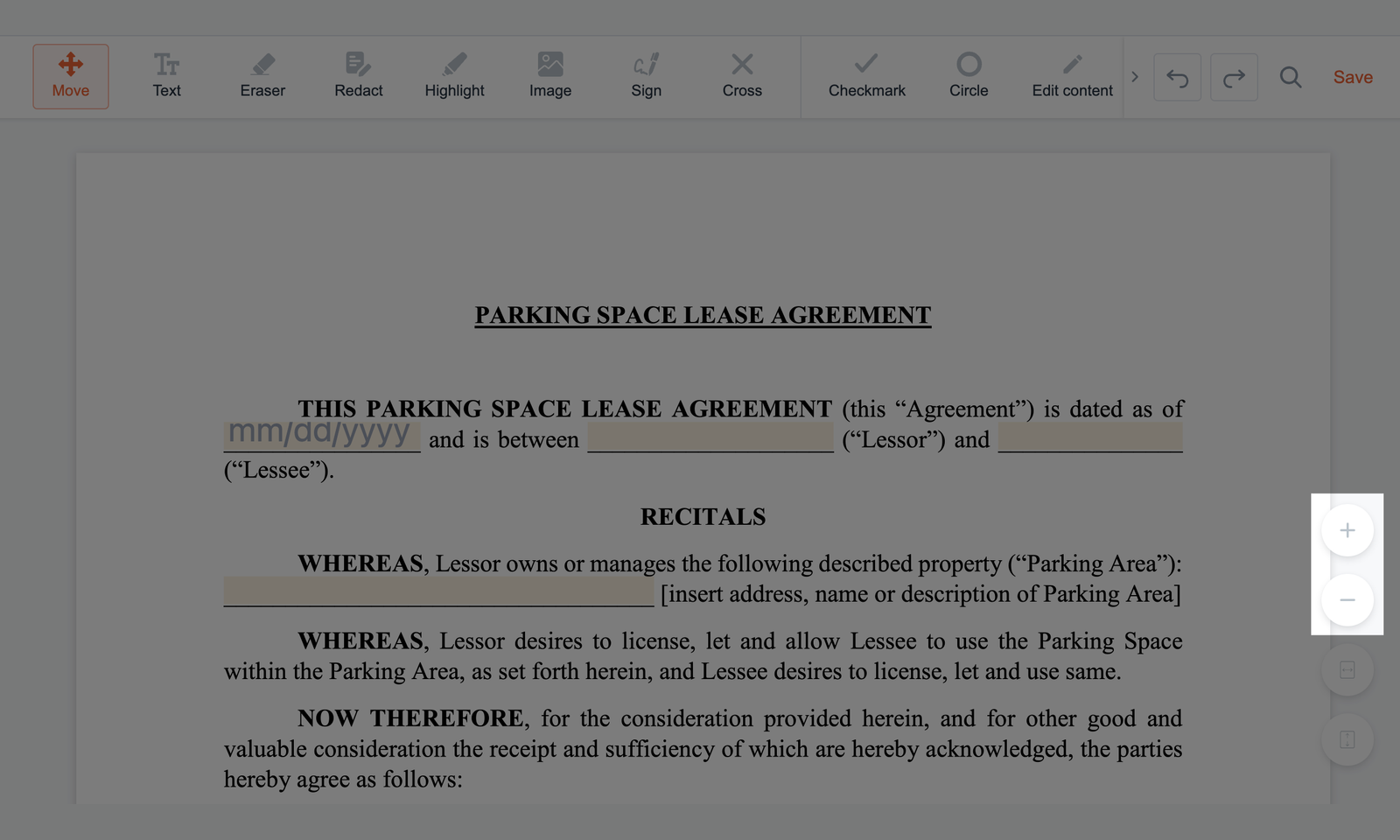
- Click the minus (-) button to zoom out and display more of the document at once.
- Use the two buttons below the zoom controls to adjust how the page fits on your screen:
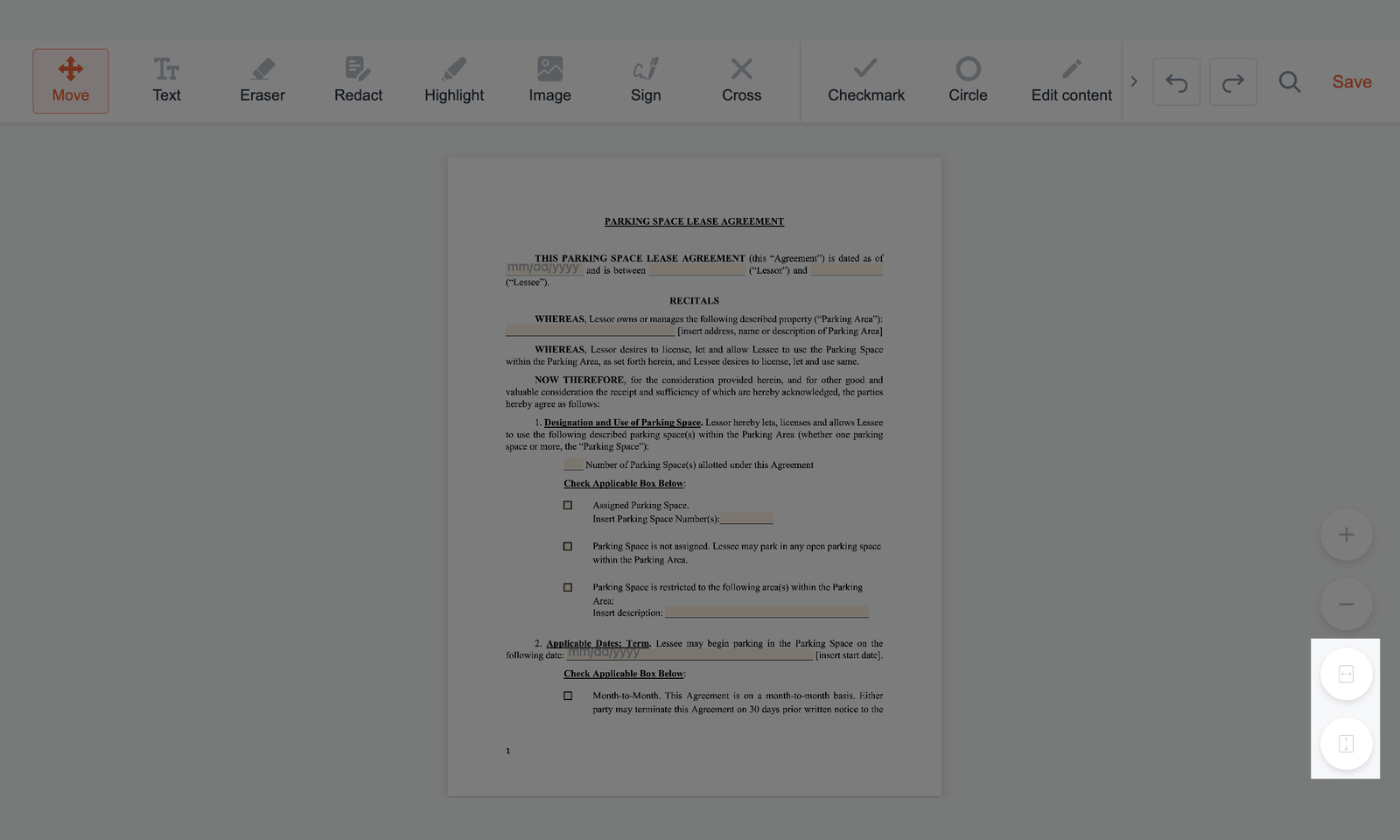
- Horizontal arrows - fit the document to the available screen width.
- Vertical arrows - fit the entire page to the available screen height.
These controls only change how the PDF appears on your screen. They don't affect the actual page size or the content of your document.