PDF Editor
Sign a document
The Sign tool in the PDF Editor allows you to add a signature to your document. You can type your name, draw a signature with your mouse, or upload an image of your signature from your device.
Once you've created a signature, you can select it from your signature list, place it anywhere on the document, and adjust its position and size.
How to sign a document?
To add a signature to your document, follow these steps:
- In the PDF Editor, click Sign in the top toolbar.
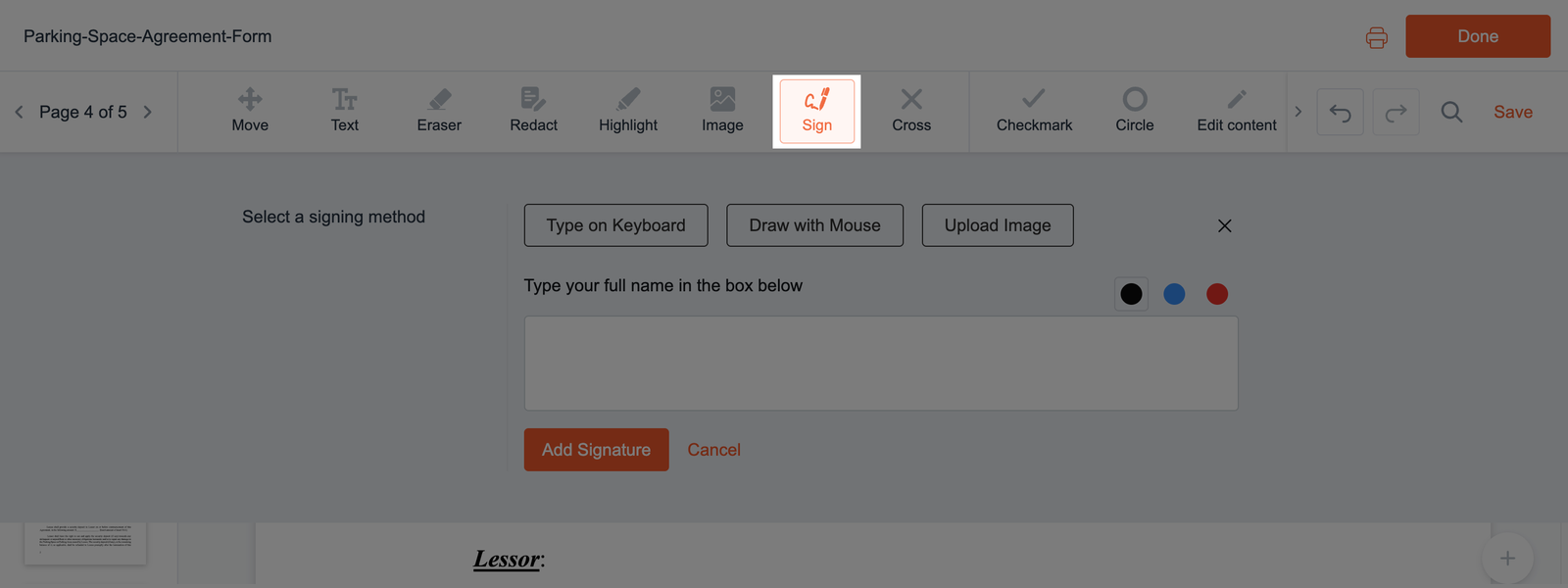
- The Select a signing method panel will appear. Choose one of the following methods to create your signature:
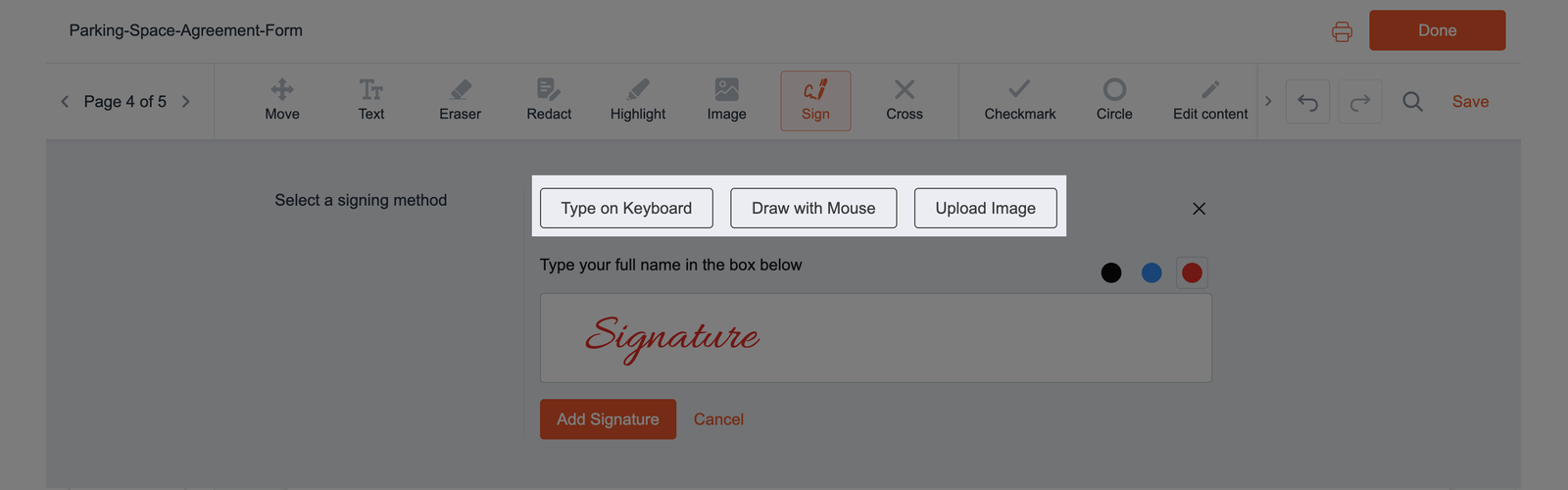
- Type on Keyboard - enter your full name in the text box.
- Draw with Mouse - click and hold inside the drawing box, then move your mouse to draw your signature.
- Upload Image - click Browse in the Choose file field and select an image of your signature from your device.
For typed or drawn signatures, you can choose from three colors: black, blue, or red.
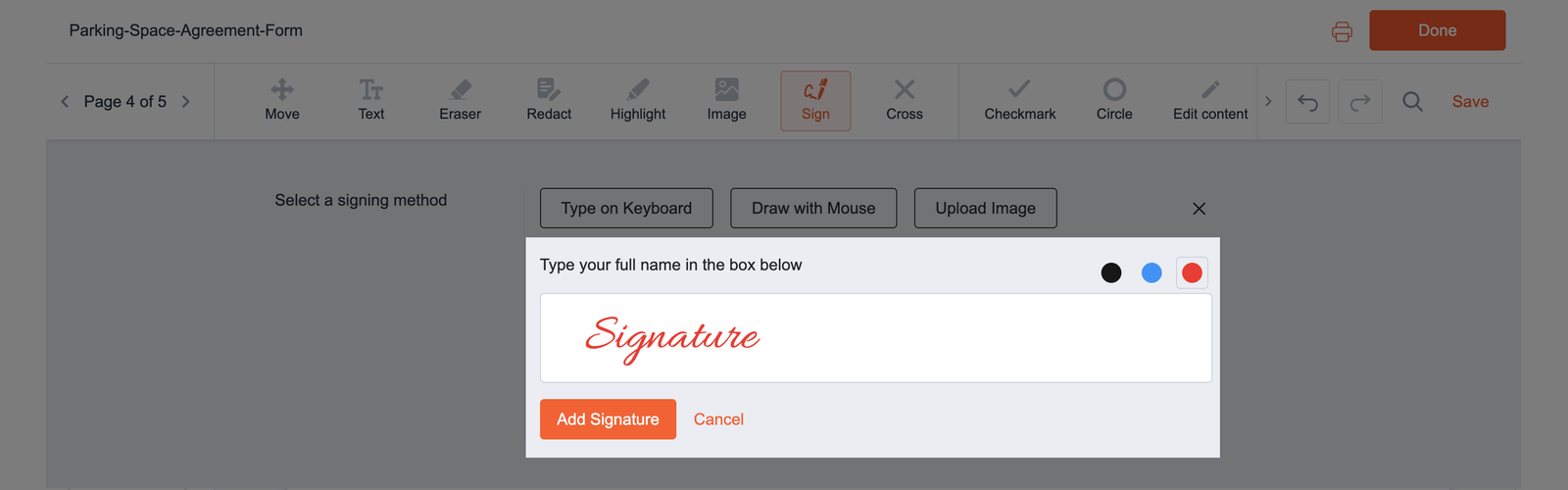
Once you're satisfied with the result, click Add Signature. You can also click Cancel to close the panel without adding a signature.
- Once your signature appears in the signature list, click its thumbnail to select it. Then click the desired location on the document to place your signature.
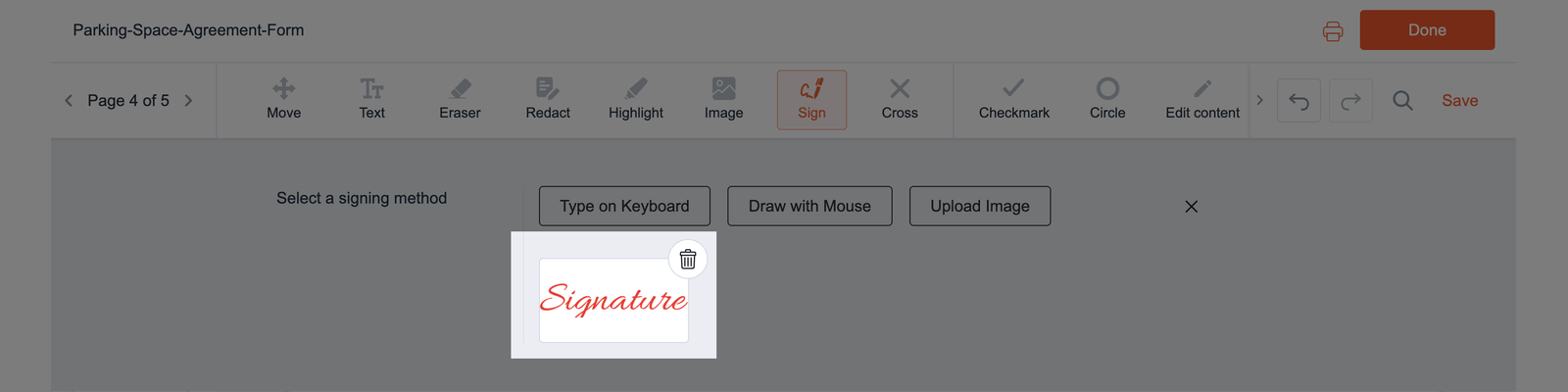
If you're not satisfied with the result, click the trash icon on the signature thumbnail to delete it and create a new one.
- To move the signature, click and hold it, then drag it to the desired location.
- To resize it, select the signature and drag the handle at the bottom-right corner to adjust its size.
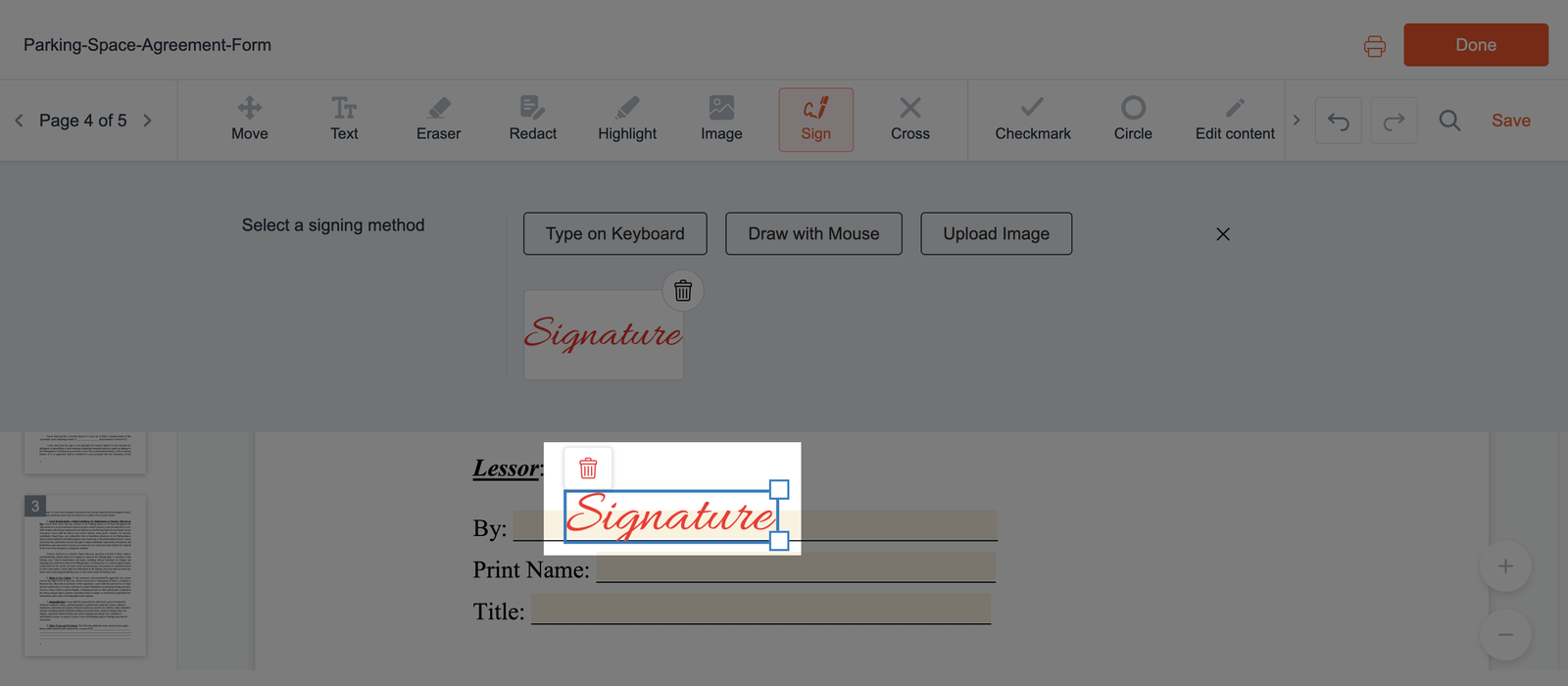
- To delete a signature from the document, select it, then click the trash icon above it.
Check that your signature is positioned correctly and fits the designated area.
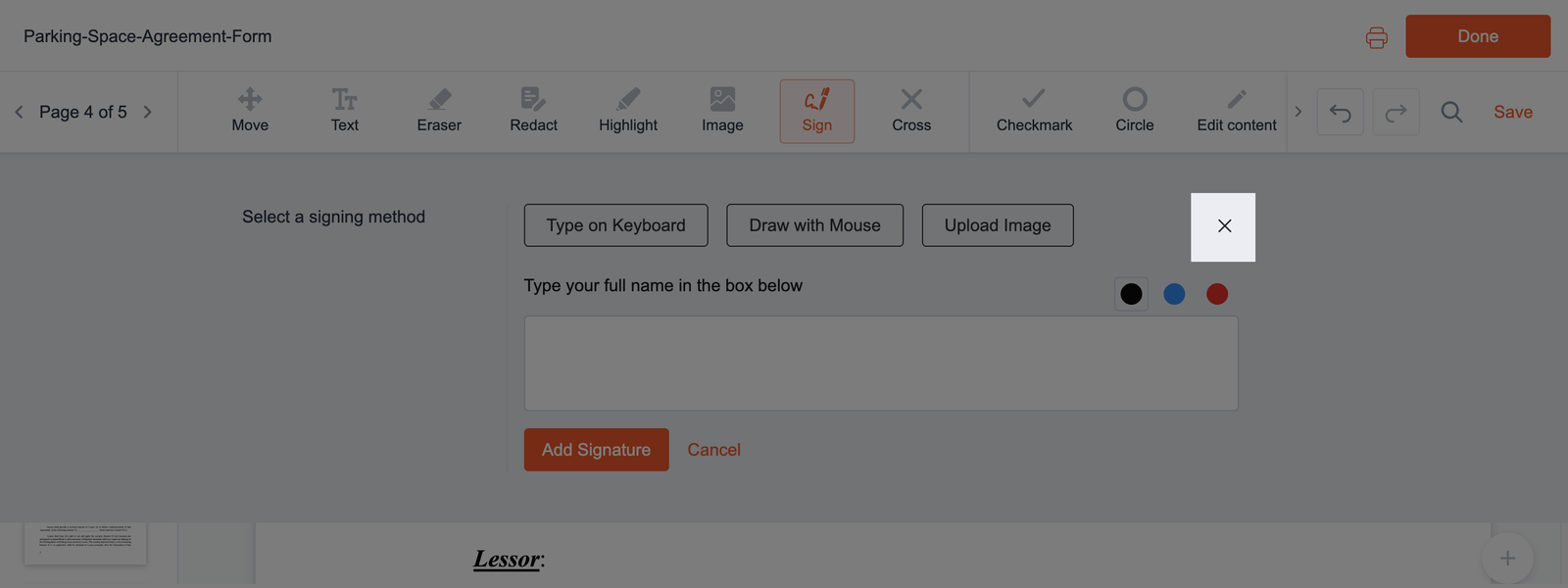
- Once you're finished, click the X on the right side of the signature panel to close it.