
PDF Editor
Add text to a document
The Text tool in the PDF Editor allows you to add new text to your document and edit text boxes you've added. You can customize the text's font, size, color, and style to suit your needs.
Simply select the tool, click the area of the document where you want to add text, and start typing. You can then adjust the text settings to achieve your document's desired appearance and positioning.
How to add text to a document?
To add text and adjust its settings, follow these steps:
- In the PDF Editor, click Text in the top toolbar.
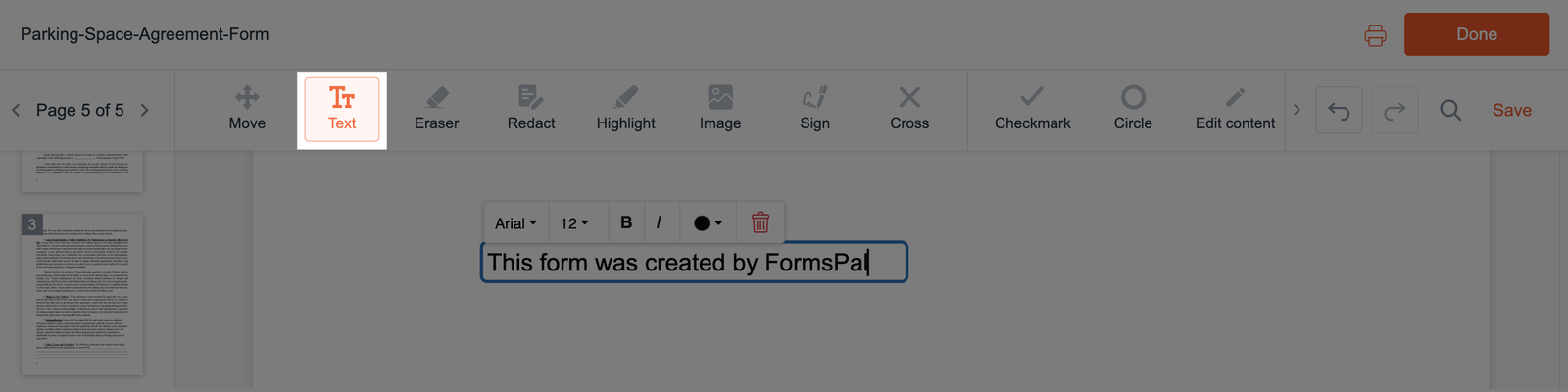
- Click the area of the document where you want to add text. A text box will appear at that location. Click inside the box and start typing.
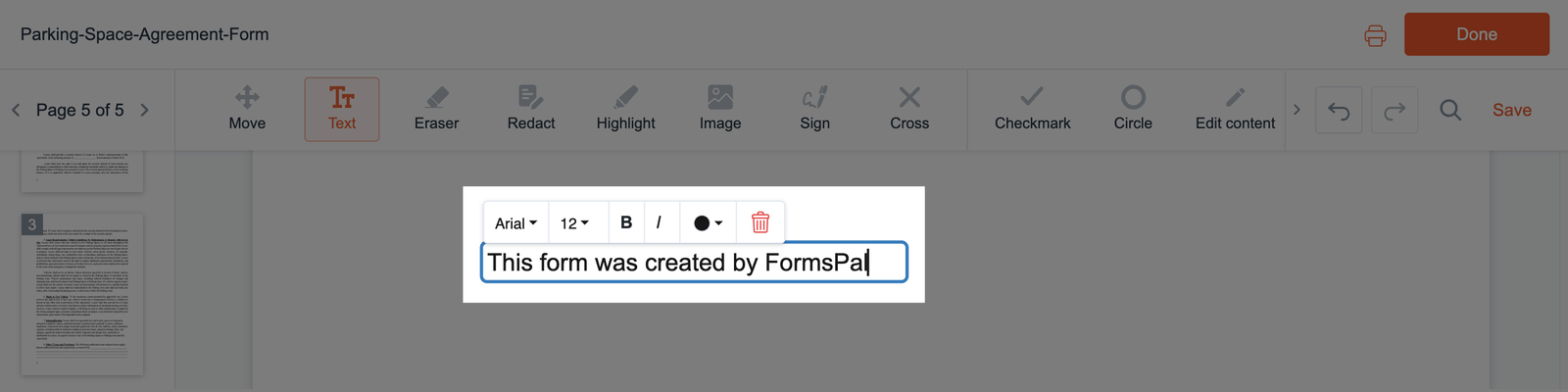
- Use the menu above the selected text box to adjust its appearance. To edit text you've already added, click inside the text box and type your changes.
The available formatting options include:
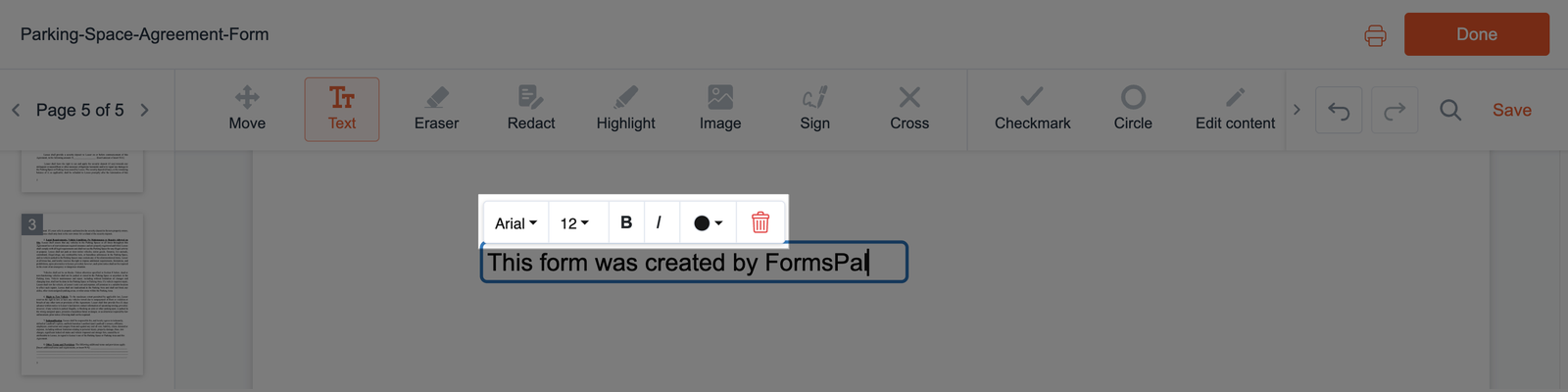
- Font Type - select from Arial, Times New Roman, and Courier. Click the font name in the menu, then choose the font you want to use.
- Font Size - click the size value to open the available sizes, then choose the size you need.
- Bold and Italic - click B to make the text bold or I to make it italic. You can apply both styles together or click the same control again to turn them off.
- Font Color - click the color swatch to open the palette, then select the color you want to apply.
- To move a text box, click and hold it, then drag it to the desired location.
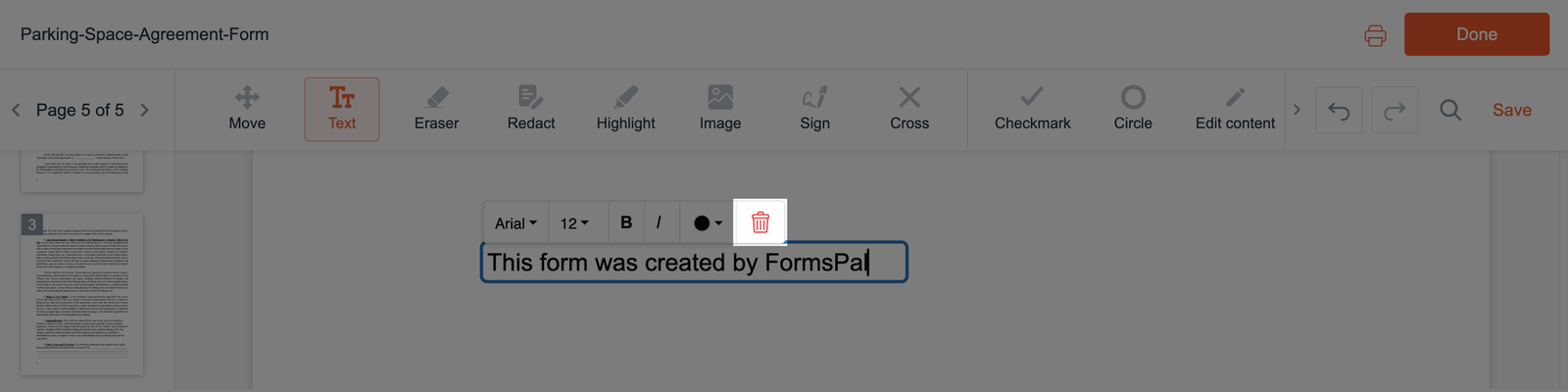
- To delete a text box, select it, then click the trash icon in the menu above it.
- Click outside the text box to finish editing.