
PDF Editor
Redact sensitive information in a document
The Redact tool in the PDF Editor allows you to cover unwanted or sensitive information with a black rectangle. You can use it to hide words, lines, or other parts of your document and adjust the rectangle's position and size as needed.
How to redact sensitive information in a document?
To cover an area of your document, follow these steps:
- In the PDF Editor, click Redact in the top toolbar.
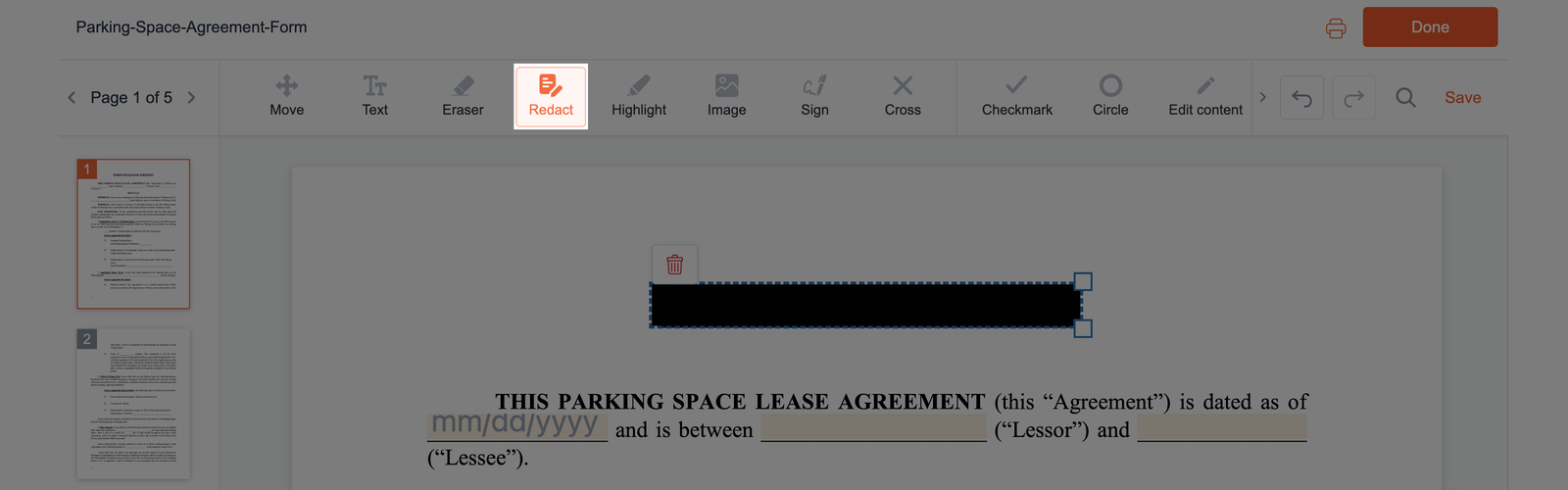
- Click and hold at one corner of the area you want to cover, then drag to the opposite corner. Release the mouse button to create a black redaction box over the selected area.
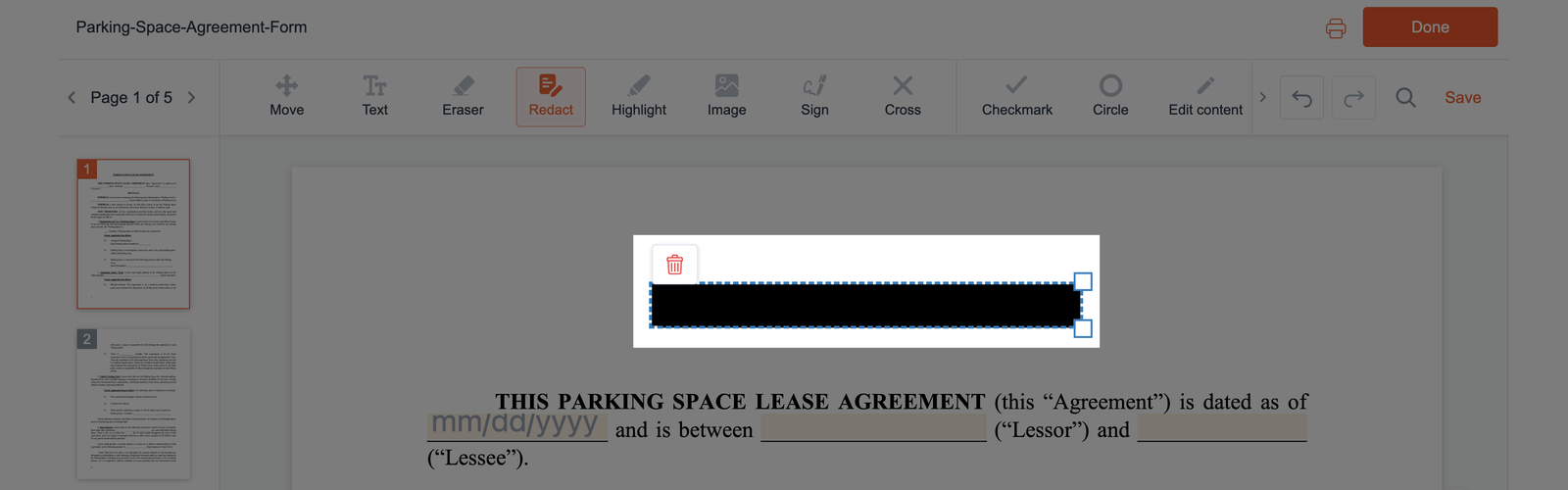
- To move the redaction box, click and hold it, then drag it to the desired location.
- To resize it, select the box and drag the handle at the bottom-right corner to adjust its size.
- Check that the redaction box covers all the intended content. Repeat these steps for any additional areas you want to cover.
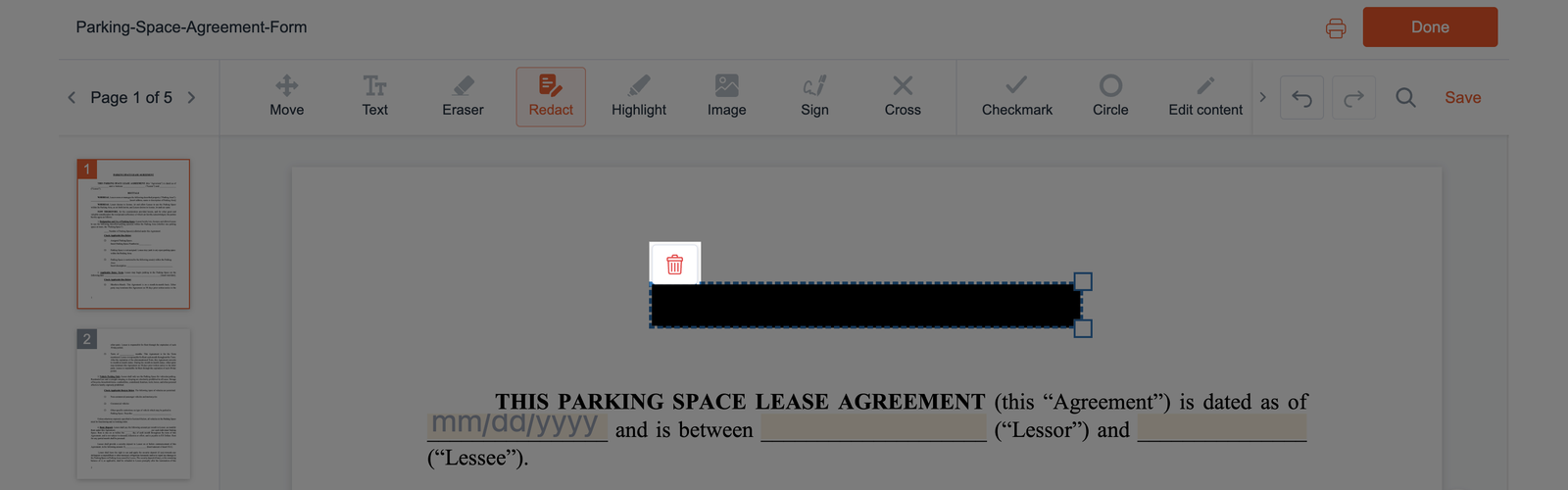
- To delete the redaction box, select it, then click the trash icon.
The Redact tool covers content with a black rectangle. This doesn't necessarily mean the underlying information has been permanently removed from the PDF.