
User Access
Document access & roles
The User Access section lets you check which documents are available to each user and review their assigned roles. For documents shared through Collaboration, you can also change a user's access level from Editor to Viewer or vice versa.
How to view documents available to a user?
To check which documents a user can access, follow these steps:
- Click User access in the left sidebar of your FormsPal dashboard.
You'll see a list of users you've added for signing or collaboration, along with their email addresses and available actions. - Find the user whose documents you want to review.
Use the Search field in the top-right corner to find a specific user by entering their email address or part of it.
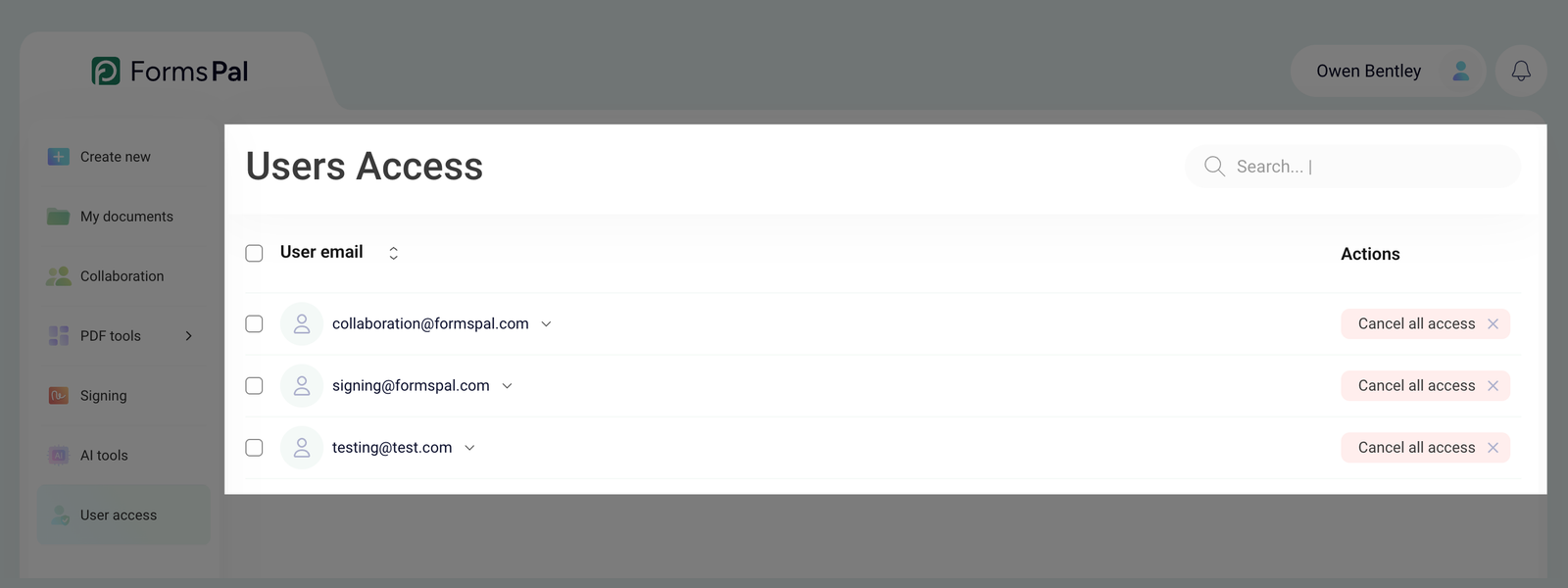
- Click the downward arrow next to the user's email address.
A list of documents available to that user will appear, showing the following information:
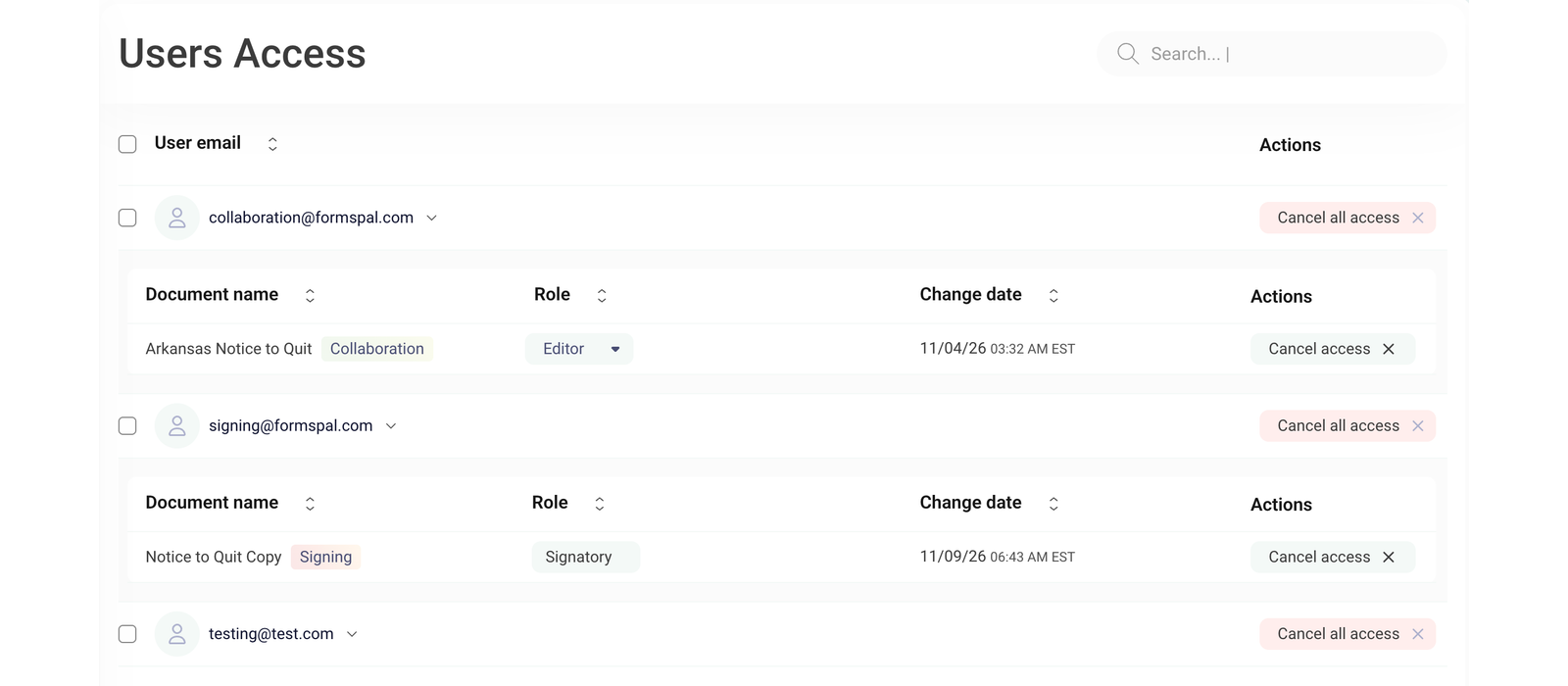
- Document name - shows the document's name and its associated activity, such as Signing or Collaboration.
- Role - displays the user's assigned access level.
- Change date - shows when the user's access was last updated.
- Actions - provides an option to cancel access to the document.
- You can click the up and down arrows next to the column headings to sort the documents.
How to change a user's role?
If you need to change a user's role for a collaboration document, follow these steps:
- Open User access and click the downward arrow next to the user's email address to view their documents.
- Find the document marked Collaboration in the expanded list.
- Click the dropdown arrow in the Role column and select the appropriate access level:
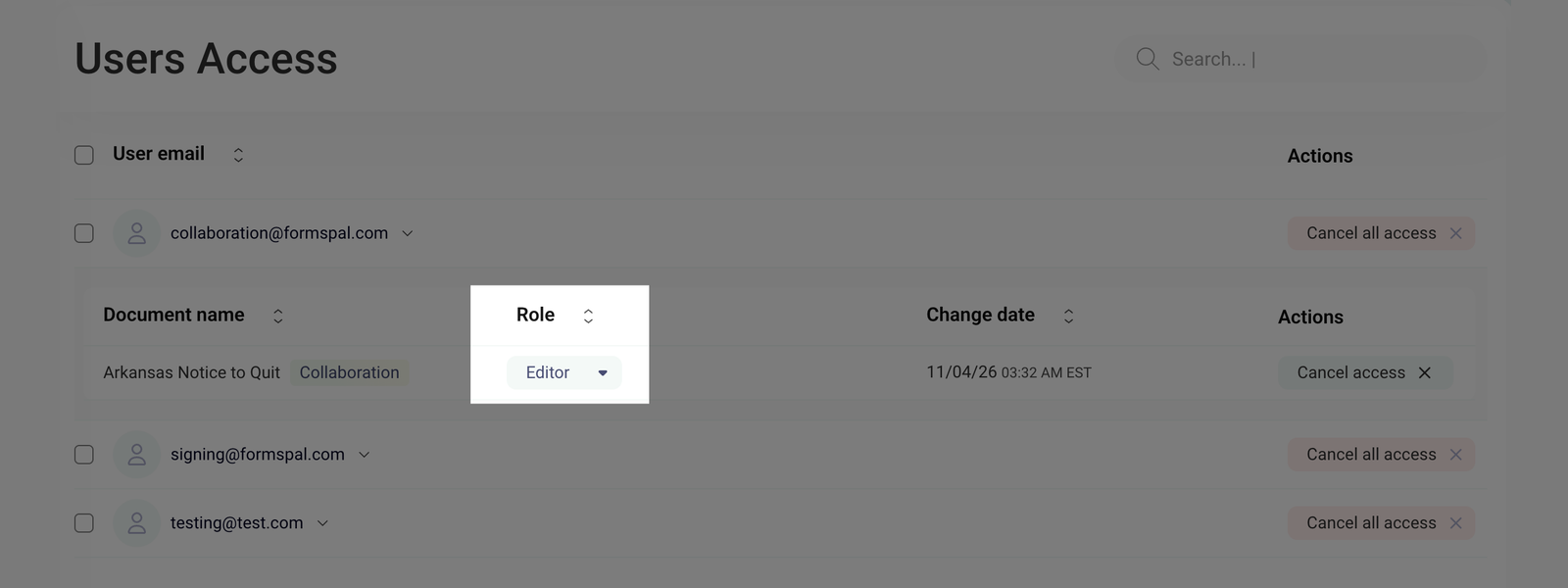
- Editor - can edit, fill, and rename the document.
- Viewer - can read the document without making changes.
- The new role is assigned automatically once selected.
You can change roles only for collaboration documents. Documents shared through Signing display the user's role as Signatory.