
Getting Started
FormsPal features & tools
Before you begin working with documents, it’s helpful to know how the dashboard at FormsPal is organized. The main menu, interface, and sidebar layout make it easy to access everything you need in just a few clicks.
Sidebar
The sidebar is your central workspace in FormsPal. It contains all the key sections you’ll use to manage and edit your documents:
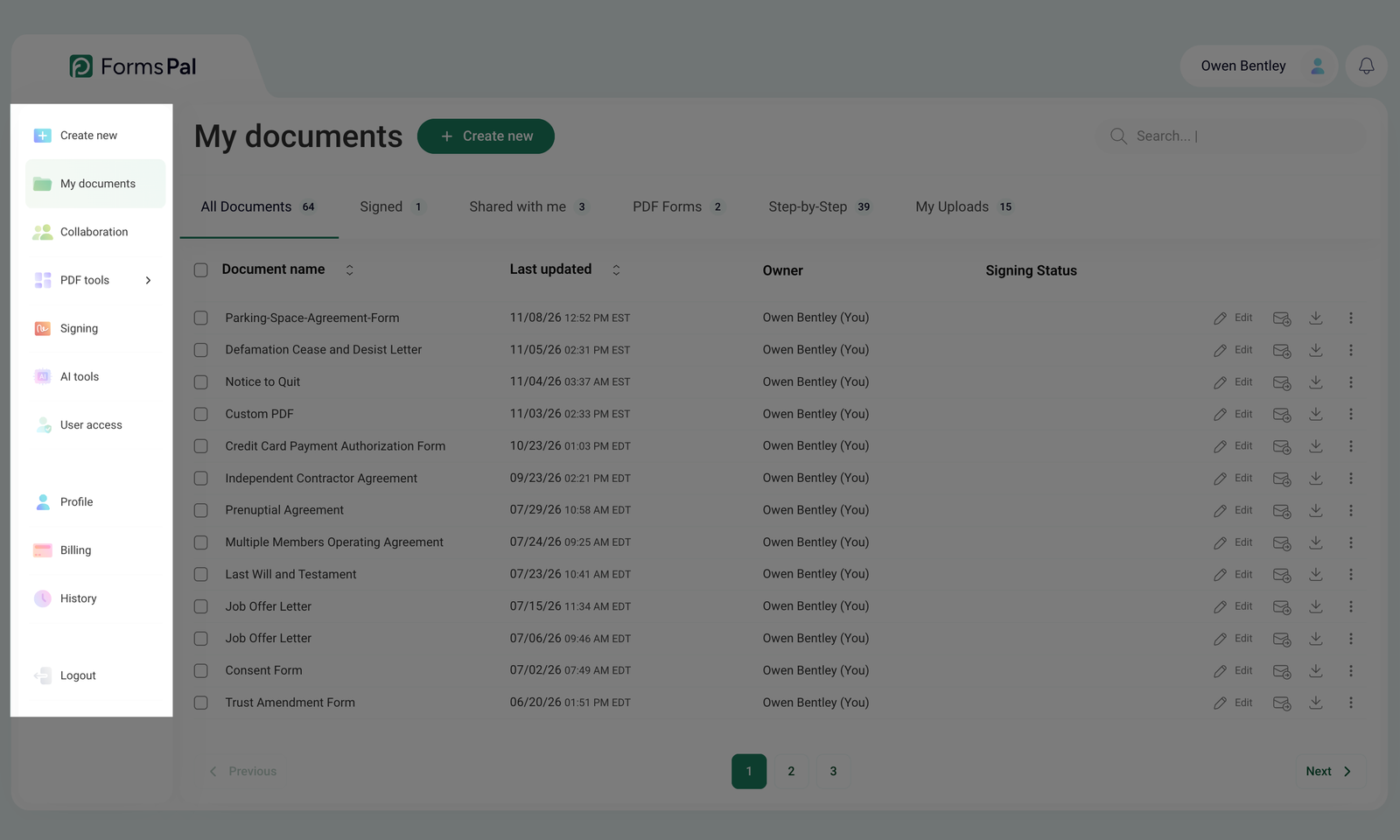
- Create new - start a new document by uploading a file, choosing a template, or creating from scratch.
- My documents - view and manage all your documents, organized by type and status.
- Collaboration - invite others to edit or view documents in real time.
- PDF tools - access tools to edit, merge, split, compress, protect, and customize PDF files.
- Signing - sign documents electronically or request signatures from others.
- AI tools - use AI-powered tools to generate documents, summarize content, and get answers to questions about your files.
- User access - manage who can view or edit your documents and adjust access permissions.
- Profile - view and update your personal information and account settings.
- Billing - manage your subscription, review payment details, and view billing history.
- History - review your previous activities and document actions.
- Logout - securely sign out of your FormsPal account.
Create New
Also located at the top of the sidebar, the Create New section helps you create a new document to work with.
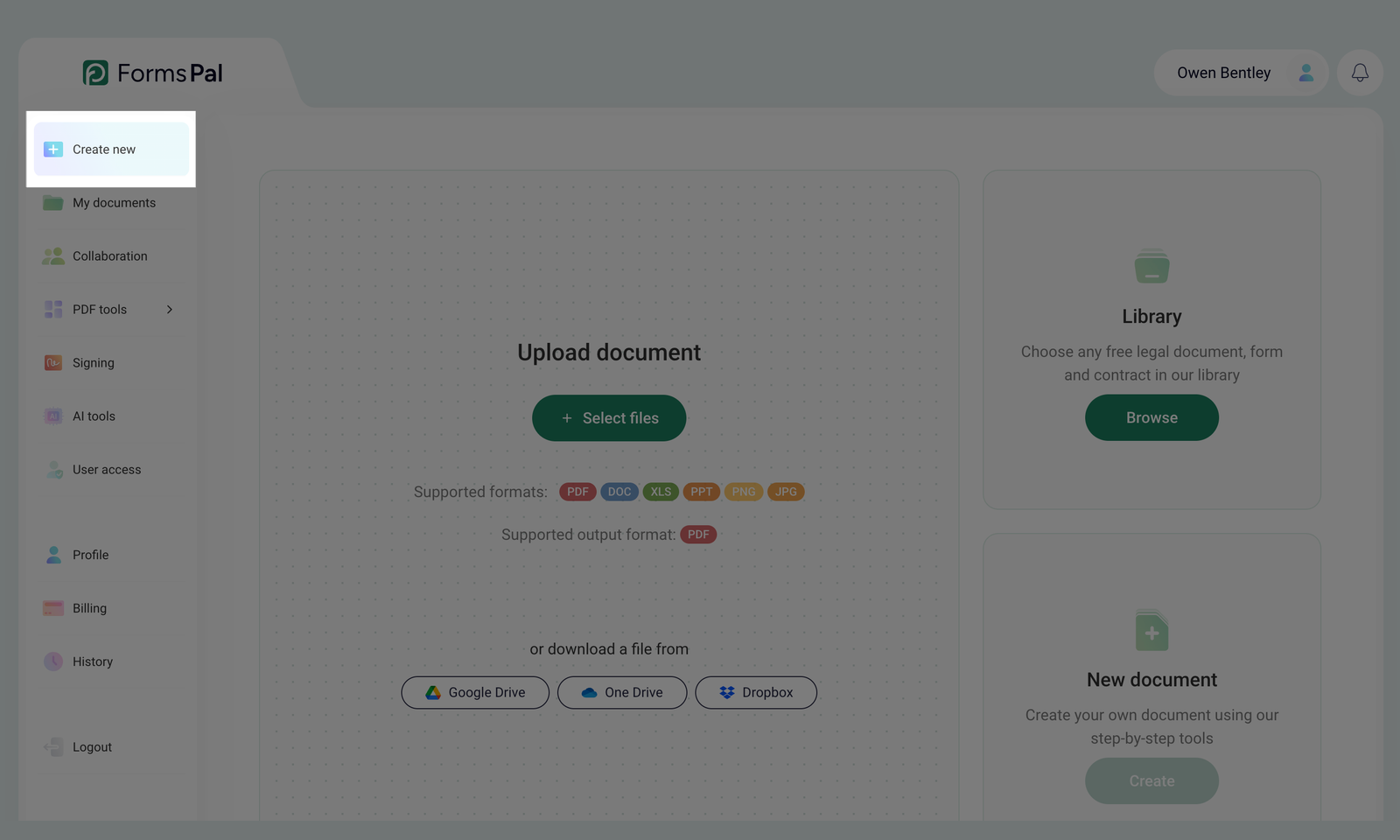
In this section, you can:
- Upload a file from your computer or cloud storage: Google Drive, OneDrive, or Dropbox
- Choose a document from the FormsPal Library.
- Create a blank, custom document from scratch.
My Documents
This is the starting point when you log in to FormsPal. Located in the upper-left corner of the sidebar, My Documents is the section where all your active and archived files are stored.
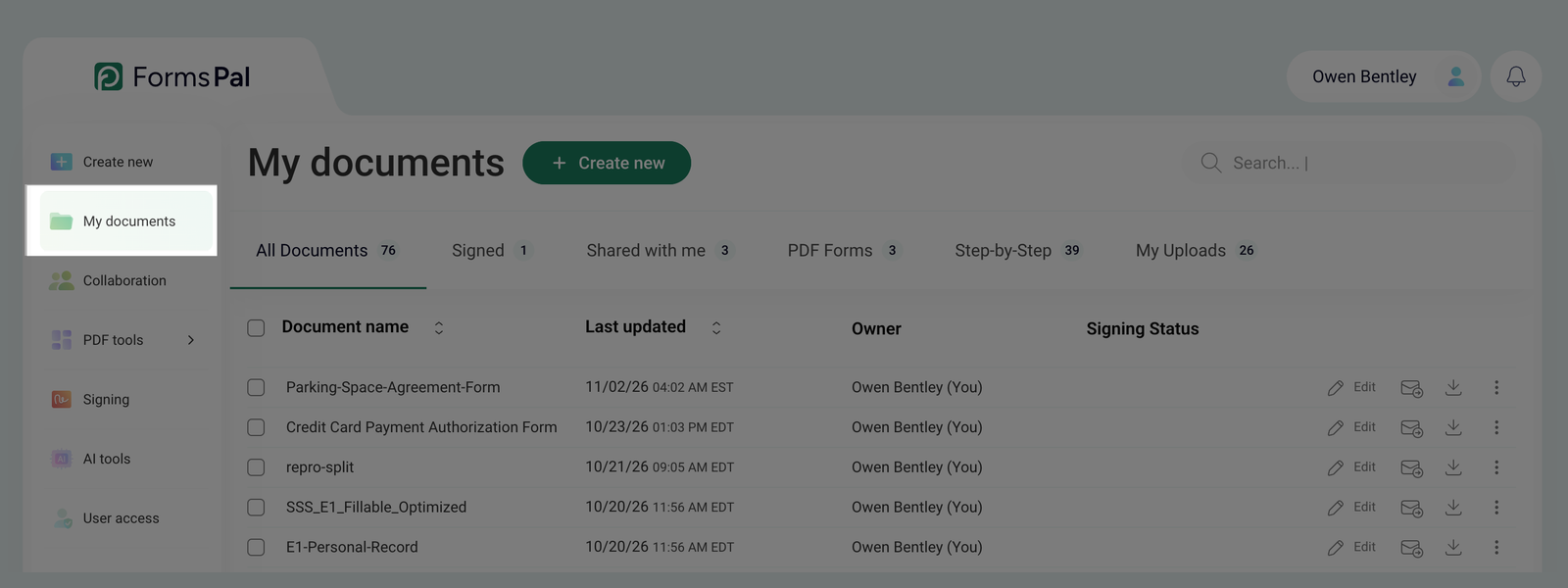
Documents are organized into helpful tabs:
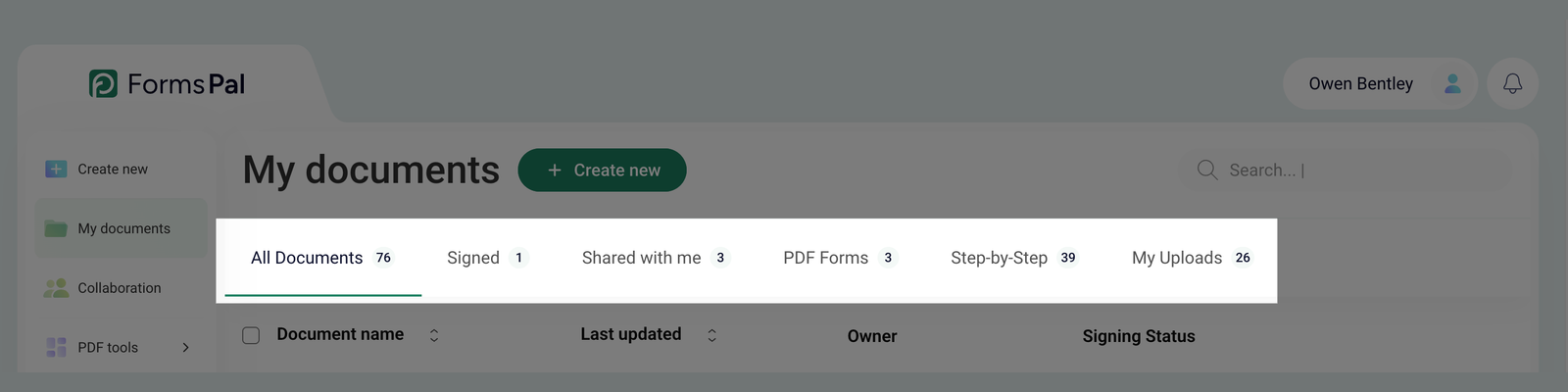
- All Documents - displays everything currently in your account, regardless of how or where the file was added.
- Signed - lists files currently in the signing process or have already been signed.
- Shared with Me - contains documents shared with you by other users.
- PDF Forms - shows PDF files selected from FormsPal’s template library.
- Step-by-Step - lists guided, fillable documents downloaded from the library.
- My Uploads - contains documents you’ve uploaded manually from your computer or connected cloud services.
PDF Tools
Work directly with your documents using a full suite of PDF tools. You can merge, split, rotate, compress, protect your documents, and more.
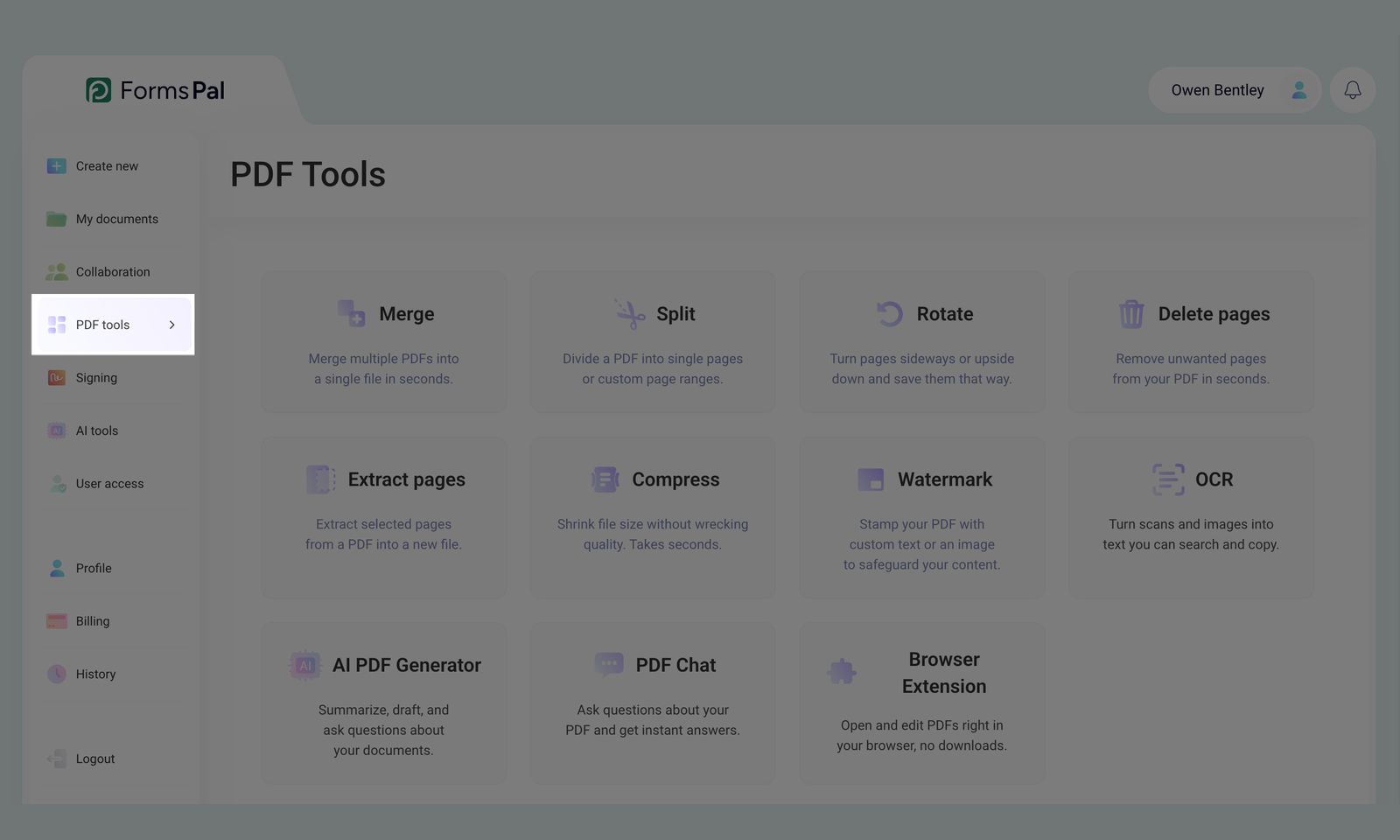
For a detailed explanation of each tool available, refer to our PDF tools guide.
Signing
Click the Signing section to sign your documents online. FormsPal’s e-signature tool is legally compliant and secure, providing proof of authenticity for every signature.
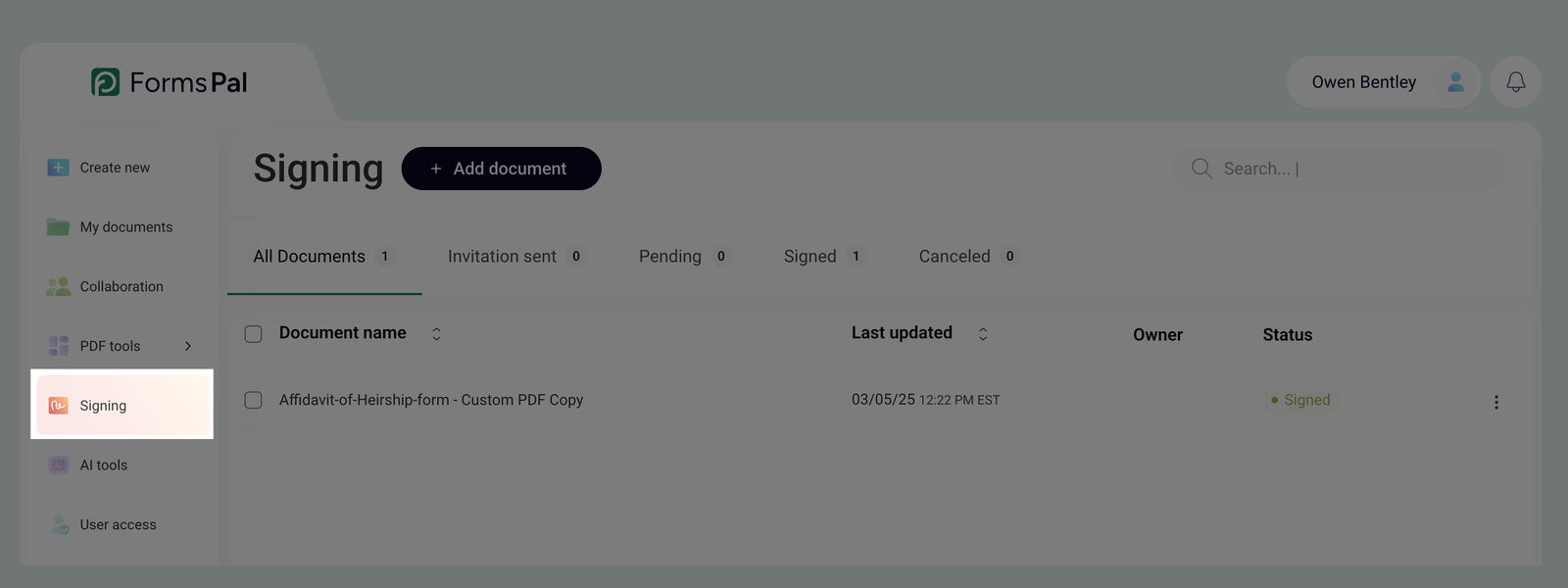
Learn more about how to use our Signing tool here.
Collaboration
Collaborate on documents in real time. You can invite others to work on a file with you, which is perfect for teams or client review processes.
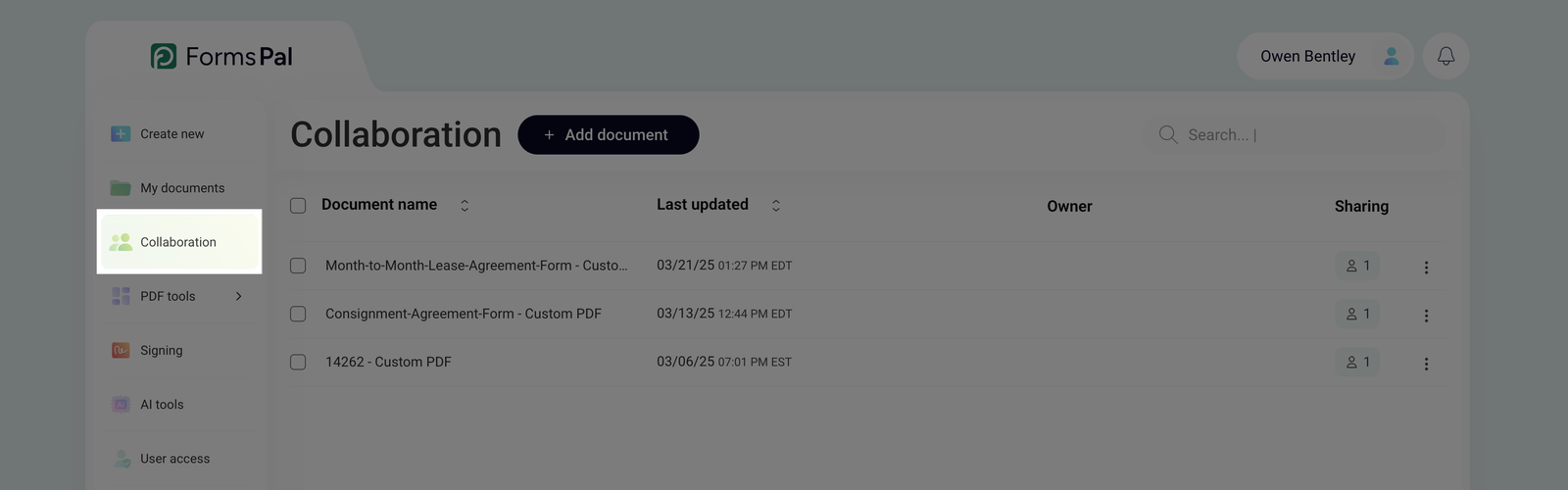
Read our Collaboration guide to learn how to share documents, manage user roles, and track collaboration activity.
User Access
In User Access, you can manage who can view or edit your documents. You can adjust roles, revoke access, or see which users are linked to each file.
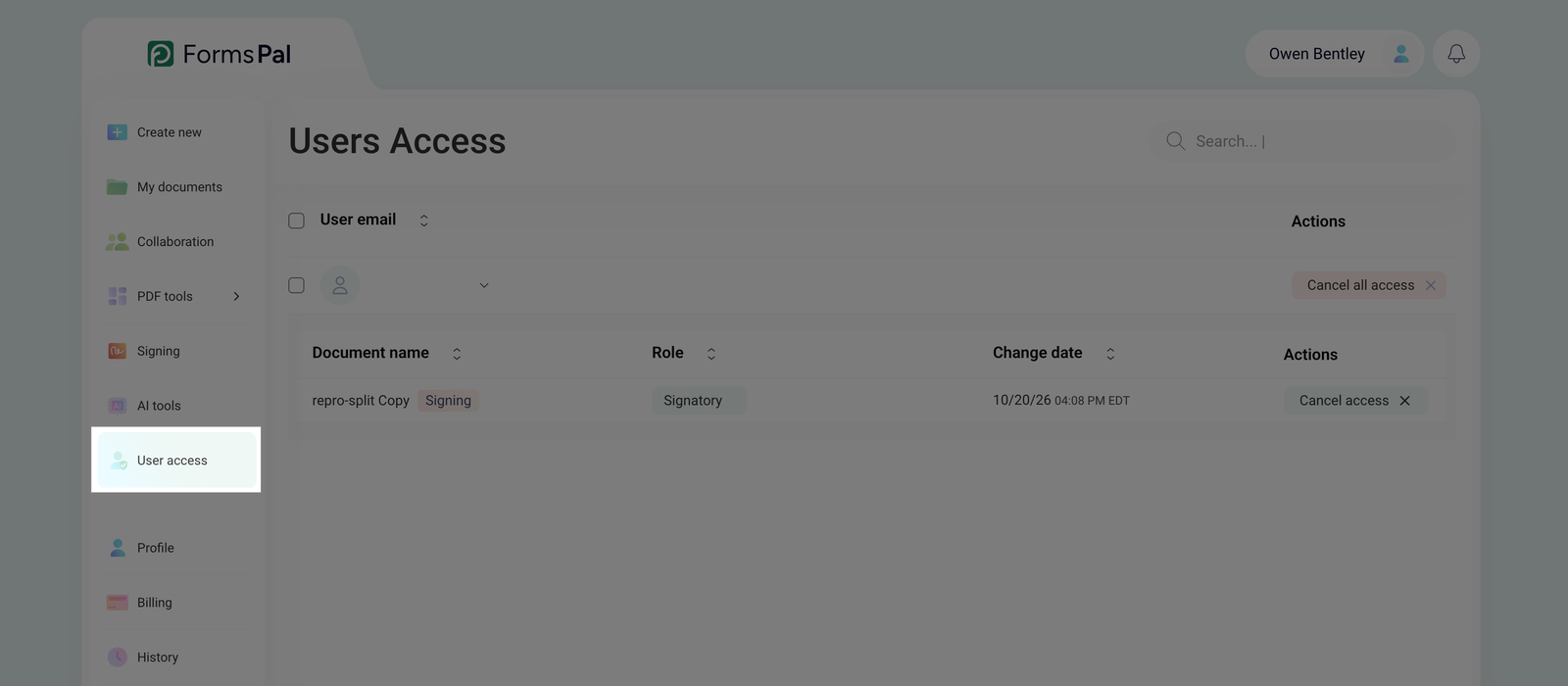
Visit our User Access guide to learn how to manage permissions and control who can view or edit your shared documents.
Profile
Open the Profile section to update your personal information, including your name, email address, phone number, and profile photo. You can also change your password or delete your FormsPal account.
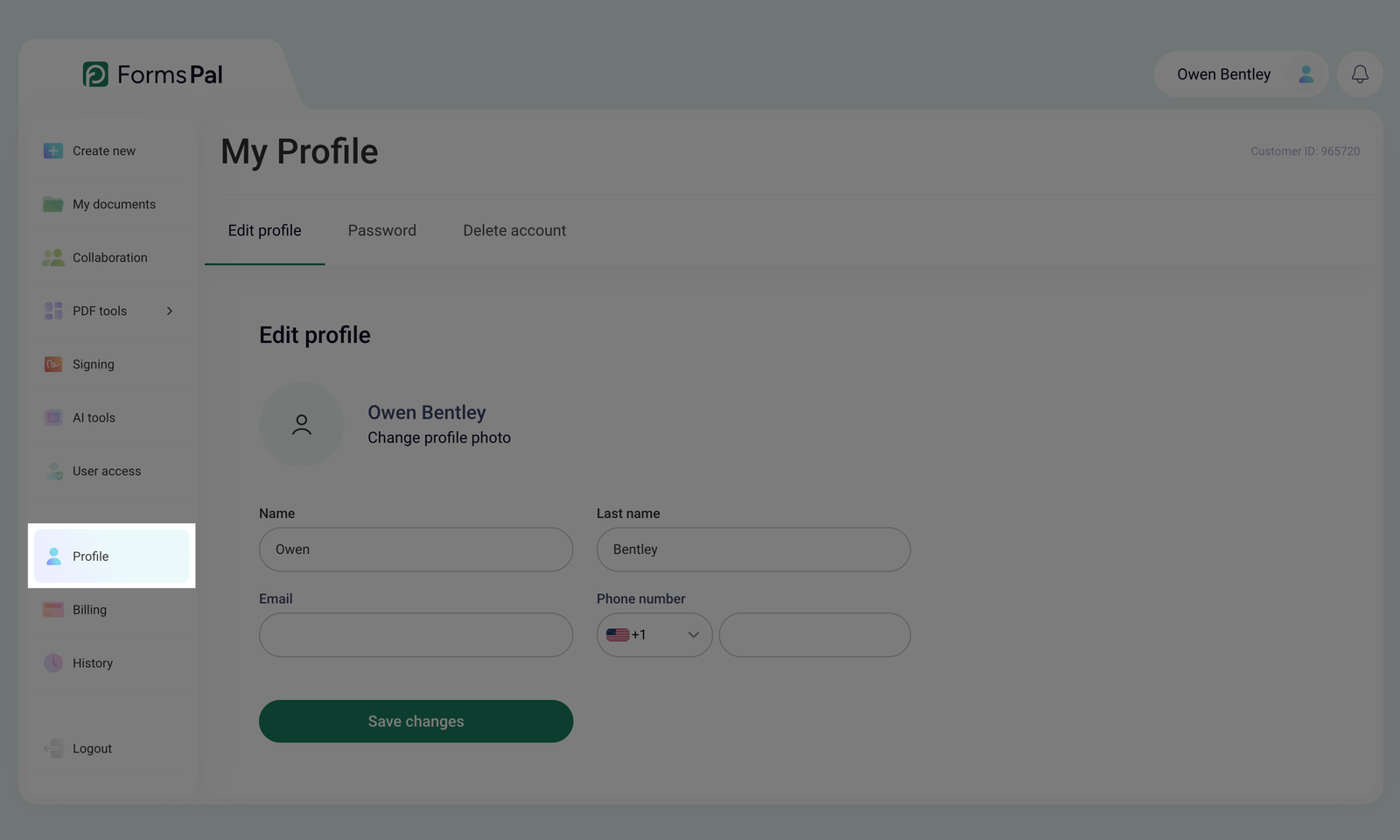
Use the Edit profile, Password, and Delete account tabs to manage your account settings.
Billing
Go to the Billing section to view your current subscription plan, pricing, and payment history. You can also access the Stripe Portal to manage your subscription.
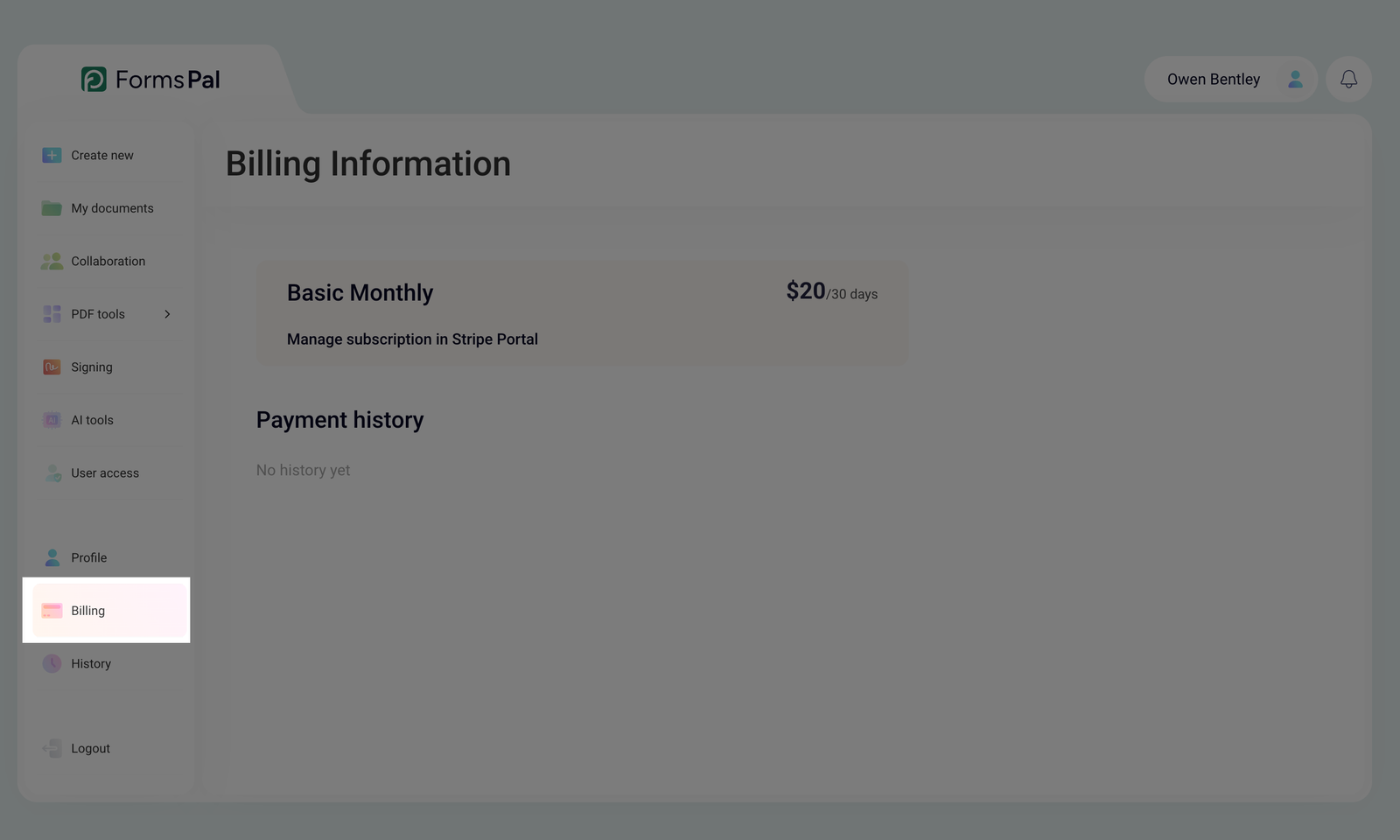
Check this section whenever you need to review your plan or update your billing details.
History
The History section keeps a record of your account activity, including documents you've created, opened, or deleted. Each entry shows the date and the action performed.
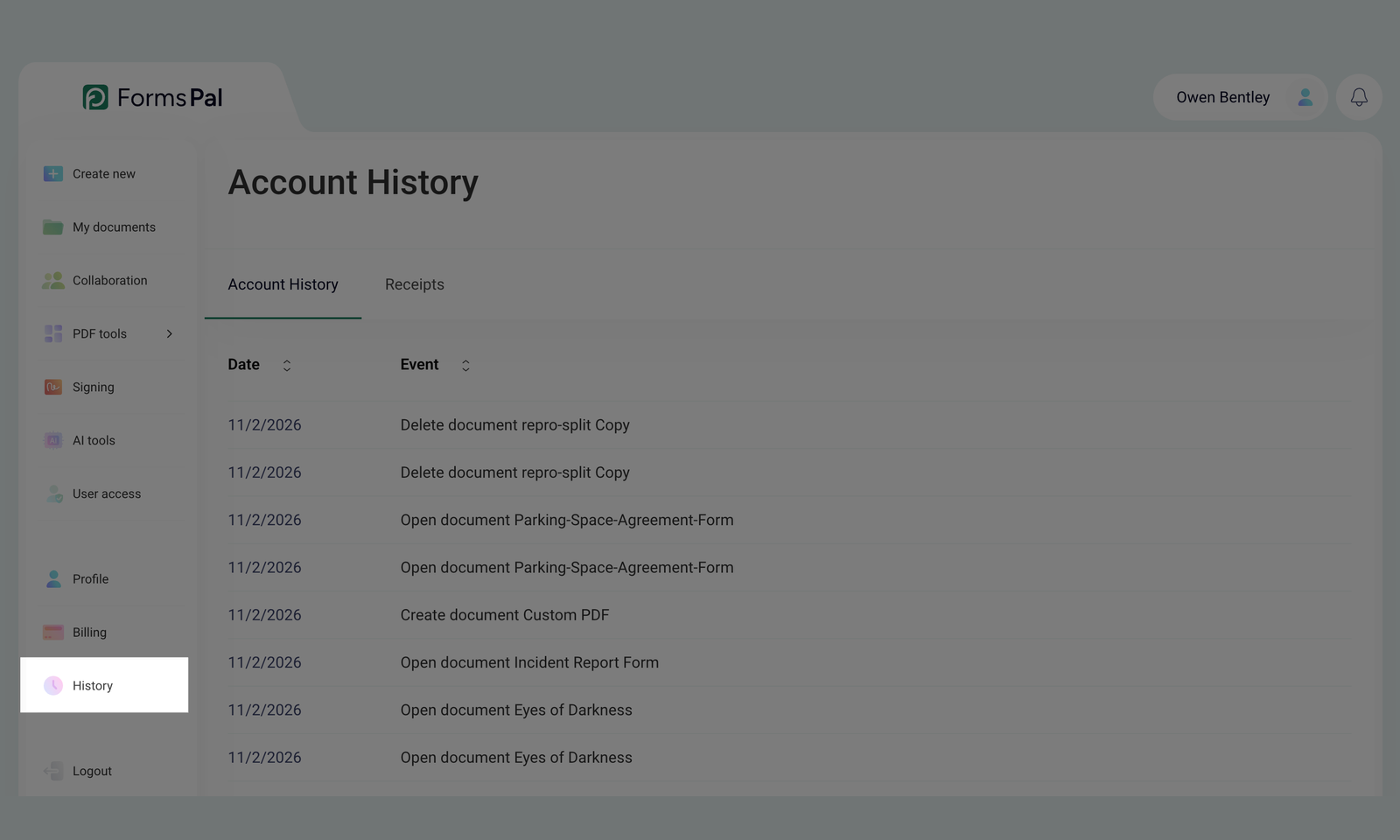
You can also switch to the Receipts tab to view your payment receipts.