
Creating Documents
Upload documents
Upload your own documents to My documents through the Create new tab. You can upload a document from your device or cloud storage, allowing you to store, manage, and access your files from your account.
How to upload a document from your device?
Follow the steps below to upload a document from your device and start working with it:
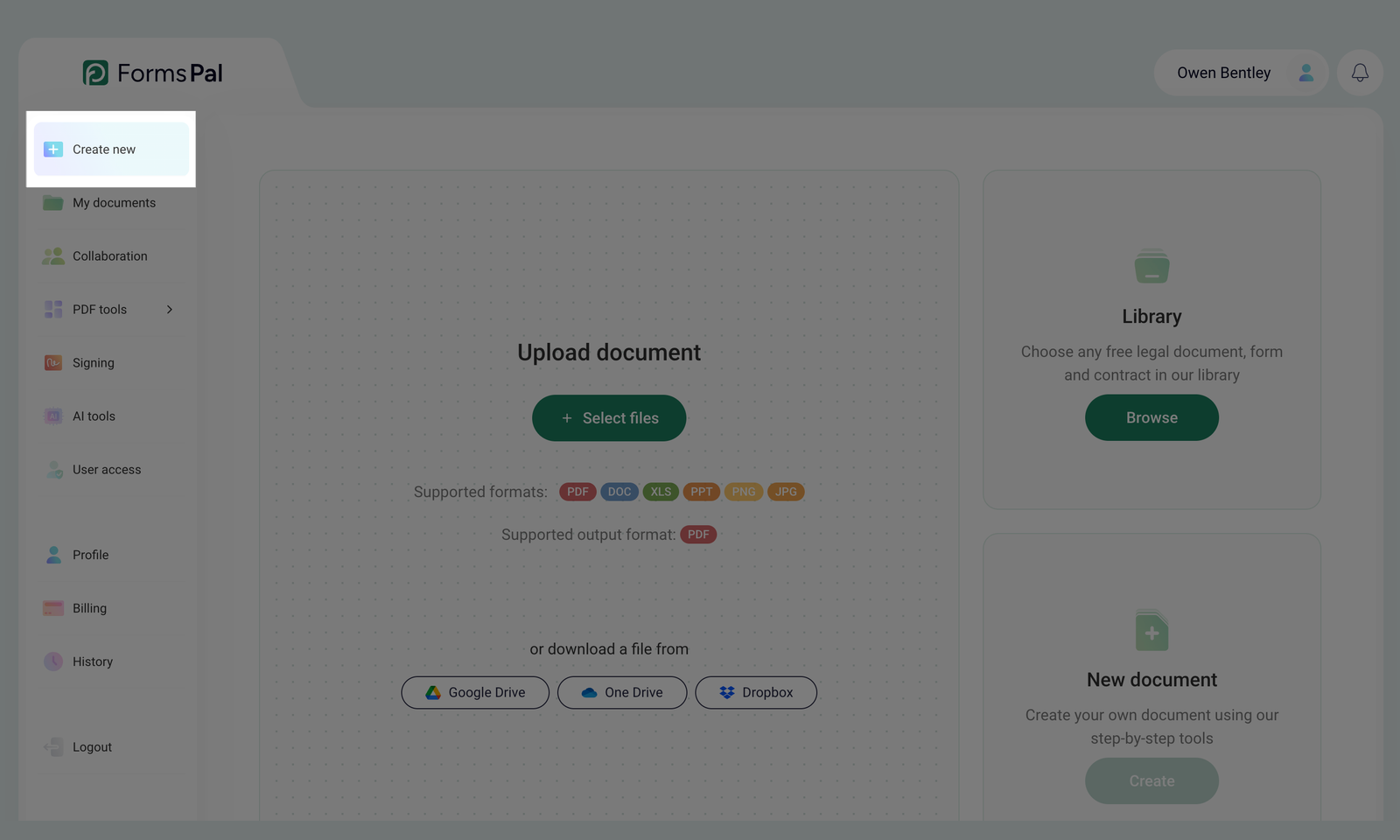
- Open the Create new tab from the left-side menu.
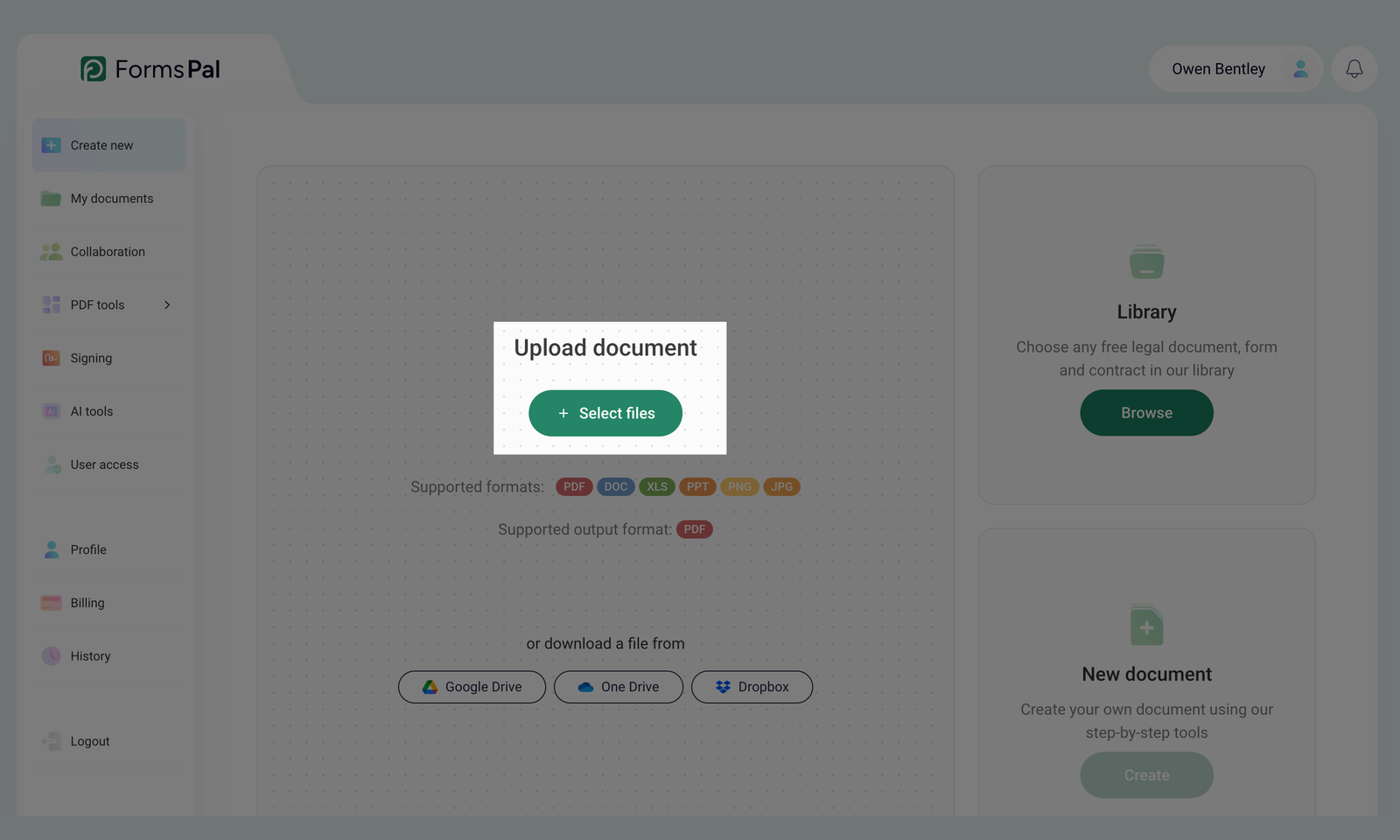
- Locate the Upload document section on the screen and click the Select files button.
- In the window that opens, select one or more documents from your device to upload.
Files you upload must be up to 50 MB in PDF, DOC, XLS, PPT, PNG or JPG formats. Maximum 25 files per upload. Any non-PDF files will be automatically converted to PDF.
- After successfully uploading a file from your device, you will be automatically redirected to the My documents page. The newly uploaded files will appear at the top of the list in both the All Documents and My Uploads tabs.
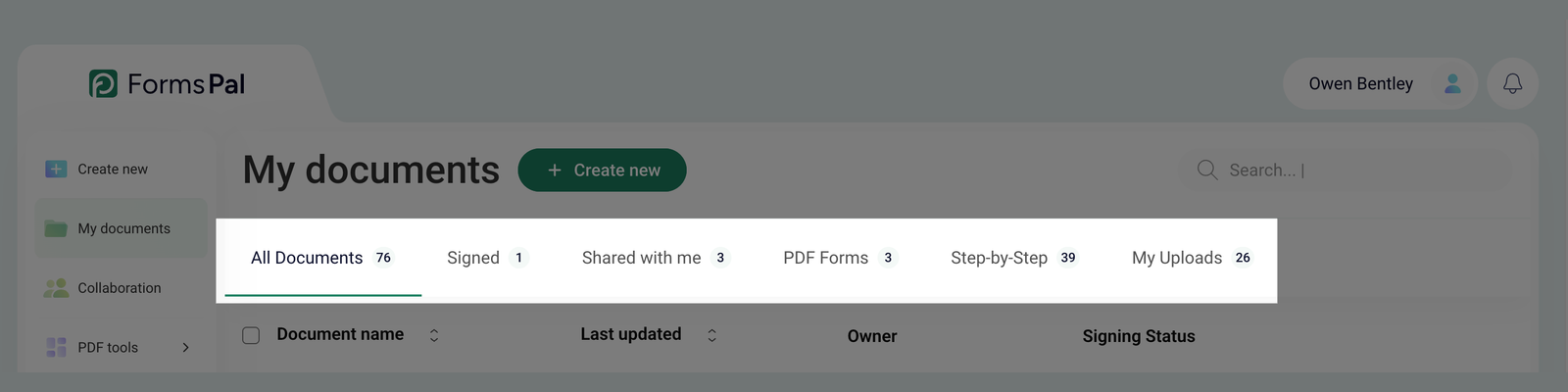
Now, you can view, manage, or edit these documents directly from your Cabinet.
How to upload a document from cloud storage
You can upload documents directly from Google Drive, OneDrive, or Dropbox. Follow these steps:
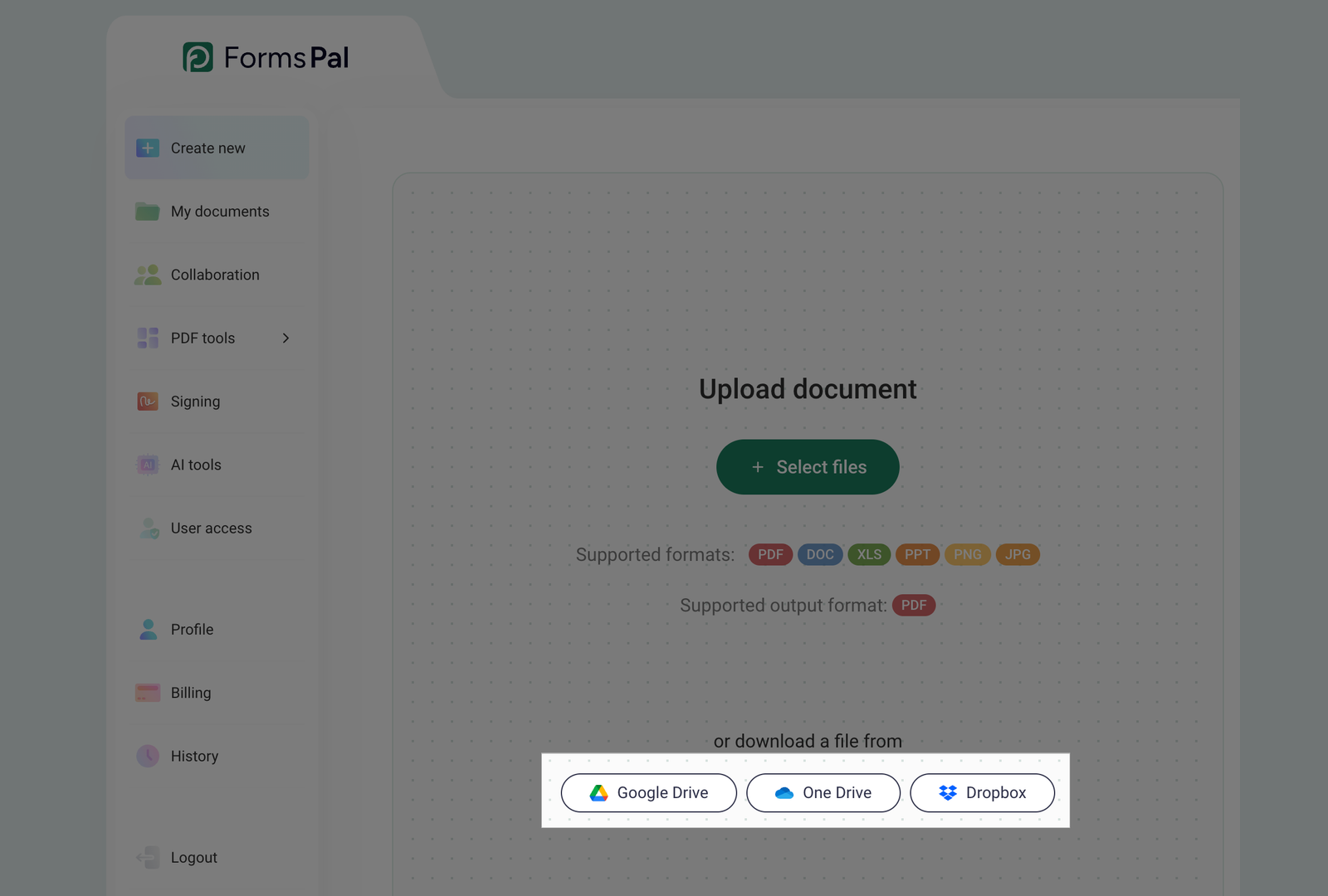
- In the Upload document section, click the Google Drive, OneDrive, or Dropbox button.
- Sign in to your cloud storage account if you're not already logged in.
- Select one or more documents you want to upload.
- Confirm your selection to upload the files to FormsPal.
Each file must be no larger than 50 MB and must be in PDF, DOC, XLS, PPT, PNG, or JPG format. You can upload up to 25 files at once. FormsPal automatically converts non-PDF files to PDF.
Once the upload is complete, you'll be redirected to the My documents page. Your newly uploaded files will appear at the top of the list under both the All Documents and My Uploads tabs.
You can now view, manage, or edit your documents directly from the dashboard.