
AI Tools
Draft documents
Use the Draft Documents tool to quickly generate structured drafts for legal, business, or professional documents. This AI tool is designed to assist in drafting legal documents or specific clauses, simplifying the process and improving efficiency. However, it's not a substitute for legal advice, so remember to consult with a qualified attorney.
How to draft a document?
To draft your document, please follow these steps:
- Click the AI Tools option in the left sidebar of the editor.
- Select the Draft Documents option. You will see two sections for input details and a preview of the output.
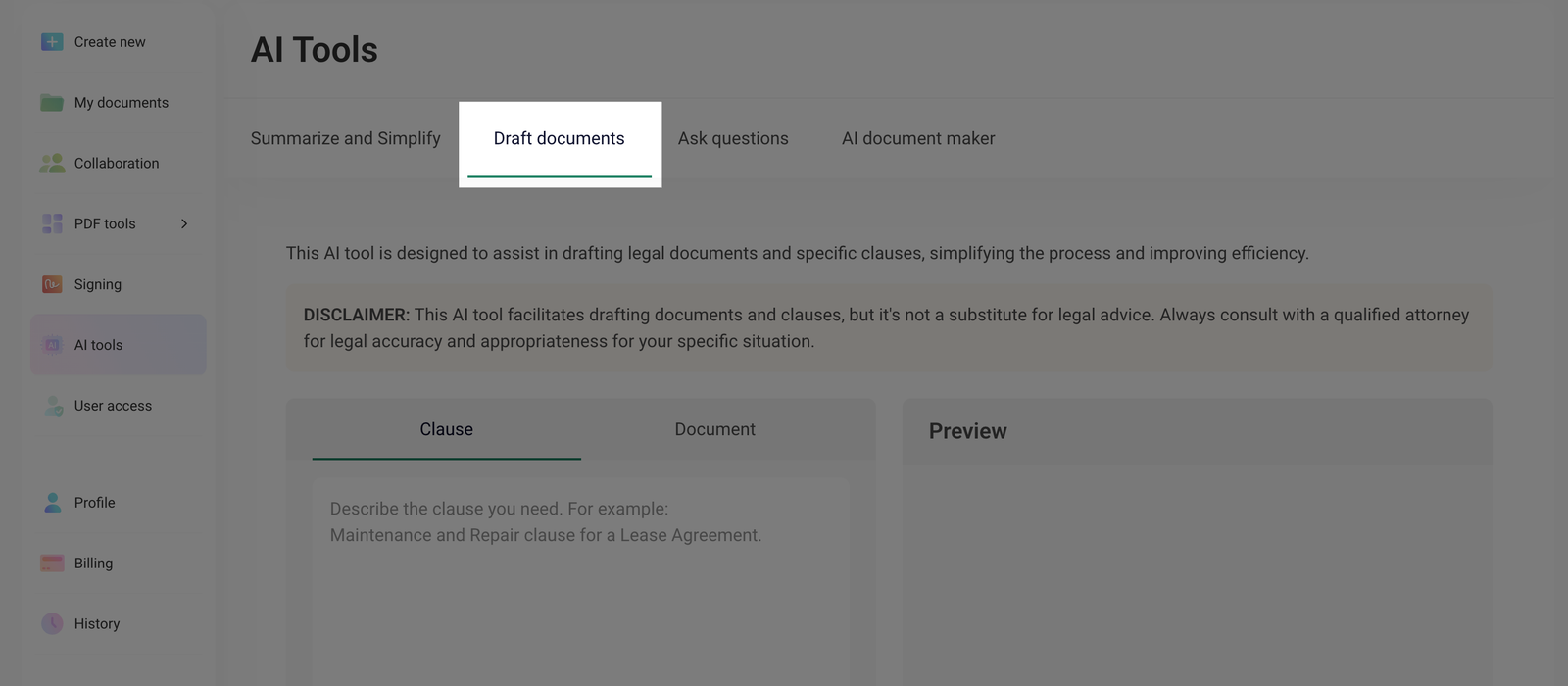
- Select the Clause or Document tab, depending on whether you need to create a single clause or a comprehensive document.
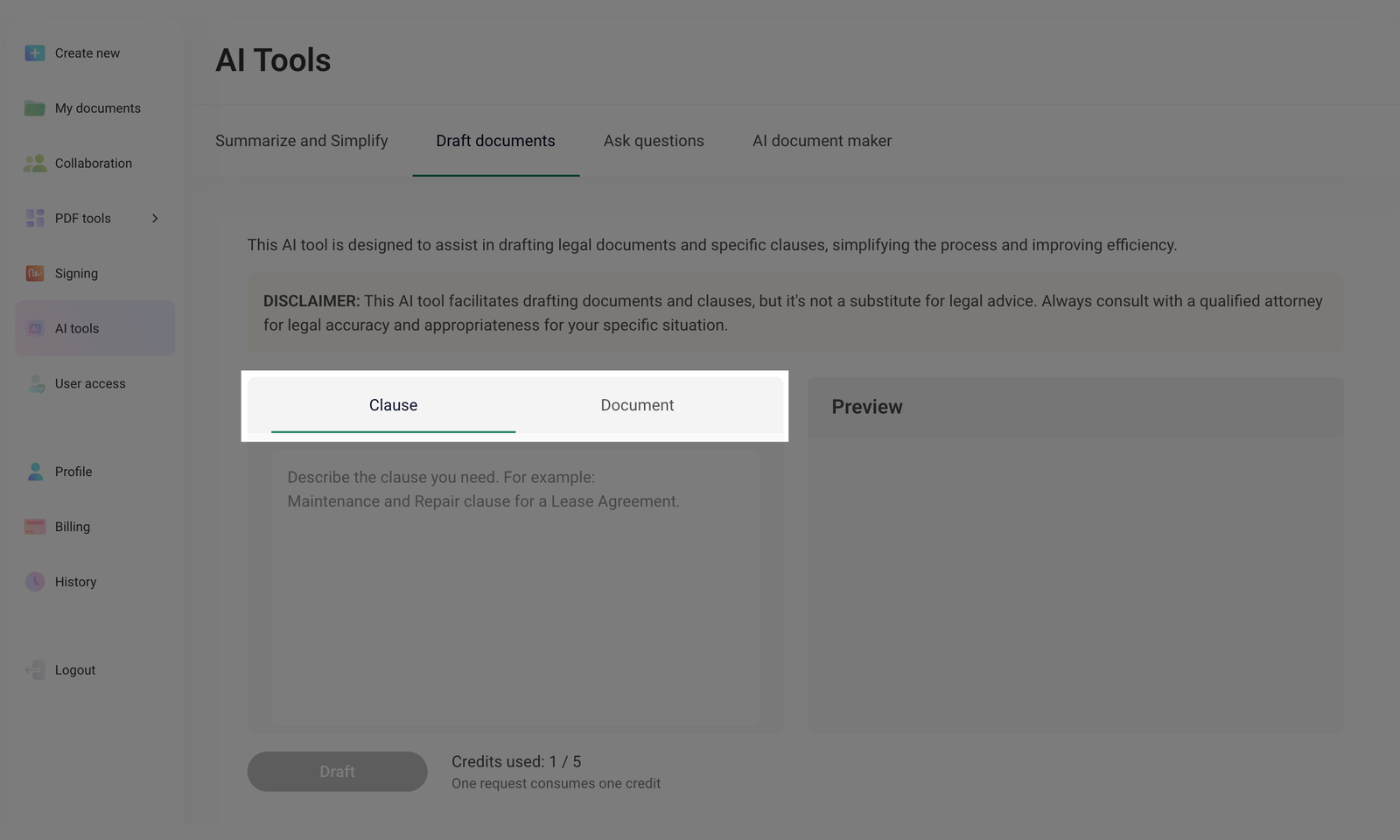
- Enter or paste the previously copied text into the corresponding field.
- Click Draft (the button will be activated after entering text).
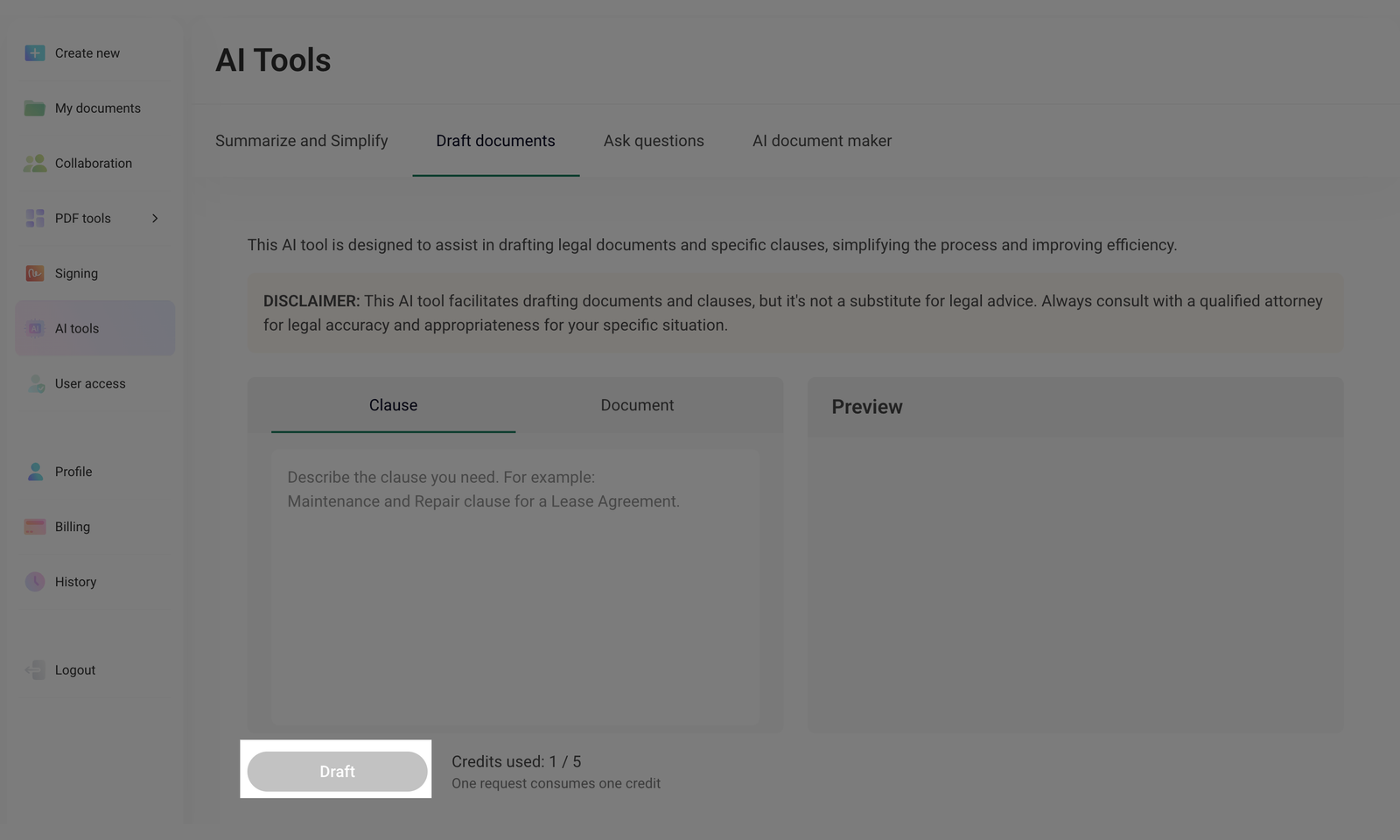
You will get a specific clause or document, according to your needs.
Each Draft request uses one credit (out of the five available). Each month, you will get 50 credits. Credits do not carry over from previous months.
- Review the generated text in the Preview section. You can use or edit the text as needed.
This AI tool facilitates drafting documents and clauses, but it's not a substitute for legal advice. Always consult with a qualified attorney for legal accuracy and appropriateness for your specific situation.