
Profile
Edit profile
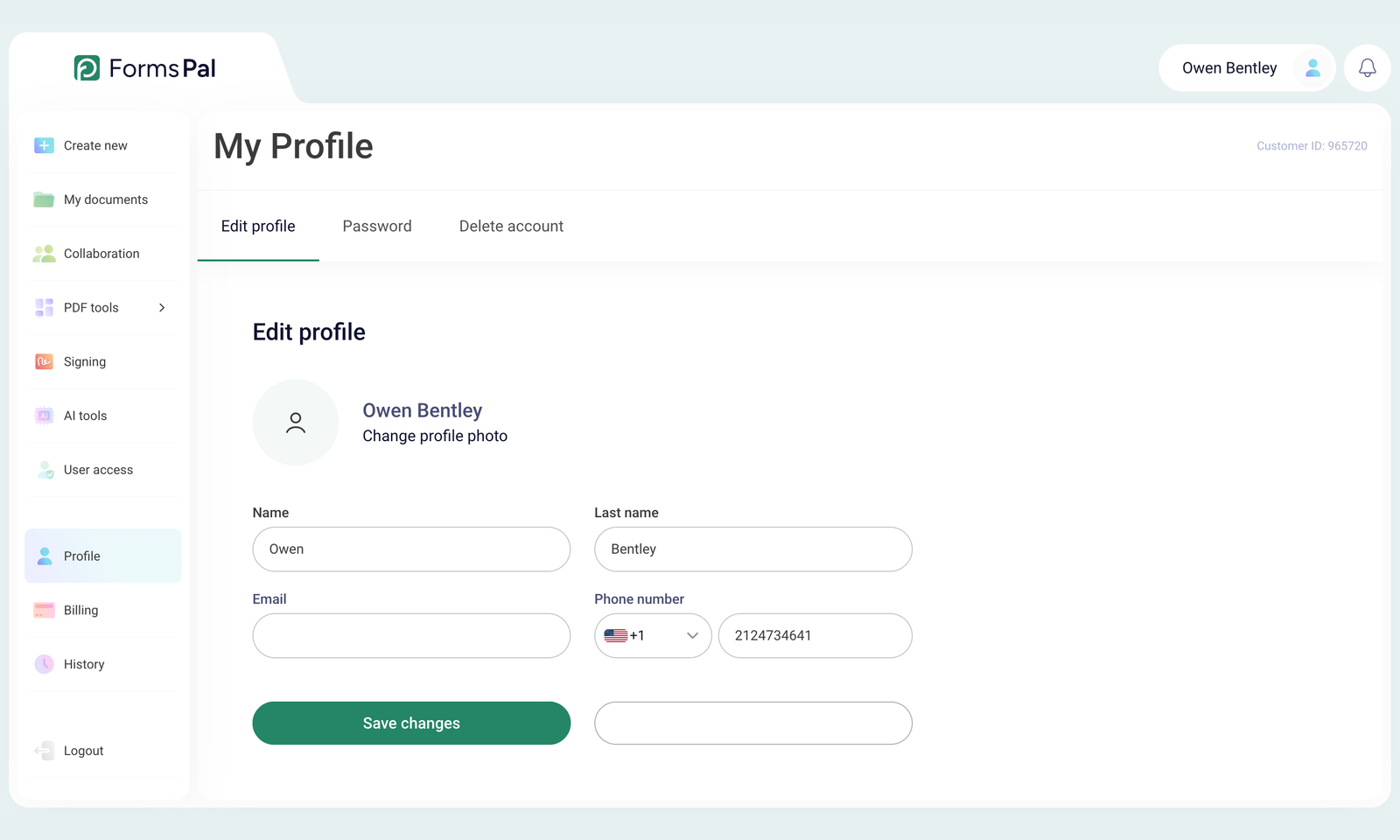
The Edit profile section lets you update your personal information, including your name, email address, phone number, and profile photo. You can make changes directly from your FormsPal dashboard and save them using the Save changes button.
How to edit a profile?
To edit your profile, please follow these steps:
- Open your profile by clicking Profile in the left sidebar of your FormsPal dashboard.
- Select the Edit profile tab.
Here, you can update your personal information, including your name, email address, phone number, and profile photo.
How to edit a profile photo?
You can add your photo or change the existing one. Please follow these steps:
- Click the photo icon or the Change profile photo button.
- In the window that appears, click the photo icon or the Upload new photo button.
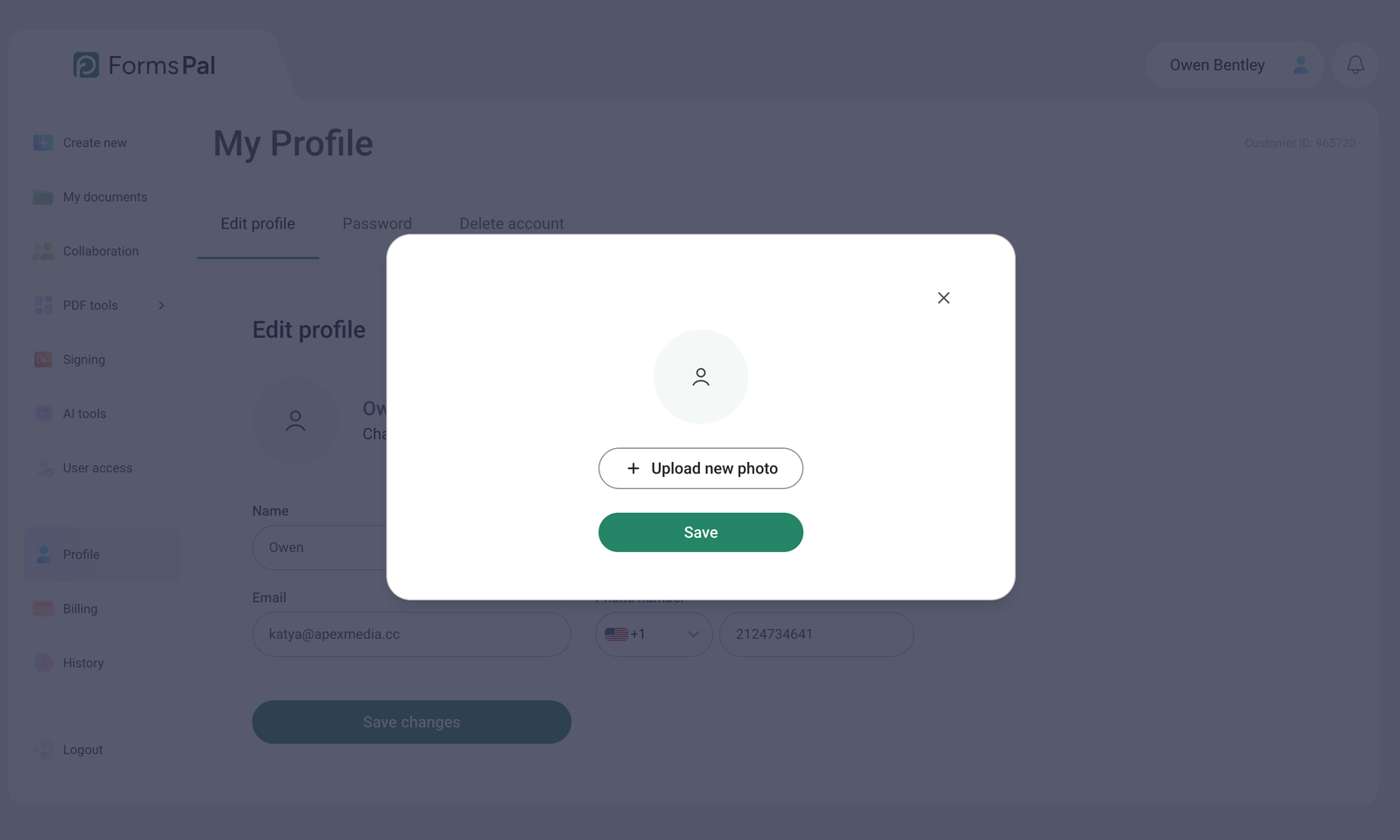
- Select a photo from your device and click Save.
After this, the photo will appear in your personal account under the Profile tab and in the top-right corner of your dashboard.
How to add and change a name?
To add or change your name, follow these steps:
- In the Name field, enter your first name with at least three characters. In the Last name field, enter your last name with a minimum of three characters.
If you want to change your name, replace the existing information with the new one. - Click the Save changes button.
Your new or updated name will be displayed in the Profile section and near your photo in the top-right corner.
How to change your email?
If you want to change your email address, please follow these steps:
- In the Email field, enter a new, valid email address instead of the existing one.
- Click the Save changes button.
Your email address will be updated after you save the changes.
Note: The Name, Last name, and Email fields are mandatory and cannot be left blank when saving profile changes.
How to add a phone number?
To add your phone number, follow these steps:
- Select the country. Click the arrow next to the country code and select the correct country from the dropdown menu.
- Enter your phone number. In the Phone number field, enter your valid phone number.
- Click the Save changes button to save your updated information.
How to verify a profile?
If your email is not verified, the message Email address not verified will appear on your profile page.
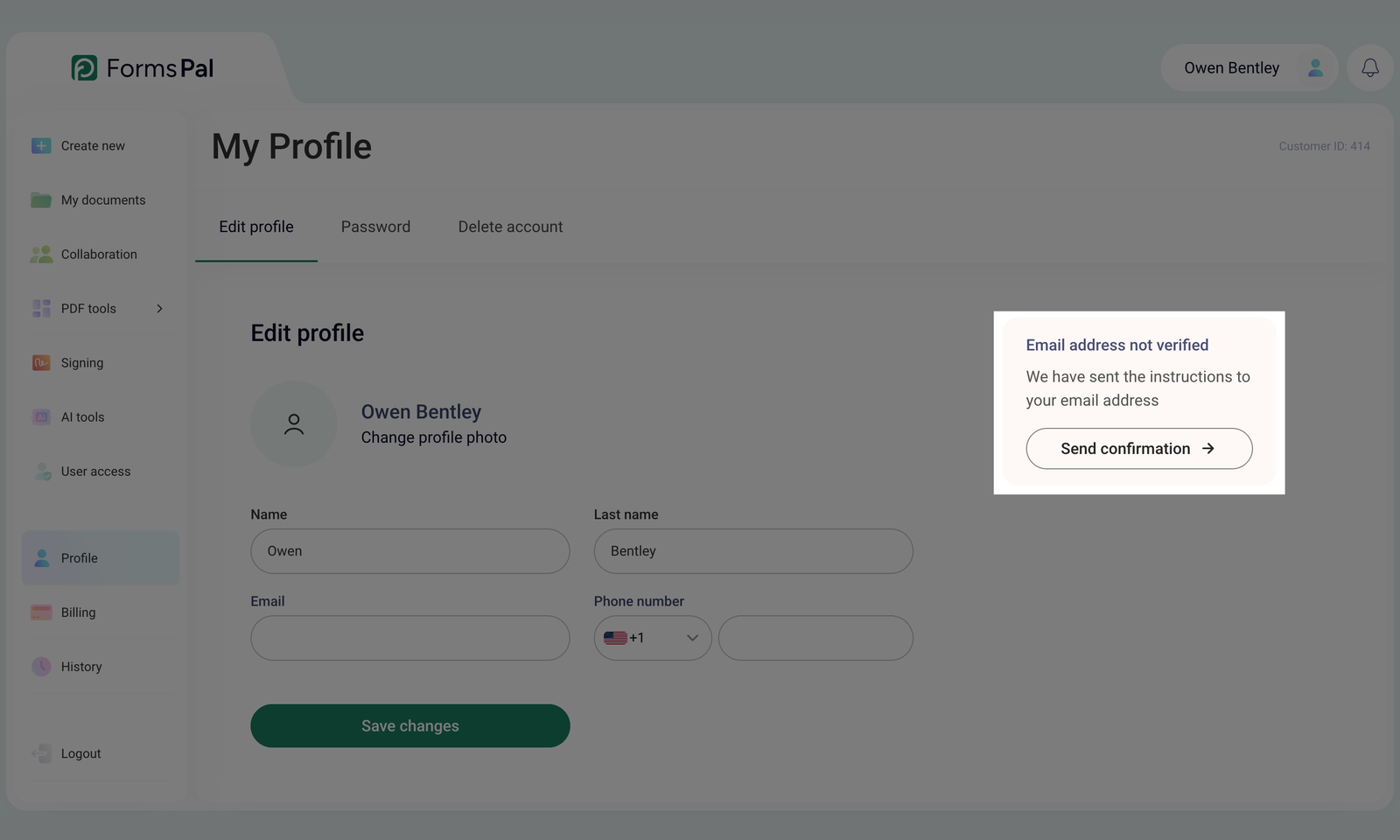
To verify your email address, follow these steps:
- Click the Send confirmation button below the message.
- Open the email sent to your registered address and follow the instructions to complete verification.