
Signing
Signing a document via email invitation
If you've received an invitation to sign a document, you can review and sign it online using FormsPal.
How to sign a document via email invitation?
To sign a document, follow these steps:
- Check your inbox for an email from FormsPal. Open the email and review the invitation details.
Click Sign Document to open the document signing page.
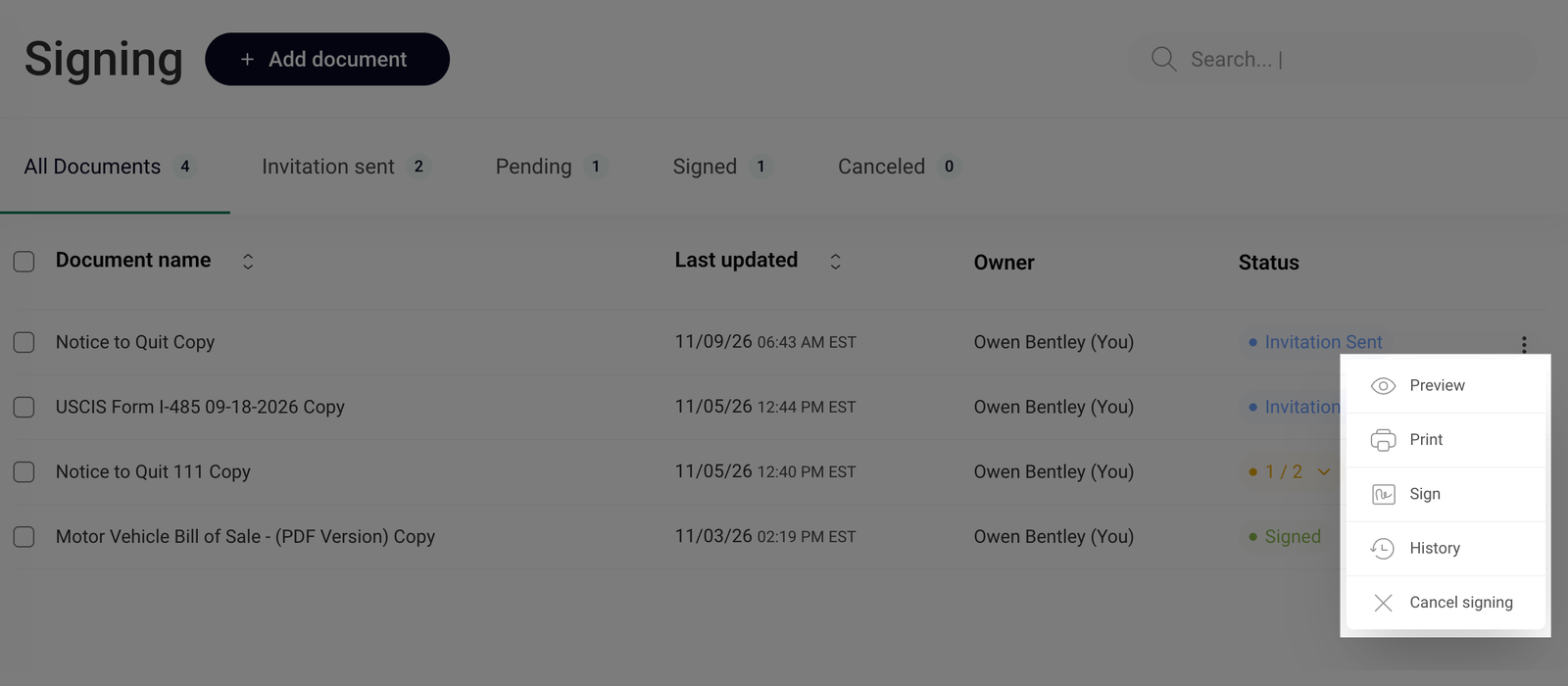
If you already have a FormsPal account, you can also find documents sent to you for signing in the Signing section of your dashboard. Click the three-dot menu next to the document and select Sign.
- The document will open in the signing editor. Review its contents before adding your signature.
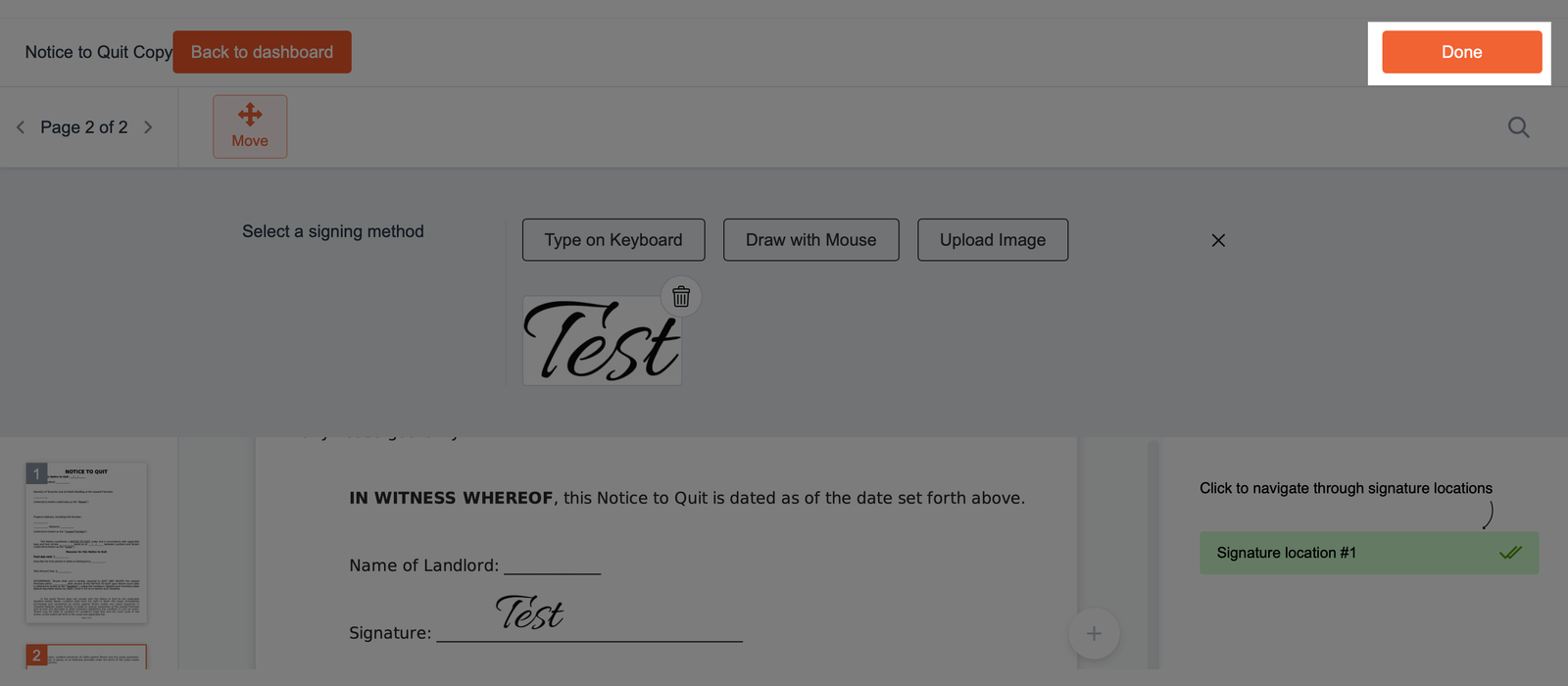
The panel on the right displays your assigned signature locations. Click Signature location #1 to jump to the corresponding area, then click the Signature here field in the document.
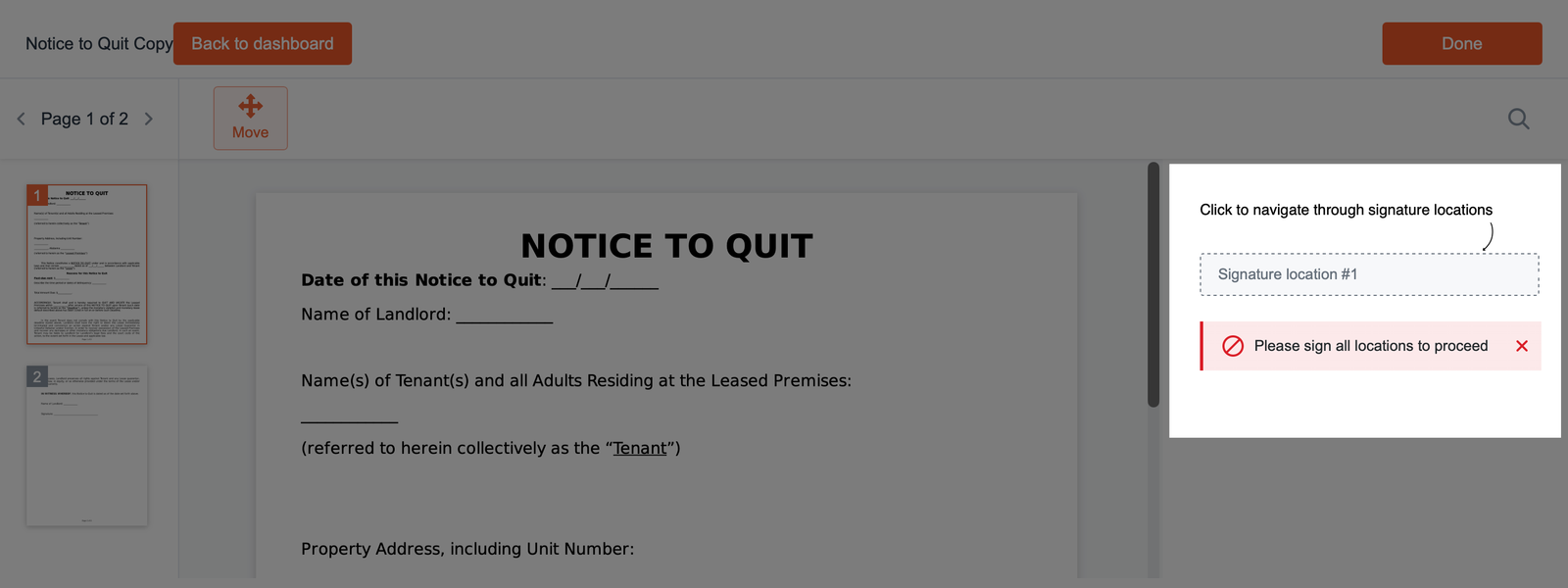
- The Select a signing method panel will appear. Choose one of the following options:
- Type on Keyboard - enter your full name in the text box to create a typed signature. You can also choose its color.
- Draw with Mouse - draw your signature using your mouse or touchscreen. Select a color and use Clear if you want to draw it again.
- Upload Image - click Browse to upload an image of your handwritten signature from your device.
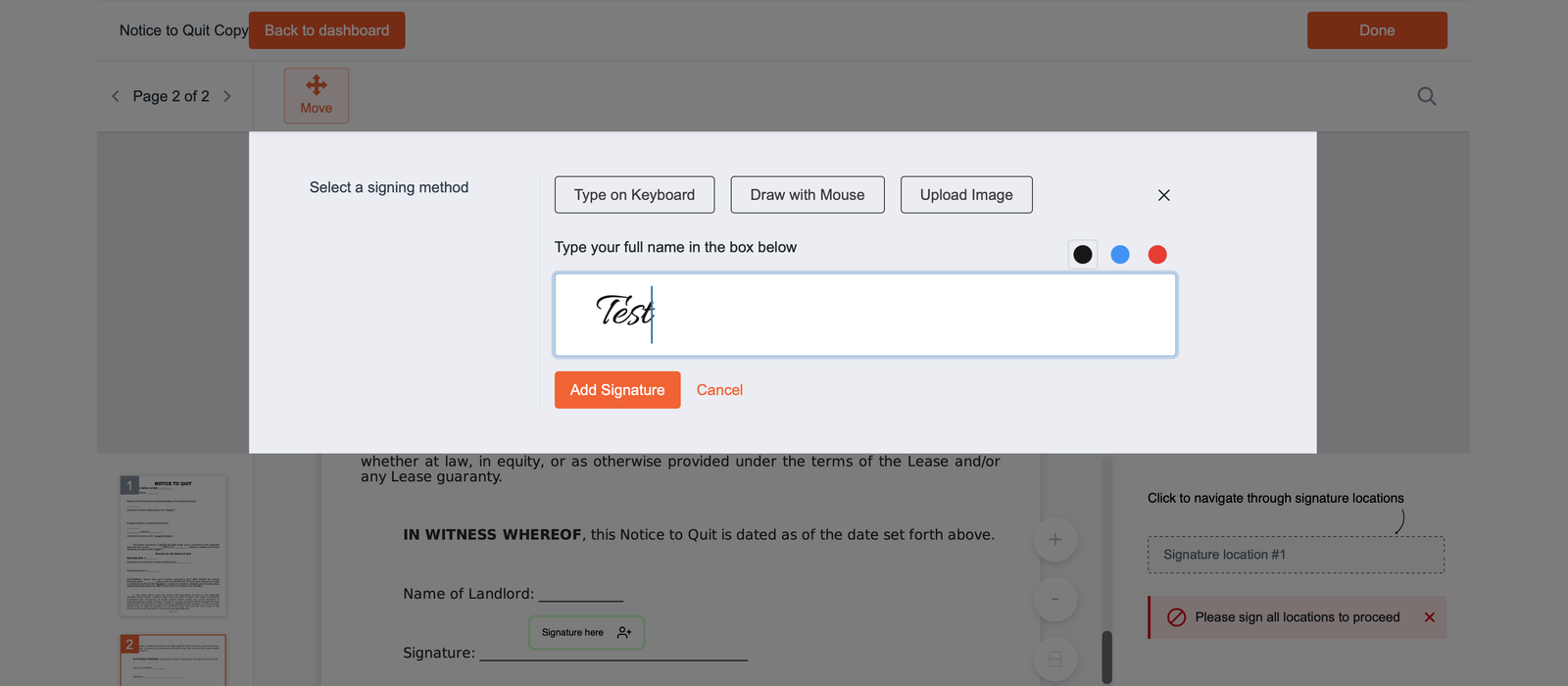
- Once you're satisfied with your signature, click Add Signature to place it in the selected field.
The completed signature location will appear in green with a checkmark in the right panel.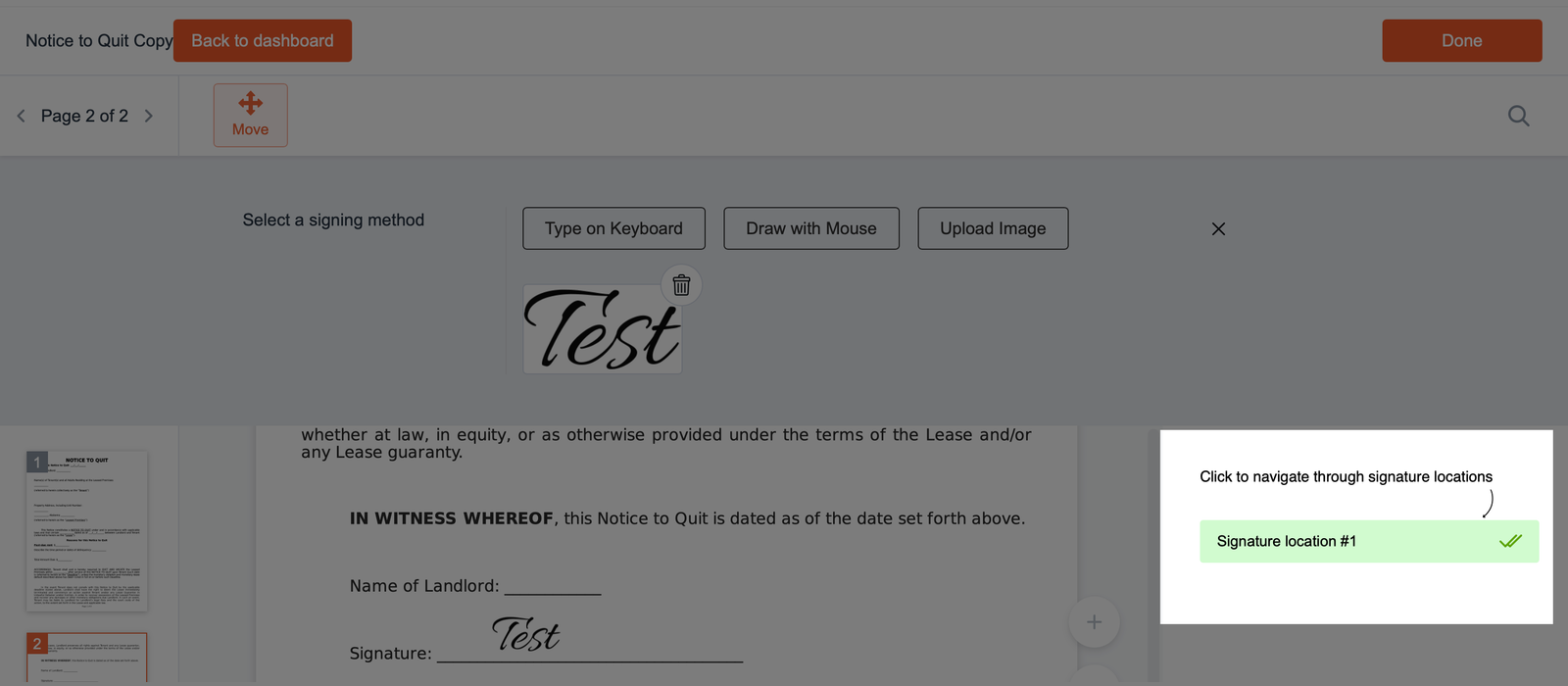
- If you want to replace your signature, click the trash icon next to it.
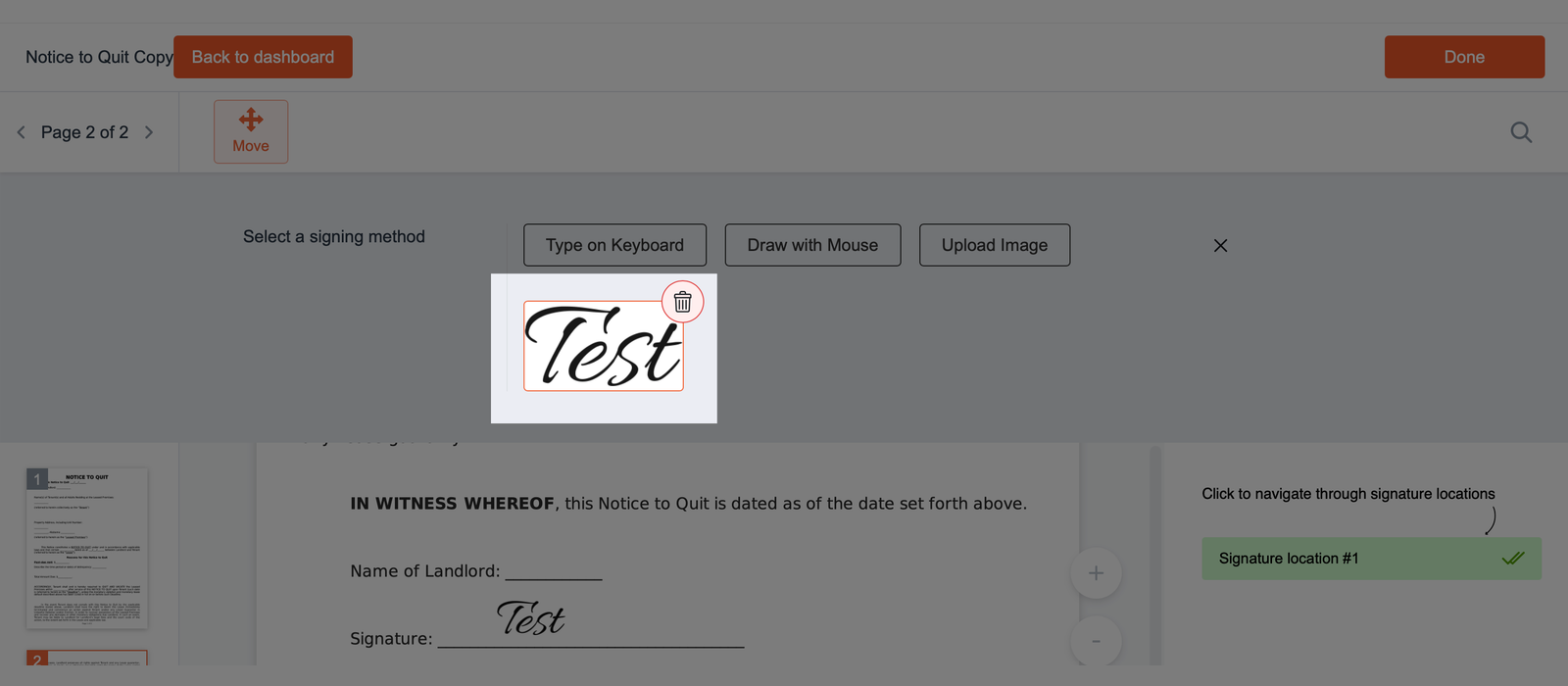
A confirmation window will appear asking whether you want to remove the signature from the document. Click Yes to delete it or No to keep it.
You can then create and add a new signature using any of the available signing methods.
- If the document has multiple signature locations assigned to you, select each remaining location from the right panel and add your signature.
You must sign all assigned locations before completing the signing process. The right panel shows which locations have been signed and which still require your signature.
- Once all required signature fields are completed, click Done in the top-right corner of the editor to finish signing the document.
After all participants have signed the document, everyone involved will receive an email with the completed document and its signing history report.
Where to find your signed documents?
Documents you've signed or received for signing are also available in the Signing section of your FormsPal dashboard.
To access them, follow these steps:
- Click Signing in the left sidebar.
- Find the document you want to review. You can use the Search field to locate a specific document.
- Click the three-dot menu next to the document to access the available actions:
- Preview - open the document to review its contents.
- Print - print the document.
- Sign - open the document for signing.
- History - review the document's signing activity, including participant statuses and timestamps.
This way, you can keep track of your signing requests and access document details whenever you need them.