Signing
Signing history
The Signing History section lets you track document activity throughout the signing process. You can check who received, opened, or signed a document, review timestamps and IP addresses, and see the current status of each signatory.
Once a document is fully signed, you can also download its signing history as a PDF certificate.
How to view a document's signing history?
To check the signing history of a document, follow these steps:
- Click Signing in the left sidebar of your FormsPal dashboard.
- Find the document whose history you want to review. You can use the Search field to locate a specific document.
- Click the three-dot menu next to the document to see the available actions.
- Select History from the dropdown menu.
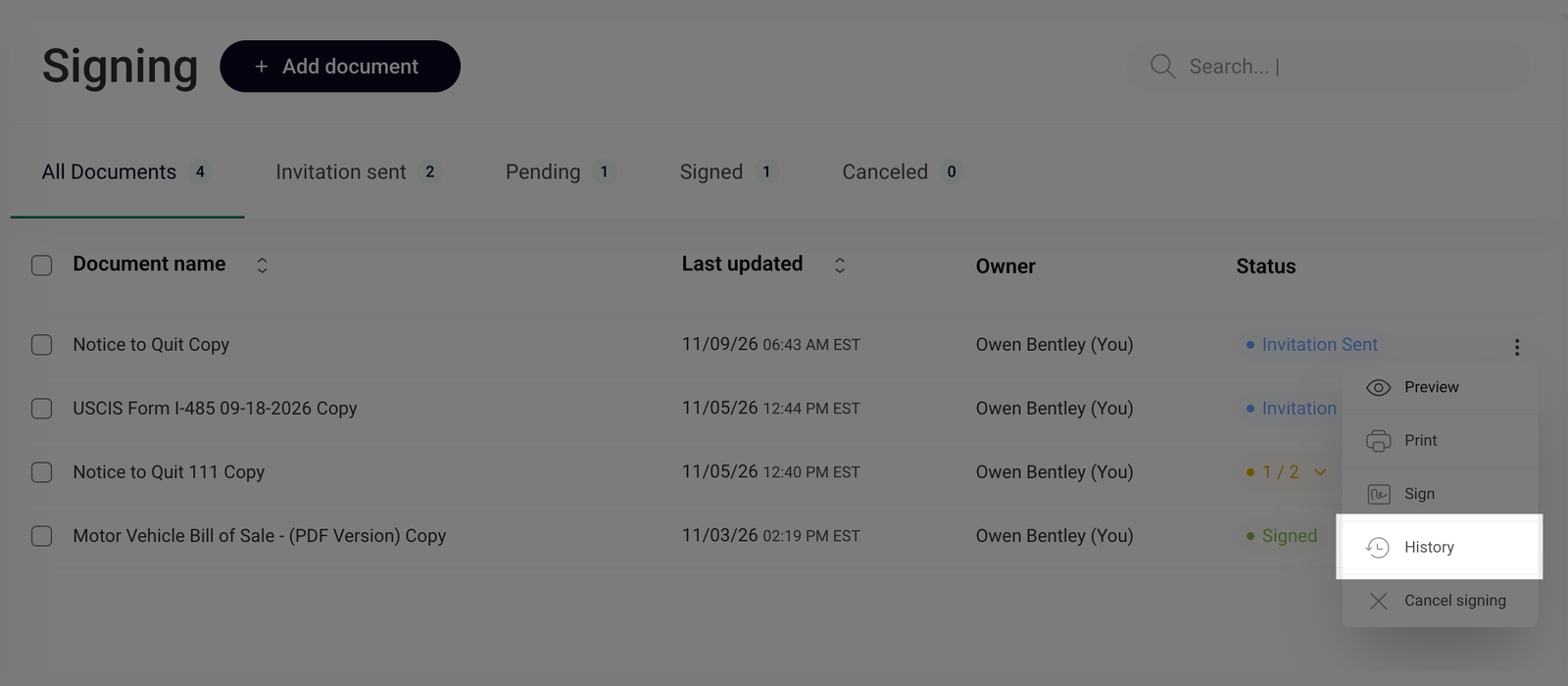
The way the signing history opens depends on the document's status:
- Documents in the signing process - a window opens with the document's details and recorded signing activities.
- Signed documents - a PDF certificate containing the document's signing history opens in a new browser tab.
Once all signatories have signed the document, each participant receives an email with the signed document and its PDF certificate containing the signing history.
What information is included in signing history?
Both the signing history window and the PDF certificate contain information about the document and its signing activities.
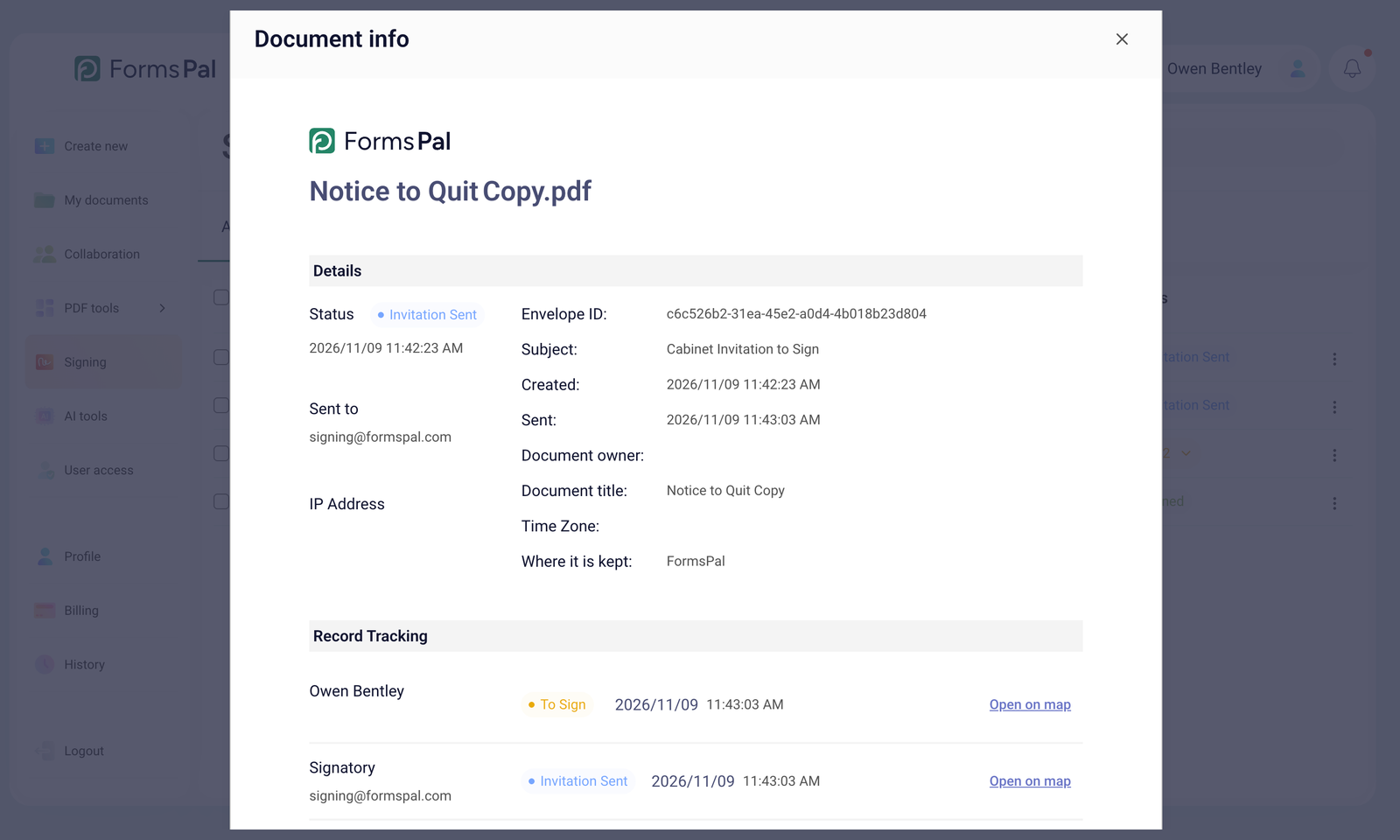
The Details section displays the following information:
- Status - shows the document's current signing status.
- Sent to - lists the email addresses of the recipients.
- IP Address - displays the recorded IP address associated with the document activity.
- Envelope ID - provides a unique identifier for tracking the signing request.
- Subject - shows the subject of the signing invitation.
- Created - shows when the signing request was created.
- Sent - shows when the document was sent for signing.
- Document owner - identifies the user who initiated the signing process.
- Document title - displays the document's name.
- Time Zone - shows the time zone used for the recorded timestamps.
- Where it is kept - indicates where the document is stored.
Below the document details, the Record Tracking section displays the signing activity for each participant.
You can review the signatories' names and email addresses, their current signing statuses, and the dates and times of recorded activities, such as opening or signing the document.
The available records depend on how far each participant has progressed through the signing process.
How to view the location of a signing activity?
You can also review location information associated with recorded signing activities.
To view this information, follow these steps:
- Open the document's Signing History.
- Scroll down to the Record Tracking section.
- Find the participant and activity you want to check.
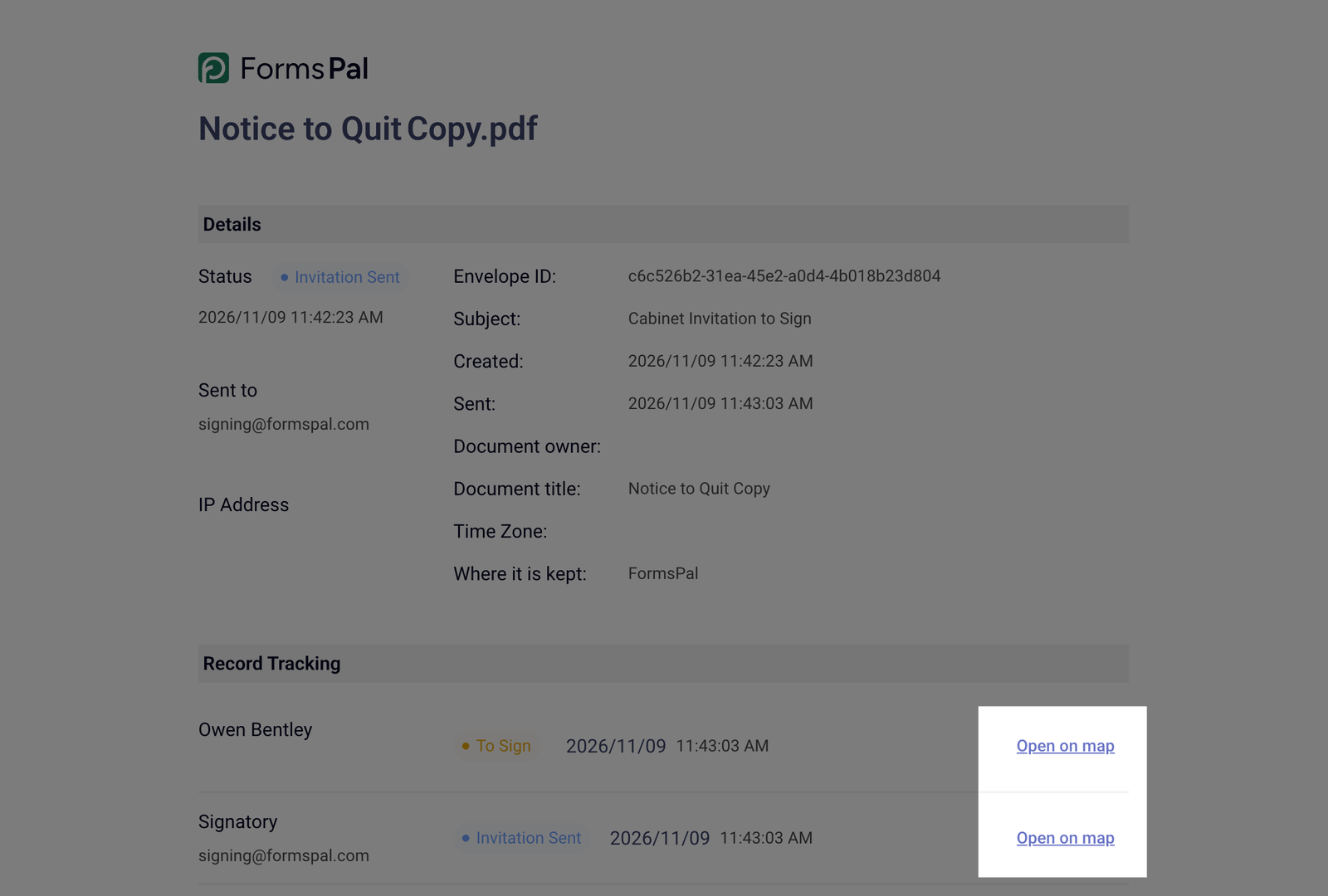
- Click Open on map next to the corresponding record.
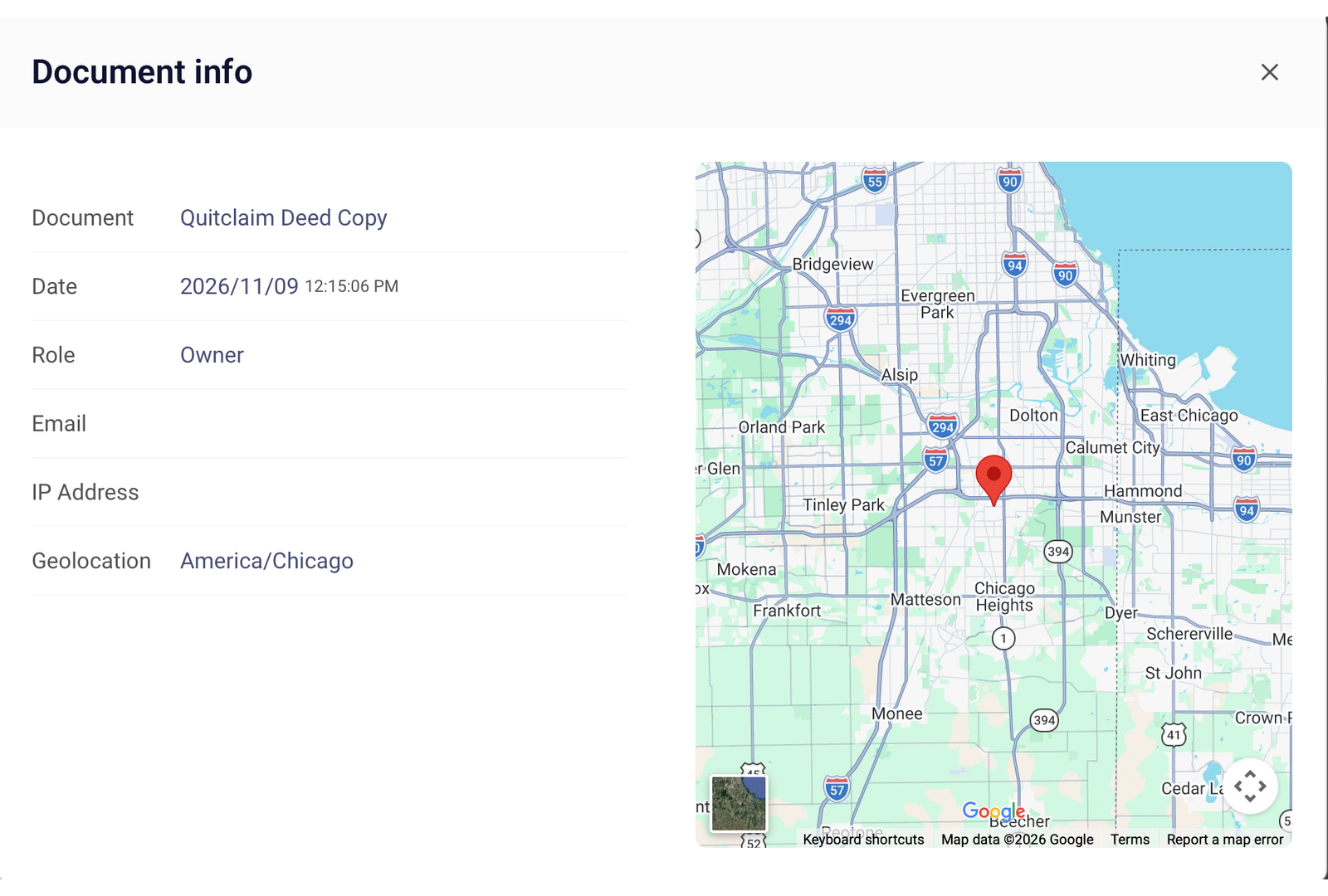
- A Document info window will open, displaying the following details:
- Document - the name of the document.
- Date - the date and time of the recorded activity.
- Name - the name of the participant.
- Email - the participant's email address.
- IP Address - the IP address recorded during the activity.
- Geolocation - location information associated with the recorded IP address.
- A map on the right side of the window shows the estimated location associated with the activity.