
My Documents
Actions with multiple (all) documents
You can manage multiple documents or all documents at once. By selecting multiple files, you can perform bulk actions such as print, duplicate, share, send for signature, collaborate, download, or delete. This feature lets you handle several files simultaneously, reducing repetitive tasks and making document management more convenient.
How to select multiple documents?
To select multiple or all documents at once, follow the steps below:
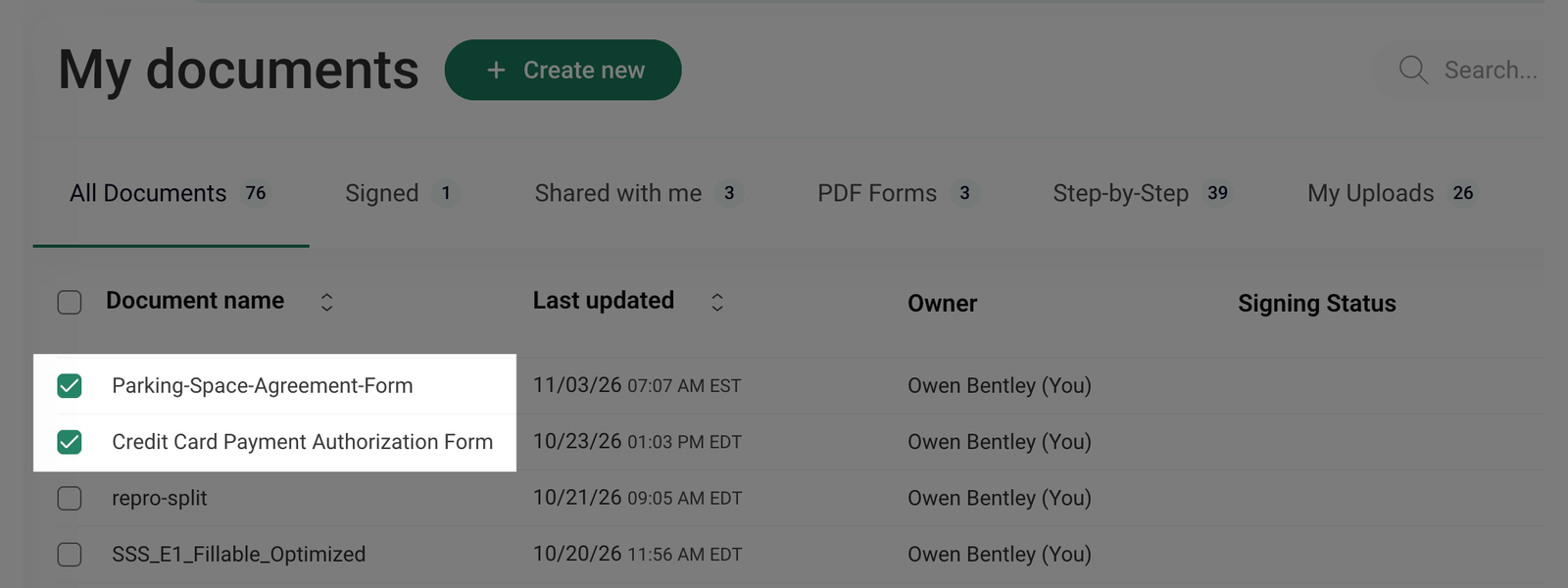
- Go to the My documents section and select the checkboxes next to the document names you want to choose.
- To select all documents on the current page, click the checkbox next to the Document name at the top of the list.
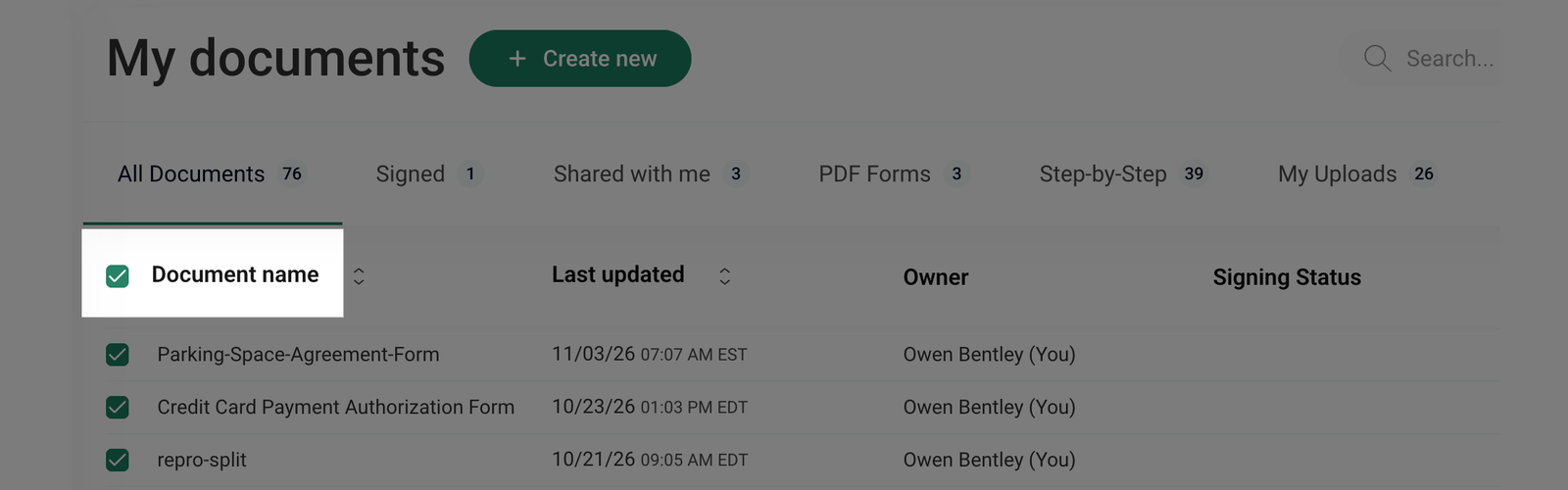
Note: If your document list spans multiple pages, only the documents on the current page will be selected.
How to perform bulk actions with selected documents?
Once you've selected the documents, an Actions menu will appear on the right. The number next to Actions shows how many documents are selected.
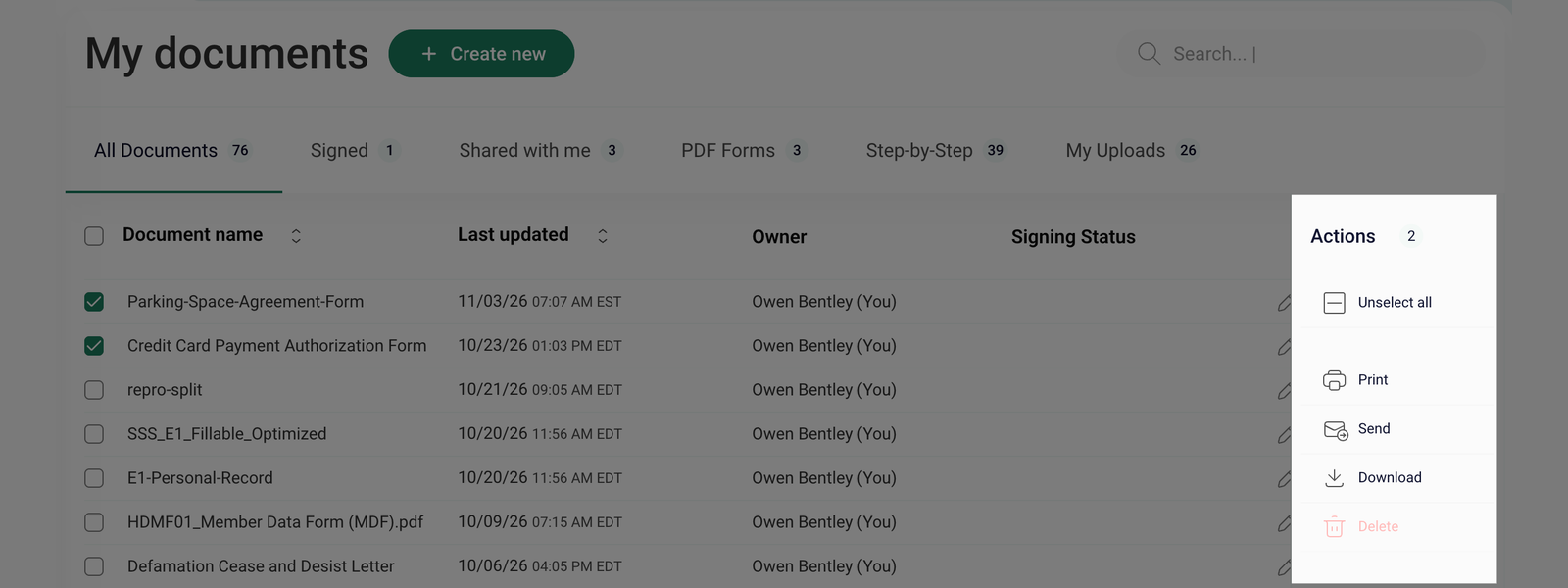
You can choose from the following options:
- Click Print to print all selected documents. This will open the print dialog, allowing you to adjust settings before printing.
- Click Send to send the selected documents to your email. The documents will be automatically sent to the email associated with your account.
- Click Download to save all selected documents to your local device instantly. After clicking, the files will be saved for offline access.
- Click Delete to remove all selected documents permanently. A confirmation pop-up will appear - click Delete again to proceed or Cancel to cancel the action.
- Click Unselect All to clear the selection and return to the document list.