
My Documents
Delete documents
You can remove one or more files from My documents if they are no longer needed. This action helps you organize your workspace by clearing outdated or duplicate files.
This action is permanent and cannot be undone. When deleted, the document is also removed from All documents and the specific tab it belonged to, depending on how it was added (e.g., PDF Forms, Step-by-Step, My Uploads).
How to delete a single document?
To delete a single document, follow these steps:
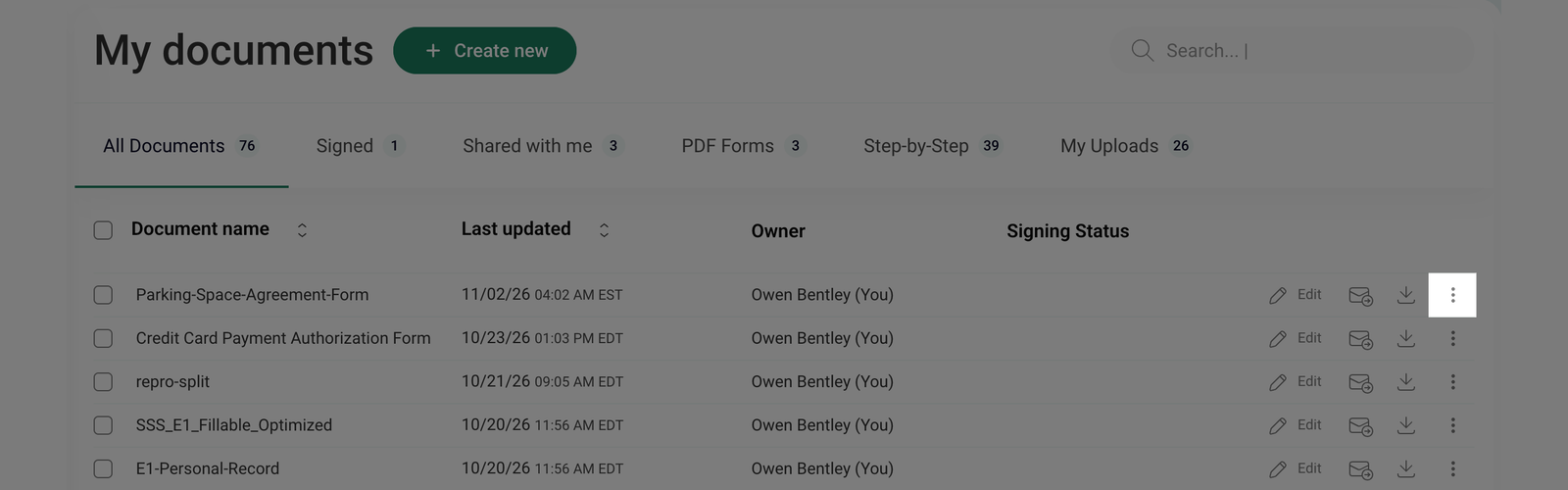
- Go to My documents and click the three-dot menu next to the document you want to delete.
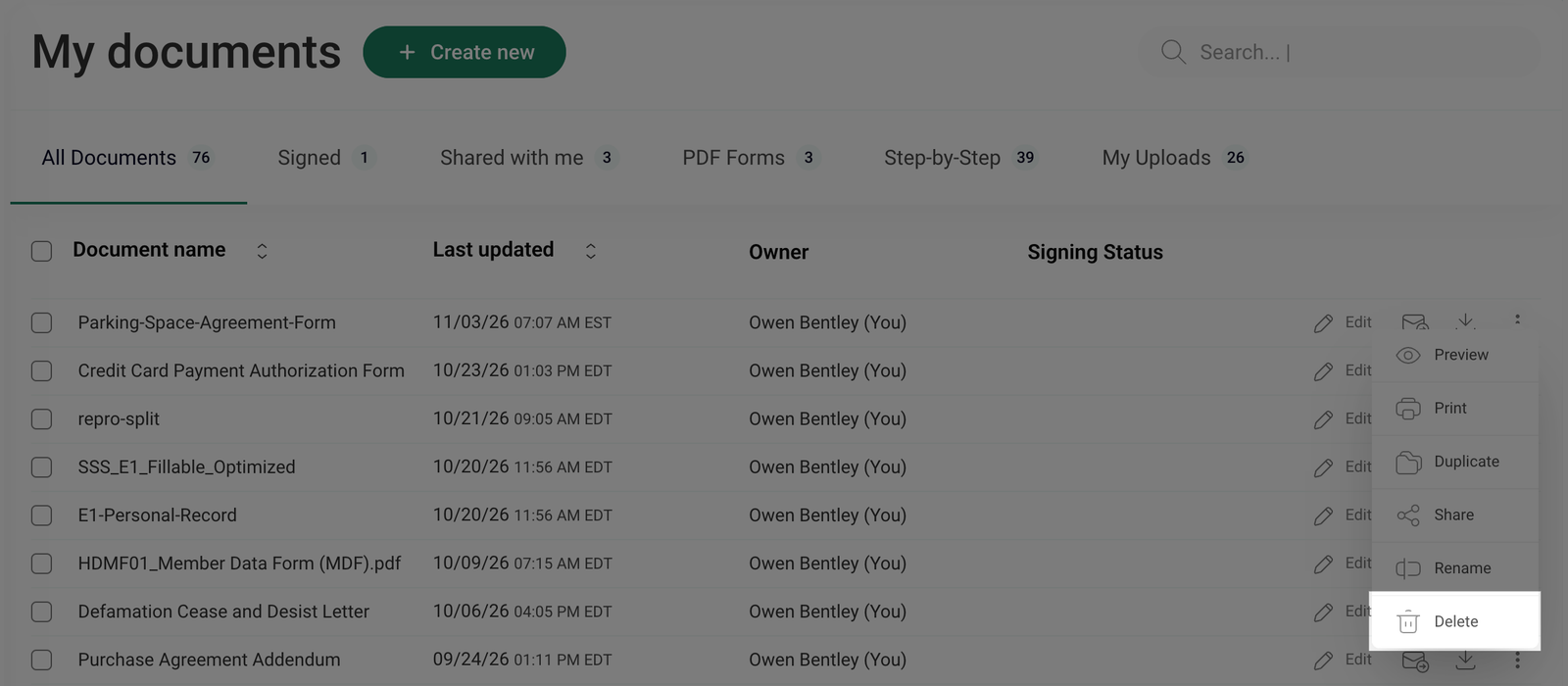
- From the dropdown menu, select Delete.
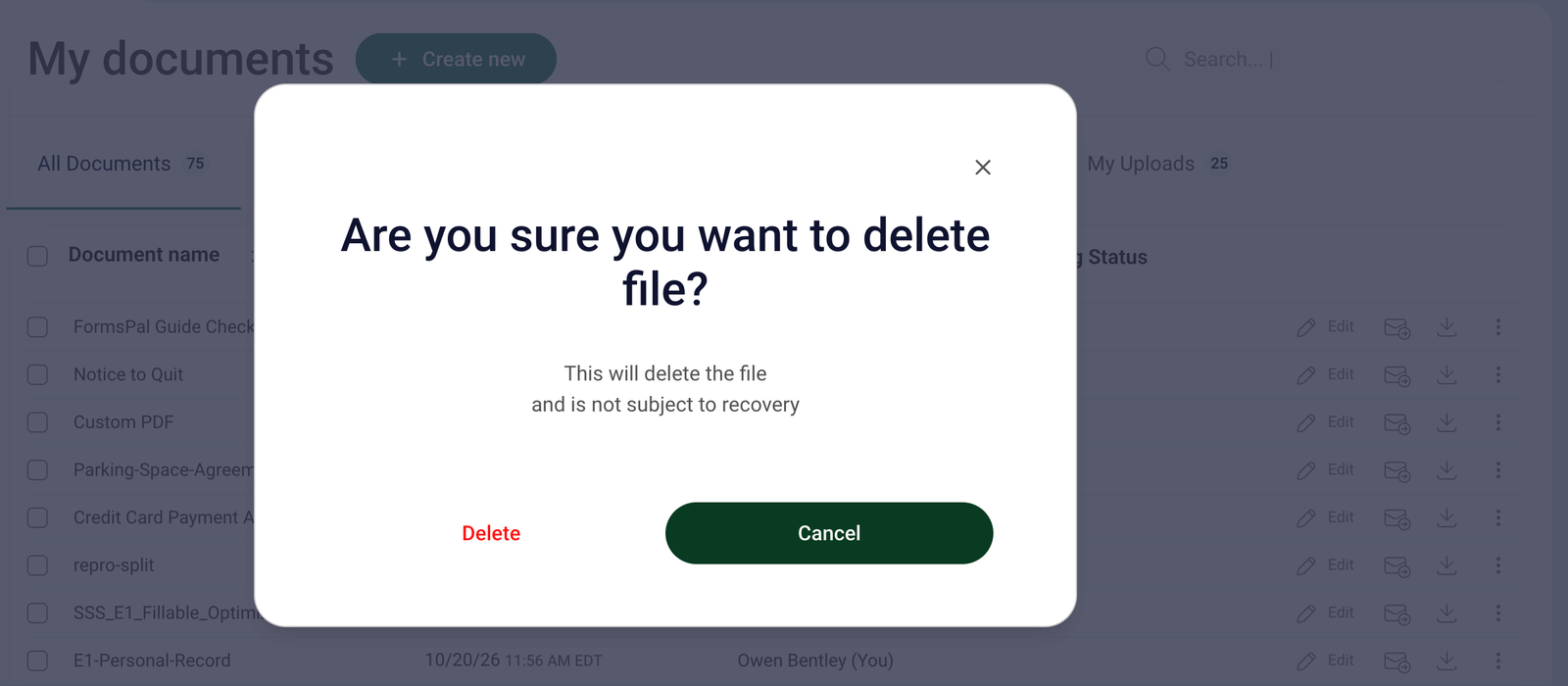
- A confirmation pop-up will appear - click Delete again to proceed or Cancel to cancel the action.
How to Delete Multiple Documents?
To delete several documents at once, follow these steps:
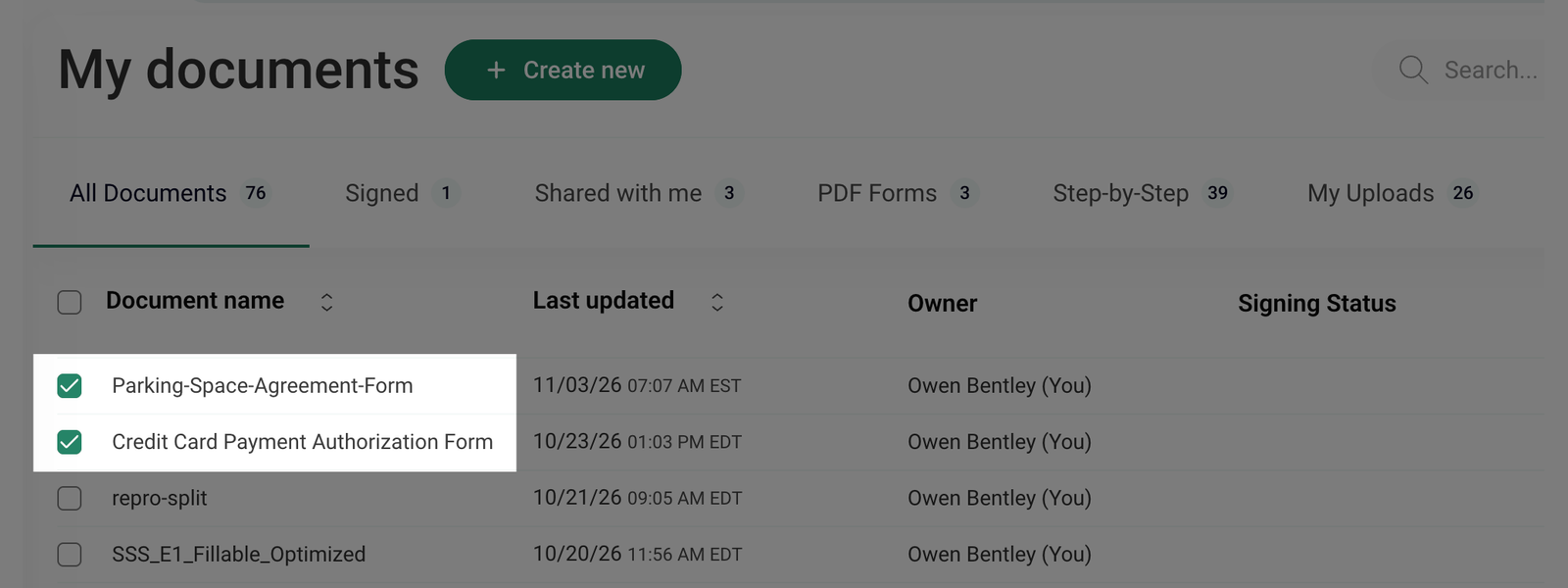
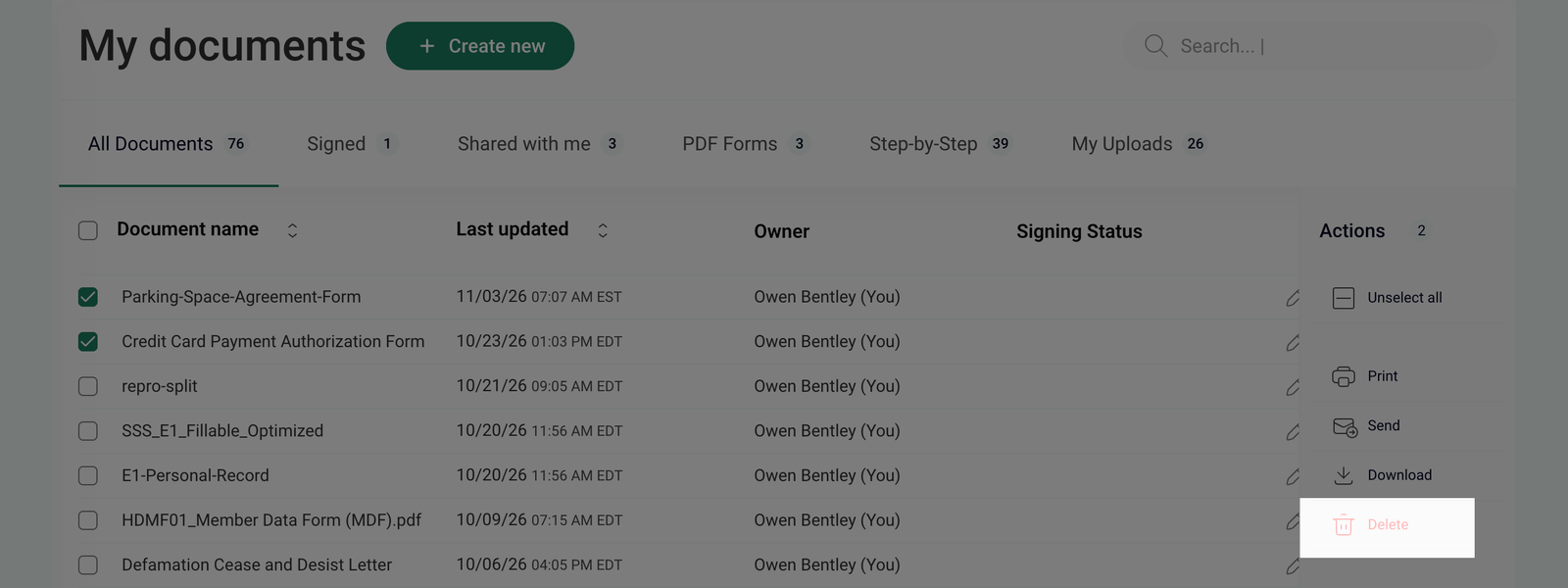
- Go to My documents and select the checkboxes next to the document names you want to delete.
- To select all documents on the current page, click the checkbox next to the Document name at the top of the list.
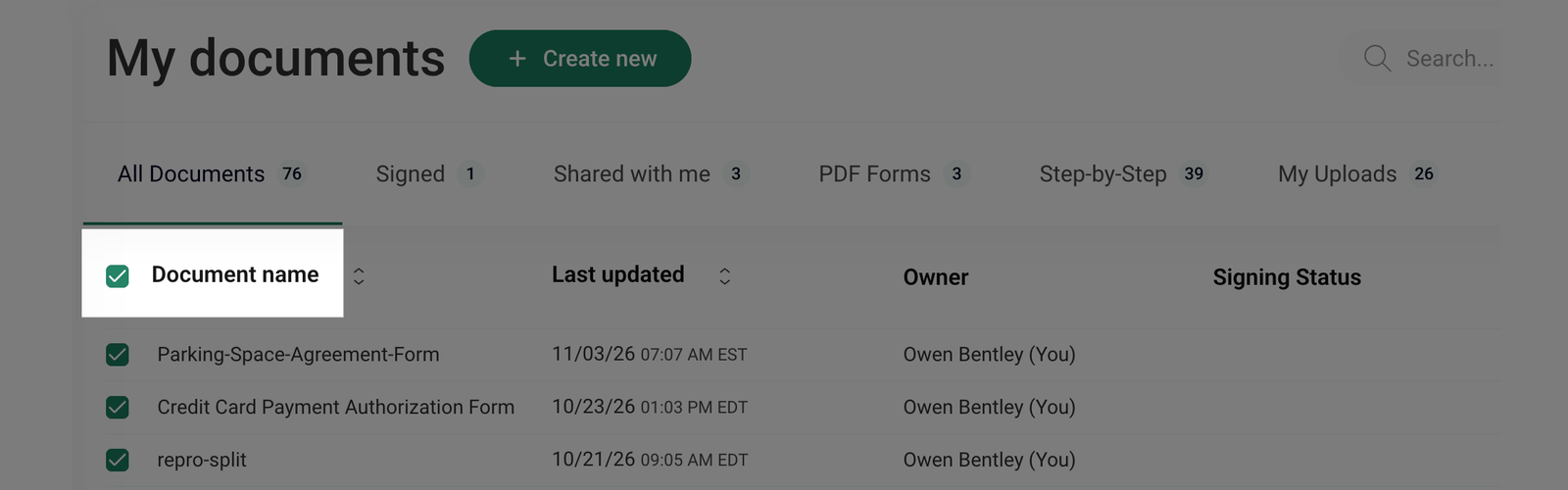
If your document list spans multiple pages, only the documents on the current page will be selected.
- Once you've selected the documents, an Actions menu will appear. Click Delete to delete all selected documents from your account.
- A confirmation pop-up will appear - click Delete again to proceed or Cancel to cancel the action.