My Documents
Searching and sorting documents
Use search and sorting features to quickly locate specific documents, organize files, and streamline document management. Searching by title helps you find documents instantly, while sorting by name, date, owner, or status makes tracking updates, managing ownership, and prioritizing tasks easier.
How to search documents?
By following these steps, you can quickly find the document you need:
- Open the My documents section from the left-side menu.
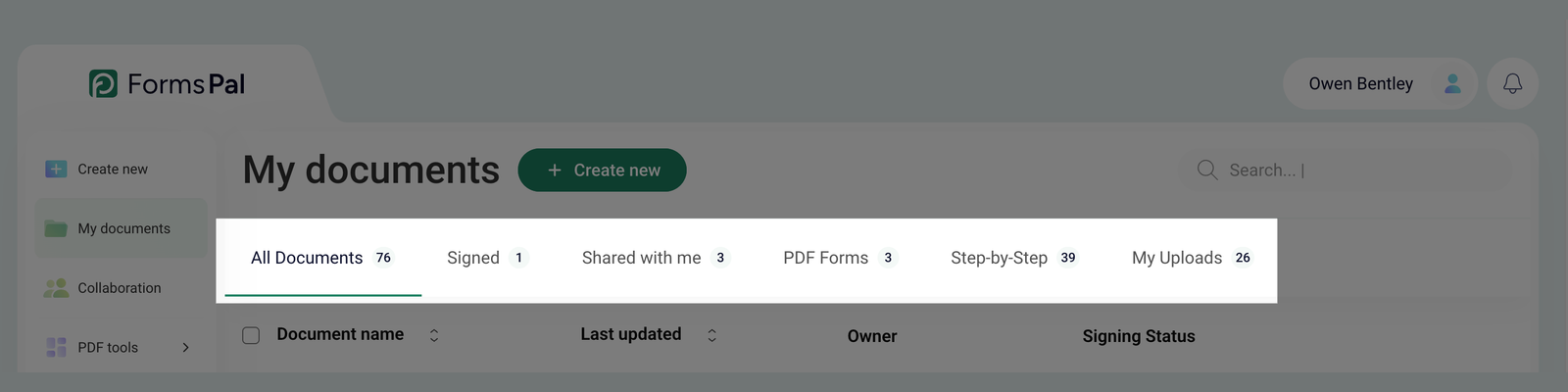
- If you know where the document is stored, navigate to the appropriate tab, such as Signed, Shared with Me, PDF Forms, Step-by-Step, or My Uploads. If unsure, stay in All Documents to search across all files.
- Click on the Search bar at the top of the page, enter at least one character from the document title, or type the full name. Matching results will appear automatically.
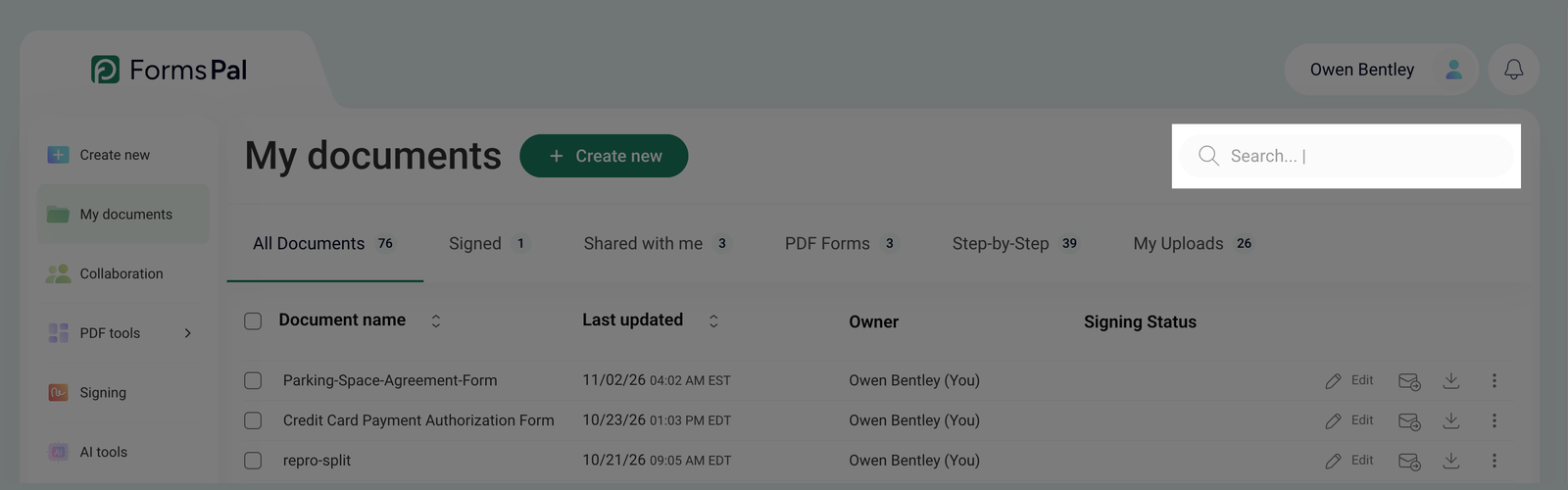
If the document isn't visible in the first set of results, scroll down to see more entries.
- If you cannot find a document using the search bar, or if you are browsing many files, use pagination.
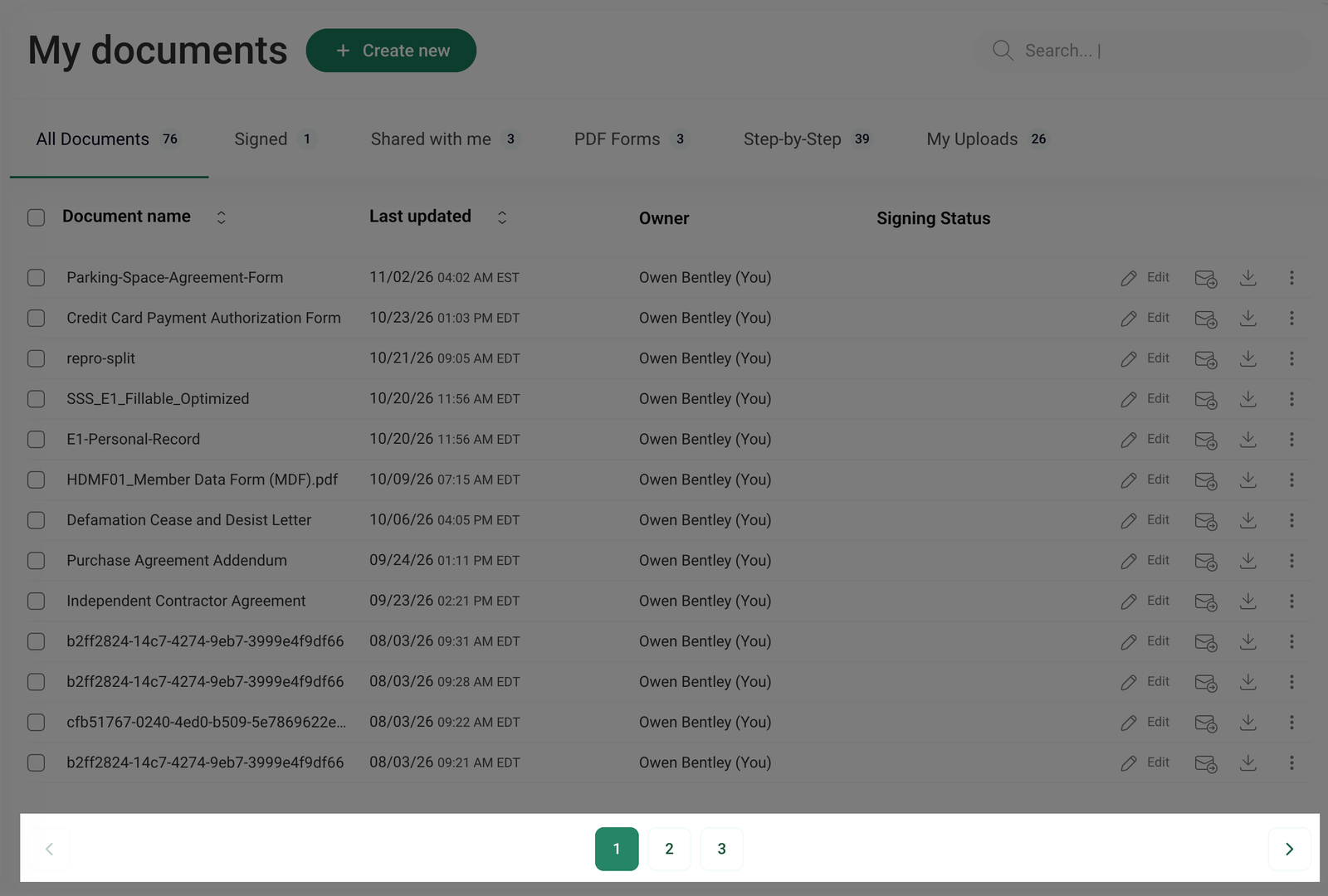
- Click on a page number at the bottom to jump to a specific page.
- Use the Next button to move forward or the Previous button to go back.
How to sort documents?
Sorting helps you quickly find and manage documents based on your preferred criteria. To sort all your documents, follow these steps:
- Open the My documents section from the left-side menu.
- If you know where the document is stored, navigate to the appropriate tab, such as Signed, Shared with Me, PDF Forms, Step-by-Step, or My Uploads. If unsure, stay in All Documents to search across all files.
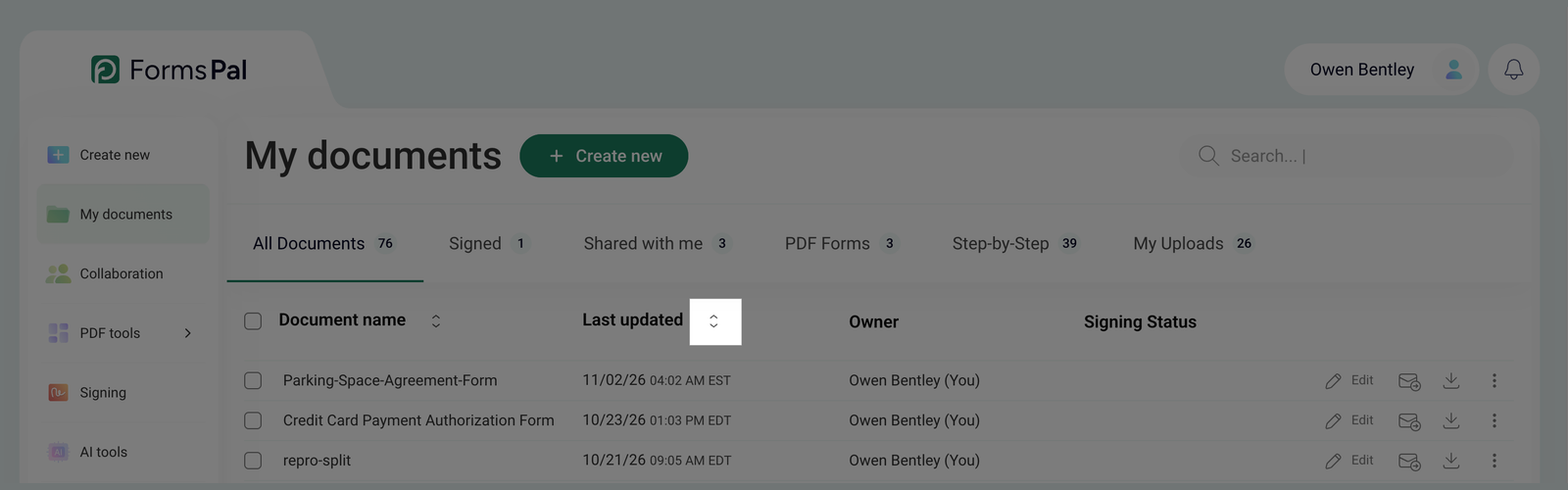
- Click the up and down arrows next to Document name to sort your files alphabetically from A to Z. Click them again to reverse the order from Z to A.
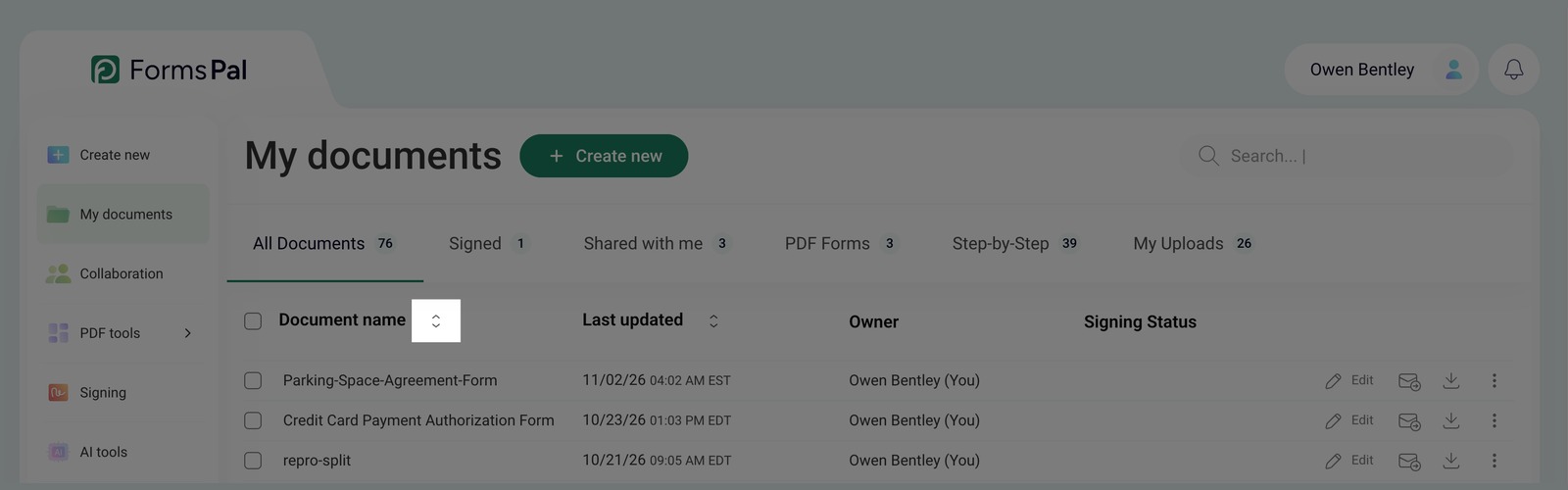
- Click the up and down arrows next to Last updated to sort your documents from most recently updated to oldest. Click them again to reverse the order, showing the oldest documents first.