
My Documents
Print documents
You can print documents directly from your account whenever you need a physical copy for reference, legal purposes, or record-keeping. The process is simple and allows you to generate a hard copy in just a few steps.
The Print function is unavailable for documents with the Canceled or Delivery failed statuses.
How to print one document?
To print one document directly from your dashboard, follow these steps:
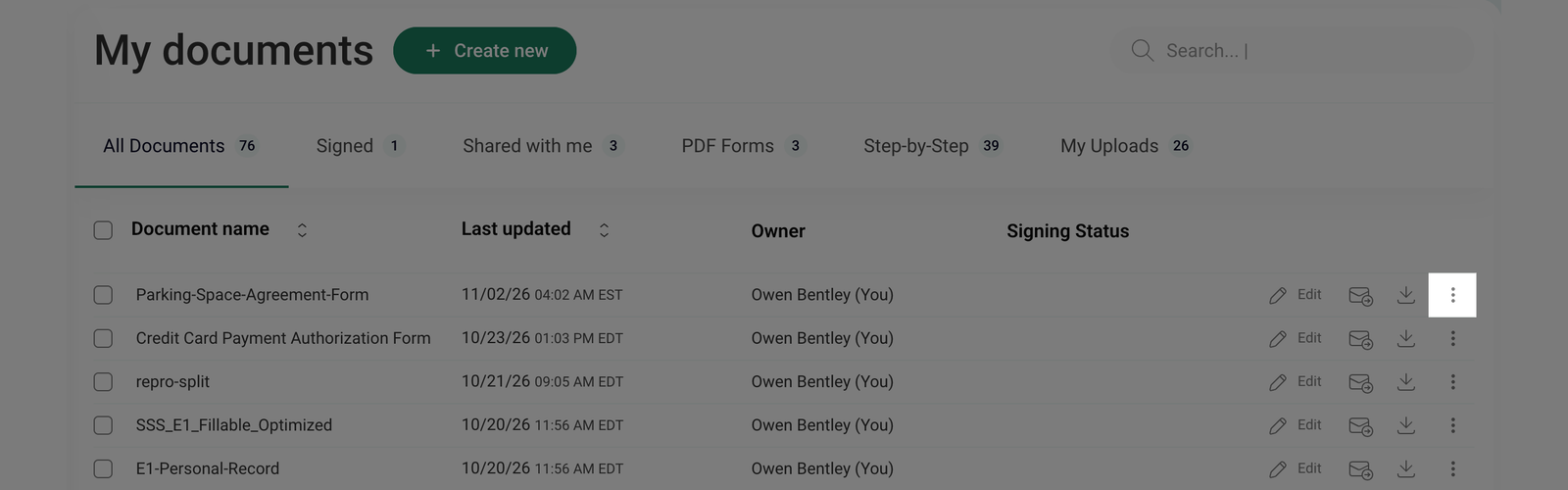
- Go to My documents and click the three-dot menu next to the document you want to print.
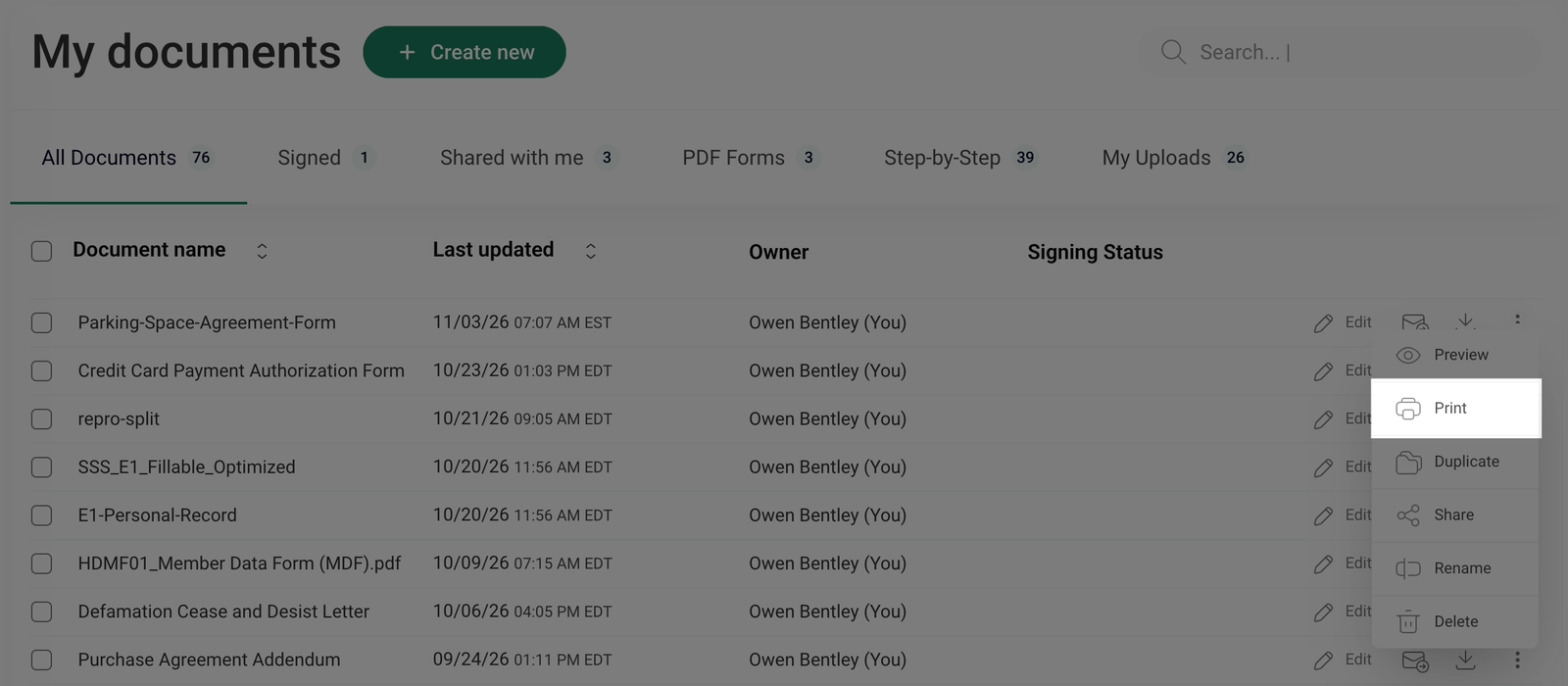
- From the dropdown menu, click on Print.
- The document will be prepared for printing and sent to the connected printer. Follow the on-screen instructions to complete the process.
How to Print Multiple Documents?
To print multiple documents at once directly from your Cabinet, follow these steps:
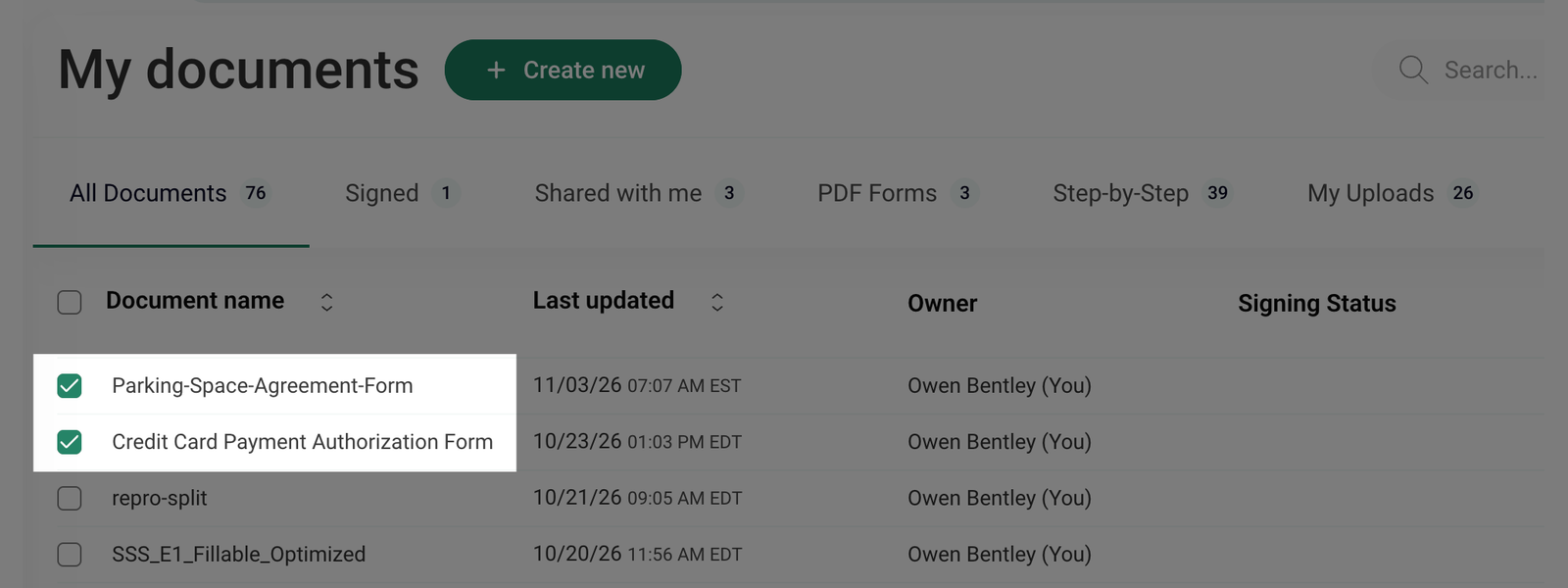
- Go to the My documents section and select the checkboxes next to the document names you want to print.
- To select all documents on the current page, click the checkbox next to the Document name at the top of the list.
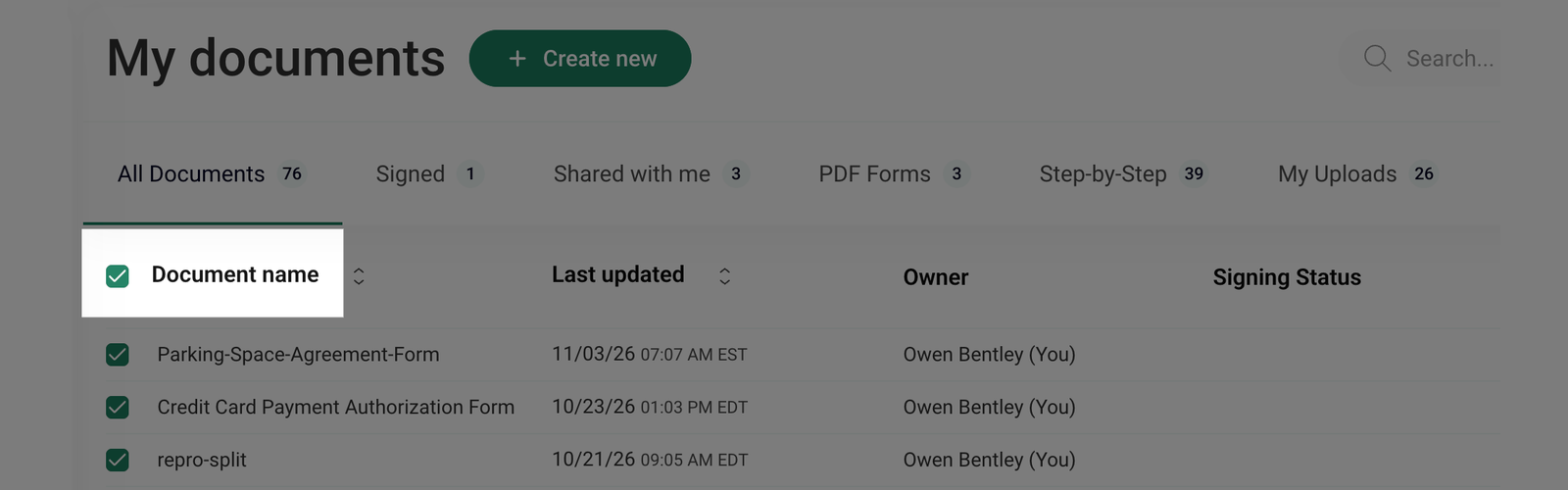
If your document list spans multiple pages, only the documents on the current page will be selected.
- Once you've selected the documents, an Actions menu will appear. Click Print to print all selected documents.
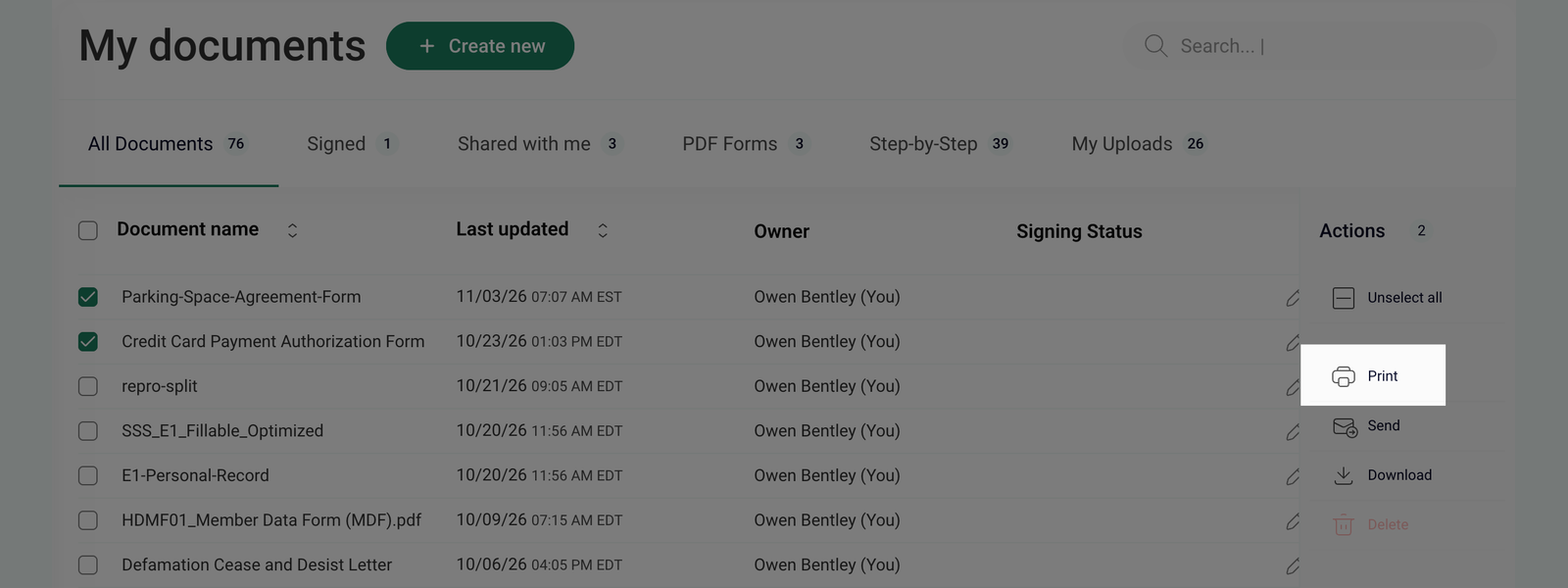
- All selected documents will be prepared for printing and sent to the connected printer. Follow the on-screen instructions to complete the process.