
My Documents
Share documents for collaboration
You can send files for collaboration directly from the My documents tab, allowing other users to access them with either Edit or Viewer rights. This feature makes it easy to work together on documents without needing multiple file versions.
Documents with the following statuses cannot be shared for collaboration: To Sign, Pending, Canceled, Delivery Failed, For Signature.
How to share documents for collaboration?
To collaborate on your documents, follow these steps:
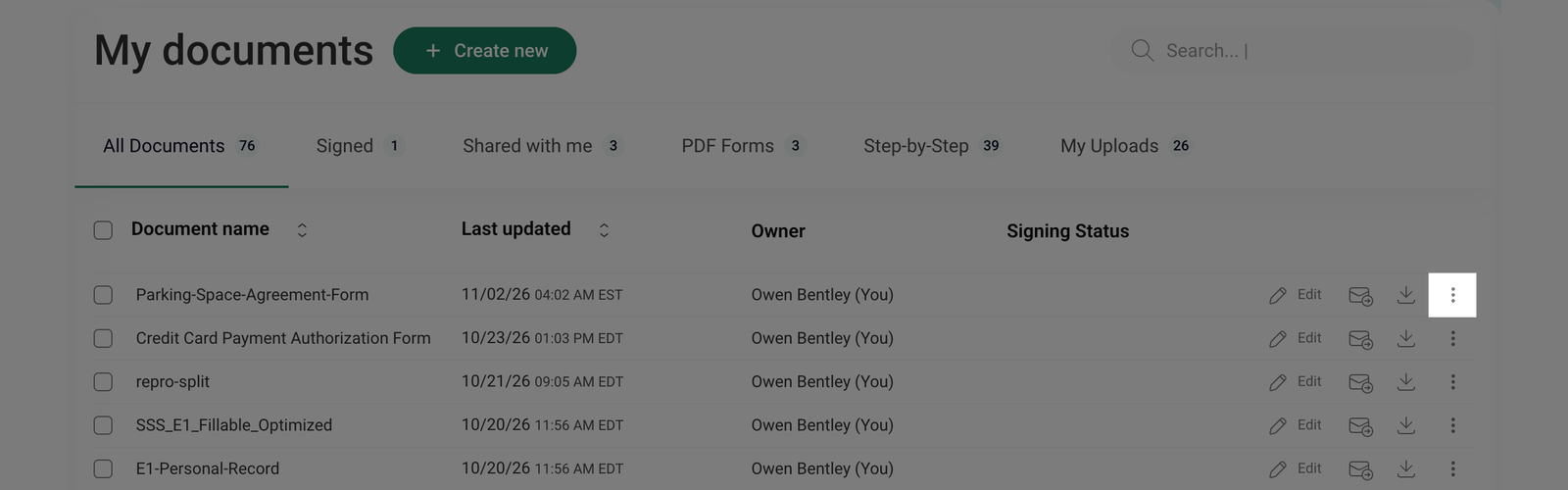
- Go to My documents and click the three-dot menu next to the document you want to share for collaboration.
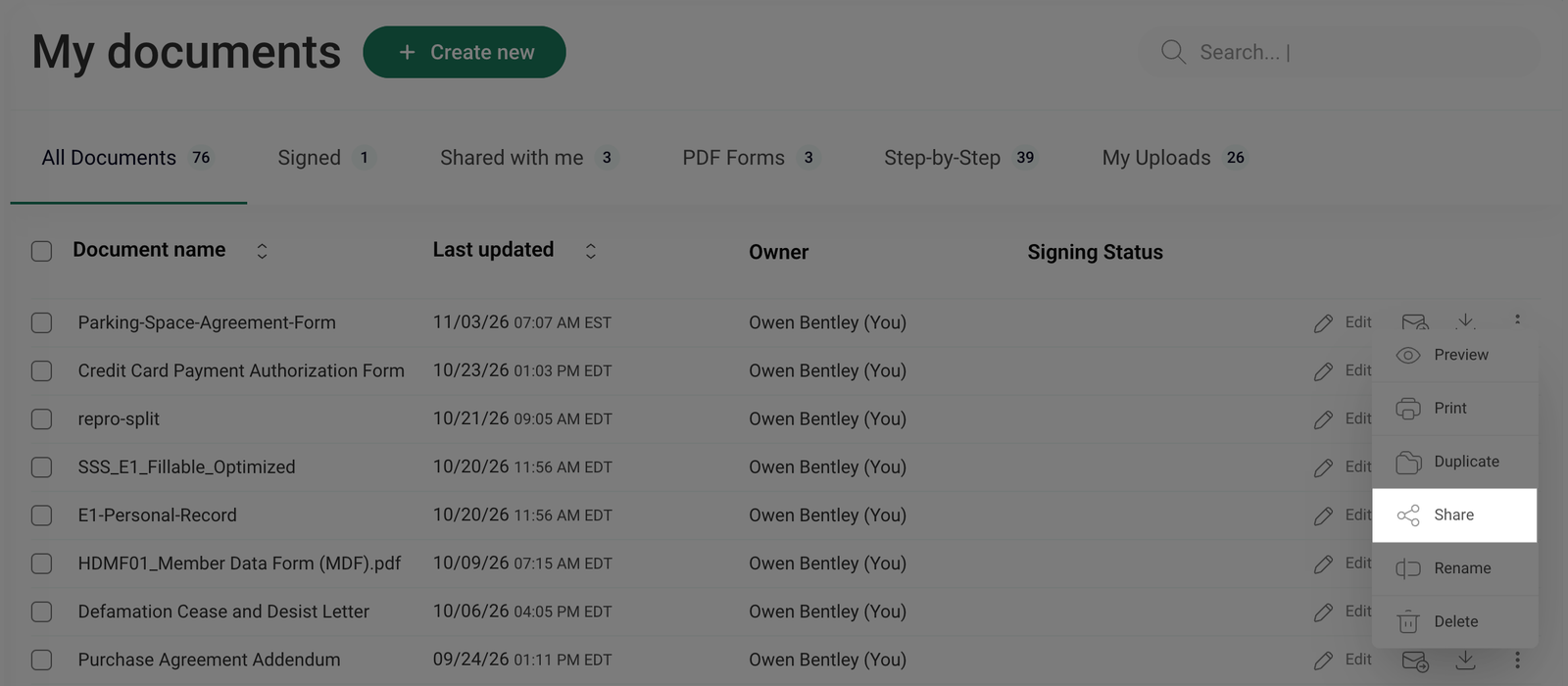
- From the dropdown menu, click Share.
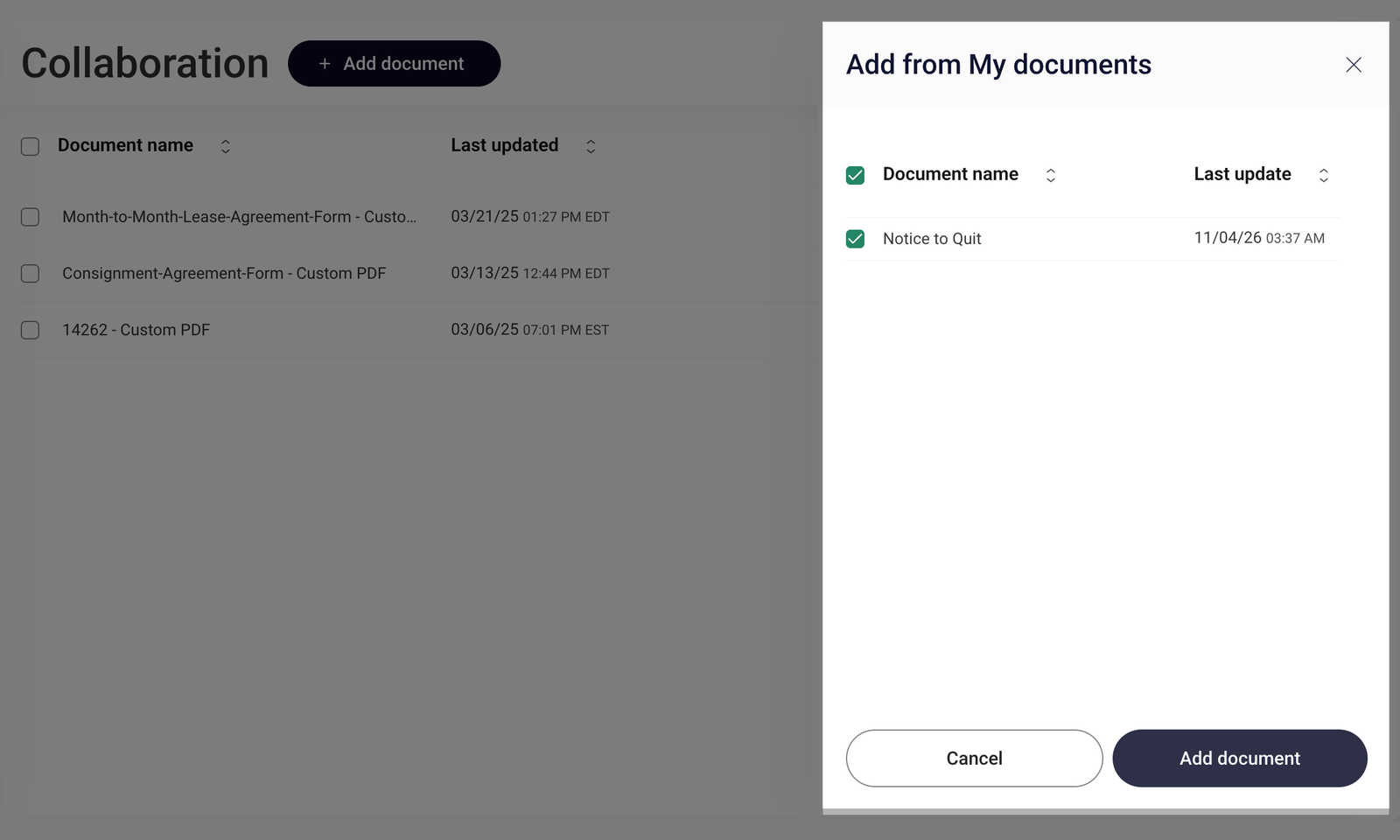
- You will be redirected to the Collaboration page. Select the document you want to share and click Add document.
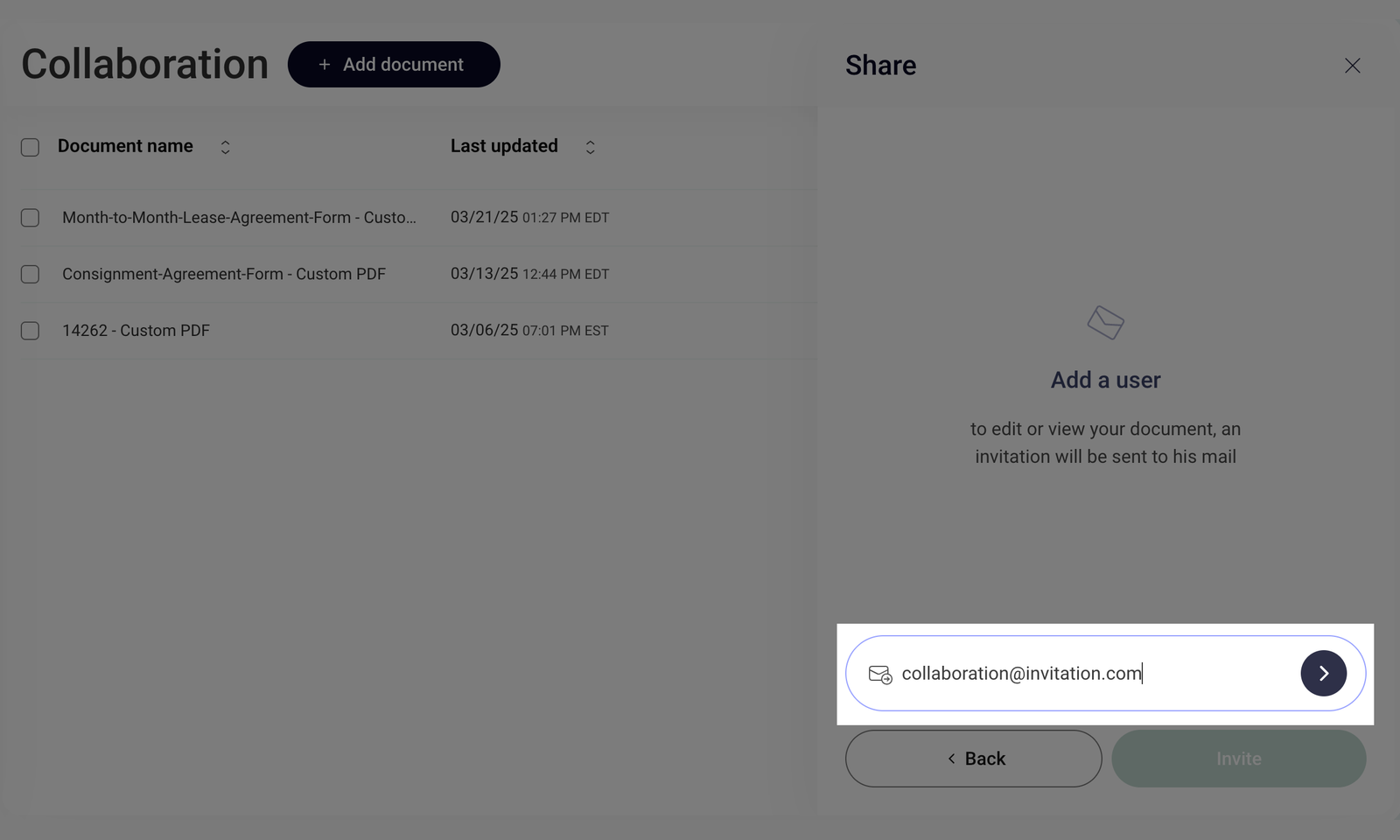
- Enter the user's email address and click the arrow button to add them to the invitation list.
- Click the Editor dropdown menu next to the user's email address to change their access level to Editor or Viewer. To remove a user from the invitation list, click the X icon next to their access level.
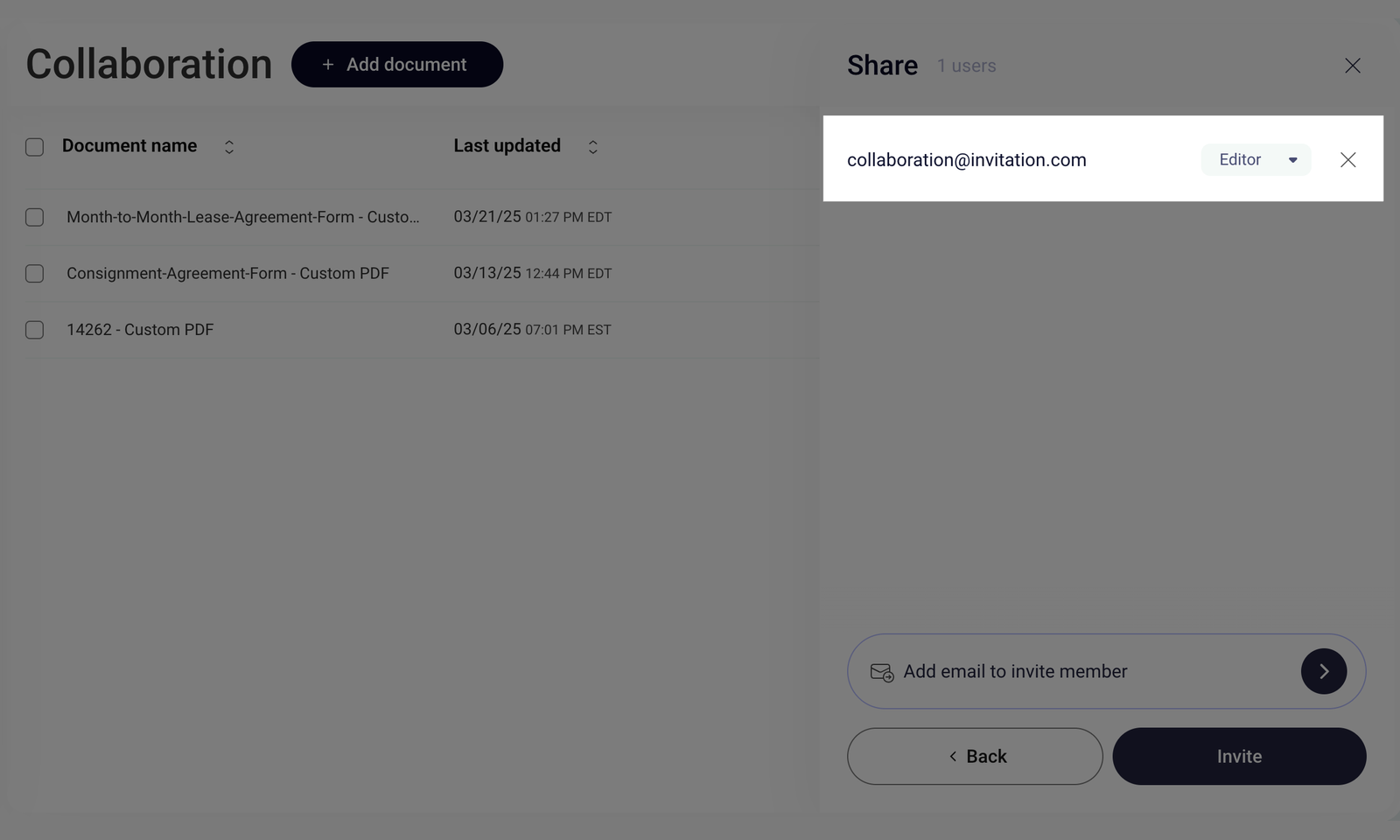
- Once you've added all users and set their access levels, click Invite to send the invitations.
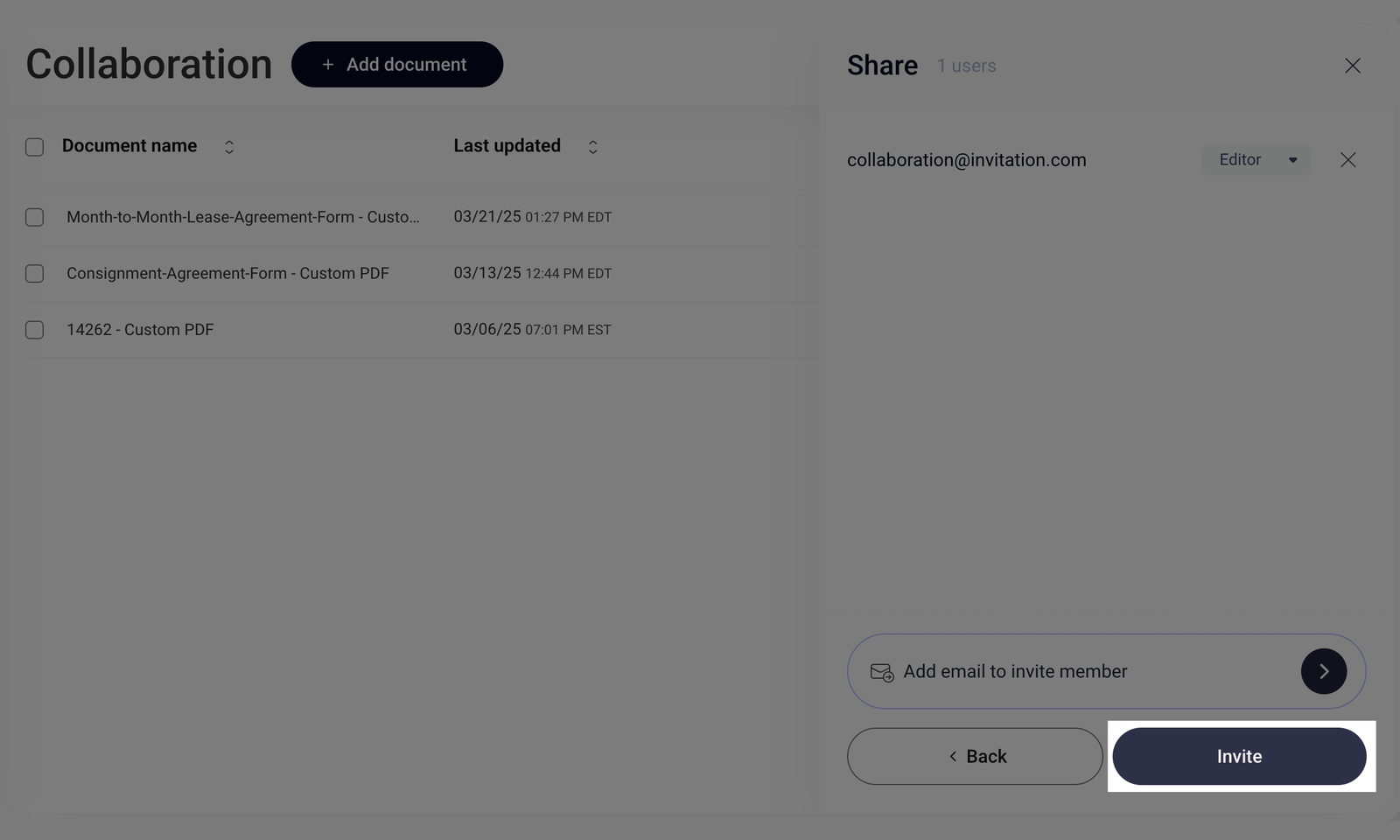
A confirmation message, The invitation has been sent, will appear. Each invited user will receive an email invitation and a notification in their FormsPal dashboard.