
My Documents
Create new
You can add documents to My documents through the + Create new button. Upload files from your device or import them from cloud storage services like Google Drive, OneDrive, or Dropbox. This allows you to store, manage, and access your documents directly from your dashboard.
How to add a new document to My documents?
Follow the steps below to add a file to your documents:
- Open the My documents tab from the left-side menu and click the + Create new button at the top.
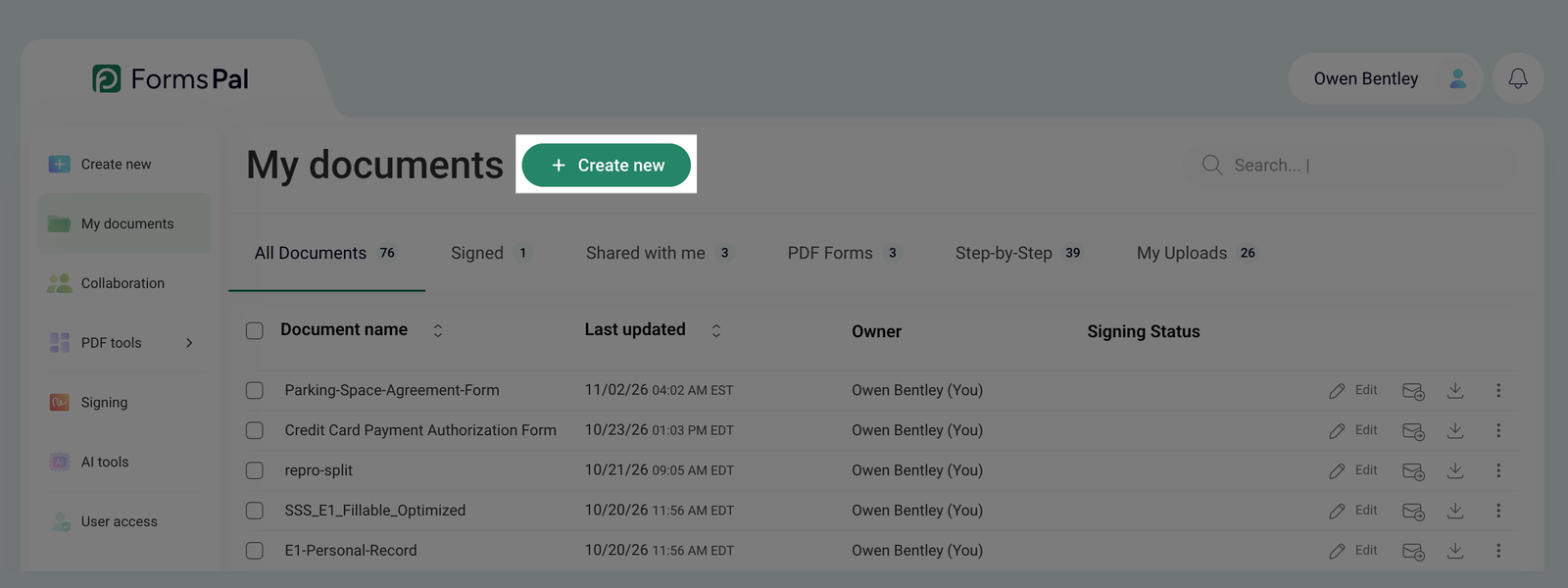
- After clicking + Create new, you have multiple options to add a document:
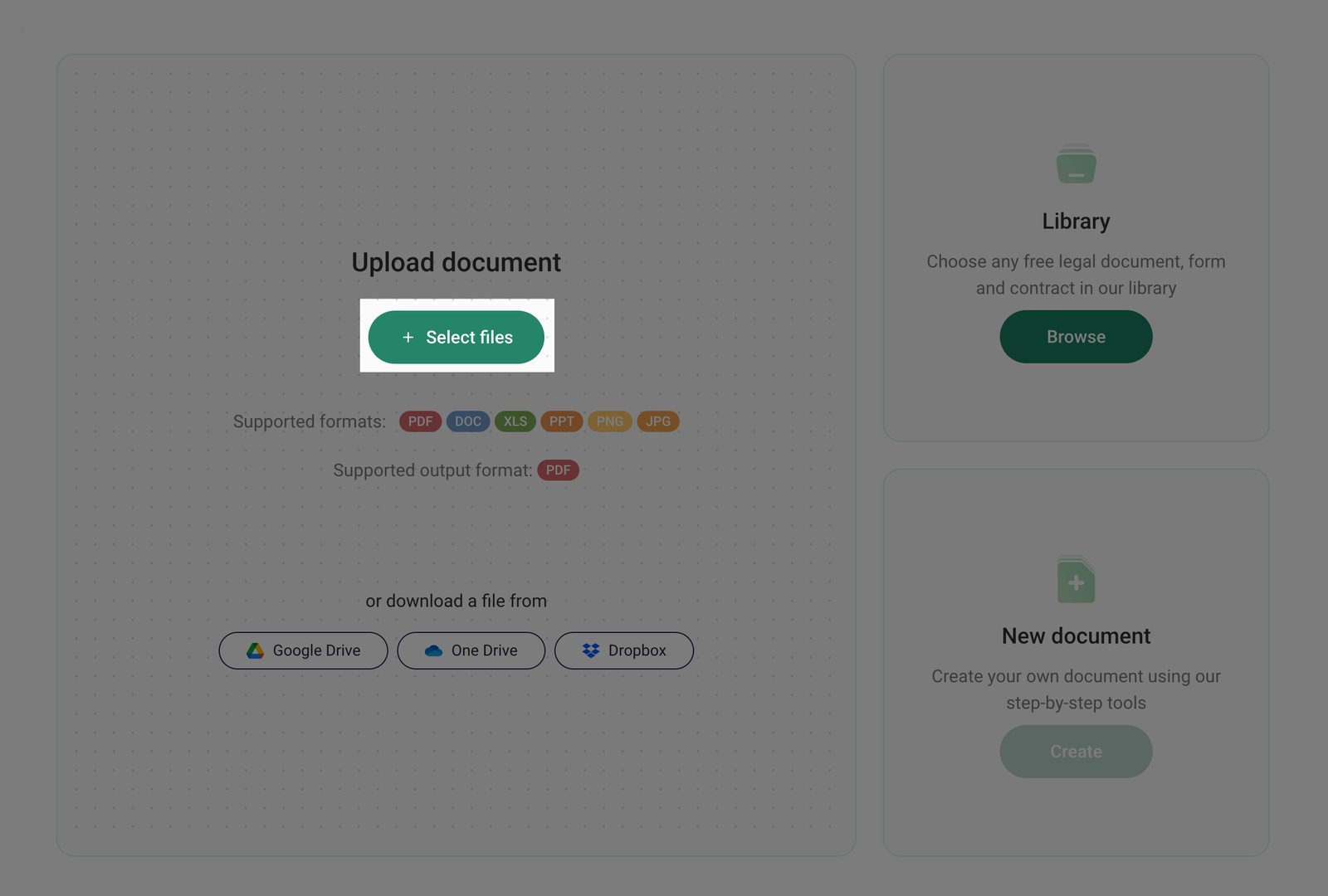
- Upload from your device - select a file from your computer.
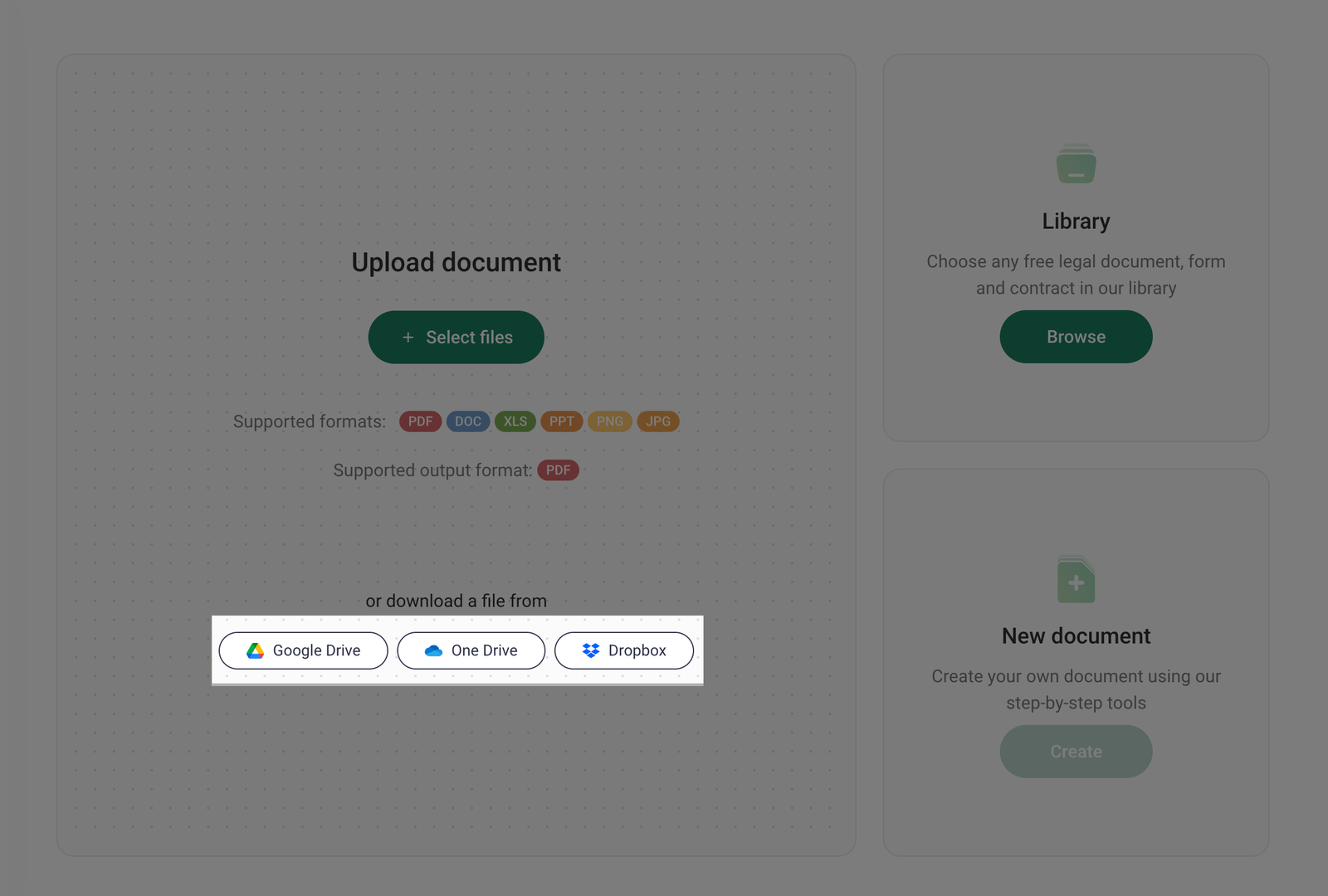
- Upload from cloud storage - upload a file directly from Google Drive, OneDrive, or Dropbox.
- Browse the Library - select a step-by-step document from the available templates.
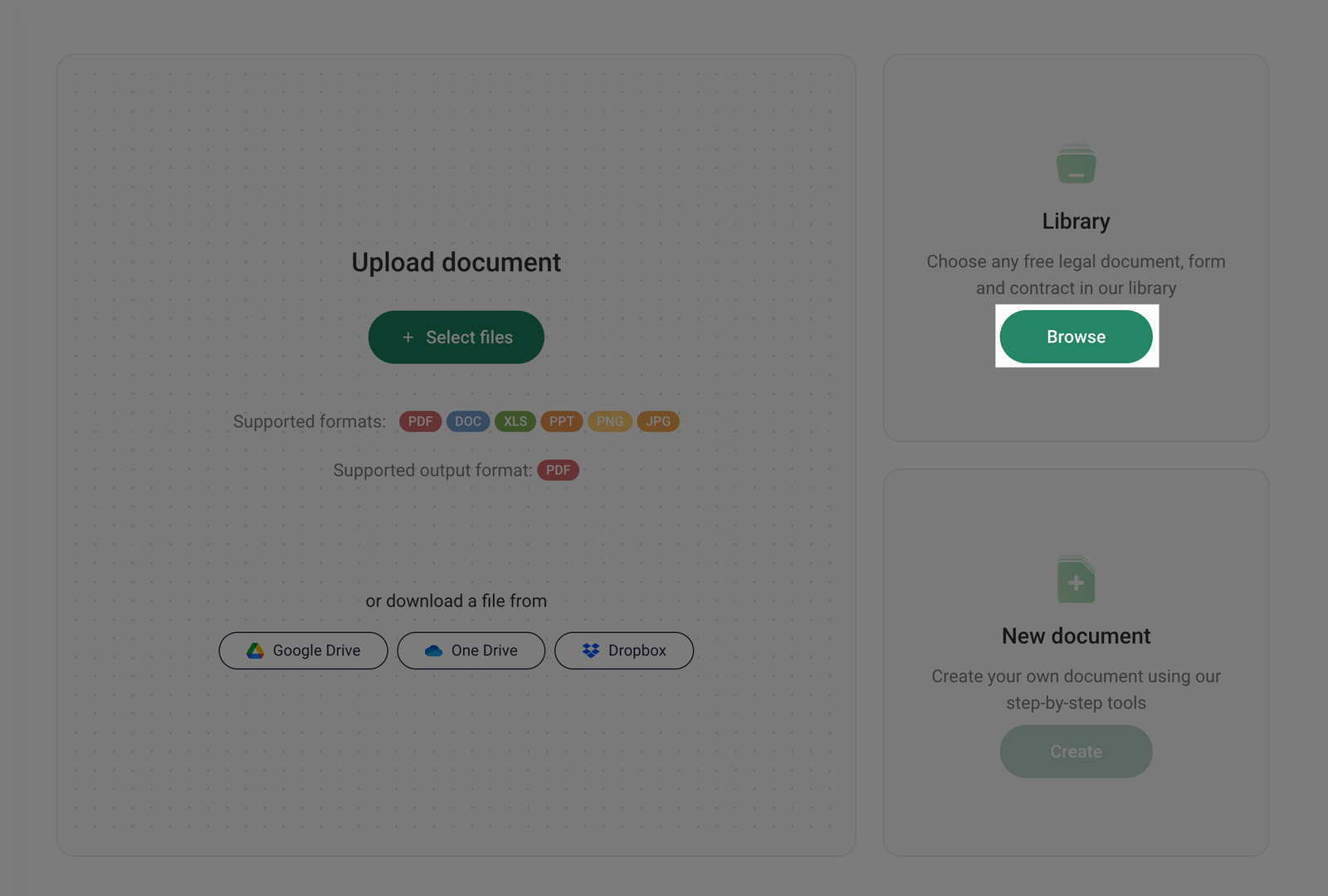
- Create a new document - use the step-by-step document creation tool.
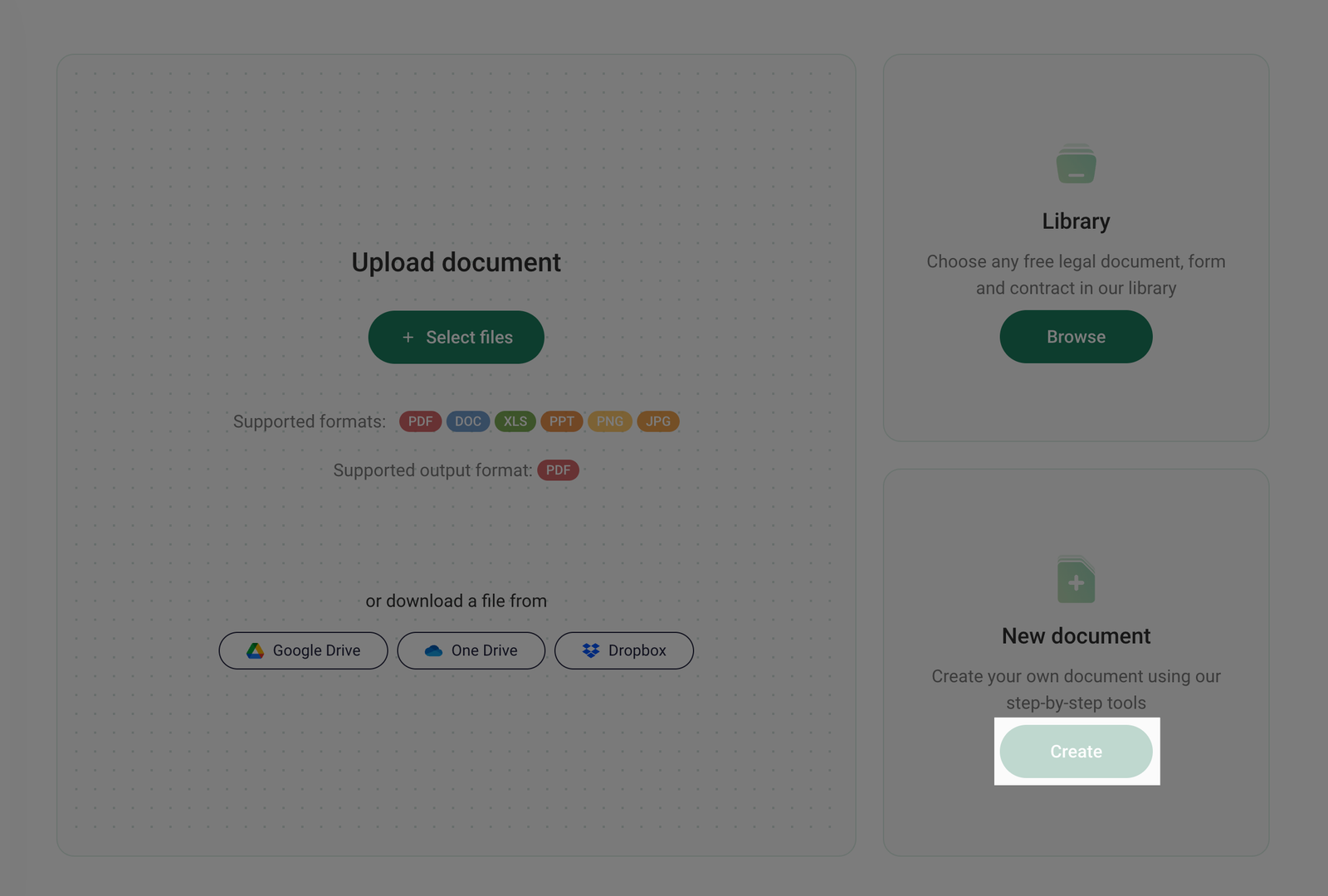
Files you upload must be up to 50 MB in PDF, DOC, XLS, PPT, PNG or JPG formats. Maximum 25 files per upload. Any non-PDF files will be automatically converted to PDF.
- Once the file is added, it will appear in My documents, where you can access and manage it.